
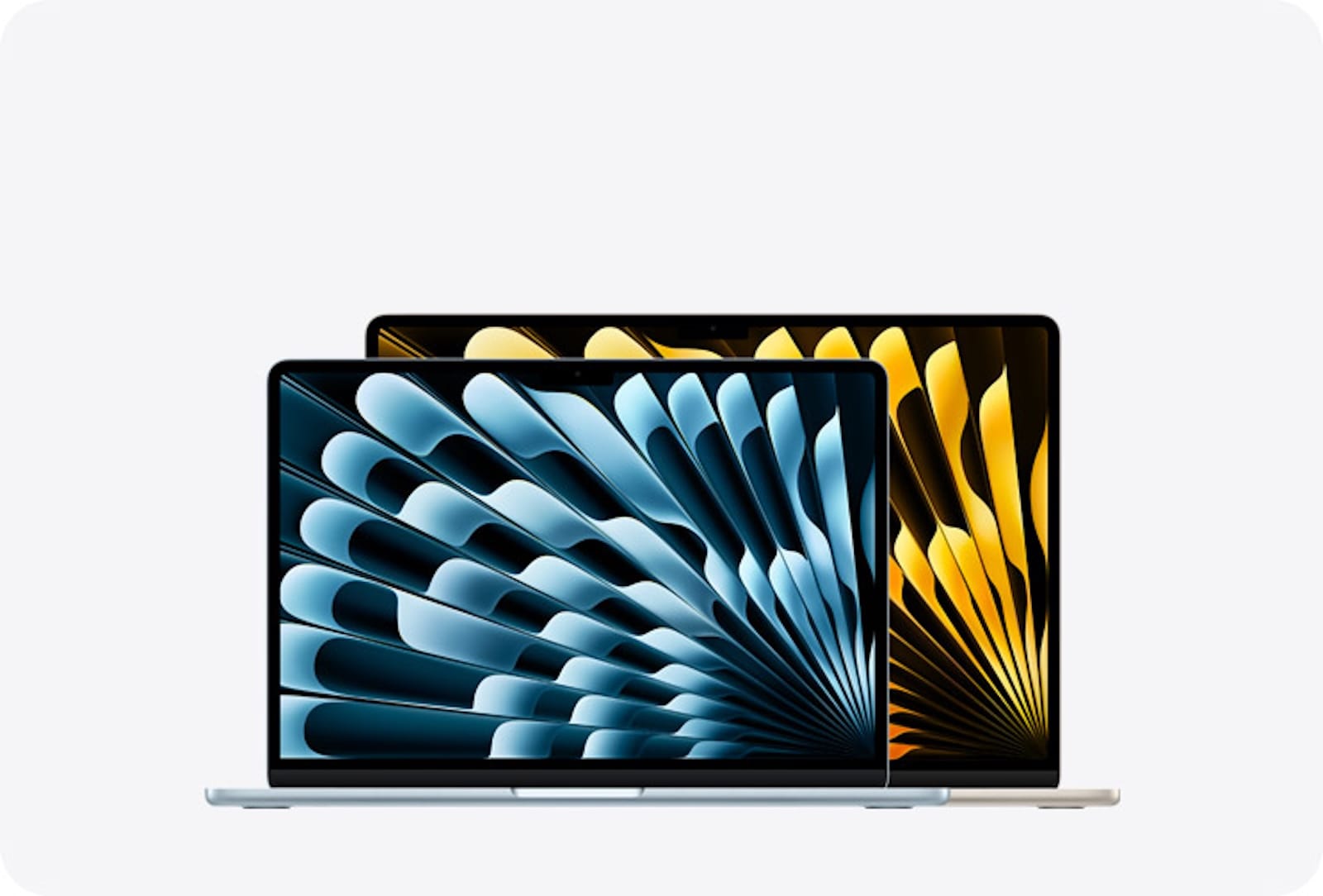
Your new Mac running macOS Tahoe looks stunning right out of the box, but the default settings miss some of the best features this operating system has to offer. I'm going to show you exactly which settings to adjust so your Mac works the way you want it to, not the way Apple thinks you should use it.
macOS Tahoe brings the Liquid Glass design, completely redesigned Spotlight, customizable Control Center, and dozens of other changes that transform how you interact with your Mac. Some of these settings make your Mac faster, some make it easier to see, and others unlock features you didn't know existed.
Adjust Liquid Glass Transparency
The new Liquid Glass design in macOS Tahoe makes everything translucent and reflective, which looks incredible in Apple's marketing photos but can make your screen harder to read in real-world conditions. Go to System Settings, then Accessibility, then Display, and toggle on Reduce Transparency. Your interface will still have some visual depth, but text and icons become much clearer against backgrounds. This setting also improves performance on older Macs since your system doesn't need to constantly render transparency effects.
Bring Back The Menu Bar Background
macOS Tahoe removes the visible menu bar at the top of your screen, leaving menu items floating against your desktop wallpaper. This creates a clean look but makes menu items harder to spot, especially with busy wallpapers. Open System Settings, go to Menu Bar, and enable Show Menu Bar Background. Your menu bar will look like it did in previous macOS versions, with a solid background that makes everything easier to read.
Disable Safari's Color-Matching Tab Bar
Safari in macOS Tahoe changes the color of its tab bar to match the website you're viewing. The tab bar turns blue when you're on Facebook, orange when you're on Reddit, and so on. This constant color shifting can be distracting when you work with multiple tabs. Open Safari, go to Settings, click on Tabs, and disable Show Color In Tab Bar. Your browser will maintain a consistent appearance that respects your chosen theme.
Turn Off iPhone Apps In Spotlight And Launchpad
If you use iPhone Mirroring, your iPhone apps automatically appear in Spotlight search results and the Apps interface on your Mac. Unless you regularly need to access iPhone apps through your Mac, this clutters your search results. Open the Apps interface using the dock icon or four-finger pinch gesture, click the three-dot menu, and disable Show iPhone Apps. Then go to System Settings, search for Spotlight, and uncheck iPhone Apps in the search results section.
Enable Spotlight Clipboard History
Spotlight in macOS Tahoe can track everything you copy and paste throughout the day. Press Command + Spacebar to open Spotlight, then press Command + 4 to switch to clipboard view. You can click any item to copy it again. This feature is disabled by default, so go to System Settings, find Spotlight, and enable Clipboard History. Your clipboard data clears every eight hours for privacy.
Customize Your Control Center Layout
Control Center in macOS Tahoe is fully customizable for the first time. You can rearrange widgets, resize them for better visibility, create multiple Control Center pages for different tasks, and add controls from third-party apps. Go to System Settings, then Menu Bar, then Menu Bar Controls. From here you can add, remove, and organize every toggle and widget. Pin your most-used controls to the menu bar for instant access without opening Control Center at all.


Affiliate disclosure: some links in this article are Amazon Associate links. If you buy through them, Next Level Mac may earn a small commission at no extra cost to you, and we only recommend products that genuinely bring value to your Mac setup.
Set Up Custom Folder Colors And Icons
macOS Tahoe lets you assign custom colors and icons to folders for easier identification. Right-click any folder, select Get Info, click the folder icon at the top of the info window, and choose from the available colors. You can also click the Emoji button to use any emoji as your folder icon instead of the standard folder shape. This makes frequently accessed folders stand out in Finder without needing third-party apps.
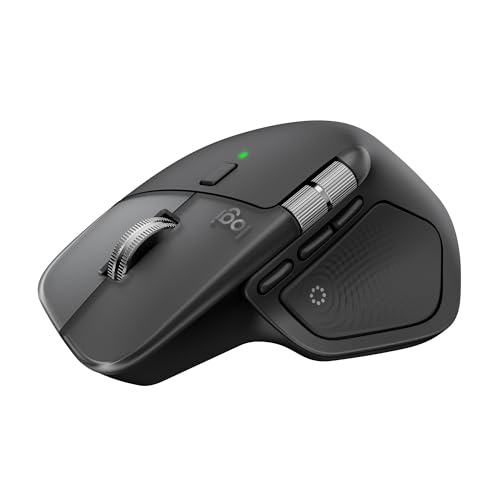
A precision mouse transforms how you interact with your newly customized Mac. The Logitech MX Master 4 for Mac features customizable haptic feedback that delivers subtle vibrations for scrolling, navigation, and selections. The Actions Ring overlay adapts to each app, placing your most-used tools and shortcuts directly at your cursor to save up to 33 percent of your time. The MagSpeed scroll wheel scrolls through 1,000 lines per second with pixel-perfect precision, and the 8K DPI sensor tracks on any surface including glass. With 2X stronger connectivity than previous models, ergonomic design that reduces hand stress, and up to 70 days of battery life, this mouse matches your Mac in both performance and aesthetics.
Here's where you can buy the Logitech MX Master 4 for Mac https://www.amazon.com/dp/B0FC5X4F8G?tag=nextlevelmac-20
Change Your Lock Screen Clock Style
You can now customize the lock screen clock font and weight just like on iPhone. Go to System Settings, select Wallpaper, and click Clock Appearance. Choose from different fonts and adjust the weight from light to bold. This customization appears on both your lock screen and screen saver, giving your Mac a more personalized look when it's locked.
Configure Spotlight Actions
Spotlight Actions let you perform tasks without opening apps. Press Command + Spacebar and type commands like "send text to," "set timer," or "create calendar event." You can assign quick access phrases to launch specific tasks instantly. Type "CH" to open ChatGPT, "EM" to compose an email, or any custom shortcut you create. Go to System Settings, find Spotlight, and explore the Actions section to see everything you can do directly from Spotlight.
Enable Vehicle Motion Cues
If you use your MacBook in cars, trains, or planes, Vehicle Motion Cues can reduce motion sickness. This feature shows moving dots on your screen that counteract the motion of the vehicle. The dots help your brain reconcile what your eyes see with what your body feels. Go to System Settings, then Accessibility, then Motion, and enable Show Vehicle Motion Cues. You can customize how the dots appear and when they activate.
Expanding your Mac's connectivity makes these settings even more useful. The Anker 547 USB-C Hub transforms your MacBook's two USB-C ports into seven ports without blocking the MagSafe charging port. You get a 4K@60Hz HDMI port for external displays, two USB-A ports for legacy devices, one USB-C data port, SD and microSD card readers, and a USB-C port that supports 100W passthrough charging and 40Gbps data transfer. The aluminum design matches your MacBook perfectly, and the compact size fits easily in any laptop bag.
The place to buy the Anker 547 USB-C Hub https://www.amazon.com/dp/B0BNZ5V1TF?tag=nextlevelmac-20
Set Up Automatic iPhone Hotspot Connection
macOS Tahoe can automatically connect to your iPhone's Personal Hotspot when no Wi-Fi network is available. Click the Wi-Fi button in the menu bar or Control Center, scroll to the bottom, and change Ask To Join Hotspots to Automatic. This works with Family Sharing too, so your Mac can connect to family members' hotspots automatically. You'll never manually enable hotspot sharing again.
Customize Game Overlay Settings
The new Game Overlay in macOS Tahoe appears when you press Command + Escape while playing games. From this overlay you can adjust brightness and volume, view achievements and leaderboards, connect with friends, and toggle Game Mode without exiting your game. Go to System Settings and search for Game Mode to configure when it activates automatically and which games should use it.
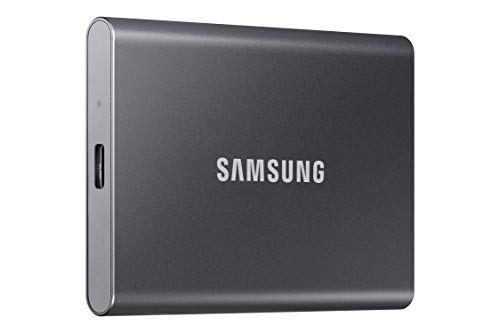
Fast external storage complements your optimized Mac setup. The Samsung T7 Portable SSD delivers read and write speeds up to 1,050MB/s through USB 3.2 Gen 2, making file transfers nearly 10 times faster than traditional external hard drives. The credit-card-sized aluminum body weighs only 58 grams and survives drops from up to six feet. It works with Mac, PC, Android devices, and gaming consoles without requiring separate power. The included USB-C to USB-C and USB-C to USB-A cables ensure compatibility with any device.
Where you can purchase the Samsung T7 Portable SSD https://www.amazon.com/dp/B0874XN4D8?tag=nextlevelmac-20
Configure Automation Shortcuts
macOS Tahoe brings iOS-style automation to Mac. Open the Shortcuts app, click Automation in the sidebar, and create automations that run based on time, system events, or triggers. Set up automations to organize downloads into folders when you save files, launch specific apps when you connect an external display, activate Do Not Disturb when certain apps open, or run scripts when your battery reaches a certain level. These automations run silently in the background and save countless clicks throughout your day.
macOS Tahoe gives you more control over your Mac than any previous version. These 10 settings unlock features that make your Mac faster, more personalized, and easier to use. Take 15 minutes to walk through these adjustments and your Mac will feel completely different.

Related Posts
Finder Quick Actions in macOS Tahoe Automate File Tasks Instantly
Jan 12, 2026
Finder Smart Folders in macOS Tahoe Create Automatic File Organization
Jan 11, 2026
Apple Calendar in macOS Tahoe: Workflow Tips That Save Hours
Jan 11, 2026