
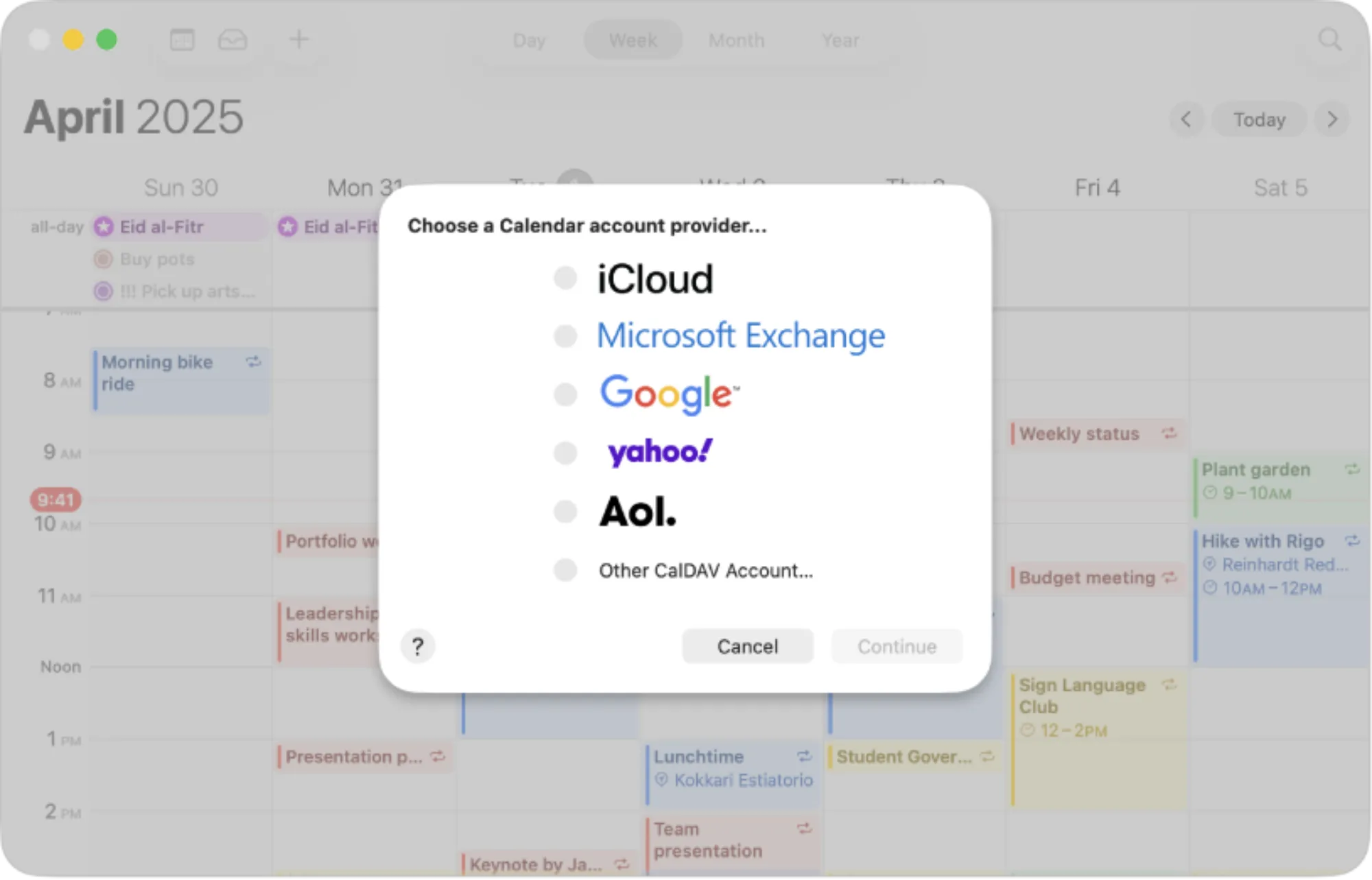
Apple Calendar on macOS Tahoe is a scheduling powerhouse hiding in plain sight. The app syncs across every Apple device, integrates with Mail and Reminders, and now includes refined notification controls that keep your day on track without constant interruptions. For Mac users who want to stop double-booking themselves and start owning their schedule, this guide walks through the essential workflows.
Key Takeaways
- Press Command-N to create a new event instantly from any Calendar view
- Use Command-T to jump to today from any date in the past or future
- Create multiple calendars with distinct colors to separate work, personal, and side projects
- Set travel time on events to receive departure alerts based on real-time traffic
- Use natural language input like "Lunch with Sarah Friday at noon" in the Quick Event field
- Subscribe to external calendars (sports, holidays, coworkers) via Settings to keep everything in one view
At-A-Glance: Calendar View Comparison
The following table summarizes the four primary views available in Apple Calendar and when each works best.
| View | Best For | Keyboard Shortcut |
|---|---|---|
| Day | Focused scheduling, detailed time blocks | Command-1 |
| Week | Planning across multiple days, spotting conflicts | Command-2 |
| Month | Big-picture overview, deadline tracking | Command-3 |
| Year | Long-term planning, pattern recognition | Command-4 |


Affiliate disclosure: some links in this article are Amazon Associate links. If you buy through them, Next Level Mac may earn a small commission at no extra cost to you, and we only recommend products that genuinely bring value to your Mac setup.
Creating Events the Fast Way
The Quick Event feature in Calendar accepts natural language, which eliminates the friction of clicking through date pickers. Click the plus button in the upper-left corner of the toolbar or press Command-N, then type something like "Team standup Monday 9am weekly." Calendar parses the text and fills in the date, time, and recurrence automatically. The feature understands relative dates too: "Tomorrow at 3pm" or "Next Thursday morning" both work.
For recurring events, add phrases like "every weekday," "monthly on the 15th," or "every other Tuesday." Calendar builds the repeat pattern without requiring a separate dialog. This is where keyboard efficiency matters, and a dedicated Mac keyboard with programmable keys makes the process even smoother. Where to buy the Logitech MX Keys S for Mac, with its Mac-specific layout and Smart Actions shortcuts that can automate multi-step workflows (Amazon Affiliate Link): https://www.amazon.com/dp/B0BXX499PC?tag=nextlevelmac-20
Building a Calendar Structure That Actually Works
Most Calendar users dump every event into a single calendar and wonder why their schedule feels chaotic. The fix is simple: create separate calendars for different life areas. Open Calendar, then choose File and New Calendar from the menu bar. Name each calendar something specific (Work Meetings, Personal, Health, Side Projects) and assign it a distinct color.
The payoff comes when you need to focus. Click the Calendars button in the toolbar to show the sidebar, then uncheck calendars you want to hide temporarily. Preparing for a work presentation? Hide Personal and Side Projects. Planning a weekend trip? Hide everything except Personal. The events still exist, but your view stays clean.
Shared calendars extend this structure to teams and families. Right-click any calendar in the sidebar and choose Share Calendar. Add participants by email, and they receive an invitation to subscribe. Changes sync in both directions, so everyone stays aligned without group texts asking "What time was that again?"
Travel Time and Location Intelligence
Events that require physical presence deserve travel time buffers. When creating or editing an event, click Add Location and enter an address. Calendar connects to Maps and estimates transit or driving time. Enable the Travel Time toggle, and you receive a departure notification instead of just an arrival notification. If traffic conditions change, the alert adjusts.
This feature saves more than time. It saves the mental load of calculating when to leave. For appointments across town, the difference between "arrive stressed" and "arrive composed" often comes down to that automatic travel buffer.
Notification Settings That Respect Your Attention
macOS Tahoe refined Calendar notifications with more granular controls. Open Calendar, then go to Settings (Command-Comma) and click the Alerts tab. Here you configure default alert timing for each calendar type: Events, All-Day Events, and Birthdays. Setting a 30-minute default alert for regular events and a 9am alert for all-day events means you stop missing deadlines without drowning in pings.
Individual events can override these defaults. Double-click any event, click the alert field, and add a custom alert time or even a second alert. For important meetings, setting both a one-hour and a 15-minute alert creates a two-stage reminder system.
Integrating Calendar with Mail and Reminders
Calendar sits at the center of Apple's productivity ecosystem. When Mail detects a flight confirmation, restaurant reservation, or event invitation, it surfaces a calendar suggestion at the top of the message. Click Add to Calendar, and the event populates with all the details extracted from the email.
The Reminders integration runs the opposite direction. Time-sensitive reminders with due dates appear alongside calendar events when you enable "Show Reminders in Calendar" in Settings. This merged view shows both appointments and tasks in one timeline, which eliminates the context-switching between two apps.
For users who want even deeper integration, check out the Shortcuts app. A single automation can create a calendar event, add a related reminder, and draft a follow-up email. The workflow starts with Calendar as the scheduling hub and branches outward.
If you need more context on automation for your Mac, see the guide on mastering Mac Shortcuts for automated daily workflows at https://www.nextlevelmac.net/master-mac-shortcuts-for-automated-daily-workflows/ for ideas on chaining these tools together.
Subscribing to External Calendars
Apple Calendar supports the iCalendar (.ics) standard, which means you can subscribe to calendars published by sports leagues, universities, coworkers using Google Calendar, and public event organizers. Choose File, then New Calendar Subscription from the menu bar, and paste the subscription URL. Calendar fetches updates automatically at the interval you specify (every hour, every day, or every week).
Subscribed calendars are read-only, so you cannot edit them directly. But they appear alongside your editable calendars, giving you a unified view. Sports fans subscribe to their team's schedule. Parents subscribe to their kids' school calendar. Remote workers subscribe to their team's shared calendar. The pattern is the same: bring external schedules into one app.
Accessibility and Clarity
Apple Calendar includes several features that improve usability for people with visual or motor limitations. VoiceOver reads event details aloud and navigates between days using standard keyboard commands. The Week and Month views support Reduce Motion settings, minimizing animations that can cause discomfort. High-contrast mode in System Settings improves the visibility of calendar colors, though users with color vision differences may want to use patterns or calendar names rather than relying on color alone.
For users who prefer keyboard navigation, nearly every Calendar action has a shortcut. Command-Left Arrow and Command-Right Arrow move between time periods. Command-E edits the selected event. Command-Delete removes it. These shortcuts reduce reliance on precise mouse movements, which benefits users with motor impairments and power users alike.
Focus modes on Mac, covered in the guide on mastering Mac Focus Modes for distraction-free work at https://www.nextlevelmac.net/master-mac-focus-modes-for-distraction-free-work/, can silence Calendar notifications during deep work while still letting urgent alerts break through.
One Friction Point Worth Noting
Calendar's natural language parsing occasionally misinterprets ambiguous input. Typing "Meeting with client next Wednesday 2" might create an event on the wrong Wednesday or at 2am instead of 2pm. The solution is to be slightly more explicit: "Meeting with client Wednesday January 15 2pm" removes ambiguity. It takes an extra second to type, but prevents the five minutes spent fixing a misparsed event.

Related Posts
Finder Quick Actions in macOS Tahoe Automate File Tasks Instantly
Jan 12, 2026
Finder Smart Folders in macOS Tahoe Create Automatic File Organization
Jan 11, 2026
Pro Guide to Apple Reminders on Mac in macOS Tahoe
Jan 11, 2026