
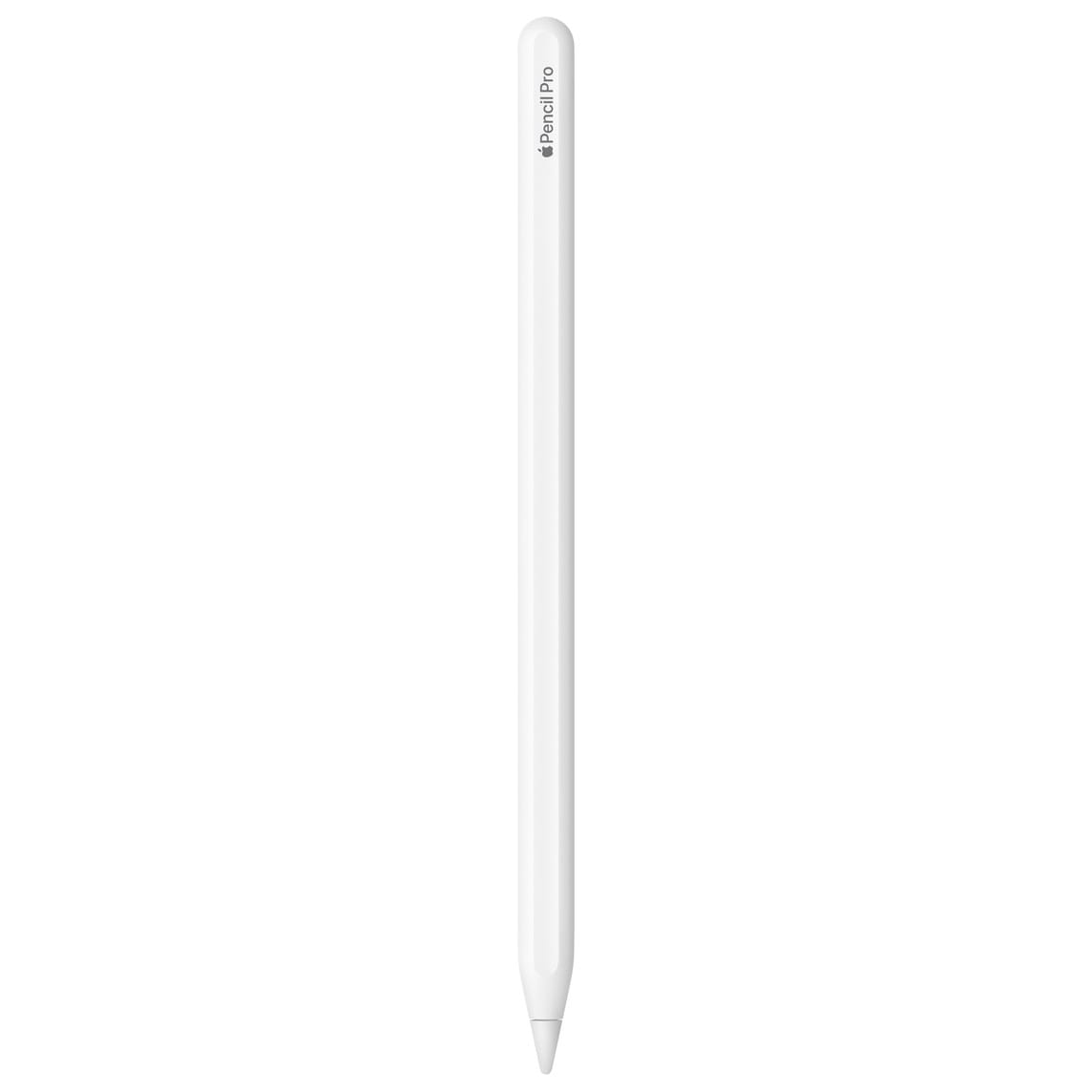

The Apple Pencil Pro looks nearly identical to its predecessor, but Apple packed entirely new capabilities inside that most owners never fully explore. Beyond the familiar pressure sensitivity and low latency, the Pro introduces squeeze gestures, barrel roll rotation, haptic feedback, and Find My integration. Each feature changes how you interact with your iPad in ways that feel genuinely new once you learn to use them.
Understanding what makes the Apple Pencil Pro different starts with recognizing that Apple redesigned the internal components from scratch. A new gyroscope enables rotation detection. A haptic engine provides tactile confirmation. Sensors detect when you squeeze the barrel. These additions transform the Pencil from a passive stylus into an active input device that responds to how you hold and manipulate it.
The squeeze gesture is the most immediately useful new feature. When you squeeze the flat sides of the Pencil Pro, a palette appears showing your current tools, colors, and line weights. This eliminates the need to tap the screen or navigate menus when you want to switch from a pen to a highlighter or change colors mid-stroke.
Affiliate disclosure: some links in this article are Amazon Associate links. If you buy through them, Next Level Mac may earn a small commission at no extra cost to you, and we only recommend products that genuinely bring value to your Apple setup.
You can customize what squeeze does in Settings under Apple Pencil. Options include showing a tool palette, switching between your current tool and eraser, switching between your current and last-used tool, showing a color palette, or showing ink attributes. Each app that supports Apple Pencil Pro can also define its own squeeze behavior. Procreate uses squeeze to invoke its QuickMenu. Goodnotes brings up a floating toolbar. Notes shows the standard tool picker.
Sensitivity matters with squeeze. Some people accidentally trigger it while drawing, while others find the default requires too much pressure. The Settings app includes a sensitivity slider that lets you tune exactly how hard you need to squeeze before the gesture registers. Start with the default and adjust based on your experience. If you keep accidentally triggering palettes, increase the sensitivity so it requires more deliberate pressure.
Here's where to get the Apple Pencil Pro (Amazon Affiliate Link): https://www.amazon.com/dp/B0D3J71RM7?tag=nextlevelmac-20&gbOpenExternal=1
Barrel roll is the feature that takes the longest to appreciate but ultimately changes how artists work. A gyroscope inside the Pencil Pro tracks rotation around its long axis. When you rotate the Pencil in your hand, apps that support barrel roll can change the orientation of brush strokes accordingly.
Think about holding a physical calligraphy pen. The angle of the nib against paper determines the character of each stroke. Tilting a flat brush creates different marks than holding it perpendicular. Barrel roll brings this natural interaction to digital drawing. In Procreate, you can configure brushes to respond to rotation in multiple ways: changing shape orientation, adjusting color dynamics, or modifying size based on how you roll the barrel.
The practical impact becomes clear with shaped brushes. A chisel-tip marker in real life produces thin strokes when you hold it one way and thick strokes when you rotate it. With barrel roll enabled, the same brush on iPad behaves identically. You develop muscle memory for rotating the Pencil to achieve specific effects, just as you would with physical tools.
Not every brush benefits from barrel roll. Round brushes produce identical strokes regardless of rotation, so there is no reason to enable the feature for them. The setting exists per-brush in apps like Procreate, letting you enable rotation sensitivity only where it makes sense. This granular control prevents unwanted variation in brushes that should remain consistent.
Haptic feedback adds a subtle physical dimension to interactions that were previously silent and invisible. When you squeeze the Pencil Pro, you feel a small pulse confirming the gesture registered. When shapes snap to alignment guides in apps that support it, you feel a tiny tap. When you double-tap to switch tools, the confirmation is tactile rather than just visual.
These haptic responses sound minor in description but matter in practice. They let you keep your eyes on your work instead of glancing at the screen to confirm an action completed. The feedback loop between intention and confirmation tightens. Over time, interactions feel more confident because your hand knows the gesture succeeded before your eyes verify it.
Apple Pencil hover predates the Pro model, but it works beautifully in combination with the new features. When you hold the Pencil above the screen without touching, the iPad detects its position and displays a preview of where your mark will land. The preview includes a shadow of whatever tool you have selected, showing exactly how the brush shape will appear at that angle and rotation.
Hover combined with barrel roll means you can see how rotating the Pencil will change your stroke before you commit to it. Position the brush above the canvas, rotate until the preview shows the shape you want, then touch down to draw. This preview-then-commit workflow reduces mistakes and encourages experimentation with unfamiliar brushes.
Find My integration solves a genuine problem for Pencil owners. The slim design that makes Apple Pencil comfortable to hold also makes it easy to misplace. Apple Pencil Pro includes the hardware necessary to appear in the Find My app, similar to how AirPods and AirTags work.
The implementation has practical limits. Apple Pencil Pro uses Bluetooth for location, not Ultra Wideband, so precision finding is less accurate than with an AirTag. The iPad must be nearby to detect the Pencil, which means Find My shows the last known location where your iPad connected to the Pencil rather than continuously tracking its position. Still, knowing approximately where you left your Pencil is far better than having no idea at all.
To locate a missing Pencil Pro, open the Find My app on your iPhone and look for the Pencil in your devices list. The app shows its last connected location on a map. When you get close, your iPad can help narrow the search using its Bluetooth connection. Hold your iPad in portrait orientation and move around the area. The signal strength indicator guides you toward the Pencil.
Adding a paper-feel screen protector transforms the writing experience with Apple Pencil Pro. The glass surface of iPad displays is slick, which some people find unnatural for drawing and writing. A textured screen protector adds friction that makes the Pencil tip grip the surface more like a pen on paper.
The place to get the Paperlike 3 Screen Protector for iPad Pro 11-inch (Amazon Affiliate Link): https://www.amazon.com/dp/B0FN8X4VMX?tag=nextlevelmac-20&gbOpenExternal=1
The tradeoff with paper-feel protectors involves display clarity. The textured surface that creates friction also diffuses light slightly, reducing the crispness of the underlying display. For artists and note-takers who prioritize the feel of drawing, this tradeoff is worthwhile. For people who primarily watch video or view photos on their iPad, the reduced clarity might not be acceptable.
Premium screen protectors like Paperlike have refined their texture over multiple generations to balance friction with clarity. The latest version uses what the company calls Nanodots technology, tiny microbeads that create resistance without completely obscuring the display. The result is noticeably better than cheap matte protectors while still providing genuine tactile feedback when writing.
Grip accessories address another practical concern with Apple Pencil. The smooth exterior looks beautiful but can feel slippery during long drawing sessions, especially if your hands perspire. A silicone grip sleeve adds traction without significantly changing the Pencil's diameter or interfering with its magnetic attachment for charging.
Where you can get the Fintie Silicone Grip Holders 2-Pack (Amazon Affiliate Link): https://www.amazon.com/dp/B07CMZYMGQ?tag=nextlevelmac-20&gbOpenExternal=1
The best grip accessories are thin enough that the Pencil still attaches magnetically to your iPad for charging and pairing. Thicker grips might provide more cushioning but can block the magnetic connection, forcing you to remove the grip every time you need to charge. Look for grips specifically designed for Apple Pencil Pro that mention compatibility with magnetic charging.
Configuring Apple Pencil Pro happens in two places. System-wide settings live in Settings under Apple Pencil. App-specific settings exist within each app that supports the Pro features. Procreate has extensive Pencil configuration in its gesture controls. Goodnotes offers settings within its toolbar customization. Notes relies primarily on system settings but adds its own tool palette behavior.
The double-tap gesture from Apple Pencil 2nd generation remains available on the Pro. You can configure it to switch between current tool and eraser, switch between current and last-used tool, show the color palette, show ink attributes, or do nothing. Double-tap and squeeze can coexist with different functions assigned to each, giving you two distinct shortcut gestures.
Battery life with Apple Pencil Pro matches the previous generation despite the additional sensors and haptic engine. You can expect around 12 hours of active use on a full charge. The Pencil charges magnetically when attached to the side of a compatible iPad, reaching full charge in about 15 to 30 minutes. A quick 15-second charge provides enough power for about 30 minutes of use, which helps when you discover the Pencil is dead right before a meeting.
Compatibility limits which iPads work with Apple Pencil Pro. The 2024 and 2025 iPad Pro models with M4 and M5 chips support it, as do the iPad Air models with M2 and M3 chips and the iPad mini with A17 Pro. Older iPads, even recent ones like the 2022 iPad Pro with M2, cannot pair with Apple Pencil Pro due to different magnetic arrangements and pairing protocols.
For owners upgrading from an older iPad to one compatible with Apple Pencil Pro, the required Pencil purchase stings. Your previous Apple Pencil will not work with the new iPad. The consolation is that the Pro genuinely improves on its predecessors rather than just shuffling ports and magnets. The new features justify the existence of a new product rather than feeling like artificial incompatibility.
Getting the most from Apple Pencil Pro requires experimenting with its features in apps you actually use. Open Procreate and try configuring a flat brush to respond to barrel roll. Set up squeeze to invoke your most-used tool palette. Enable haptic feedback and notice how the subtle pulses change your awareness of what the Pencil is doing. Each feature becomes more valuable as it integrates into your creative workflow.

Related Posts
Secure Your Apple Life: The Ultimate iCloud Security Audit (2026)
Dec 04, 2025
Apple's Google Gemini Deal: What It Means For Siri In 2026"
Nov 28, 2025
Turn Your iPad Into a Second Screen for Your Mac (Without Losing Your Mind)
Nov 25, 2025