
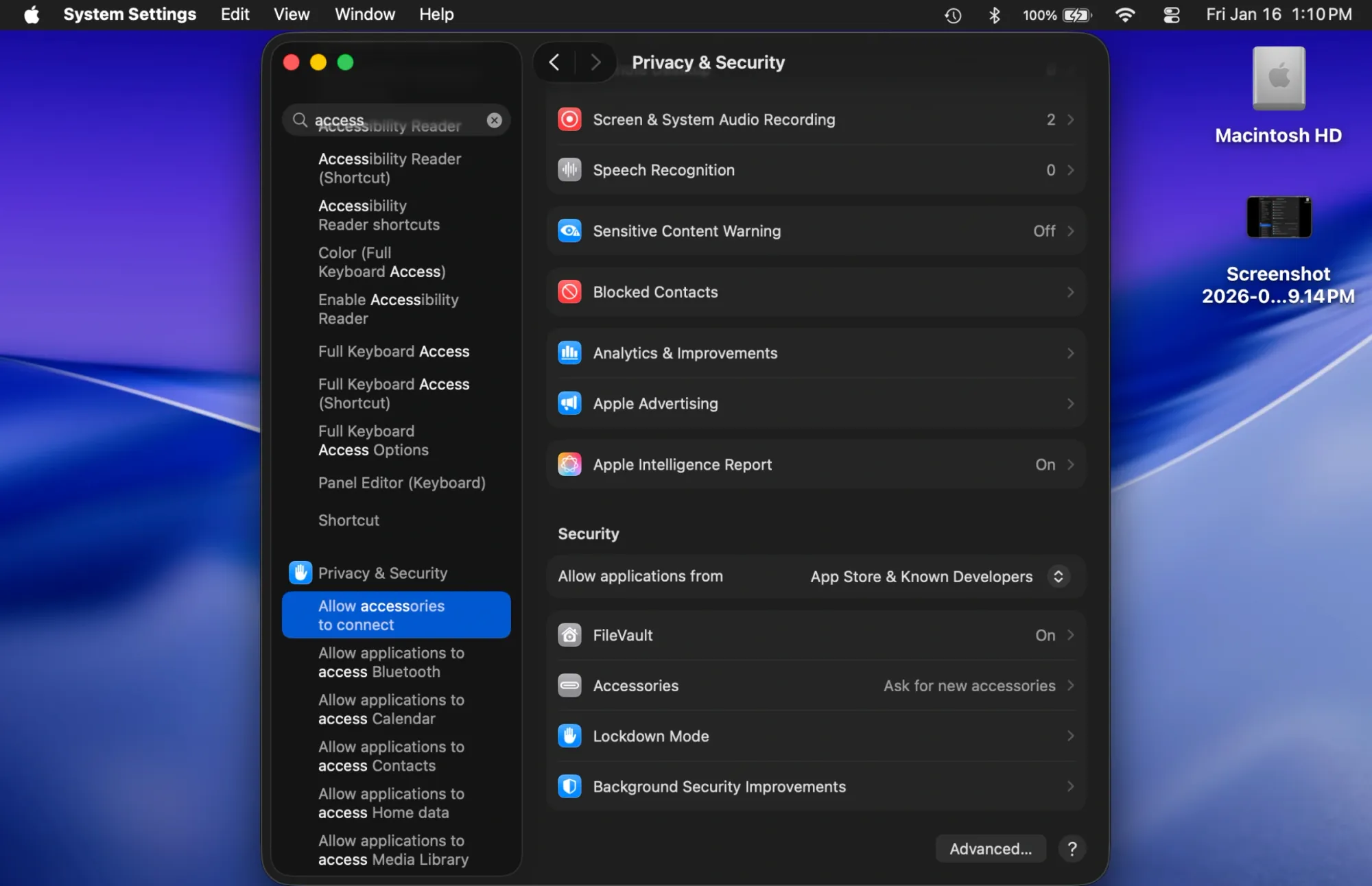
macOS Tahoe's privacy framework decides which apps can read your files, watch through your camera, or track your location. The system handles this through Transparency, Consent, and Control—a framework that runs silently in the background of every Mac. When an app requests access to protected data, macOS evaluates the request through TCC and either grants or denies permission based on your previous choices and system policies.
Key Takeaways
- Open System Settings > Privacy & Security to view all app permissions across categories like Camera, Microphone, and Full Disk Access
- Click the info button next to any app to see exactly when it last requested access and what data it touched
- Remove apps from Full Disk Access that don't need system-wide file reading
- Use Terminal command
tccutil reset Allto reset all privacy permissions at once (requires restart) - Add a hardware security key like YubiKey to prevent unauthorized permission changes even if someone has your password
- Review Location Services monthly—background location tracking drains battery and creates a detailed movement log
At-A-Glance: Privacy Permission Categories
| Permission Type | Risk Level | Common Users | Review Frequency |
|---|---|---|---|
| Camera | High | Video calls, scanning apps | Every 3 months |
| Microphone | High | Audio recording, dictation | Every 3 months |
| Full Disk Access | Critical | Backup software, cloud sync | Monthly |
| Location Services | Medium | Maps, weather, photos | Monthly |
Affiliate disclosure: some links in this article are Amazon Associate links. If you buy through them, Next Level Mac may earn a small commission at no extra cost to you, and we only recommend products that genuinely bring value to your Mac setup.
What TCC Actually Controls
The Transparency, Consent, and Control framework manages fourteen distinct permission categories. Camera and Microphone permissions sit at the top because they allow apps to record what you see and say. Location Services tracks where you physically move your Mac or what Wi-Fi networks you connect to. Full Disk Access grants apps permission to read any file on your Mac, including documents in other apps' containers.
Accessibility permissions let apps control your Mac through automated clicks and keystrokes. Screen Recording permission allows apps to capture everything displayed on your screen. Contacts, Calendars, Photos, and Reminders each protect specific data types. Developer Tools permissions control which apps can attach debuggers to running processes. Input Monitoring sees every keystroke you type.
The system stores these permission decisions in a protected database at /Library/Application Support/com.apple.TCC/TCC.db. Apps cannot modify this database directly—only the operating system and authenticated users can change permissions. Each entry timestamps when you granted access and logs every time an app uses a permission.
How to Audit Your Current Permissions
Open System Settings and click Privacy & Security in the left sidebar. You'll see fifteen categories listed in alphabetical order. Click Camera to see every app that has either requested or currently holds camera access. Green toggles mean the app has permission. Gray toggles mean you denied the request or the app hasn't asked yet.
The info button (i) next to each app shows its last access time. Click it to see when the app last used your camera. If an app you rarely open accessed your camera yesterday, that's worth investigating. Click the minus (-) button to immediately revoke permission. The app will need to request access again next time it needs the camera.
Microphone permissions work identically. Full Disk Access requires more careful review because these apps can read everything—your browser history, password files, email archives, financial documents. Backup software like Time Machine needs Full Disk Access. Cloud sync services like Dropbox need it. But that screen recording app from 2023 probably doesn't need system-wide file access anymore.
Location Services shows both apps and system services. Weather and Maps obviously need your location. Safari uses location for website features. But do you really want every app you've ever opened to know where your Mac connects to Wi-Fi?
TCC Bypass Vulnerabilities
Security researchers discovered CVE-2025-43530 in late December 2025, demonstrating how attackers could bypass TCC protections entirely. The vulnerability combined a logic flaw in how macOS validates AppleScript execution with a timing gap in the security validation process. By exploiting this, malicious code could execute arbitrary AppleScript commands and send AppleEvents to any application—including Finder—without triggering permission prompts.
Apple patched this vulnerability in macOS Tahoe 26.2, released January 2026. The fix strengthens validation checks for system services that previously held implicit trust. But the vulnerability highlights why regular permission audits matter—TCC protects your data only when the framework itself remains uncompromised.
Check your macOS version by clicking the Apple menu > About This Mac. If you're running anything earlier than macOS Tahoe 26.2, update immediately through System Settings > General > Software Update.
Removing Unnecessary Permissions
Start with Full Disk Access because these apps hold the most power. Open System Settings > Privacy & Security > Full Disk Access. Every app with a green toggle can read your entire file system. Ask yourself: does this app still serve a purpose? When did I last open it? Could it accomplish its task with more limited permissions?
Remove any app you don't recognize. If you're unsure what an app does, search its name in Spotlight—if macOS can't find it, the app was probably uninstalled but left behind permission entries. Delete those immediately.
Creative apps often request Accessibility permissions to add custom keyboard shortcuts or automate workflows. If you stopped using the app months ago, revoke its Accessibility access. Screen Recording permissions let apps capture your display—video recording tools need this, but old utilities you tested once don't.
Location Services needs regular pruning. Apps you opened once at a conference two years ago don't need to track where your Mac connects to networks now. Uncheck everything except Maps, Weather, and Find My.
Terminal Commands for Advanced Control
Terminal provides commands for managing TCC beyond what System Settings exposes. Open Terminal from Applications > Utilities. Type tccutil reset All and press Return to reset every privacy permission on your Mac. This nuclear option removes all permission decisions—every app will need to request access again. macOS requires a restart after this command.
Reset specific categories with tccutil reset Camera or tccutil reset Microphone. This selective approach lets you clear permissions for one category without affecting others. The command takes effect immediately without requiring a restart.
List all apps with camera access by running sudo sqlite3 ~/Library/Application\ Support/com.apple.TCC/TCC.db "SELECT client FROM access WHERE service='kTCCServiceCamera'". This query reads the TCC database directly and prints every app name that holds camera permission. Replace kTCCServiceCamera with kTCCServiceMicrophone, kTCCServiceLocation, or other service identifiers to check different categories.
These commands require administrator access. macOS will prompt for your password before executing.
Hardware Security Keys for Permission Protection
Software permissions can be changed by anyone with your Mac password. Hardware security keys add a physical requirement that makes unauthorized changes nearly impossible—even if someone knows your password, they can't modify permission settings without physically possessing your security key.
The YubiKey 5C NFC connects via USB-C and works with macOS Tahoe's native security framework. After initial setup, macOS requires you to insert and touch your YubiKey whenever someone attempts to add apps to Full Disk Access, change Accessibility settings, or modify other sensitive permissions. This stops attackers who compromise your password but don't have physical access to your workspace.
Setup takes about ten minutes. Open System Settings > Privacy & Security > Advanced and enable "Require touch for sensitive permission changes." Connect your YubiKey when prompted, then press the metal contact on top. macOS registers the key and associates it with your user account. Buy two YubiKeys—keep one on your keychain for daily use and store the second in a secure location as a backup.


The YubiKey protects against both remote attacks and malicious apps. If malware tries to add itself to Full Disk Access, macOS blocks the change until you physically touch your YubiKey. This converts what would be an automated, invisible attack into an obvious physical alert that something suspicious is happening.
Here's where to get the YubiKey 5C NFC https://www.amazon.com/dp/B08DHL1YDL?tag=nextlevelmac-20
Monthly Permission Review Workflow
Set a calendar reminder for the first Monday of each month. When it triggers, open System Settings > Privacy & Security and work through each category systematically. Start with Full Disk Access, then Accessibility, then Camera and Microphone. Check Location Services last because it typically holds the most entries.
For each category, ask three questions about every listed app. First: do I still use this app? If no, remove it. Second: does this app's core function require this permission? If a text editor needs Full Disk Access, that makes sense. If a calculator app wants your location, that doesn't. Third: when did this app last use this permission? Click the info button to check timestamps. Apps that requested access six months ago but haven't touched that permission since probably don't need it anymore.
Document your decisions in Notes or a spreadsheet. Write down which apps you removed and why. This creates a reference for next month's review—if an app reappears or you can't remember why you removed something, your notes will explain the context.
Review system services in Location Services separately. These entries appear below your apps and include things like "Significant Locations" and "System Customization." Disable anything you don't recognize. Significant Locations creates a detailed map of everywhere you've taken your Mac—useful for Find My but also a complete movement history. Turn it off if you don't need location-based suggestions.
Accessibility & Clarity
macOS Tahoe's permission dialogs use clear, high-contrast interfaces that work well with VoiceOver. When an app requests permission, macOS displays a modal dialog with two large buttons—"Don't Allow" on the left and "OK" on the right. VoiceOver announces the app name, the permission being requested, and a brief explanation of what that permission allows.
The System Settings privacy panels follow a consistent layout. Category names appear in the left sidebar, and apps appear in the main content area as a list. Each app entry includes the app name, icon, and a toggle switch. VoiceOver announces all elements in sequence. Keyboard navigation works through standard Tab and Return keys—no mouse required.
Hardware security keys like YubiKey require precise motor control to press the small metal contact. Users with limited dexterity may find this challenging. The touch target measures approximately 12mm square. Consider alternative authentication methods if physical key presses present difficulty—macOS supports Touch ID and Apple Watch unlock as alternatives that don't require as much precision.
Permission audit workflows require checking multiple screens and making rapid decisions about app trustworthiness. Users with cognitive processing differences may benefit from breaking the audit into smaller sessions—review two or three categories per sitting instead of all fifteen at once. The permission
settings persist between sessions, so partial progress doesn't get lost.
Quick-Action Checklist
Monthly Permission Audit
- Open System Settings > Privacy & Security
- Check Full Disk Access—remove unused apps
- Review Accessibility permissions—revoke old automation tools
- Verify Camera and Microphone—confirm only active apps have access
- Prune Location Services—disable apps you haven't opened in 90 days
- Check Screen Recording—remove apps that no longer need capture access
After Installing New Apps
- Note what permissions the app requests during setup
- Verify the request makes sense for the app's function
- Check if the app can work with more limited permissions first
- Document the app name and granted permissions in Notes
Emergency Permission Reset
- Open Terminal from Applications > Utilities
- Type
tccutil reset Alland press Return - Enter your password when prompted
- Restart your Mac
- Reconfigure critical apps like cloud backup before using your Mac for sensitive work

Related Posts
Lock Down Mac Privacy After CVE-2025-43530 TCC Bypass
Jan 16, 2026
Harden Your Mac Privacy in 2026: Advanced Data Protection & Security Settings
Jan 16, 2026
Privacy Screen Filters for MacBook: Protect Your Data
Oct 20, 2025