
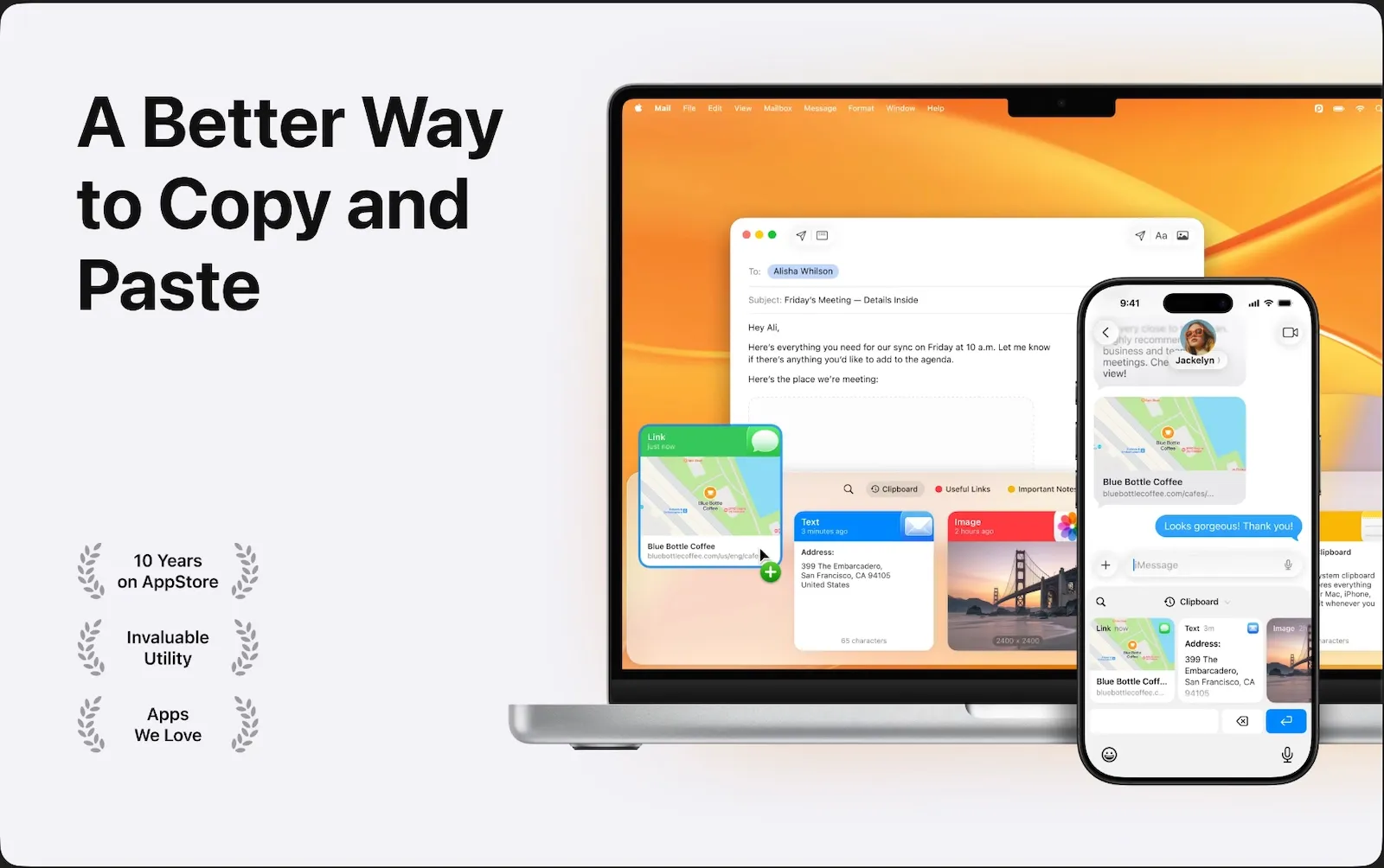

You copy a useful snippet, then copy something else, and the first one vanishes forever. That's the frustrating reality of Mac's native clipboard. It only holds one item at a time.
Clipboard managers solve this problem by storing every item you copy. You gain unlimited history, powerful search, and instant access to frequently used text. The productivity boost is immediate.
I've tested the top clipboard management tools for Mac and paired them with hardware that makes accessing your clipboard history even faster. These recommendations will transform how you work on your Mac.
Why Clipboard Managers Matter for Mac Users
The Mac clipboard works fine for basic copy-paste tasks. But if you write code, handle customer support, manage content, or work with repetitive text, the single-item limitation becomes a bottleneck.
Professional clipboard managers add features that native macOS can't match. Unlimited history means you never lose something you copied hours ago. Search filters let you find that email address or code snippet instantly. Smart organization groups similar items automatically.
Some clipboard managers sync across your Macs and iOS devices through iCloud. Copy on your MacBook Pro, paste on your iMac. The flexibility changes daily workflows.
Affiliate disclosure: some links in this article are Amazon Associate links. If you buy through them, Next Level Mac may earn a small commission at no extra cost to you, and we only recommend products that genuinely bring value to your Mac setup.
The Best Clipboard Manager Apps for macOS Tahoe
Several excellent clipboard managers work on macOS Tahoe. Here are the standout options.
Paste
Paste combines clean design with powerful features. The app stores unlimited clipboard history and makes everything searchable. Pin frequently used snippets to the top for instant access.
The iCloud sync works seamlessly across Macs and iOS devices. Paste excludes passwords and sensitive data automatically, addressing privacy concerns without manual configuration.
Smart lists organize your clipboard items by type: links, colors, files, and text all separate automatically. The Quick Look preview shows full content before pasting.
Maccy
Maccy takes a lightweight approach. The menubar app stays out of your way until you need it. Press Command+Shift+C to see your history in a simple list.
Unlike feature-heavy alternatives, Maccy focuses on speed. The app launches instantly and searching through thousands of items feels immediate. Keyboard shortcuts handle everything without touching your mouse.
Maccy ignores apps like password managers and excludes copied files by default. The clipboard history persists between restarts, so nothing disappears when you reboot your Mac.
CopyClip 2
CopyClip 2 offers essential clipboard management without subscriptions. The one-time purchase includes unlimited history storage and basic organization features.
The menubar interface displays recent clips with previews. Search works across all stored items, and favorites stay accessible regardless of how much you copy.
CopyClip 2 handles text, images, and files. Drag items directly from the history window into other apps. The compact design keeps system resource usage minimal.
Keyboard That Enhances Clipboard Workflows
Programmable keyboards take clipboard management further. Dedicated keys can trigger your clipboard manager or paste specific snippets instantly.
The Logitech MX Keys S for Mac delivers a true Mac layout with Smart Actions that automate repetitive clipboard tasks. The spherically-dished keys provide tactile feedback for confident typing, while backlight illumination adapts to room lighting automatically.
Logi Options+ software lets you program any key to open your clipboard manager. Create custom shortcuts that paste frequently used text with a single keystroke. Multi-device pairing means you can switch between three Macs seamlessly.
The USB-C charging provides up to 10 days of battery life on a full charge. The low-profile design maintains an optimal wrist angle during extended work sessions.
Here's where to get the Logitech MX Keys S for Mac https://www.amazon.com/dp/B0BXX499PC?tag=nextlevelmac-20
Add Programmable Buttons for Instant Clipboard Access
The Elgato Stream Deck Mini puts six customizable LCD keys on your desk. Each key displays custom icons and triggers actions when pressed.
Configure one key to open your clipboard manager. Another key can paste your email signature. A third might insert your mailing address. The visual feedback shows exactly what each button does.
Stream Deck software integrates with macOS shortcuts and third-party clipboard managers. Create folders of buttons to expand beyond the six physical keys. Pages of clipboard snippets become accessible with a single press.
The compact form factor fits beside your keyboard without consuming valuable desk space. Stream Deck Mini connects via USB and works immediately without batteries or charging.
This is where you can buy the Elgato Stream Deck Mini https://www.amazon.com/dp/B07DYRS1WH?tag=nextlevelmac-20
Mouse with Gesture Support for Clipboard History
A programmable mouse complements keyboard shortcuts by offering alternative clipboard access methods. The Logitech MX Master 3S for Mac provides multiple buttons and gestures you can customize for clipboard functions.
The gesture button on the thumb rest can trigger your clipboard manager with a quick press. Forward and back buttons paste frequently used snippets. App-specific button configurations adjust automatically when you switch programs.
MagSpeed scrolling lets you browse through clipboard history rapidly. The electromagnetic scroll wheel shifts between precise clicks and free-spinning mode with a toggle button press.
The 8K DPI sensor tracks accurately on any surface, including glass. Quiet clicks reduce noise by 90 percent compared to previous models. The ergonomic shape supports natural hand positioning during all-day use.
Where you can get the Logitech MX Master 3S for Mac https://www.amazon.com/dp/B09HMV6K1W?tag=nextlevelmac-20
Setting Up Your Clipboard Manager
Installation takes minutes. Download your chosen clipboard manager from the Mac App Store or the developer's website. Launch the app and grant clipboard access permissions in System Settings.
Configure keyboard shortcuts that feel natural. Most users set Command+Shift+V as the main clipboard history trigger, since Command+V pastes normally. Customize the shortcut to match your preferences.
Review privacy settings carefully. Enable password exclusion to prevent storing sensitive login credentials. Exclude specific apps that handle private information. Set automatic cleanup to remove old items after 30 days or keep everything permanently.
Test the sync feature if you use multiple devices. Copy something on your Mac and verify it appears on your iPhone or iPad within seconds. iCloud sync typically works instantly over Wi-Fi.
Maximizing Productivity with Clipboard Shortcuts
Create a library of frequently used text snippets. Email signatures, addresses, phone numbers, and common responses all deserve dedicated shortcuts. Type a few characters and let your clipboard manager expand them to full text.
Organize snippets into categories. Keep client communications separate from code snippets. Group related items together for faster access.
Use search aggressively. Instead of scrolling through clipboard history, type a few characters to filter results. Most clipboard managers support fuzzy search that finds items even with slight spelling variations.
Pin critical items to prevent them from getting buried. Pinned snippets stay at the top of your clipboard history regardless of how many new items you copy.
Clipboard Managers and Security
Clipboard managers handle sensitive information, so security matters. Quality apps encrypt clipboard data at rest and exclude passwords automatically.
Configure your clipboard manager to ignore password managers like 1Password and Apple's Passwords app. This prevents login credentials from entering your clipboard history.
Set expiration rules for different content types. Personal information might expire after 24 hours while work snippets remain available indefinitely. Automatic cleanup reduces risk without sacrificing utility.
Review clipboard history periodically to remove anything sensitive that slipped through filters. One manual check per week keeps your clipboard clean.
Beyond Text: Images and Files
Modern clipboard managers handle more than text. Copy screenshots, design elements, or downloaded images and they'll appear in your clipboard history with thumbnails.
File paths and URLs receive special treatment. Some clipboard managers detect links automatically and provide quick actions like opening in your browser or downloading files.
Code snippets maintain formatting and syntax highlighting. Developers can copy function definitions or configuration blocks without losing indentation or line breaks.
Rich text preserves fonts, colors, and styling. Copy formatted content from Pages or Microsoft Word and paste it elsewhere with formatting intact.
Make Clipboard Management Automatic
The best clipboard manager is the one that works invisibly. Set it to launch at login so it's always running in the background. You'll never think about it until you need it.
Adjust history size based on your work patterns. Writers might keep 10,000 items while developers need 1,000. The app archives older items automatically to maintain performance.
Enable notifications if you want confirmation when items sync across devices. Disable them if you prefer silent operation. Most clipboard managers work perfectly without any visual feedback.
Update the app regularly to receive new features and security patches. Clipboard managers improve continuously, adding better search algorithms and expanded file type support.
Clipboard Managers Worth Trying
Several free options provide basic clipboard management. Maccy offers open-source reliability without cost. Flycut provides unlimited history with a simple interface.
Paid apps like Paste deliver premium features including iCloud sync and smart organization. The annual subscription includes updates and support.
Try multiple clipboard managers before committing. Most offer free trials that let you test features with your actual workflow. The right choice depends on whether you value minimalism or comprehensive features.
Your clipboard holds tremendous untapped potential. With the right manager and supporting hardware, you'll wonder how you ever worked without unlimited copy history and instant snippet access. The productivity gains become obvious within the first day of use.

Related Posts
Is your Wi-Fi Speed Test LYING To You? Here's How to Find Out
Jan 17, 2026
Turn Your MacBook Into a Touchscreen With the Intricuit Magic Screen
Jan 07, 2026
Acorn 8 Image Editor for Mac: Professional Editing Made Simple
Jan 04, 2026