
Your neck shouldn't hurt after working on your Mac all day. The problem isn't your MacBook – the screen is brilliant, the keyboard is responsive, and the trackpad is smooth. The issue is simpler: you're looking down at it for hours.
I spend my workdays moving between writing, video editing, and endless Zoom calls. After years of hunching over a MacBook Pro on a flat desk, my chiropractor had one clear recommendation: raise the screen to eye level. A laptop stand solved the posture problem immediately, and the difference was dramatic within days.
Laptop stands do more than just lift your screen. The right stand transforms your MacBook into a proper desktop workstation, improves cooling by increasing airflow, and creates space for your keyboard and trackpad when you add external peripherals.
The choice between fixed and adjustable stands depends on how you work. Fixed stands offer rock-solid stability for desk setups, while portable stands collapse for travel and adjust to different spaces.
Why Your MacBook Needs a Stand
MacBooks sit too low when placed directly on a desk. Looking down at the screen for extended periods creates neck strain, shoulder tension, and upper back pain. Ergonomic guidelines recommend positioning the top of your screen at or slightly below eye level, which requires lifting a laptop about 6 inches off the desk.
Beyond ergonomics, laptop stands improve MacBook performance. Elevating your Mac off the desk surface increases airflow around the bottom vents, helping the system stay cooler during intensive tasks like video rendering or photo editing. Aluminum stands also function as passive heat sinks, drawing heat away from the laptop chassis.
Stands also create cleaner desk setups. The elevated position lets you slide a keyboard underneath when you're not using the stand, reclaiming valuable desk space. Cable management cutouts keep charging cables and USB connections organized rather than sprawled across your work surface.
Fixed Height Stands for Permanent Desk Setups
Fixed-height stands work best when your Mac lives on one desk. These stands don't adjust, but that rigidity creates stability. You can type directly on the MacBook keyboard without the stand wobbling, and the solid construction supports even the heaviest 16-inch MacBook Pro without flexing.
The Twelve South Curve is a single-piece aluminum stand that matches MacBook design. The curved arms raise your Mac 6 inches off the desk while allowing maximum airflow underneath. Rubber grips on the arms prevent scratching and keep your MacBook firmly in place when you open and close the lid.
The Curve's fixed height positions screens at the right level for most users sitting at a standard desk. If you need to adjust viewing angles, you'd add an external monitor rather than depend on the stand's positioning. This stand transforms a MacBook into a desktop replacement when paired with an external keyboard and mouse.


Affiliate disclosure: some links in this article are Amazon Associate links. If you buy through them, Next Level Mac may earn a small commission at no extra cost to you, and we only recommend products that genuinely bring value to your Mac setup.
The single-piece construction means there's nothing to break or come loose. The stand won't develop rattles or loose joints over time. The aluminum finish complements Space Gray and Silver MacBooks without clashing, and the open design keeps cable ports accessible from the back.
Here's where to get the Twelve South Curve for MacBooks and Laptops (Amazon Affiliate Link):
https://www.amazon.com/dp/B07377XVNY?tag=nextlevelmac-20
Portable Stands for Mobile Mac Users
Portable stands collapse for travel and adjust to different working environments. These stands sacrifice some stability compared to fixed models, but they adapt to coffee shops, hotel rooms, and client offices. The adjustability lets you match screen height to different chair heights and desk configurations.
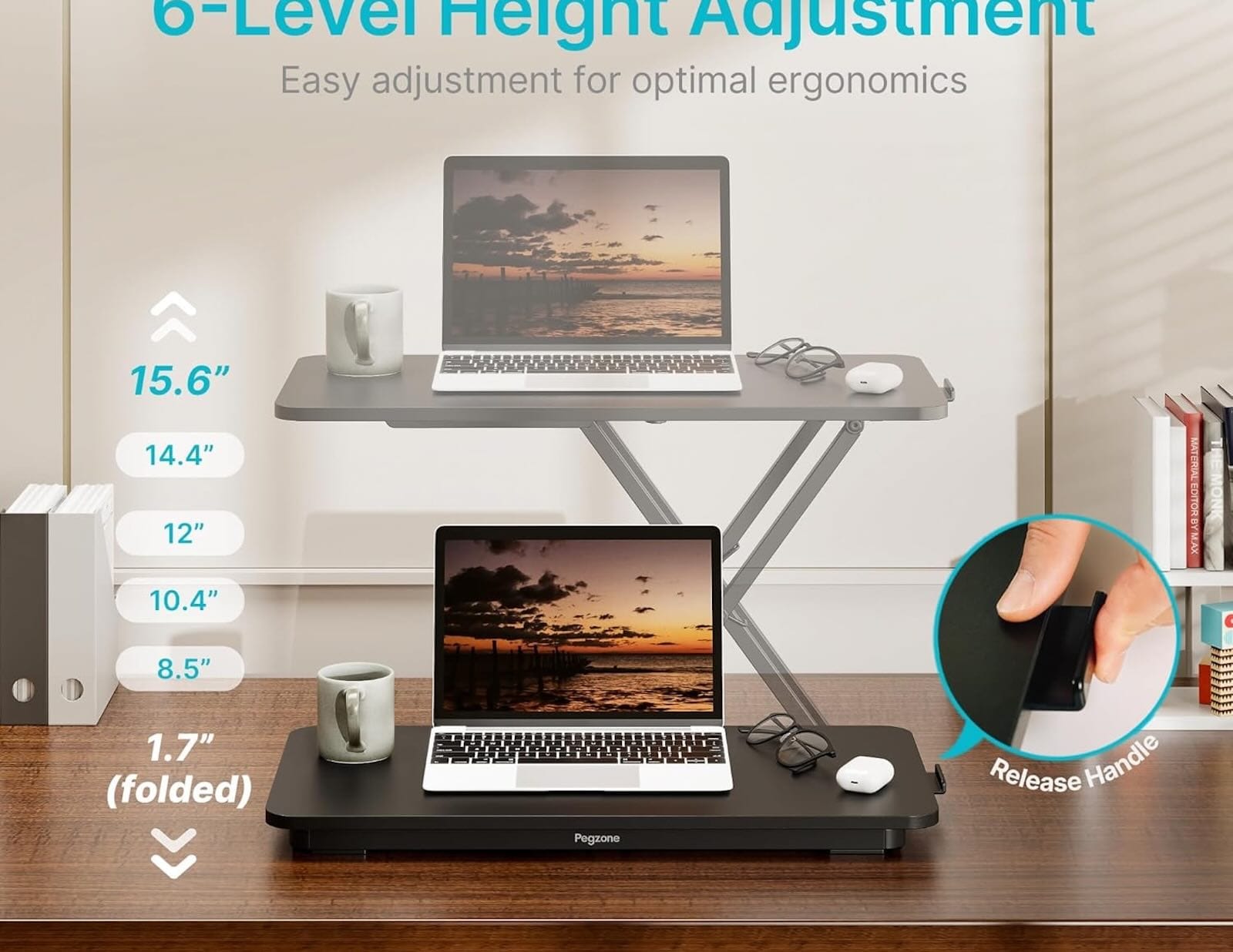
The Roost V3 folds flat to just over one inch thick and weighs 6 ounces. The stand expands to raise your MacBook between 6 and 12 inches off the desk, with seven height positions that lock into place. The arms telescope out and grip the sides of your laptop with rubber-coated clamps that adjust automatically to different MacBook sizes.
Setting up the Roost takes about 10 seconds. Pull the arms up to your preferred height, position your MacBook on the support grips, and connect an external keyboard. The stand includes a neoprene carrying sleeve that protects it in your backpack without adding bulk.
The adjustable design makes this stand versatile for different work scenarios. Lower settings work for tight spaces like airplane tray tables, while maximum height brings the screen up to eye level for standing desk configurations. The portability means you maintain consistent ergonomics whether you're working from home or a hotel room.
The place to get the Roost V3 Laptop Stand (Amazon Affiliate Link):
https://www.amazon.com/dp/B01C9KG8IG?tag=nextlevelmac-20
Making Laptop Stands Work With Your Setup
Laptop stands work best when paired with external keyboards and pointing devices. Typing on an elevated MacBook keyboard creates awkward wrist angles that defeat the ergonomic benefits of raising the screen. Using an external keyboard lets you position it at a comfortable typing height while keeping the screen at eye level.
MacBooks with Touch ID require you to reach up to authenticate, but this brief moment doesn't negate the posture improvements from hours of proper screen positioning. Face ID would eliminate this issue, but current MacBooks still use Touch ID sensors in the keyboard.
Stands also enable dual-screen workflows. Positioning your MacBook next to an external display at matching heights creates a seamless extended desktop. You can drag windows between screens without the jarring height difference of a laptop sitting flat on the desk next to a raised monitor.
Cable management becomes simpler with stands. Most designs include cable routing cutouts that guide power cables and USB connections through the back of the stand, keeping your desk surface clear. This matters more with fixed stands on permanent desks, but even portable stands benefit from organized cables.
Choosing Between Fixed and Portable
Your work location determines which stand type fits your needs. If your MacBook stays on one desk most days, a fixed stand provides better stability and a cleaner appearance. The solid construction supports typing directly on the laptop keyboard and creates a permanent desktop setup that doesn't need daily adjustment.
Mobile workers need portable stands that travel easily and adapt to different spaces. The adjustability compensates for varying desk heights and chair configurations you'll encounter in different locations. The lighter weight and compact folded size make portable stands practical for daily commuting.
Some users benefit from owning both types. A fixed stand lives on your primary desk at home, while a portable stand stays in your work bag for coffee shops and travel. This approach gives you optimal ergonomics in every location without compromising on stability or portability.
The investment in proper ergonomics pays off quickly. Eliminating neck pain and improving posture during work hours has tangible health benefits. Better cooling also extends MacBook lifespan by reducing thermal stress on internal components. Both outcomes justify the cost of a quality laptop stand that you'll use daily for years.

Related Posts
Lift Your Mac Display: Monitor Arms for Better Ergonomics and Cleaner Desks
Jan 09, 2026
Mac Audio Interfaces: Transform Your Recording Setup
Jan 06, 2026
Mac USB-C Hub Selection: Match Your Dock to Your Workflow
Jan 05, 2026