
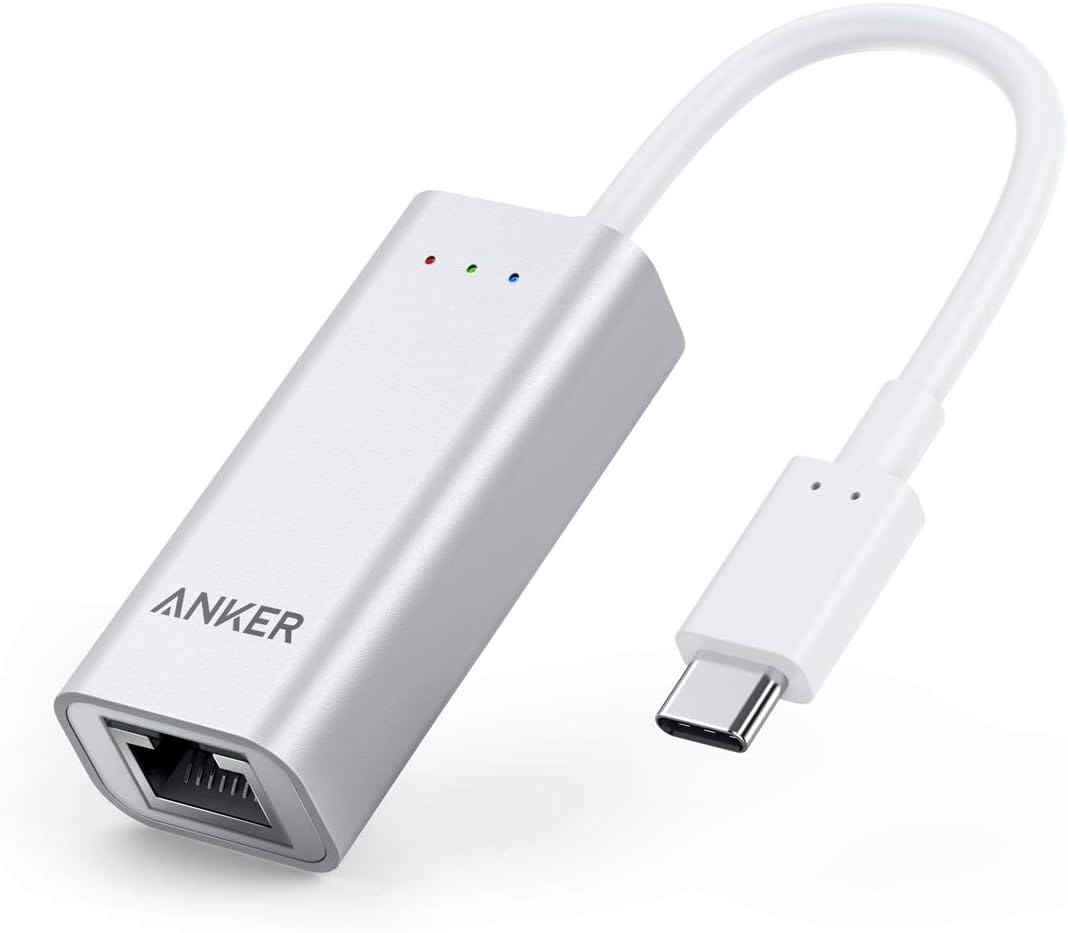
Your Mac's WiFi just dropped during a video call. Again. The file transfer that should take two minutes is crawling along at dial-up speeds. You're troubleshooting router settings when the solution is sitting in your desk drawer—a USB-C ethernet adapter that turns any USB-C port into a rock-solid wired connection.
Modern Macs like the Mac mini M4, MacBook Pro, and MacBook Air ship without ethernet ports. Apple bets you'll use WiFi for everything, but that bet doesn't pan out when you're uploading a 50GB video project, running Zoom calls all day, or playing online games where every millisecond counts.
A wired ethernet connection solves these problems instantly. No more dropped packets, no more interference from neighboring networks, no more wondering if your internet is slow or if it's just WiFi acting up again.
USB-C ethernet adapters are simple. Plug one end into your Mac's USB-C port, connect an ethernet cable, and you're online with speeds that WiFi can't match. No drivers to install, no configuration required, no monthly fees. Just faster, more stable internet.
Why Your Mac Needs a Wired Connection
WiFi is convenient until it isn't. Video calls freeze when someone starts streaming in another room. Large file uploads stall halfway through. Game performance tanks because of network jitter you can't see but definitely feel.
Wired ethernet fixes these issues because it bypasses WiFi's fundamental limitations. WiFi shares bandwidth with every device nearby, competes with neighboring networks on the same channels, and loses signal strength through walls. Ethernet gives you a dedicated line with consistent speeds and near-zero latency.
Remote workers benefit most from ethernet adapters. Video conferencing platforms like Zoom and Teams prioritize connection stability over bandwidth. A 1Gbps wired connection delivers better video quality than a flaky 300Mbps WiFi signal because it maintains that speed without drops or interruptions.
Content creators uploading large files to cloud storage see the biggest time savings. A 4K video file that takes 45 minutes over WiFi transfers in 15 minutes over gigabit ethernet. Double that speed to 2.5Gbps and you're looking at single-digit upload times for most projects.
Gamers need low latency more than high bandwidth. WiFi adds 2-5ms of latency even under ideal conditions. Ethernet typically adds less than 1ms. That difference matters in competitive games where reaction time determines outcomes.
Affiliate disclosure: some links in this article are Amazon Associate links. If you buy through them, Next Level Mac may earn a small commission at no extra cost to you, and we only recommend products that genuinely bring value to your Mac setup.
Anker USB-C to Gigabit Ethernet Adapter
The Anker USB-C to Gigabit Ethernet Adapter delivers reliable 1Gbps speeds in an aluminum package that weighs about as much as a AA battery. It works with any Mac that has a USB-C port, supports plug-and-play operation on macOS without drivers, and costs less than two months of streaming service subscriptions.
This adapter handles everyday networking tasks without breaking a sweat. Video calls stay smooth, file transfers complete on schedule, and web browsing feels instantly responsive. The 1Gbps speed matches what most home internet plans actually deliver, so you won't be bottlenecked by the adapter itself.
The aluminum body dissipates heat efficiently during extended use. The braided cable resists tangling and adds durability. The compact design fits in a laptop bag's front pocket without adding noticeable weight.
Here's where to get the Anker USB-C to Gigabit Ethernet Adapter https://www.amazon.com/dp/B00ZZ6NW5E?tag=nextlevelmac-20
Anker PowerExpand USB-C to 2.5 Gbps Ethernet Adapter
The Anker PowerExpand USB-C to 2.5 Gbps Ethernet Adapter delivers speeds 2.5 times faster than standard gigabit adapters. Content creators uploading large video files, photographers syncing RAW image libraries, and power users transferring datasets see immediate time savings.
This adapter maxes out home internet connections faster than 1Gbps, handles local network transfers at 2.5Gbps when connected to compatible switches, and works with existing Cat5e or Cat6 ethernet cables. No infrastructure upgrades required beyond the adapter itself.
The aluminum housing matches Apple's design language. The compact form factor disappears in a bag. The plug-and-play functionality means you connect it and start working—no driver downloads, no configuration menus, no waiting.
Where to buy the Anker PowerExpand USB-C to 2.5 Gbps Ethernet Adapter https://www.amazon.com/dp/B097N5WJY9?tag=nextlevelmac-20
Cable Matters USB-C to 2.5Gb Ethernet Adapter with 140W Charging
The Cable Matters USB-C to 2.5Gb Ethernet Adapter with 140W Charging combines fast network access with power delivery. One cable handles both ethernet and laptop charging, reducing desk clutter while delivering 2.5Gbps network speeds.
MacBook Pro users benefit most from this adapter. It supports USB PD 3.1 charging up to 140W, matching the maximum charging speed of the 16-inch MacBook Pro. You maintain fast wired networking while keeping your laptop fully charged through a single connection point.
The adapter works with any USB-C Mac, iPad Pro, or device that supports USB Power Delivery. It handles video calls, file transfers, and remote desktop sessions while simultaneously charging your laptop. The aluminum construction keeps temperatures low during extended use.
This is where you can get the Cable Matters USB-C to 2.5Gb Ethernet Adapter with 140W Charging https://www.amazon.com/dp/B0FC61NLVD?tag=nextlevelmac-20
Choosing the Right Speed
Gigabit adapters handle most needs at the lowest cost. They max out typical home internet connections, support smooth video conferencing, and transfer large files faster than WiFi. Choose 1Gbps if your internet plan delivers less than 1000Mbps download speed or if you primarily use ethernet for stable video calls.
2.5 gigabit adapters make sense when local network transfers matter. Moving files between a Mac and a NAS device, syncing large photo libraries to network storage, or transferring video projects to editing workstations all benefit from 2.5Gbps speeds. Your network switch and receiving device need 2.5GbE support to hit maximum speeds.
Charging capability adds value if you use a laptop and want to reduce cable clutter. One cable handles both networking and power instead of two separate connections. Check your laptop's maximum charging speed to ensure the adapter delivers enough power—most 13-inch MacBook Pros max out at 96W while 16-inch models can use the full 140W.
Installation and Compatibility
USB-C ethernet adapters work with macOS Tahoe, previous macOS versions, and virtually any Mac with a USB-C or Thunderbolt port. They're plug-and-play accessories that macOS recognizes automatically. Connect the adapter to your Mac, plug in an ethernet cable, and you're online.
macOS prioritizes wired connections over WiFi automatically. When you connect an ethernet adapter, your Mac switches to the wired connection without requiring manual network preference changes. WiFi remains active as a backup connection.
Some adapters work with iPad Pro models that have USB-C ports. This adds wired networking to iPads for testing network applications, running local web servers, or maintaining stable connections during remote access sessions.
Cable Requirements
Cat5e cables support speeds up to 1Gbps for runs under 100 meters. Cat6 cables handle 1Gbps reliably and support 2.5Gbps for shorter runs. Cat6a cables deliver full 2.5Gbps speeds over longer distances.
You probably have Cat5e or Cat6 cables already. Both work fine for 1Gbps adapters. For 2.5Gbps adapters, Cat6 cables work well for desk-to-router distances. Cat6a cables offer future-proofing but cost more without providing immediate benefits for most home setups.
Cable length affects signal quality minimally for home use. A 6-foot cable and a 50-foot cable both deliver full speeds when using Cat6 or better. Choose cable length based on your desk layout, not performance concerns.
Common Use Cases
Remote workers benefit from stable video call connections. Ethernet adapters eliminate the dropped frames and frozen screens that plague WiFi during peak usage hours. Zoom, Teams, and Meet all perform better over wired connections because they maintain consistent bandwidth without WiFi's inherent variability.
Content creators uploading large files save significant time. A 100GB Final Cut Pro library that takes an hour over WiFi transfers in 20 minutes over gigabit ethernet. Double the speed to 2.5Gbps and you're looking at 10-minute uploads for the same project.
Gamers playing competitive titles need low latency connections. Ethernet adapters reduce ping times by eliminating WiFi's overhead. The difference between a 15ms and 3ms ping matters in fast-paced games where every frame counts.
Photographers backing up RAW image collections to network storage see faster transfers. A 64GB card full of RAW files transfers in minutes over ethernet instead of the 20-30 minutes WiFi typically requires.
Reliability Advantages
Wired connections don't drop when someone turns on the microwave. They don't slow down when neighbors start streaming. They don't lose signal when you move your laptop across the desk.
Ethernet adapters maintain consistent speeds regardless of interference, distance from the router, or how many devices are on the network. Your connection speed stays constant whether you're the only person online or one of twenty devices competing for WiFi bandwidth.
This consistency matters more than raw speed for most tasks. A 500Mbps connection that never drops beats a 1Gbps WiFi connection that stutters every few minutes. Ethernet delivers that reliability without requiring mesh networks, WiFi extenders, or constant router reboots.
Setup for Specific Macs
Mac mini M4 users gain the most from ethernet adapters because the base model omits built-in ethernet entirely. A USB-C adapter restores wired networking capability for situations where WiFi falls short. The Mac mini's stationary nature makes cable management simple.
MacBook Pro and MacBook Air users carry adapters between locations. Home offices, client sites, and hotel conference rooms all benefit from wired connections. The compact form factor means these adapters travel easily in laptop bags without adding significant weight.
iMac users already have built-in ethernet but may want faster speeds. A 2.5GbE adapter connected to a USB-C port delivers faster local network performance than the iMac's built-in gigabit ethernet port. This benefits users who transfer large files frequently within their local network.
Technical Considerations
USB-C ports on Apple Silicon Macs support USB 3.1 Gen 2 speeds, providing 10Gbps of bandwidth. This exceeds what 2.5GbE adapters need, ensuring the USB connection never becomes a bottleneck for network performance.
Thunderbolt ports work with standard USB-C ethernet adapters. The adapter doesn't need Thunderbolt-specific features because 2.5Gbps ethernet requires far less bandwidth than Thunderbolt provides. Any ethernet adapter designed for USB-C works in Thunderbolt ports.
Power consumption stays minimal. Ethernet adapters draw less than 5 watts during active use, having no meaningful impact on laptop battery life. The performance gains from using wired networking typically offset this small power draw.
Real-World Performance
Bandwidth tests show consistent results. A 1Gbps adapter delivers 940Mbps in practice after accounting for ethernet protocol overhead. A 2.5Gbps adapter typically achieves 2.35Gbps under real-world conditions.
Latency measurements show even more impressive results. Ethernet adapters reduce ping times by 2-5ms compared to WiFi on the same network. This improvement stays consistent across different routers, internet service providers, and network congestion levels.
File transfer benchmarks confirm the speed advantages. Copying a 10GB file from a Mac to a NAS device takes roughly 90 seconds over gigabit ethernet. The same transfer completes in 35 seconds over 2.5 gigabit ethernet. WiFi typically requires 3-5 minutes for the same operation.
Value for Money
Gigabit adapters cost less than premium coffee drinks and last years. The 20-30 dollar investment pays for itself after a few months of stable video calls that don't require rescheduling because of connection issues.
2.5 gigabit adapters cost slightly more but deliver measurable performance gains for users who transfer large files regularly. The time savings add up quickly—an extra 50 dollars for an adapter that saves 30 minutes per day means you break even after a few weeks.
Adapters with charging capabilities cost premium prices but reduce cable clutter significantly. If you value desk organization and want to eliminate one charging cable from your setup, the extra cost makes sense.
Making the Choice
Start with a 1Gbps adapter if your needs are straightforward. Video calls, general browsing, and moderate file transfers work perfectly at gigabit speeds. Most home internet connections can't exceed 1Gbps anyway, making faster adapters unnecessary for internet-bound traffic.
Upgrade to 2.5Gbps when local network performance matters. If you regularly move multi-gigabyte files between Macs and network storage, the speed increase saves real time. Your network infrastructure needs 2.5GbE support to benefit from these speeds.
Add charging capability when desk space is limited. One cable that handles both networking and power simplifies laptop setups and reduces the number of power adapters you carry when working from different locations.
Wired networking isn't old-fashioned—it's reliable. USB-C ethernet adapters bring that reliability to Macs that shipped without ethernet ports, solving WiFi problems that software updates can't fix. They work, they last, and they make your internet connection actually work the way you expect it to.

Deon Williams
Deon is a staff writer for Next Level Mac. He loves all things Apple, dating back to products like iPod and the Mac G4. He lives in Canada and focuses on accessories for Apple products that enhance the Apple lifestyle.


Related Posts
Mac PDF Editing: Native Tools and Pro App Workflows
Dec 29, 2025
Protect Your Mac From Malware That Bypasses Apple Security
Dec 29, 2025
Best Mac Clipboard Managers to Supercharge Your Workflow
Dec 19, 2025