
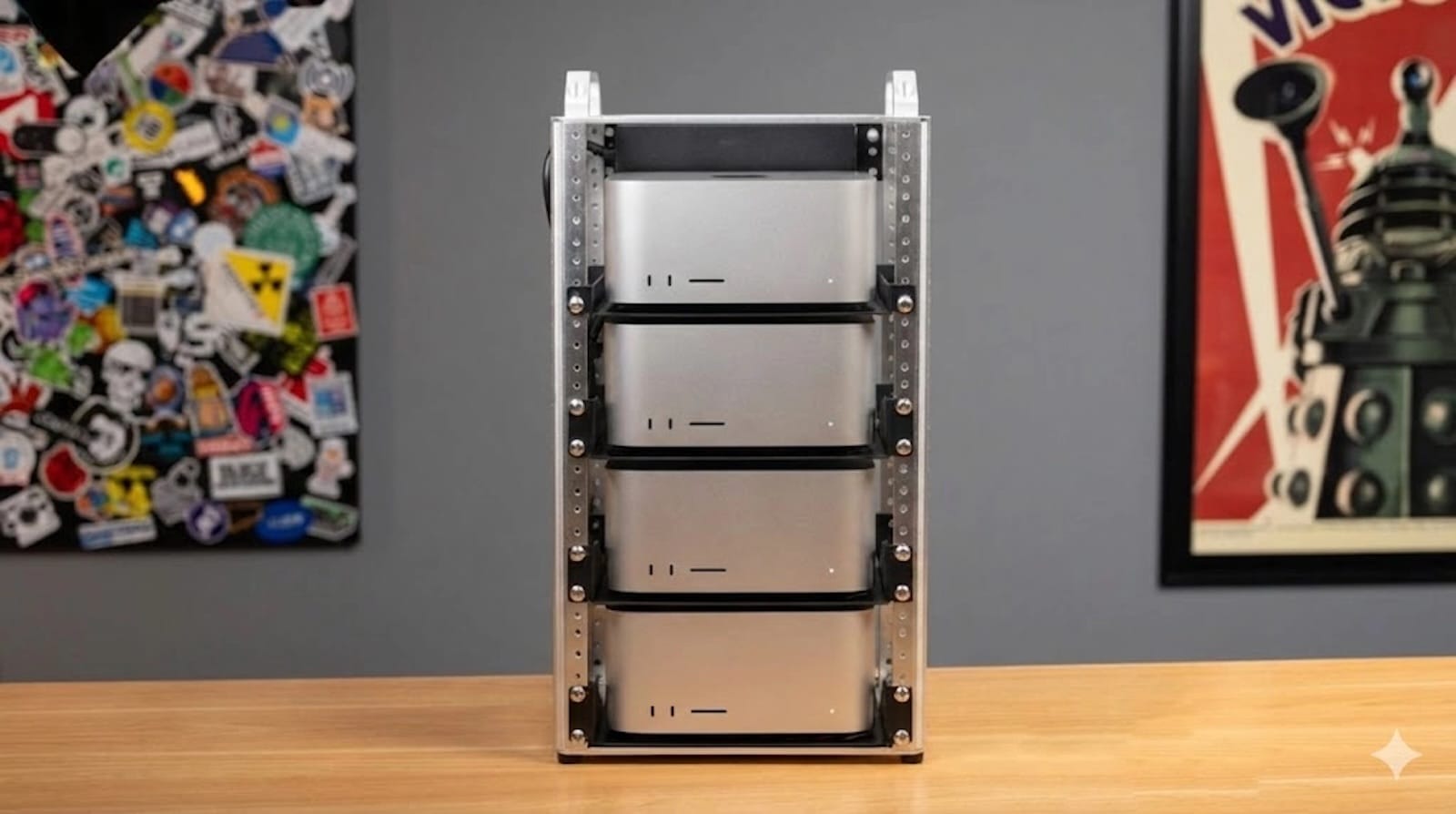
Your Mac can team up with other Macs to tackle AI workloads that would normally require server-grade hardware. macOS Tahoe 26.2 changed that with RDMA support over Thunderbolt 5, and it's a genuine breakthrough for anyone doing machine learning work.
I'm going to walk you through setting up a Mac cluster that pools memory and processing power across multiple machines. This isn't theoretical—researchers are already running language models with billions of parameters across connected Mac Studios, accessing combined memory pools that exceed what any single machine could handle.
What RDMA Does for Mac AI Work
RDMA stands for Remote Direct Memory Access. In plain terms, it lets multiple Macs share their memory directly without the usual CPU bottleneck that slows down networked computing.
When you connect Mac Studios via Thunderbolt 5 with RDMA enabled, each machine's processor can access the memory on every other machine in the cluster as if it were local RAM. For AI work, this means you can load language models that require hundreds of gigabytes or even terabytes of memory across machines that individually have much less.
The performance difference is substantial. Traditional Ethernet-based clustering maxes out around 10Gbps. Thunderbolt 4 improved this to 40Gbps. Thunderbolt 5 with RDMA now delivers 80Gbps of bidirectional bandwidth, with bandwidth boost pushing video streams up to 120Gbps when needed.
Real-world testing shows this matters. Running a 235-billion parameter model across four Mac Studios saw token generation jump from 15 tokens per second on traditional networking to nearly 32 tokens per second with RDMA enabled. That's more than double the throughput.
Hardware You Need to Build a Cluster
You'll need at least two Mac Studios with M4 Max or M3 Ultra chips. The M5 models work too, but you specifically need machines with Thunderbolt 5 ports for this to function.
![Cable Matters [Intel Certified] 80Gbps Thunderbolt 5 Cable with up to 120Gbps Bandwidth Boost and 240W Charging - 0.3m / 1ft, Compatible with Thunderbolt 4, USB4, and USB C, Black](https://m.media-amazon.com/images/I/41LqXZjTBYL._SL500_.jpg)


Affiliate disclosure: some links in this article are Amazon Associate links. If you buy through them, Next Level Mac may earn a small commission at no extra cost to you, and we only recommend products that genuinely bring value to your Mac setup.
Thunderbolt 5 cables are critical here. Standard USB-C cables won't cut it because they lack the bandwidth and certification needed for RDMA. Here's where to get the Cable Matters Thunderbolt 5 Cable https://www.amazon.com/dp/B0D2PK1ZQ2?tag=nextlevelmac-20
This Intel-certified cable handles 80Gbps data transfer with bandwidth boost up to 120Gbps, plus 240W power delivery. You'll need one cable per connection in your daisy chain.
For organizing multiple Mac Studios, especially if you're stacking them for a compact setup, elevation helps with airflow. This is where you can buy the Spigen Mac Studio Stand https://www.amazon.com/dp/B0B24PTMRF?tag=nextlevelmac-20
The stand includes a built-in PVC filter that prevents dust from clogging your Mac's cooling system during extended AI training runs. The silicone padding keeps everything stable when you have multiple units connected.
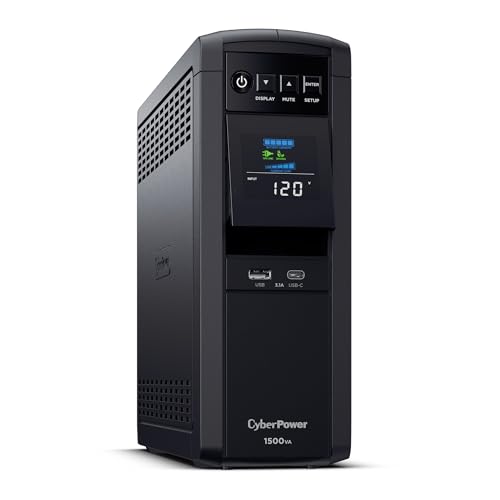
Power protection becomes critical when running long AI training jobs that can take hours or days to complete. A sudden power outage can corrupt model checkpoints and waste significant compute time. Here's where you get the CyberPower CP1500PFCLCD PFC Sinewave UPS https://www.amazon.com/dp/B00429N19W?tag=nextlevelmac-20
This 1500VA/1000W UPS provides pure sine wave output that's safe for Mac hardware, with enough capacity to power two Mac Studios through brief outages. The multifunction LCD shows estimated runtime so you know how much time you have for graceful shutdowns during extended power failures.
Setting Up RDMA in macOS Tahoe 26.2
Before you start, make sure every Mac in your cluster is running macOS Tahoe 26.2 or later. Earlier versions don't include the RDMA driver needed for this to work.
First, physically connect your Mac Studios. Start with your primary machine—the one you'll use for initiating model runs—and daisy-chain additional Macs using Thunderbolt 5 cables. Connect the cable from the primary Mac's Thunderbolt port to the first secondary Mac, then from that Mac to the next one if you're clustering more than two.
Thunderbolt 5 daisy-chaining is the only practical approach right now since there's no Thunderbolt 5 networking switch available yet. This means your cluster size will be limited by latency constraints. Four Mac Studios is generally the sweet spot before you start seeing diminishing returns from the daisy-chain topology.
Next, enable RDMA in Recovery Mode. Restart each Mac while holding Command-R to boot into Recovery. Open Terminal from the Utilities menu and run this command:
csrutil enable --without-rdmaThis disables System Integrity Protection's restrictions on RDMA while keeping other security features intact. Restart each Mac after running this command.
Once all Macs are back in normal mode, verify Thunderbolt connectivity. Go to System Settings, then click General and About. Click System Report and navigate to Thunderbolt. You should see each connected Mac listed with its connection speed showing 80.0 Gb/s.
Running AI Models Across Your Cluster
Now comes the actual AI work. Apple's MLX framework in macOS Tahoe 26.2 supports RDMA clustering natively, which simplifies things considerably.
Open Terminal on your primary Mac and install the latest MLX tools if you haven't already:
pip install mlx --break-system-packagesThe clustering happens at the model loading stage. When you initialize an MLX model, it automatically detects available RDMA connections and distributes the model across connected machines.
For testing, try loading a model that exceeds your primary Mac's available memory. Something like Qwen 235B or DeepSeek V3 works well for this since they require substantial memory even with quantization.
The command looks similar to standard MLX usage, but with cluster detection enabled:
python -m mlx_lm.generate --model "qwen/Qwen2.5-235B" --prompt "Explain RDMA clustering"MLX automatically splits the model layers across your connected Macs based on available memory. You'll see memory allocation happen across machines in Activity Monitor if you check each Mac.
Performance monitoring requires checking each Mac individually. Token generation speed on your primary Mac will tell you overall throughput, but you'll want to verify that secondary Macs are actually participating in the workload. Activity Monitor's GPU and Memory tabs show utilization across the cluster.
What Actually Improves with RDMA
The most obvious benefit is memory capacity. Four Mac Studios with 192GB each give you 768GB of combined memory for model weights. That's enough to run models that would normally require expensive server hardware.
Speed improvements are less straightforward. RDMA eliminates the CPU overhead of moving data between machines, but you're still limited by Thunderbolt 5's physical bandwidth. For inference workloads—generating text or running predictions—you'll see 50-100% speed improvements compared to traditional Ethernet clustering.
Training is where RDMA really shines. Backpropagation across distributed model weights requires constant memory access, and RDMA's low latency makes this practical. Training runs that would take weeks on a single Mac can complete in days when properly distributed across a cluster.
Power efficiency surprises people. Each Mac Studio in testing drew under 250 watts during full-load AI work. Four machines running at maximum capacity used less than 1000 watts total—comparable to a single high-end workstation with multiple GPUs, but with much better thermal management since the load is distributed.
Practical Limits You'll Hit
Daisy-chaining creates latency issues beyond four machines. Each additional Mac in the chain adds cumulative latency that eventually overwhelms the benefits of added memory and compute. Researchers report that going beyond four or five Macs in a chain starts showing performance degradation rather than improvements.
Not all AI frameworks support RDMA yet. MLX does, which covers most macOS-native machine learning workflows. PyTorch and TensorFlow don't have native RDMA support on macOS, though workarounds exist using distributed computing frameworks like Ray.
Model architecture matters significantly. Models designed for pipeline parallelism—where different layers run on different machines—work better than models that require all-to-all communication patterns. Transformer architectures handle RDMA clustering well. Convolutional networks often don't.
Debugging becomes more complex when things go wrong. If one Mac in your cluster loses its Thunderbolt connection or runs out of memory, the entire model run fails. You'll need to implement proper error handling and checkpointing to avoid losing hours of training progress.
Who This Actually Makes Sense For
Machine learning researchers working with large language models benefit most from RDMA clustering. If you're fine-tuning models like Llama or running inference on models that exceed your single Mac's memory, this setup pays for itself quickly compared to cloud GPU costs.
Data scientists doing local model development can use clustering to prototype on hardware that matches production server specs without leaving their desk. Training and testing on multi-node setups locally catches distributed computing issues early.
Independent AI developers building applications around LLMs get a cost-effective alternative to continuously paying for cloud compute. A cluster of Mac Studios has a one-time cost rather than ongoing hourly charges, and you keep full control over your data and models.
Academic researchers conducting AI experiments often work within tight budgets. RDMA clustering with Mac hardware provides research-grade compute power at a fraction of traditional server costs, with the bonus of macOS's Unix foundation making it familiar for researchers coming from Linux backgrounds.
Content creators using AI tools for video, audio, or image generation can benefit from pooled resources when rendering or generating assets. While this is a secondary use case compared to pure machine learning, the additional memory and compute help with AI-enhanced creative workflows.
Cooling and Physical Setup Considerations
Heat management becomes critical when you're running multiple Mac Studios at sustained high loads. Each machine's cooling system works independently, but clustering them too closely can cause thermal issues.
Space your Mac Studios at least two inches apart if you're stacking them horizontally. The Spigen stands I mentioned earlier help with this by elevating each unit for better airflow underneath. If you're mounting them vertically, make sure there's adequate ventilation on all sides.
Room temperature matters more than you'd expect. Four Mac Studios running full-tilt AI workloads will raise ambient temperature noticeably in a small room. If you're serious about sustained training runs, keep your workspace between 65-75°F with good air circulation.
Cable management prevents accidental disconnections during long training runs. Use cable ties to secure Thunderbolt connections and leave enough slack that minor movements won't pull cables loose. Nothing's worse than losing 12 hours of training progress because someone bumped a desk.
Power distribution requires planning. Four Mac Studios means four power supplies drawing up to 1000 watts combined. Use a quality power strip with surge protection, or better yet, connect to separate circuits if your workspace allows it.
The Realistic Path Forward
Start with two Mac Studios if you're testing the waters. Running a pair in RDMA mode gives you a feel for the workflow and performance gains without the complexity of managing a larger cluster. Most AI workloads that benefit from clustering will show measurable improvement even with just two machines.
Monitor your memory and compute utilization during actual workloads before expanding. If you're consistently maxing out two machines, adding a third makes sense. If you're not fully utilizing what you have, adding more hardware won't help.
Keep macOS and MLX updated. Apple continues improving RDMA support and cluster performance with each point release. The difference between 26.2 and future 26.3 or 26.4 releases could be significant for cluster stability and speed.
Document your configuration and workflow. When you inevitably need to rebuild or troubleshoot your cluster, having notes on your exact setup—cable connections, terminal commands, model configurations—saves hours of trial and error.
Consider this a long-term investment in local compute infrastructure. Mac hardware holds value well, and the flexibility of being able to break apart your cluster for other uses when not running AI workloads gives you options that cloud compute can't match.
RDMA clustering on Mac represents a genuine shift in what's possible for local AI development. The combination of macOS Tahoe 26.2's new driver support, Thunderbolt 5's bandwidth, and Mac Studio's thermal design makes distributed machine learning practical without server infrastructure. For anyone doing serious AI work on Mac, it's worth exploring what pooling resources across multiple machines can do for your workflow.
Related Posts
Lift Your Mac Display: Monitor Arms for Better Ergonomics and Cleaner Desks
Jan 09, 2026
Mac Audio Interfaces: Transform Your Recording Setup
Jan 06, 2026
Mac USB-C Hub Selection: Match Your Dock to Your Workflow
Jan 05, 2026