
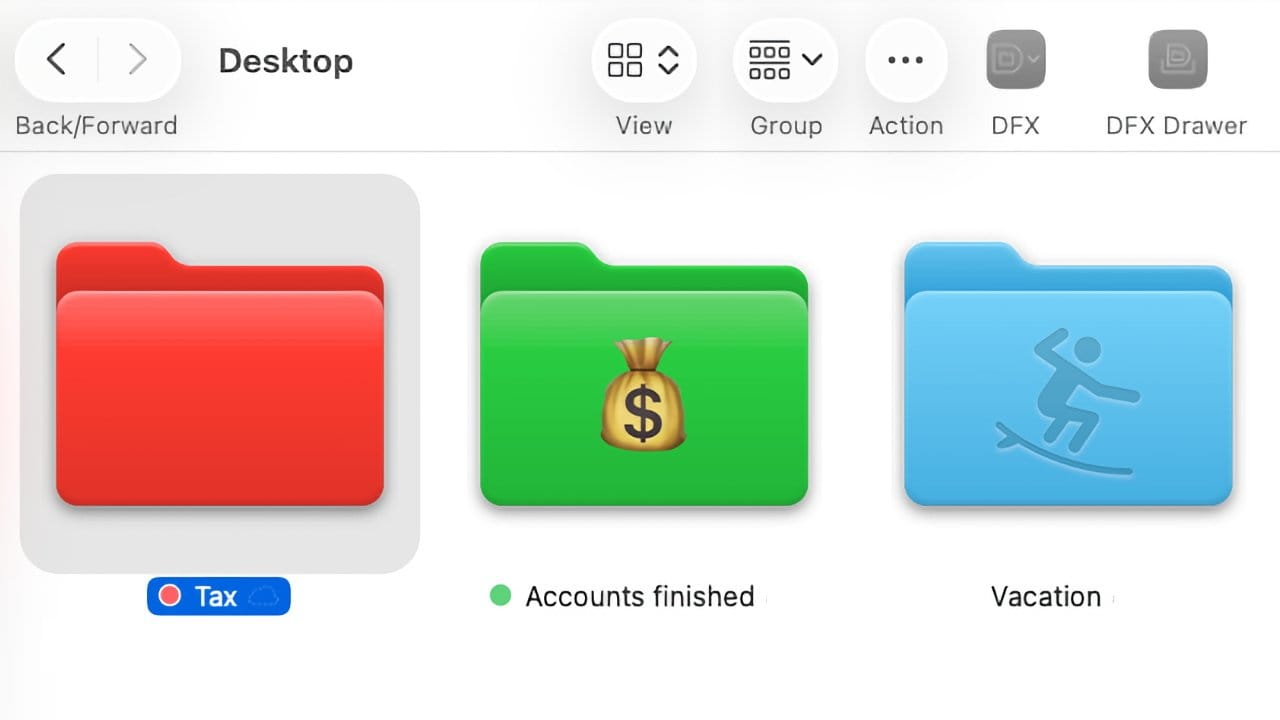

macOS Tahoe brings something Mac users have wanted for years. You can now change folder colors and add custom icons without downloading third-party apps or diving into complex workarounds.
The feature works exactly how it should. Right-click any folder, pick a color or symbol, and you're done. It syncs across your Apple devices through iCloud, so the organization system you set up on your Mac appears on your iPad and iPhone too.
I've been testing this since Tahoe launched, and the real benefit is cutting down the time you spend hunting for folders when you've got twenty blue icons staring back at you.
How the Color System Actually Works
Folder colors in Tahoe are tied to tags, which Apple has offered for years. The difference now is that instead of just seeing a tiny colored dot next to the folder name, the entire folder icon changes to match the tag color.
You get seven default colors to start with: red, orange, yellow, green, blue, purple, and gray. Right-click any folder and you'll see these as circles near the top of the menu.
When you click a color, the folder changes instantly. If you tag a folder with multiple colors, only the last one you selected shows on the folder itself, but you'll still see small dots for all assigned tags next to the folder name.
Adding Emoji and Symbols Changes Everything
Beyond colors, you can stamp emoji or symbols directly onto folders. Right-click a folder and select "Customize Folder" to see your options.
The symbol library is organized into categories like People, Animals, Food, Travel, and Objects. Each symbol appears embossed on the folder, giving it a subtle but clear marking.
Emoji work differently. They show up as full-color stickers on the folder, making them impossible to miss. You can search for emoji by name, which saves time when you're looking for something specific.
The catch is you can only use one symbol or emoji per folder. Pick one, commit to it, and move on. This limitation actually helps because it forces you to keep your system simple instead of cluttering folders with too many visual markers.
System-Wide Folder Color Settings
If you want all your folders to share a base color, you can set that in System Settings under Appearance. Click "Folder color" and choose from the suggested colors or create a custom one.
This setting won't override folders you've already customized with tags. It only affects folders that don't have tags assigned yet.
I like setting all my folders to a muted gray and then using bright colors only for active projects. The feature gives you that flexibility without forcing one approach.
Where This Feature Shines
The customization syncs to iCloud Drive, which means folders you organize on your Mac show up the same way in the Files app on iOS and iPadOS. This consistency across devices is where the feature becomes genuinely useful.
Say you color-code client folders on your Mac. When you're on your iPad and need to grab a file quickly, those same color cues are there. You're not relearning a different organizational system on each device.
The sync works automatically as long as you're using iCloud Drive. Files stored locally on your Mac won't carry these customizations to other devices, and folders shared with Windows users or viewed on iCloud.com won't show your custom icons either.
Practical Uses for Different Workflows
Photographers can mark folders by shoot type. Use a camera emoji for client work, a calendar for time-sensitive projects, and a star for portfolio pieces.
Writers might color-code by project status. Red for active drafts, yellow for editing, green for completed work. The visual system eliminates the need to open folders just to remember what stage a project is in.
Developers could use symbols to differentiate between active repositories, archived projects, and documentation. A folder marked with a wrench icon immediately signals development work, while a book icon indicates reference materials.
The key is keeping the system simple. If every folder has a different color and symbol, you've just created a different kind of visual noise. I learned this the hard way after spending an afternoon color-coding everything, only to realize I couldn't remember what any of it meant.
Storage and Organization Tools That Complement This
When you're setting up a better file organization system, external storage becomes essential. Moving older projects off your internal drive frees up space while keeping everything accessible.
The SSK 2TB SSD External Hard Drive handles Mac perfectly with speeds up to 550MB per second. It comes formatted in exFAT, works with Time Machine after reformatting, and includes both USB-C and USB-A cables. At 43 grams, it disappears into a bag. I appreciate that it doesn't need external power and runs cool even during long file transfers.
Where to buy the SSK 2TB SSD External Hard Drive https://www.amazon.com/dp/B0DPQ5Y3SP?tag=nextlevelmac-20&gbOpenExternal=1
Making Your Mac Workspace More Efficient
A clean file system matters more when you're working across multiple external drives and displays. Adding more ports to your Mac helps you connect everything without constantly swapping cables.
The Anker USB C Hub 7-in-1 gives you 4K HDMI, SD card slots, USB-A ports, and power delivery up to 85W. It's compact enough to travel with and handles data transfer at 5Gbps. The build quality holds up to daily use. What I like most is that it doesn't overheat like some cheaper hubs do, and the ports are spaced well enough that you can plug in multiple cables without them fighting for space.
The place to get the Anker USB C Hub 7-in-1 https://www.amazon.com/dp/B07ZVKTP53?tag=nextlevelmac-20&gbOpenExternal=1
Input Devices That Match Your Setup
If you're reorganizing your Mac workflow, your input devices matter too. A wireless keyboard that pairs with multiple devices lets you switch between your Mac, iPad, and iPhone without cable management headaches.
The Macally Compact Bluetooth Keyboard pairs with up to three devices and switches between them with a key combination. It has Mac-specific shortcuts, scissor-switch keys for quiet typing, and a rechargeable battery that lasts weeks. The 78-key layout saves desk space. I find the key travel comfortable for long writing sessions, and the Bluetooth connection stays stable even when switching between devices.
Here's where to get the Macally Compact Bluetooth Keyboard https://www.amazon.com/dp/B0CCK1DYQQ?tag=nextlevelmac-20&gbOpenExternal=1
Clearing Customizations When You Need To
If you want to remove a custom icon or emoji, right-click the folder and select "Customize Folder" again. Click the "Clear" button at the bottom left of the customization window.
To remove a color, click the tag icon next to the folder name or right-click and deselect the colored circle. The folder returns to the default blue immediately.
If you've changed your system-wide folder color and want to revert, go back to System Settings, then Appearance, then Folder color, and select "Automatic."
What Works and What Doesn't
These customizations show up in Finder searches and Quick Look previews. They appear if you drag a folder to the toolbar. They display properly in most Mac apps that show file browsers.
They don't show up in aliases, the Dock, or Spotlight search results. When you share a folder via AirDrop or Messages, the recipient sees your customizations only if they're also running macOS Tahoe.
The feature also doesn't work with third-party cloud services like Dropbox or Google Drive. Those platforms don't recognize Apple's folder metadata, so your custom colors and icons won't sync through them. This caught me off guard at first, since I keep some client work in Dropbox.
Building a System That Sticks
The best organizational systems are the ones you actually use. Start by customizing only the folders you access daily. If you mark everything, nothing stands out.
Pick a simple scheme. Maybe red for urgent, green for active, gray for archive. Add symbols only when color alone isn't clear enough.
Test your system for a week before expanding it. If you're still finding folders faster than before, apply the same logic to other areas of your Mac. If you're ignoring the colors, simplify even more. I started with just three colors and only added a fourth after a month of using the system consistently.
Limitations to Keep in Mind
You can't use multiple emoji or symbols on the same folder. Apple designed the feature this way to prevent visual clutter, but it means you can't layer information the way you might with traditional tagging systems.
Custom images aren't supported through the new Customize Folder interface. If you want to use a specific icon file, you'll need to use the old Get Info method, which won't sync across devices.
The color palette is limited to what Apple provides or what you create with the color picker. You can't save custom color presets, so if you've picked the perfect shade of blue, write down the hex code if you want to use it again later.
When to Use This Feature
Folder customization works best for people who keep their files in Finder rather than living entirely in cloud-based apps. If most of your work happens in Google Drive or Notion, this feature won't help much.
Visual cues beat reading folder names when you're working with large numbers of project folders, especially if those projects have different priorities or statuses.
The feature also helps if you share Macs with family members. Each person can color-code their folders, making it immediately clear which areas belong to whom.
What Apple Got Right
The implementation is clean. The feature doesn't require training or reading documentation. You right-click, you pick an option, you're done.
The sync through iCloud Drive means the system works the same way on every device. You don't have to recreate your organizational scheme separately for iPad and iPhone.
Apple avoided the trap of adding too many options. The constraints keep the feature usable instead of turning it into another complexity you have to manage. I respect that restraint, even if I occasionally wish for more customization depth.
Making macOS Tahoe Work for You
Folder customization in Tahoe finally delivers something that should have existed years ago. The feature won't fix a chaotic file system on its own, but if you're already organized and just need a faster way to distinguish between folders, this helps.
Take an hour to set up a basic system. Pick three colors that mean something specific to you. Add emoji only where they genuinely clarify what's in a folder. Let the system prove itself before expanding it further.
Your Mac should work for you, not the other way around. Folder customization is one more tool that helps you spend less time managing files and more time using them.

Related Posts
Finder Quick Actions in macOS Tahoe Automate File Tasks Instantly
Jan 12, 2026
Master Pixelmator Pro: The Ultimate Mac Photo Editor Guide
Dec 10, 2025
Keka: The Best Mac File Compressor
Dec 10, 2025