
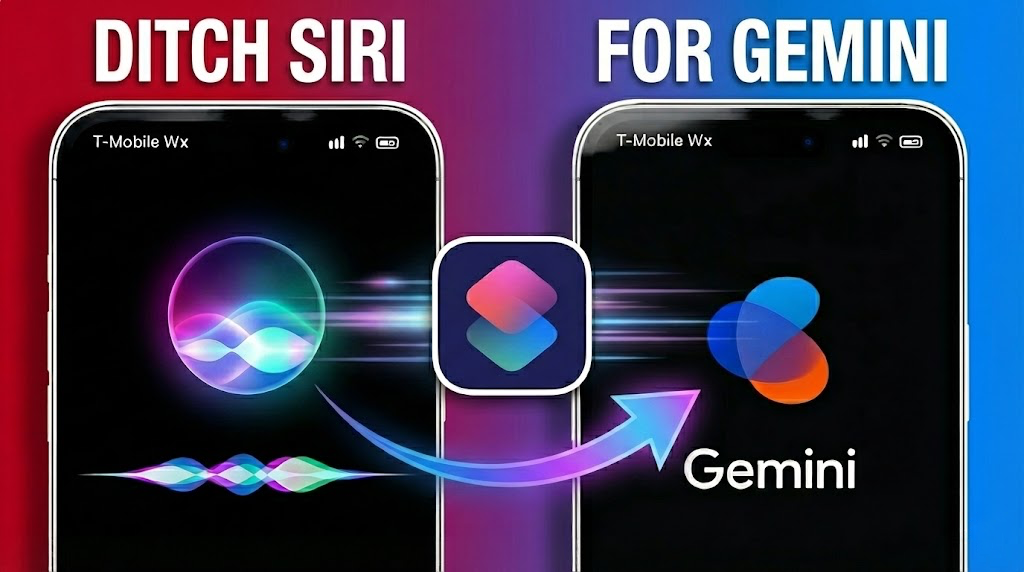

You're ready to move beyond Siri's limitations. Google Gemini offers a smarter voice assistant experience on your iPhone, and setting it up takes less than five minutes with the right approach.
Apple announced a partnership with Google to integrate Gemini functionality directly into Siri sometime in 2026. That timeline remains uncertain. The solution you need already exists through Apple's Shortcuts app, and it works on any iPhone running iOS 18 or later.
Download and Configure the Gemini App
Open the App Store and search for Google Gemini. The app appears as the first or second result depending on sponsored listings. Tap Get to download the free application.
The free version of Gemini, called Flash Model, provides generous daily access for most users. Gemini Pro and Ultra subscriptions unlock larger thinking models and additional features, but the free tier handles typical voice assistant tasks without restrictions.
Launch Gemini for the first time after installation completes. The app displays several permission requests covering microphone access, notifications, and other iPhone features. Grant or deny these permissions based on your preferences.
Sign in with your Google account if you already subscribe to Gemini Pro or Ultra. This step activates your premium features on iPhone. Free users can skip signing in, though creating an account syncs your conversation history across devices.
Affiliate disclosure: some links in this article are Amazon Associate links. If you buy through them, Next Level Mac may earn a small commission at no extra cost to you, and we only recommend products that genuinely bring value to your Apple setup.
Voice assistants drain battery faster than most iPhone activities. A wireless charging stand keeps your device powered during extended Gemini sessions at your desk or bedside table. The Anker 313 Wireless Charger delivers 7.5W charging for iPhones through cases up to 5mm thick, and the upright stand design lets you view notifications while charging.
Where you can get the Anker 313 Wireless Charger Stand https://www.amazon.com/dp/B07DBXZZN3?tag=nextlevelmac-20&gbOpenExternal=1
Create Your Gemini Shortcut
Swipe down from the middle of your home screen to open Spotlight Search. Type "Shortcuts" and tap the app icon when it appears. You can also ask Siri to open Shortcuts if you prefer voice navigation.
Tap the plus button in the top right corner. A search bar appears in the center of the screen. Type "Gemini" and ignore the suggestion list that pops up. Tap the blue magnifying glass icon at the bottom of your keyboard.
Scroll through the search results until you locate "Talk Live with Gemini." Tap this action to add it to your workflow. The automation is complete with just this single action.
Test your shortcut by tapping the play button near the bottom right corner. Gemini's voice interface opens immediately. Return to the podcast app or wherever you left off after confirming the shortcut works.
Rename Your Shortcut
The default name "Talk Live with Gemini" creates an awkward voice command. Simplifying the name makes activation more natural.
Tap the back arrow to return to the main Shortcuts screen. Locate your new shortcut in the list. Press and hold your finger on the shortcut tile until a menu appears. Select Rename from the options.
Change the name to "Gemini" or any single word you prefer. Whatever name you choose becomes your voice command. Saying "Hey Siri, Gemini" opens the assistant when you use the simplified name.
Tap Return on the keyboard to save your changes. Press the back button in the top left corner to exit editing mode.
Activate Gemini by Voice
Speak Siri's wake phrase followed by your shortcut name. The command "Hey Siri, Gemini" launches the voice assistant immediately. Gemini listens for your request and responds through your iPhone's speaker.
This method works from any screen, including the lock screen when Siri access is enabled in Settings. Voice activation suits situations where your hands are busy with other tasks.
Configure the Action Button
iPhone 15 and later models include a customizable Action Button on the left side. Assigning Gemini to this button provides instant access without voice commands.
Open Settings and type "Action Button" in the search bar. Tap the search result to access Action Button settings. Swipe from right to left several times until you reach the Shortcut option.
Tap the blue "Choose a Shortcut" button. Scroll down to the My Shortcuts section. Your Gemini shortcut appears in this list. Tap it to complete the assignment.
Press and hold the Action Button to test your setup. Gemini's voice interface opens within a second. This physical trigger beats voice activation when background noise makes Siri unreliable.
Set Up BackTap Activation
BackTap transforms your iPhone's back panel into a shortcut launcher. This feature works on iPhone 8 and newer models running iOS 18.
Open Settings and search for "back tap" using the search bar. Tap the Back Tap result to view configuration options. The menu displays Double Tap and Triple Tap choices.
Select Double Tap for Gemini activation. Scroll to the bottom of the action list where shortcuts appear in their own section. Tap your Gemini shortcut to assign it to the double tap gesture.
Test BackTap by tapping the back of your iPhone twice with your finger. Gemini opens immediately. This method works through most phone cases, though very thick cases might require firmer taps.
Triple Tap remains available for a second shortcut or system function. Many users assign screen recording, screenshot, or accessibility features to triple tap while reserving double tap for their primary voice assistant.
Using Gemini in Your Car
Voice assistants prove most valuable during driving when manual phone interaction creates safety risks. A magnetic car mount positions your iPhone at eye level while keeping the charging port accessible.
The Anker 613 Magnetic Wireless Car Charging Mount combines a secure magnetic grip with 7.5W wireless charging for iPhone 12 and newer models. The mount attaches to your dashboard or windshield and includes a two-port car charger that powers the wireless pad while leaving a second port available for passengers.
This is where to buy the Anker 613 Magnetic Wireless Car Charging Mount https://www.amazon.com/dp/B09B3914CC?tag=nextlevelmac-20&gbOpenExternal=1
Activate Gemini in your car using any of the three methods described above. Voice activation through Siri works hands-free, the Action Button requires minimal attention from the road, and BackTap activates with a quick tap when your phone rests in a mount.
Understanding the Free vs Pro Experience
Gemini's free tier handles most voice assistant requests without throttling. You can ask questions, set reminders, get directions, and perform typical voice tasks throughout the day. The Flash model processes requests quickly enough for conversational interaction.
Pro and Ultra subscriptions access more sophisticated thinking models. These tiers handle complex reasoning tasks, longer context windows, and priority processing during peak usage times. Free users occasionally encounter daily limits during heavy usage, though typical voice assistant patterns rarely hit these caps.
Your Google account syncs conversation history and preferences across devices. This synchronization means starting a research task on your iPhone and continuing it on your iPad or computer maintains full context. Sign in during initial setup if you value this continuity.
Troubleshooting Common Setup Issues
The shortcut fails to launch when Gemini isn't installed or the app requires an update. Open the App Store and verify Gemini shows "Open" rather than "Get" or "Update." Install any pending updates before testing your shortcut again.
Siri doesn't recognize your shortcut name when the title contains special characters or unusual spacing. Rename the shortcut to a single common word. Simple names like "Gemini" or "Assistant" work reliably across different accent patterns and speaking speeds.
BackTap stops responding when Low Power Mode activates. This power-saving feature disables some background processes including tap gesture recognition. Disable Low Power Mode or use voice activation or the Action Button instead.
The Action Button won't display your shortcut in the selection menu when the shortcut contains errors. Open Shortcuts and run your Gemini automation manually to identify any issues. The shortcut should contain only the single "Talk Live with Gemini" action without additional steps.
Privacy Considerations
Gemini processes voice requests through Google's servers rather than on-device like some Siri functions. Your voice data transmits to Google for processing, and conversations sync to your Google account when signed in.
Review Gemini's privacy settings within the app to control data retention and personalization features. You can delete individual conversations or clear your entire history from Google's activity dashboard. These controls match the privacy options available in other Google services.
Siri continues handling system-level iPhone functions regardless of your Gemini setup. Commands for adjusting volume, enabling Do Not Disturb, or controlling HomeKit devices still route through Siri since third-party assistants lack system integration.
Why This Setup Works Better Than Waiting
Apple's native Gemini integration arrives in 2026 at the earliest. The Shortcuts method provides equivalent functionality today without system modifications or complicated workarounds. Your setup remains stable through iOS updates since it relies on supported Shortcuts actions rather than exploits.
The flexibility of three activation methods adapts to different situations throughout your day. Voice commands work during cooking or exercise, the Action Button provides quick access during meetings when voice activation would disturb others, and BackTap activates seamlessly when your phone rests on a desk or table.
Gemini's responses often include more detail and context than Siri provides for the same queries. The underlying language model handles follow-up questions and nuanced requests more naturally, creating a conversational flow that feels closer to speaking with a person than issuing commands to software.
Your existing Shortcuts library remains functional. This Gemini setup adds a new assistant option rather than replacing Siri's system integration. Switch between assistants based on which handles specific tasks more effectively.

Related Posts
iPhone 17 Screen Protectors: Why Anti-Reflective Coating Matters
Dec 06, 2025
Master iPhone Automation: The Ultimate NFC Tag Guide (2026)
Dec 05, 2025
Free Up Your iPhone Storage in IOS 26
Dec 05, 2025