

Lighting makes or breaks video calls. Even with the latest MacBook Pro or iMac camera, poor lighting will make you look washed out, shadowy, or worse. The good news is that fixing your lighting doesn't require a broadcast studio or a massive budget. With the right approach and a few well-chosen lights, your Mac video calls can look professional whether you're on FaceTime with family or presenting to clients on Zoom.
macOS Tahoe brings features like Edge Light that enhance your appearance through software, but no algorithm can compensate for fundamentally bad lighting. The camera sensor in your Mac needs enough light to work with, and it needs that light coming from the right direction. That's where physical lighting comes in.
The foundation of good video lighting isn't complicated. Professional photographers and videographers have been using the same basic setup for decades: key light, fill light, and backlight. You don't need all three to see dramatic improvement. Even just adding one properly positioned light will transform your video quality.
Understanding Key Light Placement
Your key light is the main light source that illuminates your face. Position matters more than brightness. Place your key light at roughly 45 degrees to one side of your face, slightly above eye level. This angle creates natural-looking dimension while avoiding harsh shadows directly under your nose and chin.
The height matters too. Positioning the light too low creates an unflattering upward cast that makes you look like you're holding a flashlight under your chin. Too high, and you get heavy shadows in your eye sockets. Slightly above eye level, angled down toward your face, gives you that natural, well-lit look.
Distance affects the quality of light. Closer creates softer light with more gradual shadow transitions. Farther creates harder light with more defined shadows. Start with your key light about three feet away and adjust based on what looks best in your camera preview.
Fill Light for Shadow Control


Affiliate disclosure: some links in this article are Amazon Associate links. If you buy through them, Next Level Mac may earn a small commission at no extra cost to you, and we only recommend products that genuinely bring value to your Mac setup.
Your key light will create shadows on the opposite side of your face. That's actually good, it adds dimension. But sometimes those shadows are too dark, especially if you're on a call in a dimly lit room. That's where fill light comes in.
The fill light doesn't need to be as bright as your key light. In fact, it shouldn't be. The goal is to gently lift those shadows without eliminating them entirely. Place your fill light on the opposite side from your key light, also at about 45 degrees but lower in intensity.
You can use a dedicated second light, or you can improvise. A white wall or foam board positioned to bounce light from your key can work as passive fill. Even a white t-shirt draped over a chair can soften shadows in a pinch.
Here's where to get the Elgato Key Light (Amazon Affiliate Link): https://www.amazon.com/dp/B0CNMR7RDT?tag=nextlevelmac-20
The Elgato Key Light delivers 2800 lumens of adjustable brightness with color temperature control from 2900K to 7000K. At 17 inches square, it provides large, soft light that's flattering for video calls. The desk clamp mount puts it exactly where you need it, and Wi-Fi control through the Elgato Control Center app means you can adjust settings without reaching for physical buttons. For Mac users who take video calls seriously, this is the light that professional streamers choose. The warm-to-cool temperature range lets you match any ambient lighting in your room, and the multipoint articulating arm makes positioning effortless.
Color Temperature and Your Environment
Color temperature sounds technical but it's simple in practice. Measured in Kelvin, it describes whether light appears warm (orange-yellow) or cool (blue). Your Mac's camera tries to automatically white balance, but mixing different color temperatures makes that harder and can leave you looking oddly tinted.
Indoor lighting is typically around 2700-3000K, warm and yellow. Daylight runs around 5500-6500K, neutral to slightly cool. If you're working in a room with warm overhead lights and cool daylight from a window, your video will look inconsistent as your camera struggles to compensate.
Match your key light's color temperature to your environment. Working in a room with warm incandescent bulbs? Set your light to around 3000K. Sitting near a window with daylight streaming in? Use 5500K. Most quality LED panels let you adjust this on the fly.
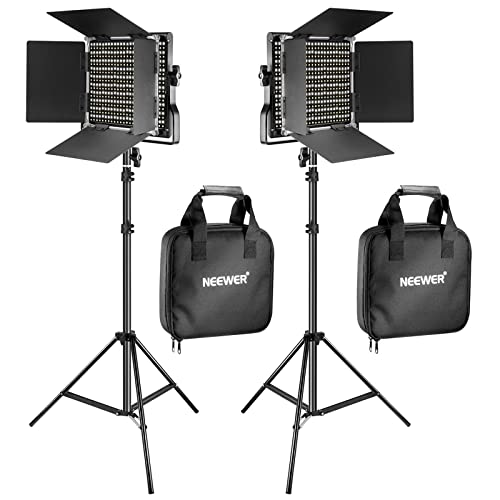
Where you can buy the Neewer 2-Pack LED Video Light (Amazon Affiliate Link): https://www.amazon.com/dp/B08VDKH7YC?tag=nextlevelmac-20
The Neewer 2-Pack LED Video Light Kit gives you two dimmable panels with adjustable color temperature from 3200K to 5600K. Each panel outputs 660 lumens, plenty for desk setups. The kit includes stands, so you can position both as key and fill, or use one for video calls and keep the second as a task light. At this price point, you get flexibility without breaking the bank. The included diffusers soften the light for a more flattering look, and the LCD display on each panel makes
adjustment straightforward.
Dealing with Glasses and Glare
If you wear glasses, you've probably noticed reflections from overhead lights or windows. Positioning your key light correctly minimizes this. Since the light comes from 45 degrees to the side rather than straight on, it typically misses the direct angle that creates harsh reflections in your lenses.
When glare does appear, small adjustments make a difference. Moving your light slightly higher or lower can shift the reflection out of the camera's view. Tilting your glasses frames down very slightly helps too, though you want to maintain a natural head position.
Anti-reflective coating on your lenses obviously helps, but that's a longer-term solution. For immediate improvement, focus on light placement. The 45-degree angle is your friend here.
Background and Separation
A subtle rim light or backlight behind you adds professional polish by creating separation between you and your background. This isn't essential, especially if you already have a well-lit space, but it elevates the overall look.
The backlight doesn't need to be bright. A small LED strip or even a desk lamp positioned behind you and out of frame will do. The goal is to create a subtle glow around your shoulders and head that makes you pop visually from the background.
Be careful with placement. The camera shouldn't see the light source directly, and you don't want a bright hotspot on the wall behind you. Soft, indirect background illumination works best.
Budget-Friendly Ring Light Option
Ring lights get mentioned a lot for video calls because they're simple. One light, sits around your webcam or sits behind your monitor, provides even frontal illumination. They work, but they also create a distinctive look, flat and shadowless, with a characteristic ring-shaped catchlight in your eyes.
For quick calls where you just need to be clearly visible, ring lights are fine. They're also compact and easy to position. But for more natural-looking video, especially for professional presentations, the key-and-fill approach gives you more control and better results.
This is where you can get the UBeesize 10-Inch Ring Light (Amazon Affiliate Link): https://www.amazon.com/dp/B087QZVSBY?tag=nextlevelmac-20
The UBeesize 10-Inch Ring Light with Stand and Phone Holder mounts directly to your desk and adjusts from 3200K to 6500K. While primarily designed for smartphones, the adjustable gooseneck works perfectly as a compact Mac webcam light. The 10-inch ring provides even illumination, the three color modes and 11 brightness levels give you control, and the phone holder means you can use it for iPhone video calls too. For a single, affordable light that handles basic video call needs, this covers the essentials.
Making Natural Light Work
If you have a window near your desk, you already have an excellent light source. Natural daylight is soft, flattering, and free. Position your desk so the window is at 90 degrees to your camera, not behind you where it creates backlight, and not in front where it shines directly at the camera.
The challenge with window light is consistency. Clouds roll in, the sun moves, and what looked perfect at 10 AM might be dim by 2 PM. That's where supplemental LED lighting helps. Use your key light to fill in when natural light isn't cooperating, adjusting brightness and temperature to match the ambient daylight.
Testing and Adjusting Your Setup
Once you have lights positioned, open FaceTime or Zoom and look at yourself in the preview. This is your testing ground. You'll immediately see what works and what doesn't.
Check for harsh shadows under your nose and chin. If they're too pronounced, add fill light or move your key light slightly forward. Look at the overall brightness. Your face should be well-lit but not blown out or overexposed. The image should have some depth and dimension, not be flat like a driver's license photo.
Pay attention to color. If you look too warm (orange) or too cool (blue), adjust your light's color temperature. If you look green or magenta, that's usually a sign of mixed lighting temperatures confusing your camera's white balance.
Positioning for Multiple Mac Devices
If you switch between a MacBook Pro and an iMac, or use an external webcam sometimes, your lighting setup needs to accommodate different camera positions. The key is to make your lights adjustable.
Articulating arms or adjustable stands let you reposition quickly. When you close your MacBook and switch to an external display with a different webcam, you can tweak the light angle in seconds. The fundamentals stay the same, you just move the actual fixtures to match the new camera position.
Common Mistakes to Avoid
Overhead lighting is your enemy on video calls. Ceiling lights create shadows in your eye sockets and under your nose that make you look tired or unwell. If you can't control your overhead lights, your key light needs to be bright enough to overpower them and fill in those shadows.
Backlighting without frontal lighting creates a silhouette. If you have a bright window behind you and no lights in front, your Mac's camera will expose for the bright background and leave you dark. Either move away from the window, close the blinds, or add enough frontal light to balance the exposure.
Mixed color temperatures create weird skin tones. If you're using warm tungsten desk lamps and cool LED panels, your face will look inconsistent as the camera struggles to white balance. Stick with similar color temperatures across all your lights.
Maintaining Your Lighting Hardware
LED panels last tens of thousands of hours but they still need basic care. Dust buildup on the diffuser or LED surface reduces output and can create uneven illumination. Wipe them down occasionally with a soft, dry cloth.
Check your mounting hardware periodically. Desk clamps can loosen, especially if you move them around. Tighten any screws or adjustment points before they become a problem.
Cable management keeps your desk clean and prevents accidentally yanking power cords. Route cables along the back of your desk or use cable clips to keep everything tidy.
Lighting for Different Types of Mac Video Work
Quick FaceTime calls with family require less precise setup than client presentations or recorded content. For casual calls, one well-positioned light is enough. For professional work, take the time to dial in your key and fill lights properly.
If you're recording video for YouTube or creating course content, consistency matters more. Set your lights in positions you can reproduce, mark the settings if your panels have physical dials, and document your setup so you can recreate it for future recordings.
Screen sharing changes your lighting needs slightly because viewers focus on your shared content, not your face. You can get away with simpler lighting during screen shares, though you still want to be clearly visible in the corner thumbnail.
When Software Can't Fix Hardware Problems
macOS Tahoe's Edge Light feature helps when lighting is imperfect by using computational photography to simulate rim lighting effects. It's genuinely useful for quick calls in less-than-ideal conditions. But it can't fix fundamental lighting problems.
If you're sitting in a dark room with harsh overhead lighting, Edge Light will struggle. If your key light is positioned wrong and creating deep shadows, software can't relight your face. The camera needs quality light hitting you from the right direction. Edge Light enhances already decent lighting, it doesn't replace proper setup.
Center Stage on newer Macs keeps you framed as you move, which is helpful when you shift in your chair or lean to grab something. But it also means your position relative to your lights might change. Keep your key light close enough that small movements don't take you out of the good lighting zone.
The combination of hardware lighting and software enhancement gives you the best results. Physical lights provide the foundation, and macOS features polish the final image. Neither fully replaces the other.

Related Posts
Lift Your Mac Display: Monitor Arms for Better Ergonomics and Cleaner Desks
Jan 09, 2026
Mac Audio Interfaces: Transform Your Recording Setup
Jan 06, 2026
Mac USB-C Hub Selection: Match Your Dock to Your Workflow
Jan 05, 2026