
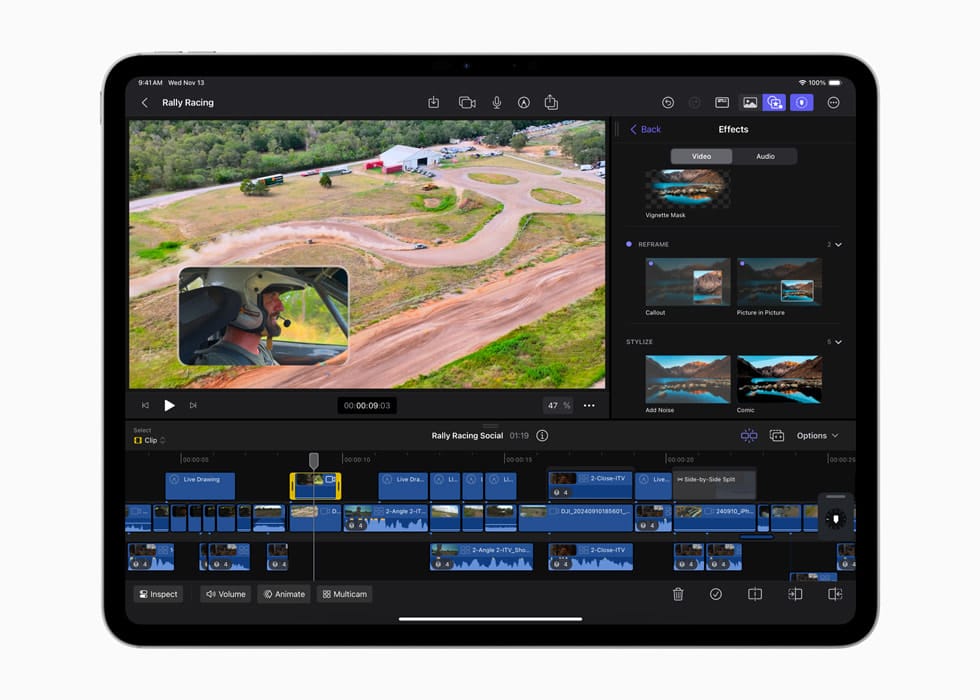

Video editing on the Mac has fundamentally shifted with the release of Final Cut Pro 11. You no longer need to spend hours rotoscoping subjects by hand or bouncing video files to third-party services just to get accurate captions. Apple has integrated powerful AI-driven tools directly into the timeline, allowing you to focus on the story rather than the technical drudgery that usually slows down the creative process. This guide explores how to integrate these new features into your daily workflow and build a hardware environment that keeps up with them.
Intelligent masking is the headline feature here, and it completely changes how you handle color grading and effects. You used to need a green screen or incredibly steady hands to isolate a subject from the background. Now, the Magnetic Mask tool uses the Neural Engine in your Mac to identify people and objects with a simple click. To use it, you drag the Magnetic Mask effect onto your clip in the timeline. Hover your mouse over the subject in the viewer, and you will see an overlay highlighting what the software sees. Click the subject, and Final Cut Pro analyzes the motion across the clip.
Refining the mask is where the real power lies. You can add or subtract areas using simple brush strokes if the automatic detection misses a stray hair or a fast-moving hand. Once the mask is locked in, you can apply a color grade specifically to the background—perhaps desaturating it to make your subject pop—or apply a distinct effect to the subject itself. This process, which used to take an entire afternoon of keyframing, now happens in minutes. It relies heavily on the GPU and Neural Engine, so having a machine with an M4 or M5 chip will make the analysis nearly instantaneous, though M1 and M2 owners will still see a massive improvement over manual methods.
Captions have moved from an optional add-on to a mandatory requirement for social video, and Final Cut Pro 11 finally addresses this natively. The Transcribe to Captions feature analyzes your audio timeline and generates time-synced text automatically. You do not need an internet connection for this; it runs locally on your Mac, ensuring your footage remains private. To activate it, select your storyline or specific audio clips, go to the Connect menu, and choose Transcribe to Captions. The system generates a specialized caption lane in the timeline.
Editing these captions is just as fluid as editing video. You can batch-edit text in the inspector, change fonts, and adjust timing by dragging the caption clips right in the timeline. This is a massive leap forward for creators who previously relied on messy XML round-trips to other software. Because the transcription is generated by the same language models powering Apple Intelligence, the accuracy is surprisingly high, even with technical jargon. You should still do a pass to check proper nouns, but the heavy lifting is done for you.
Affiliate disclosure: some links in this article are Amazon Associate links. If you buy through them, Next Level Mac may earn a small commission at no extra cost to you, and we only recommend products that genuinely bring value to your Apple setup.
High-resolution video projects require fast, sustained storage that won't throttle during these intense AI analysis tasks. Running your library off your internal drive fills it up too quickly, and standard external drives often choke when multiple streams of 4K ProRes are playing back simultaneously. You need an external SSD that supports high sustained write speeds to handle render files and cache data without dropping frames. The Samsung T9 is an exceptional choice here because it offers USB 3.2 Gen 2x2 speeds and a rugged design that dissipates heat effectively during long export sessions. It allows you to keep your internal Mac storage clean while giving Final Cut Pro the bandwidth it needs to perform background rendering and analysis without a hitch.
Here's where to get the Samsung T9 Portable SSD 2TB (Amazon Affiliate Link): https://www.amazon.com/dp/B0C4X7D2D6?tag=nextlevelmac-20&gbOpenExternal=1
Organization is the unsexy hero of any successful edit. Final Cut Pro’s keyword ranges and Smart Collections are still the best way to manage footage, but you should now adapt your tagging strategy to include these new AI features. Create a specific Smart Collection for "Captioned" and "Uncaptioned" projects to keep track of what is ready for export. When you import footage, take the time to apply keywords not just for the content, but for the technical state of the clip—tags like "Needs Masking" or "Audio Fix" help you batch your tasks later. Doing all your masking in one block of time is far more efficient than switching back and forth between creative editing and technical fixing.
Spatial Video editing is another frontier that Final Cut Pro 11 opens up, specifically for those creating content for Apple Vision Pro. You can now import HEVC spatial video, edit it on your standard timeline, and adjust the depth parallax. Even if you don't own a Vision Pro yet, shooting spatial video with your iPhone 17 or compatible headset future-proofs your memories and projects. You can toggle the viewer modes to see the left and right eye views, ensuring your titles and graphics sit comfortably in 3D space without causing eye strain for the viewer.
Speed requires the right input device, and a standard trackpad can sometimes feel limiting for precise timeline navigation. You want a tool that offers programmable buttons and a dedicated horizontal scroll wheel to fly through the Magnetic Timeline. The Logitech MX Master 3S for Mac provides exactly this functionality. You can map the thumb wheel to horizontal scroll, the side buttons to "Blade" and "Delete," and the top button to "Start/Stop Playback." This keeps your hand in one comfortable position and reduces the repetitive strain of constantly reaching for keyboard shortcuts. The quiet click mechanism is also a nice bonus if you are editing in a shared space or recording voiceovers near your desk.
Where you can purchase the Logitech MX Master 3S for Mac (Amazon Affiliate Link): https://www.amazon.com/dp/B09HM94VDS?tag=nextlevelmac-20&gbOpenExternal=1
Audio mixing is often where video editors struggle, but Final Cut Pro 11 includes voice isolation enhancements that pair perfectly with the new captioning workflow. Before you run the transcription, apply Voice Isolation to your dialogue tracks. This cleans up background noise—like air conditioners or traffic—allowing the transcription model to hear the words more clearly and resulting in fewer text errors. You can adjust the amount of isolation with a simple slider; usually, setting it between 20% and 40% is enough to clarify speech without making it sound robotic.
Color grading in Final Cut Pro has matured, especially when combined with the Magnetic Mask. You can now stack multiple color corrections on a single clip without the interface becoming cluttered. Rename your color instances in the inspector to keep track of them—label one "Exposure Fix," another "Look Grade," and a third "Subject Mask." This modular approach makes it easy to toggle specific adjustments on and off to show clients or check your work. It prevents the "house of cards" problem where changing one setting breaks the entire look of the shot.
Connectivity is the backbone of a reliable desktop editing setup. You likely have an external monitor, the SSD mentioned earlier, an audio interface, and perhaps an SD card reader all fighting for port space on your MacBook Pro or Mac Studio. A Thunderbolt 4 dock consolidates all of this into a single cable, providing power and massive data throughput simultaneously. The CalDigit TS4 is the gold standard for this, offering 18 ports including 2.5Gb Ethernet for fast network transfers and a front-facing UHS-II SD card slot that saves you from fumbling behind your Mac. It ensures that your high-speed peripherals actually operate at their rated speeds, which is critical when you are moving gigabytes of video data back and forth.
The place to get the CalDigit TS4 Thunderbolt 4 Dock (Amazon Affiliate Link): https://www.amazon.com/dp/B09GK8LBWS?tag=nextlevelmac-20&gbOpenExternal=1
Workspace customization helps you stay in the flow. You should save a custom workspace layout specifically for "AI Tasks." In this layout, open the Effects Browser, expand the Inspector to the full height of your screen, and shrink the timeline height. This gives you maximum screen real estate for tweaking the Magnetic Mask parameters and reading the transcription text in the inspector. You can switch back to your standard "Editing" layout with a single keystroke when you are done with the heavy technical work.
iPad integration via Sidecar offers a dedicated display for your browser or scopes. While Final Cut Pro for iPad is a great standalone app, using your iPad as a secondary display for the Mac version is often more powerful. Drag your Video Scopes window to the iPad so you have a large, dedicated view of your waveforms and vectorscopes. This keeps your main monitor clear for the timeline and viewer, ensuring you can judge color accuracy without squinting at tiny graphs in the corner of the interface.
Exporting your final project is the last step, and Final Cut Pro 11 includes optimized presets for social platforms. Instead of guessing bitrates, you can use the "Social Platform" export setting which automatically formats your video for vertical or square aspect ratios if needed. The smart conform tool analyzes your clips and keeps the subject centered even when you crop a widescreen video into a vertical TikTok. Always do a spot check on this automatic framing, but trust it to get you 90% of the way there.
Final Cut Pro 11 is not just an update; it is a shift toward a smarter, more efficient way of working. By letting the Neural Engine handle the masking and transcribing, you reclaim hours of your life for the creative decisions that actually matter. Combine these software tools with a robust hardware setup—fast storage, precise input devices, and solid connectivity—and you have a production environment that feels professional, fluid, and ready for anything.

Related Posts
Mac Audio Interfaces: Transform Your Recording Setup
Jan 06, 2026
Master Podcast Production with GarageBand on Mac
Jan 02, 2026
Mac Color Calibration for Photographers and Designers
Dec 27, 2025