
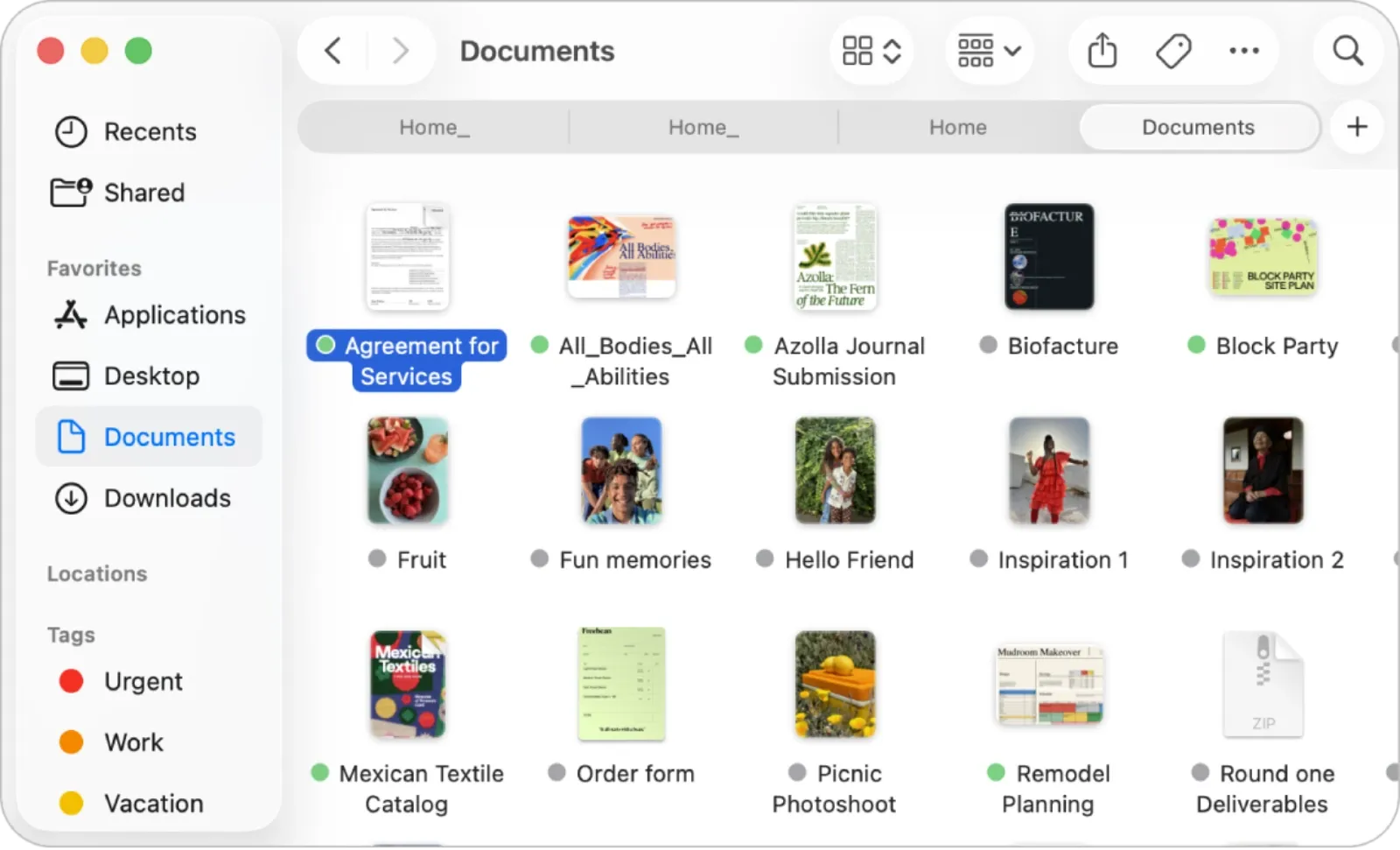
Smart Folders in Finder are one of macOS Tahoe's most underrated productivity tools. You can build saved searches that automatically gather files matching specific criteria, and those results update in real time as you add, modify, or delete files anywhere on your Mac. The feature has existed for years, but Tahoe's refinements to Spotlight indexing make Smart Folders faster and more reliable than ever.
Key Takeaways
- Create Smart Folders from Finder using File then New Smart Folder (or press Option-Command-N)
- Add multiple search criteria by clicking the plus button to combine file type, date, tags, and content filters
- Save Smart Folders to your Finder sidebar for instant access to dynamic file collections
- Smart Folders work across all connected drives, including external SSDs and network storage
- Combine Smart Folders with Finder Tags for a layered organization system that requires zero manual sorting
- Smart Folder searches run in the background and update automatically without any performance penalty
At-A-Glance: Smart Folders vs. Regular Folders
This table compares key attributes of Smart Folders and traditional Finder folders for organizing your Mac files.
| Attribute | Smart Folder | Regular Folder |
|---|---|---|
| Updates Automatically | Yes | No |
| File Location | Files stay in original location | Files must be moved manually |
| Search Criteria | Multiple combined filters | None |
| Setup Effort | Medium (one-time) | High (ongoing maintenance) |
How Smart Folders Actually Work
Smart Folders are saved Spotlight searches displayed as virtual folders in Finder. When you open a Smart Folder, Finder runs the underlying search query and displays matching files. The files themselves never move from their original locations. They appear in the Smart Folder as references, which means the same file can show up in multiple Smart Folders simultaneously.
This distinction matters. Traditional folder organization forces you to choose where a file lives. A project proposal might belong in your Projects folder, your Clients folder, or your 2026 folder. With Smart Folders, the proposal can surface in all three contexts automatically based on its metadata and tags.
The real power emerges when you combine multiple search criteria. You might create a Smart Folder that shows all PDF files created in the last 30 days that contain the word "invoice" and carry the tag "pending." That collection updates itself as you work. New invoices appear automatically; paid invoices disappear when you change their tag.
Building Your First Smart Folder
Open any Finder window and select File from the menu bar, then click New Smart Folder. Alternatively, press Option-Command-N from anywhere in Finder. A new window appears with a search bar at the top and a plus button on the right side.
The search bar accepts plain text queries, but the real precision comes from the criteria buttons below. Click the plus button to add your first filter. The default shows Kind is Any, but clicking these dropdowns reveals dozens of options. You can filter by file type, creation date, modification date, size, name, tags, and even content within documents.
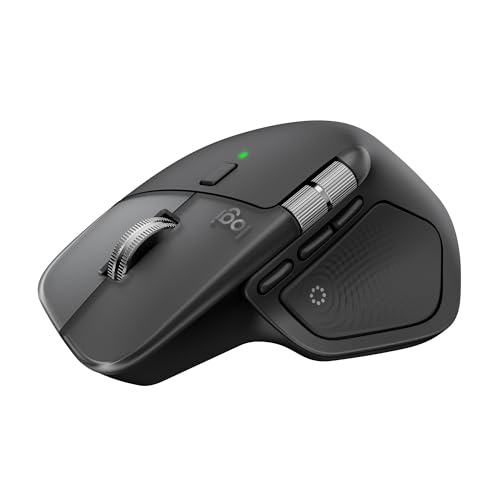
Here's where the tactile feedback of a quality mouse helps. When you're clicking through nested dropdown menus and adjusting multiple criteria, a responsive mouse with precise scrolling makes the experience significantly smoother. Where to get the Logitech MX Master 4 for Mac with its haptic feedback and Actions Ring shortcuts for exactly this kind of detailed work (Amazon Affiliate Link): https://www.amazon.com/dp/B0FC5X4F8G?tag=nextlevelmac-20
Add more criteria by clicking the plus button again. Each new line combines with the others using AND logic by default, meaning files must match all criteria to appear. Hold Option while clicking the plus button to create nested groups with OR logic for more complex queries.
Practical Smart Folder Examples
Recent Large Files: Set Kind to Any, Date Modified to within last 7 days, and Size to greater than 100 MB. This Smart Folder helps you track down space-consuming files you've worked with recently, perfect for cleanup sessions.
Screenshots Awaiting Processing: Set Kind to Image, Name contains "Screenshot", and Last Opened Date to never. This catches screenshots you've taken but haven't reviewed yet.
Project Documents: Set Tags include your project tag, Kind to Document, and Date Modified to within last 30 days. This creates a living view of active project files regardless of where they're scattered across your drives.
Client Deliverables: Set Tags include "Deliverable" and Date Created to this month. Perfect for tracking what you've produced for clients during the current billing cycle.
Adding Smart Folders to Your Sidebar
Once you've configured your search criteria, click the Save button. Choose a name and select "Add To Sidebar" in the save dialog. Your Smart Folder now appears in Finder's sidebar under Favorites, giving you one-click access to that dynamic file collection.
You can also save Smart Folders to any regular folder location. Some users create a dedicated Smart Folders directory in their Documents folder to keep all their saved searches organized in one place.
Combining Smart Folders with Finder Tags
Finder Tags transform Smart Folders from useful to essential. Tags are colored labels you can apply to any file or folder. Unlike moving files into folders, tagging preserves the original file location while adding metadata that Smart Folders can search.
Create your own tags in Finder Preferences by clicking Tags in the sidebar. I recommend building a tag vocabulary that matches your actual workflow stages: Inbox, Active, Waiting, Archive, Reference. Then create Smart Folders for each stage.
The combination works beautifully. You download a file. It lands in your Downloads folder. You tag it "Inbox" with a quick right-click. Your Inbox Smart Folder immediately shows it. You start working on the file and change the tag to "Active." The file vanishes from Inbox and appears in Active. You never moved the file; it stays in Downloads. But your workflow views update automatically.
Keyboard Shortcuts That Matter
Opening new Smart Folders repeatedly interrupts your flow. Set up keyboard shortcuts in System Preferences (now System Settings in Tahoe) under Keyboard then Keyboard Shortcuts. Navigate to App Shortcuts, add Finder, and create shortcuts for your most-used Smart Folders.


Affiliate disclosure: some links in this article are Amazon Associate links. If you buy through them, Next Level Mac may earn a small commission at no extra cost to you, and we only recommend products that genuinely bring value to your Mac setup.
A quality keyboard makes this entire workflow more fluid. Typing search queries, applying tags, and triggering shortcuts requires responsive, well-positioned keys. This is where to buy the Logitech MX Keys S for Mac with its Smart Actions feature that can automate tagging and folder opening with single keystrokes (Amazon Affiliate Link): https://www.amazon.com/dp/B0BXX499PC?tag=nextlevelmac-20
The MX Keys S includes programmable function keys along the top row. Assign your most-used Smart Folders to F1 through F12, and you can jump to any dynamic file view instantly without touching your mouse.
Accessibility and Clarity
Smart Folders integrate with VoiceOver and other macOS accessibility features. VoiceOver announces Smart Folder contents just like regular folders, and the search criteria interface is fully navigable via keyboard. Users with visual impairments can create and modify Smart Folders using Tab navigation and the arrow keys to select criteria options.
The main accessibility consideration involves the search criteria interface itself. The dropdown menus require precise clicking, which can challenge users with motor limitations. Consider using keyboard navigation: Tab moves between interface elements, Space opens dropdowns, and arrow keys select options.
For users with light sensitivity, Smart Folder windows inherit your system appearance settings. Enable Dark Mode in System Settings under Appearance for reduced eye strain during extended file organization sessions.
Performance Considerations
Smart Folders run on Spotlight's index, which means their performance depends on your indexing status. If you've recently connected a new external drive or copied a large batch of files, Spotlight needs time to index that content before Smart Folders can find it.
Check indexing status by clicking the Spotlight icon in the menu bar. If indexing is in progress, you'll see an estimated time remaining. Large drives can take several hours to index initially, but subsequent updates happen in the background with minimal impact.
External SSDs with Thunderbolt or fast USB-C connections index quickly and deliver snappy Smart Folder results. Network-attached storage works but may show slight delays depending on your connection speed.
Troubleshooting Stubborn Smart Folders
When Smart Folders stop updating or miss files you know exist, the culprit is usually a Spotlight indexing issue. Open System Settings, click Siri and Spotlight (in macOS Tahoe this section combines both features), then scroll down to Spotlight Privacy. Add your drive to the privacy list, wait 30 seconds, then remove it. This forces Spotlight to reindex that location.
If specific file types won't appear, check that Spotlight indexes that file format. Custom or obscure file types may need their applications registered with Launch Services. Opening the file once with its intended application usually resolves this.
Making Smart Folders Part of Daily Workflow
The best productivity systems require minimal maintenance. Smart Folders shine here because once configured, they work silently in the background. Your role shifts from manually organizing files to simply tagging them appropriately.
Start with three or four Smart Folders covering your most common file contexts. Add more as patterns emerge in your work. Review your Smart Folder setup monthly and retire any that no longer match how you actually work.
The files stay where you put them. The organization happens automatically through metadata. And your Finder sidebar becomes a control center for navigating your digital life rather than a maze of nested folders requiring constant manual sorting.

Related Posts
Finder Quick Actions in macOS Tahoe Automate File Tasks Instantly
Jan 12, 2026
Apple Calendar in macOS Tahoe: Workflow Tips That Save Hours
Jan 11, 2026
Pro Guide to Apple Reminders on Mac in macOS Tahoe
Jan 11, 2026