

Your iPhone fills up without you noticing. Holiday photos from December, app updates through the year, and cached files add up fast.
January 1st hits and you can't take another photo or download an app. The iPhone storage full message appears at the worst time.
I'll show you how to audit what's taking up space, what you can safely delete, and which tools make the process faster.
Check What's Actually Using Space
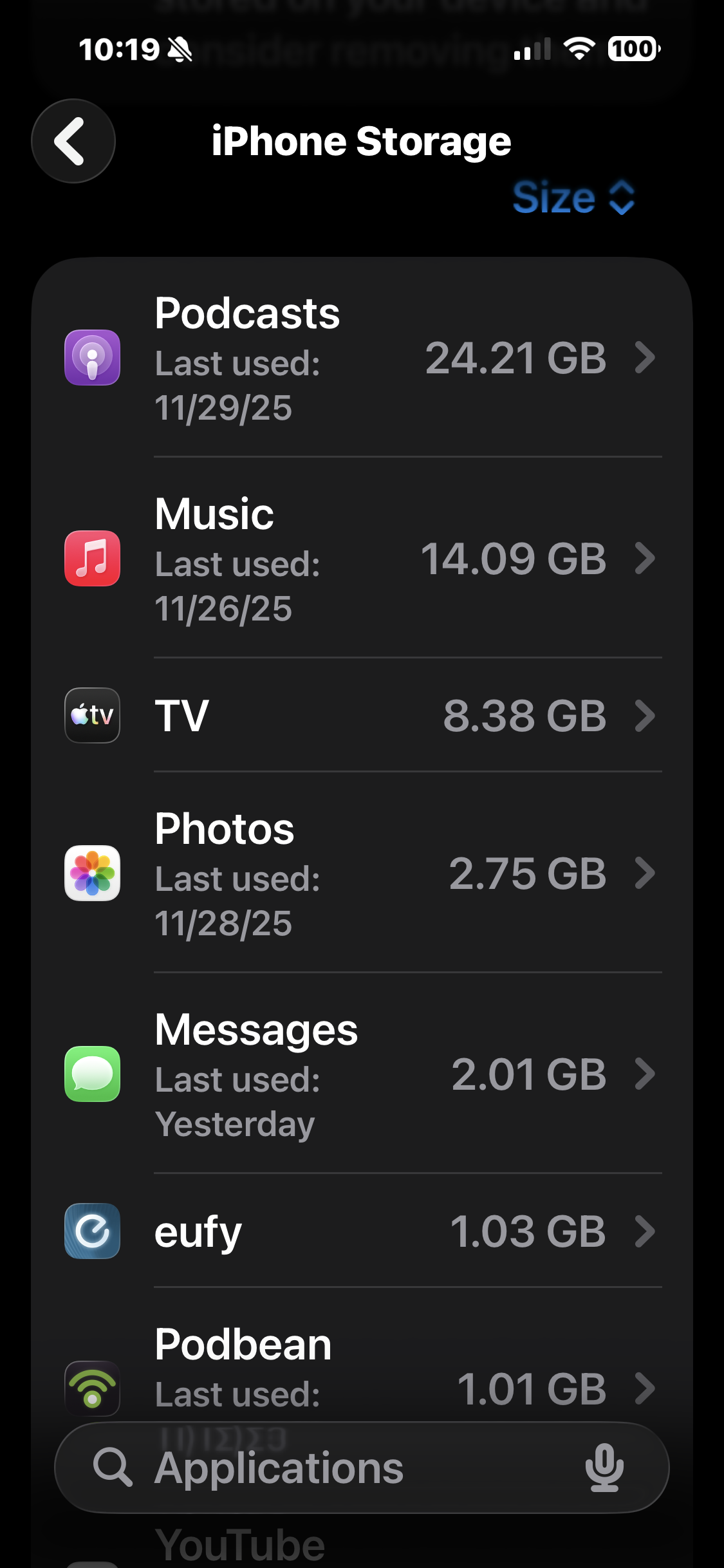
Open Settings and tap General, then iPhone Storage. This screen shows exactly where your storage goes.
The top of the screen displays a color-coded bar. Photos usually dominate, followed by apps and system data. Tap any category to see details.
Scroll down to see individual apps ranked by size. Apps like Instagram, Photos, and Messages often sit at the top with multiple gigabytes each.
The first time you check this, the numbers might surprise you. A messaging app you use daily could be storing 15GB of media you forgot about.
Delete Apps You Don't Actually Use
Look for apps you haven't opened in months. If you can't remember the last time you used it, you probably don't need it.
Tap an app in the iPhone Storage list. You'll see two options: Offload App and Delete App. Offload keeps your data and settings while removing the app itself. Delete removes everything.
For apps you might use again someday, offload them. For apps you're done with, delete them completely. You can always reinstall from the App Store if needed.
The Offload Unused Apps feature at the top of iPhone Storage does this automatically. Turn it on and iOS removes apps you haven't touched in 30 days while keeping their data.
Clear Message Attachments
Messages stores every photo, video, and GIF anyone sends you. Years of conversations create gigabytes of attachments you'll never look at again.
Go to Settings > General > iPhone Storage > Messages. Tap Review Large Attachments to see videos and photos sorted by size.
Swipe left on any attachment to delete it. The conversation stays intact, but the file disappears from storage.
Set messages to auto-delete after a year. Go to Settings > Messages > Keep Messages and choose 1 Year. Old conversations disappear but recent ones stay.
Optimize Photo Storage
Photos takes up more space than any other category for most people. The iPhone stores full resolution versions of every photo and video you take.
Enable Optimize iPhone Storage in Settings > Photos. Your phone keeps smaller versions locally while full resolution copies live in iCloud.
When you view a photo, iOS downloads the full version temporarily. You get the same experience but use far less storage day to day.
This only works if you subscribe to iCloud storage. The base 5GB won't cut it for most photo libraries. The 50GB plan costs $0.99 per month.
Affiliate disclosure: some links in this article are Amazon Associate links. If you buy through them, Next Level Mac may earn a small commission at no extra cost to you, and we only recommend products that genuinely bring value to your Apple setup.
Clear Safari and Browser Caches
Safari stores website data to load pages faster next time. After months of browsing, this cache reaches several gigabytes.
Open Settings and tap Safari. Scroll to Clear History and Website Data. Tap it and confirm.
This logs you out of websites and clears saved passwords from Safari. If you use iCloud Keychain, your passwords are safe and will auto-fill when you log back in.
Other browsers like Chrome have their own cache systems. Open Chrome, tap the three dots, go to History, then Clear Browsing Data.
Remove Downloaded Content
Streaming apps download content for offline viewing. You download a playlist for a flight and forget about it.
Check Apple Music, Spotify, Netflix, and similar apps. Each one has a downloads or offline section where you can remove saved content.
In Apple Music, go to Library > Downloaded Music. Swipe left on albums or playlists to delete them. The songs stay in your library for streaming.
Podcasts apps accumulate old episodes. Set podcasts to auto-delete played episodes in Settings > Podcasts.
Delete and Reinstall Large Apps
Some apps build up cache files that never get cleared. Social media apps and web browsers are common culprits.
If an app uses several gigabytes but shouldn't, delete it and reinstall from the App Store. The fresh install starts with a clean slate.
Your data might not come back depending on the app. Apps that sync with cloud services like Twitter or Instagram restore your feed automatically. Games might lose progress unless they sync with Game Center.
Back up app data before deleting if you're unsure. Many apps have export or backup features in their settings.
Use External Storage for Backups
iCloud works for most people but physical backups give you another layer of protection. External drives don't require monthly fees and work without internet.
MFi certified flash drives plug directly into your iPhone's USB-C port. The JD Drive app lets you back up photos and videos with one tap.
These drives work offline, so you can back up photos during travel without worrying about hotel Wi-Fi. They're also faster than uploading to iCloud on slow connections.
Here's where to get the Apple MFi Certified 512GB Flash Drive https://www.amazon.com/dp/B0BDQWBMQK?tag=nextlevelmac-20&gbOpenExternal=1
Manage Video Recording Settings
4K video at 60fps looks incredible but each minute eats 440MB of storage. Record a 10-minute video and you've used over 4GB.
Go to Settings > Camera > Record Video. Choose 1080p at 30fps for everyday videos. Save 4K 60fps for moments that justify the file size.
The same applies to ProRes video on iPhone 17 Pro models. ProRes creates huge files meant for professional editing. Most people don't need it.
Check your recent videos in Photos. If you have long 4K recordings you don't need, delete them or export them to a computer first.
Review and Delete Large Files
The iPhone Storage screen shows a Review Large Attachments option under several categories. Tap it to see your biggest files sorted by size.
Videos you received in Messages, downloads from Safari, and voice memos all show up here. Most of these files served their purpose and can go.
Delete files directly from this screen. Swipe left and tap Delete. The file disappears from your phone but might still exist on the original device or in cloud storage.
Pay attention to Files app storage. Documents, PDFs, and downloads accumulate in On My iPhone. Move important files to iCloud Drive and delete the local copies.
iDiskk External Hard Drive for Automatic Backups
External hard drives designed for iPhone offer more capacity than flash drives. The iDiskk MFi Certified 2TB External Hard Drive includes a built-in battery so it works without being plugged into a computer.
Connect it to your iPhone and the app automatically backs up new photos and videos. Future backups only save newly added files, avoiding duplicates.
The drive also works with iPad, Mac, PC, and Android devices. One device handles backups across your entire household.
This is where you can buy the iDiskk 2TB External Hard Drive https://www.amazon.com/dp/B0B9MRHDRP?tag=nextlevelmac-20&gbOpenExternal=1
Update iOS for Better Storage Management
Apple improves storage management with each iOS update. iOS 26.2 includes refinements that help clear temporary files more effectively.
Go to Settings > General > Software Update. Download and install any available updates. Your iPhone might restart a few times.
Updates also fix bugs that cause apps to use more storage than necessary. Staying current keeps your phone running efficiently.
Charge your iPhone before updating. Updates can take 20-30 minutes and drain battery during installation.
Prevent Storage Issues Going Forward
Set up automatic iCloud backups so photos and videos upload without manual intervention. Go to Settings > [Your Name] > iCloud > iCloud Backup and turn it on.
Review your storage monthly instead of waiting for the storage full message. Pick the first of each month and spend five minutes clearing out junk.
Be selective about what you download. Before installing an app, ask if you'll really use it or if you just want to try it once.
Turn on Offload Unused Apps so iOS automatically removes apps you stop using. You keep the data but recover the storage space.
When Cloud Storage Makes Sense
iCloud costs $0.99 per month for 50GB, $2.99 for 200GB, or $9.99 for 2TB. For most people, the 200GB plan covers photos, videos, and backups for multiple devices.
Cloud storage works automatically once set up. Photos upload when you're on Wi-Fi. Your iPhone backs up every night while charging.
The downside is monthly cost and dependence on internet access. If you're in an area with poor connectivity, cloud storage becomes less practical.
External storage has a one-time cost and works anywhere. The trade-off is manual management rather than automatic syncing.
What to Do When Storage Gets Critical
If your storage drops below 1GB available, iOS starts removing cached files automatically. This frees up space but slows down apps that need to rebuild their caches.
Delete your largest apps first. Go to iPhone Storage and remove the top three apps by size. Reinstall them if needed once you've cleared more space.
Record a long video to force iOS to clear space. Start recording 4K video and let it run for several minutes. iOS frees up resources automatically to keep recording. Delete the video afterward.
This emergency method works but isn't ideal. Better to stay ahead of storage issues by cleaning up monthly.
Storage Management Is Ongoing
Your iPhone won't stay clean after one purge. Apps download updates, you take more photos, and cached files rebuild.
Make storage management a habit. Check your storage at the start of each month. Delete apps you stopped using, clear message attachments, and review large files.
Small regular cleanups take less time than emergency purges when storage hits zero. Five minutes monthly beats an hour of desperate deletion later.
The iPhone Storage screen gives you all the information you need. Use it regularly and storage stops being a problem.

Related Posts
iPhone 17 Screen Protectors: Why Anti-Reflective Coating Matters
Dec 06, 2025
Master iPhone Automation: The Ultimate NFC Tag Guide (2026)
Dec 05, 2025
Secure Your Apple Life: The Ultimate iCloud Security Audit (2026)
Dec 04, 2025