
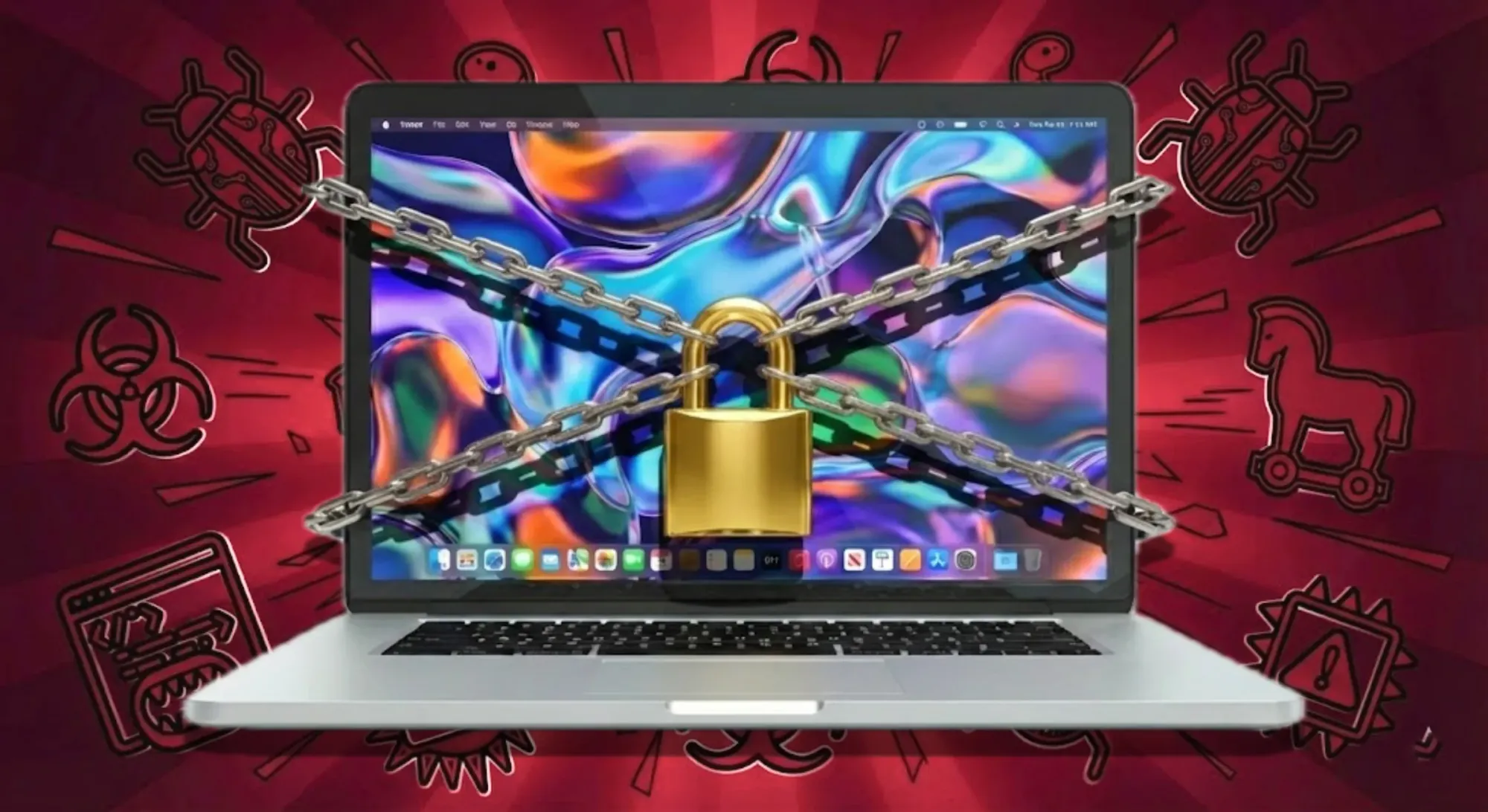
macOS Tahoe 26 provides comprehensive privacy and security features that rival dedicated security software, yet most users never enable them. Advanced Data Protection encrypts your iCloud data end-to-end, Lockdown Mode blocks sophisticated attacks, and FileVault protects everything on your disk. Combined with proper system configuration, these native tools create a hardened privacy environment without third-party software.
Key Takeaways
- Enable Advanced Data Protection to encrypt iCloud data end-to-end so Apple cannot access your backups, photos, or notes
- Activate Lockdown Mode when handling sensitive data or traveling to high-risk locations to block advanced spyware attacks
- Configure FileVault full-disk encryption with a recovery key stored offline to protect data if your Mac is stolen
- Disable Location Services tracking for System Services to stop macOS from logging your frequent locations
- Review and restrict app permissions for Camera, Microphone, and Files access to minimize data exposure
- Use hardware security keys for two-factor authentication instead of SMS codes that can be intercepted
At-A-Glance: Privacy Hardening Settings
| Setting | Impact | Time to Enable |
|---|---|---|
| Advanced Data Protection | Encrypts iCloud backups, photos, notes end-to-end | 5 minutes |
| FileVault Encryption | Protects disk if Mac is stolen or lost | 10 minutes |
| Lockdown Mode | Blocks sophisticated spyware and exploits | 2 minutes |
| Hardware Security Key | Prevents phishing and account takeovers | 15 minutes |
Enable Advanced Data Protection for End-to-End iCloud Encryption
Advanced Data Protection represents Apple's strongest iCloud security option, encrypting 23 data categories with keys that exist only on your trusted devices. Without this enabled, Apple holds the encryption keys to your iCloud backups, photos, notes, and more—meaning the company can technically access your data when compelled by law enforcement or in the event of a breach.
Turning on Advanced Data Protection removes Apple from the equation entirely. Your iCloud Photo Library, device backups, Notes, Voice Memos, Safari bookmarks, Siri information, Wallet passes, and Messages backup all become encrypted end-to-end. Only you can decrypt this data using your device passcode or password.
Go to System Settings, click your name at the top, then select iCloud. Click Advanced Data Protection, then Turn On Advanced Data Protection. Apple will walk you through setting up either a recovery contact or a recovery key. Choose the recovery key option if you want maximum security—store this 28-character code somewhere safe offline, like a password manager or written in a secure location. Without this key or access to a trusted device, your iCloud data becomes permanently unrecoverable if you forget your password.
The only iCloud data categories excluded from Advanced Data Protection are Mail, Contacts, and Calendar, which remain encrypted in transit and at rest but use keys Apple can access. This exclusion exists because these services must interoperate with non-Apple email servers and calendar systems using standard protocols.
Configure FileVault Disk Encryption with Offline Recovery
FileVault encrypts your entire Mac startup disk using XTS-AES-128 encryption with a 256-bit key. On Apple Silicon Macs, the Secure Enclave generates and stores the encryption key, making it virtually impossible to extract even with physical access to the device.
Open System Settings, click Privacy & Security in the sidebar, scroll down to FileVault, then click Turn On. macOS will present two recovery options: store the key with your iCloud account or create a local recovery key. Select Create a recovery key and do not store the key with Apple to maintain complete control over your encrypted data.
Write down the recovery key on paper and store it in a secure location separate from your Mac—a safe deposit box, fireproof home safe, or password manager all work. Never store the recovery key in an unencrypted digital file or email it to yourself. This key is the only way to unlock your disk if you forget your login password and lose access to all your trusted Apple ID devices.
FileVault encryption happens in the background after you restart your Mac. The initial encryption process can take several hours on Macs with large storage capacities, but you can continue using your Mac normally during this time. Check encryption progress by opening Terminal and running the command fdesetup status.
Activate Lockdown Mode for High-Security Scenarios
Lockdown Mode disables system features commonly exploited in targeted spyware attacks. It's designed for journalists, activists, lawyers, and others who may face sophisticated threats from state-sponsored actors or mercenary spyware companies. Most users won't need Lockdown Mode for daily use, but it's valuable when traveling to high-risk locations or handling extremely sensitive information.
Navigate to System Settings, click Privacy & Security, scroll to Lockdown Mode, then click Turn On. Your Mac will restart to apply the restrictions.
With Lockdown Mode enabled, message attachments other than images are blocked, link previews don't load, web fonts can't download, and JavaScript JIT compilation is disabled in Safari. FaceTime calls from people you haven't previously contacted won't ring through, shared albums are removed from Photos, wired connections to computers or accessories require explicit approval, and configuration profiles can't be installed.
These restrictions dramatically reduce attack surface for sophisticated exploits. The recent CVE-2025-43530 vulnerability discovered in January 2026, which allowed attackers to bypass macOS privacy controls, would have been significantly harder to exploit on a Mac running Lockdown Mode.
You can selectively disable Lockdown Mode for specific websites in Safari if they break with the restrictions. Tap the Page Menu in Safari's address bar and toggle off Lockdown Mode for that site only.
Lock Down System Services Location Tracking
macOS includes a System Services location tracking feature that logs places you visit frequently. This data powers location-based suggestions and routing but creates a detailed history of your movements stored on your Mac and synced to iCloud.
Open System Settings, click Privacy & Security in the sidebar, then click Location Services. Scroll down to System Services at the bottom and click Details. Disable Significant Locations to stop macOS from tracking and storing your frequent locations. Also disable HomeKit, Location-Based Suggestions, and any other services you don't actively use.
Check which apps have location access in the main Location Services screen. Many apps request location permission unnecessarily. Disable location for any app that doesn't need your physical location to function. For apps that do need location occasionally, consider changing the permission from "Always" to "While Using the App" to limit tracking.
Audit and Restrict App Permissions Systematically
Third-party apps request access to your camera, microphone, contacts, files, and more. Each permission grants an app potential access to sensitive information.
Navigate to System Settings and click Privacy & Security. Work through each permission category—Camera, Microphone, Files and Folders, Contacts, Calendar, Photos, and so on. For each category, review which apps have access and ask whether they genuinely need it.
Disable camera access for apps that don't use video calls or photo capture. Revoke microphone permissions from apps that don't record audio. Be especially careful with Files and Folders access, which grants apps permission to read and write files outside their sandboxed container.
Pay attention to the Accessibility permission, which grants apps control over your Mac at a system level, including reading screen content and controlling other applications. Only grant Accessibility to apps you completely trust, and regularly review which apps have this permission.
Implement Hardware Security Keys for Phishing-Resistant Authentication
SMS-based two-factor authentication is vulnerable to SIM swapping attacks, and authenticator apps can be compromised if your phone is infected with malware. Hardware security keys provide phishing-resistant authentication by requiring physical possession of the key to complete login attempts.
Here's where to get the Yubico YubiKey 5C NFC, which works with both USB-C and wireless NFC on your Mac and iPhone (Amazon Affiliate Link):
https://www.amazon.com/dp/B08DHL1YDL?tag=nextlevelmac-20
The YubiKey 5C NFC supports FIDO2/WebAuthn, FIDO U2F, Yubico OTP, and smart card protocols. It works with Apple ID, Google, Microsoft accounts, 1Password, Bitwarden, and hundreds of other services.
Register your YubiKey with your Apple ID by going to System Settings, clicking your name, selecting Sign-In & Security, then Two-Factor Authentication. Click Add Security Keys and follow the prompts to register your key. Add at least two keys—one for daily use and one backup stored securely—so you never get locked out of your accounts.
For maximum security, disable SMS and authenticator app fallback methods after adding security keys. This prevents attackers from bypassing your hardware keys through social engineering attacks against your phone carrier.
Create Encrypted Offsite Backups with Thunderbolt 5
An encrypted external backup protects your data if your Mac is stolen, damaged, or infected with ransomware. Thunderbolt 5 drives deliver speeds over 6000MB/s, making full-disk backups fast enough to run frequently without disrupting your workflow.


The place to buy the OWC Envoy Ultra Thunderbolt 5 SSD 2TB for encrypted Time Machine backups (Amazon Affiliate Link):
https://www.amazon.com/dp/B0DMTVGPH8?tag=nextlevelmac-20
Affiliate disclosure: some links in this article are Amazon Associate links. If you buy through them, Next Level Mac may earn a small commission at no extra cost to you, and we only recommend products that genuinely bring value to your Mac setup.
Time Machine on macOS automatically encrypts backups to external drives when you enable encryption during setup. Connect your Thunderbolt 5 drive, open System Settings, click General, then Time Machine. Click the plus button to add a backup disk, select your drive, then check Encrypt Backup Disk when prompted.
Store your encrypted backup drive in a different physical location than your Mac—at your office if your Mac stays home, or at home if your Mac travels. This protects against theft, fire, or other disasters that could destroy both your Mac and a backup stored in the same location. Update your offsite backup weekly at minimum, daily if you work with critical data.
Harden Safari Privacy and Tracking Protection
Safari in macOS Tahoe includes advanced tracking and fingerprinting protection, but it's not enabled by default in all browsing modes. Launch Safari, click Safari in the menu bar, select Settings, then click the Privacy tab.
Click Advanced Settings next to the tracking protection option. Check "Use advanced tracking and fingerprinting protection," then set the dropdown to "in all browsing" to apply protection in both regular and private windows.
Enable "Hide IP address from trackers" to prevent websites from using your IP address for tracking. This routes some traffic through Apple's relay servers, similar to how iCloud Private Relay works.
Review Safari's website-specific settings by clicking Websites in Settings. Check Cameras, Microphone, Screen Sharing, and Location to see which sites have permission to access these features. Revoke access from sites that don't need these capabilities.
Disable Unnecessary Network Services and Sharing
Each network service your Mac runs represents a potential attack vector. Open System Settings, click General, then Sharing. Disable every service you don't actively use.
Screen Sharing, File Sharing, Printer Sharing, Remote Login, and Remote Management should all be off unless you specifically need them. If you do need File Sharing, click the info button and restrict access to specific users rather than "Everyone."
Content Caching, which stores Apple software updates and iCloud content locally to speed up downloads on other devices, can consume significant bandwidth and storage. Disable it unless you manage multiple Macs on the same network.
Go to System Settings, click Network, select your active network connection, click Details, then Firewall. Enable the firewall and click Options to configure it. Enable "Block all incoming connections" to maximize security, though this will prevent services like Screen Sharing and File Sharing from accepting connections even when enabled.
Monitor System Integrity Protection and Gatekeeper Status
System Integrity Protection (SIP) prevents even root-level users and processes from modifying protected system files and folders. Gatekeeper ensures only signed and notarized apps run on your Mac.
Verify SIP is enabled by opening Terminal and running csrutil status. You should see "System Integrity Protection status: enabled." Never disable SIP unless absolutely required by specific professional software, and re-enable it immediately after completing the necessary task.
Check Gatekeeper status by opening Terminal and running spctl --status. The output should show "assessments enabled." In System Settings under Privacy & Security, set "Allow applications downloaded from" to "App Store" for maximum security, or "App Store and identified developers" if you need to run software from outside the App Store.
Review the App Sandbox and Hardened Runtime status of apps in Activity Monitor. Click View in the menu bar, select Columns, then enable Sandbox and Restricted. Apps showing "Yes" for both columns are running with proper security protections. Apps showing "No" have deeper system access and should be scrutinized carefully.
Manage DNS Privacy with Encrypted DNS Protocols
DNS queries reveal every website you visit to your ISP and DNS provider. Encrypted DNS prevents eavesdropping on your DNS lookups.
Navigate to System Settings, click Network, select your network connection, click Details, then DNS. Click the plus button under DNS Servers to add encrypted DNS servers.
For Cloudflare's DNS, add: https://cloudflare-dns.com/dns-query For Quad9's DNS, add: https://dns.quad9.net/dns-query
Remove any unencrypted DNS servers from the list after adding encrypted ones. macOS will now use DNS over HTTPS to encrypt your DNS queries, preventing ISPs and network operators from seeing which websites you're visiting based on DNS lookups.
iCloud Private Relay, included with iCloud+ subscriptions, goes further by routing Safari traffic through relay servers to hide your IP address from websites and prevent Apple from seeing which sites you visit. Enable Private Relay in System Settings under your Apple ID name, then iCloud. Note that Private Relay only protects Safari traffic, not other apps or system services.
Secure Your Apple ID with All Available Protections
Your Apple ID is the key to your entire Apple ecosystem. Go to System Settings, click your name, then Sign-In & Security. Enable all available protections.
Two-Factor Authentication should be enabled and use security keys rather than SMS. Add security keys as described earlier in the hardware security keys section.
Sign in with Apple provides a way to create accounts on third-party websites without sharing your real email address. Apple generates random email addresses that forward to your real address, letting you disable forwarding if a service starts sending spam or suffers a breach.
Click Advanced at the bottom of the Sign-In & Security page. Enable "Require Face ID or password after 48 hours" to force re-authentication even on trusted devices after two days. This limits how long a stolen unlocked Mac could be used to access your Apple ID.
Review devices signed in to your Apple ID by clicking the Devices section. Remove any devices you no longer own or don't recognize. An unknown device in this list could indicate unauthorized access to your account.
Accessibility & Clarity
The privacy settings in macOS Tahoe are designed to be accessible through both System Settings' visual interface and VoiceOver screen reader support. Each setting includes clear labels and descriptions that explain what data access you're granting or revoking.
For users with motor limitations, macOS allows you to navigate System Settings entirely via keyboard using Tab to move between elements and Space to activate buttons. Voice Control lets you enable privacy settings hands-free by speaking commands like "Click Privacy & Security" or "Turn on FileVault."
High contrast mode and increased text size both work in System Settings, making privacy configuration accessible for users with vision impairments. VoiceOver announces each privacy setting clearly, including which apps have specific permissions.
The cognitive load of privacy configuration can be reduced by working through one category at a time. Start with FileVault encryption, then Advanced Data Protection, followed by Location Services, then app permissions. Breaking the hardening process into focused sessions prevents overwhelming decision fatigue.
Quick-Action Checklist for Mac Privacy Hardening
Copy this checklist to enable core privacy protections:
Immediate Actions (30 minutes)
- Open System Settings > your name > iCloud > Advanced Data Protection > Turn On
- System Settings > Privacy & Security > FileVault > Turn On (choose local recovery key)
- System Settings > Privacy & Security > Location Services > System Services > Details > Disable Significant Locations
- System Settings > Network > (your network) > Details > Firewall > Turn On > Options > Block all incoming connections
Same-Week Actions
- Register hardware security keys at System Settings > your name > Sign-In & Security > Two-Factor Authentication
- Configure Time Machine encrypted backup to external Thunderbolt drive
- Safari > Settings > Privacy > Advanced Settings > Enable advanced tracking protection in all browsing
- System Settings > Privacy & Security > Review and restrict Camera, Microphone, Files access by app
Monthly Review
- System Settings > your name > Sign-In & Security > Devices > Remove unknown devices
- Terminal: Run
csrutil statusandspctl --statusto verify system protections remain enabled

Related Posts
Audit Your Mac Privacy Permissions in macOS Tahoe
Jan 16, 2026
Lock Down Mac Privacy After CVE-2025-43530 TCC Bypass
Jan 16, 2026
Privacy Screen Filters for MacBook: Protect Your Data
Oct 20, 2025