
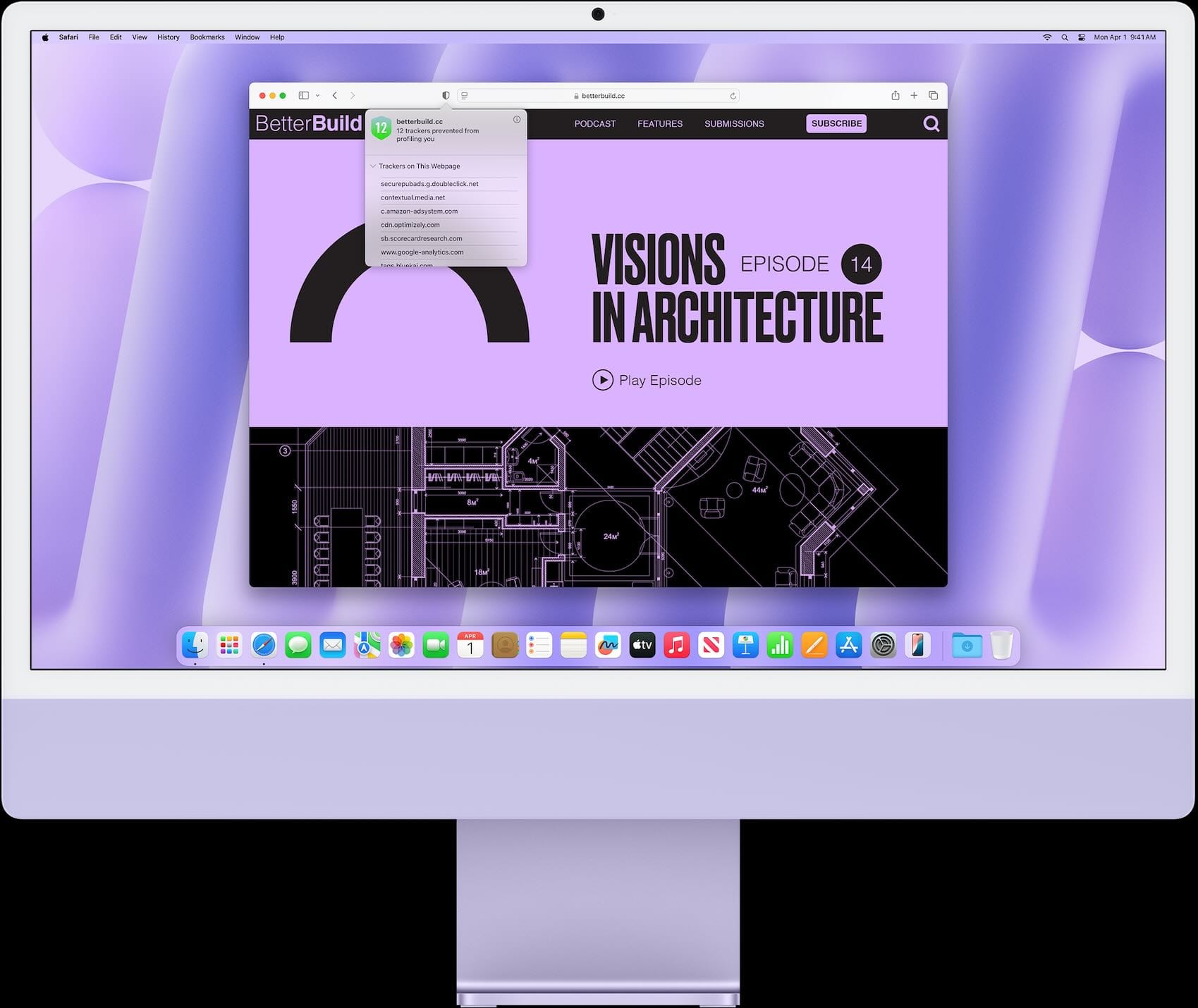
You can finally take control of the chaos on websites. Safari in macOS Tahoe includes Distraction Control, a feature that lets you hide any distracting element on a webpage—cookie banners, newsletter pop-ups, auto-playing videos, or anything else interrupting your focus. This isn't an ad blocker, and it won't break how websites work. Instead, it gives you precise control over what you see, making your Mac a more effective tool for research, reading, and productivity.
What Distraction Control Actually Does
Safari's Distraction Control works by letting you click on specific elements of a webpage and hide them temporarily or permanently. The feature remembers your choices, so when you return to a site, those distractions stay hidden. This is different from Reader View, which strips a page down to just text and images. Distraction Control keeps the full website intact while removing only the parts you choose.
It's especially useful for websites you visit regularly where certain elements never change but always get in the way. Cookie consent banners that appear every single time. Newsletter signup forms that slide in from the bottom. Auto-playing video players. Distraction Control handles all of these without affecting the core content you came to see.
The feature works site by site. Safari stores your preferences for each domain, which means you can customize your browsing experience based on how you use different websites. A news site might need aggressive hiding of sidebars and promotional boxes, while a documentation site might only need a cookie banner removed.
Enabling Distraction Control in Safari
Before you can start hiding elements, you need to make sure the feature is enabled. Open Safari and navigate to any website. In the menu bar, click on Safari, then Settings. Go to the Websites tab in the settings window.
Look for the Distraction Control section in the left sidebar. Click on it, and you'll see a list of websites where you've already used the feature (if any). At the bottom, you'll find a dropdown menu that says "When visiting other websites." Set this to "On" if you want Distraction Control available everywhere, or leave it on "Ask" if you prefer to enable it on a per-site basis.
Once it's enabled, you can access it quickly from any webpage. Look for the page icon in the Safari toolbar—it looks like two overlapping lines to the left of the address bar. Click it, and you'll see "Hide Distracting Items" in the menu. Select it, and Safari will enter Distraction Control mode.
Your cursor will change to a crosshair when you hover over different elements on the page. This shows you exactly what you can hide. Not every element is hideable—Safari won't let you remove core content or interactive features that break functionality—but most static annoyances are fair game.
How to Hide Specific Elements
Hiding elements is straightforward. Enter Distraction Control mode using the page icon in the toolbar, then move your cursor over the webpage. Safari will highlight different sections as you hover, showing you what it considers a removable element.
When you find something you want to hide, click on it. Safari will remove it from the page immediately. The element disappears, and Safari remembers this choice. If you revisit the page later, that element stays hidden. If the website changes its layout or updates the page structure significantly, the element might reappear, but in most cases, your preferences persist across sessions.
You can hide multiple elements on the same page. Cookie banners, sidebar ads, newsletter prompts—click on each one, and they'll all vanish. The page itself remains functional. Links still work, forms still submit, videos (that you didn't hide) still play.
To stop hiding elements and exit Distraction Control mode, click the page icon again and deselect "Hide Distracting Items." The elements you've already hidden stay hidden, but you won't be able to hide new ones until you re-enable the mode.
Managing Your Hidden Elements
Safari keeps track of every element you've hidden, organized by website. To review or change these settings, go back to Safari Settings, then the Websites tab, and select Distraction Control from the sidebar.
You'll see a list of all the websites where you've hidden elements. Click on a website to see the specific elements you've hidden there. If you want to bring something back—maybe you hid too much, or the site updated and now you need that element—you can click "Show All Items" for that site.
This resets your choices for that specific domain. All hidden elements will reappear the next time you visit. If you only want to unhide one specific element, you'll need to visit the site, re-enter Distraction Control mode, and manually click on the element again to toggle it back to visible.
For websites where you no longer need Distraction Control at all, you can remove them from the list entirely. Select the website and click the minus button at the bottom of the list. This clears all your hidden elements for that site and removes it from Safari's memory.
When Distraction Control Won't Work
Distraction Control isn't designed to block ads. Ads are served dynamically and change constantly, which means Safari can't reliably hide them the same way it hides static page elements. If you're looking to block ads, you'll need a dedicated content blocker extension from the App Store.
The feature also struggles with elements that change frequently or load asynchronously. Some websites use JavaScript to insert pop-ups or banners after the initial page load, and Distraction Control might not catch these consistently. If an element keeps reappearing despite being hidden, it's likely because the site is loading it in a way that Safari doesn't recognize as the same element you hid previously.
Finally, Safari won't let you hide core content or interactive features. You can't hide entire article bodies, comment sections, or functional buttons. The feature is smart enough to know the difference between an annoyance and something you probably need to use the site.
Why This Feature Matters for Mac Productivity
Distraction Control fits naturally into workflows where focus is critical. If you're doing research and need to read through multiple sources without being interrupted by pop-ups, it keeps your attention on the content. If you're referencing documentation while working on a project, it removes the visual noise that slows down comprehension.
The feature also reduces the cognitive load of browsing. Every time a cookie banner appears or a newsletter prompt slides in, your brain has to process it and decide whether to engage or dismiss. Over the course of a day, this adds up. By hiding these elements, you remove hundreds of small interruptions that fragment your attention.
For people who rely on Safari as their primary browser, Distraction Control makes the Mac a more effective tool. It's not about blocking ads or stripping content. It's about giving you control over your visual environment so you can work without unnecessary friction.
This feature is available now in macOS Tahoe, and it's one of those quiet improvements that changes how you use your Mac on a daily basis. Turn it on, hide the things that annoy you, and get back to what you were trying to do in the first place.

Olivia Kelly
Olivia is a staff writer for Next Level Mac. She has been using Apple products for the past 10 years, dating back to the MacBook Pros in the mid-2010s. She writes about products and software related to Apple lifestyle.


Related Posts
Master Mac Shortcuts for Automated Daily Workflows
Dec 30, 2025
Master Mac Focus Modes for Distraction-Free Work
Dec 30, 2025
10 macOS Tahoe Settings To Change On Your New Mac
Dec 25, 2025