
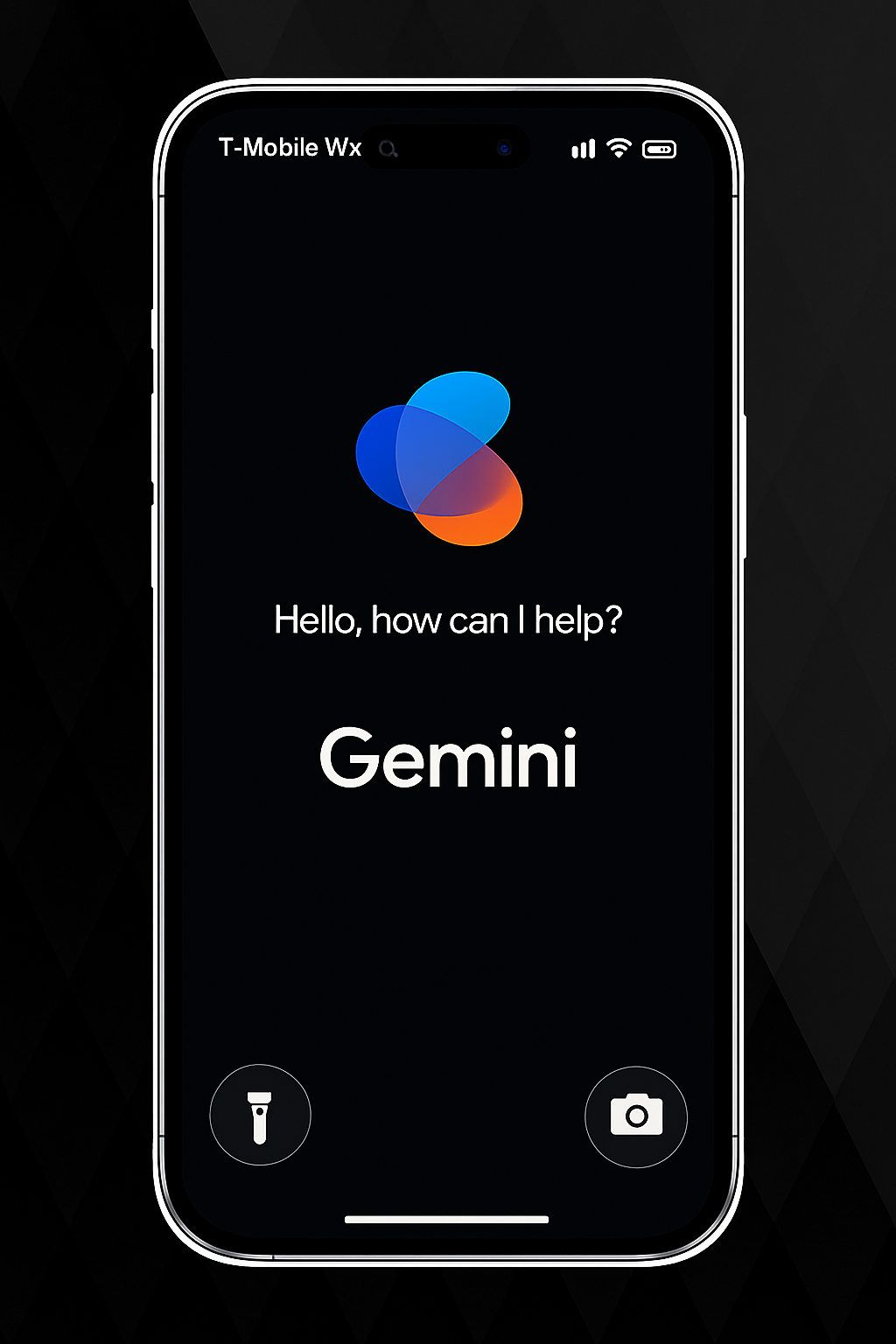

If you live in the European Union and you keep an eye on iOS betas, there is a quiet change in iOS 26.2 that could have a big impact on how you talk to your iPhone. Hidden in the code, Apple is preparing a way for you to choose a different voice assistant when you press and hold the side button instead of being locked to Siri forever.
Right now, that long press is Siri territory. You can install Alexa, Gemini, or a dedicated AI assistant app, but those apps live off to the side. You open them manually or through a shortcut, and then you jump back into your normal iPhone life. System-level stuff like the side button and some deeper integrations are still wired straight to Siri.
The beta code suggests that in the EU, Apple is about to relax that grip. You would get a setting that lets you pick a “default Side Button app” for voice, and that app would be allowed to show its own interface on top of your Home Screen. In everyday terms, that means holding the side button could launch something like Gemini, Alexa, or another assistant instead of Siri, with a more integrated overlay instead of just bouncing you into a normal app window.
Apple is not doing this out of the goodness of its heart. The EU’s Digital Markets Act says that “gatekeepers” such as Apple have to give third-party developers access to the same system features that the platform’s own services use, and users need straightforward ways to change defaults. Voice assistants are explicitly on that list. So this is Apple reshaping iOS to match the law.
There are a few important limits to keep in mind. This is still buried in beta code, not a finished feature. Apple could change the way it works, delay it, or restrict which assistant apps are allowed to plug in. All signs point to this being EU-only for now too, so if you are in the US or another region, you probably will not see this option right away.
Even with those caveats, it is worth thinking ahead. If you live in the EU and you are already juggling Siri with other assistants, this is a good moment to tune your setup so you are ready when that “default assistant” pick appears in Settings. A few simple hardware choices can make a big difference in how natural it feels to talk to whichever assistant you choose.
Step one: pick the assistant that actually fits your life
This change is not just “Siri or not Siri.” You will be choosing between different strengths. Siri still has the tightest access to Apple-only features like HomeKit scenes, AirPods integration, and some privacy controls. Third-party assistants often win on general knowledge, conversational flexibility, and tying into non-Apple services.
Think about what you ask your assistant to do most of the time. If your day is full of Apple-centric stuff like controlling HomeKit lights, starting Focus modes, and handing off to your Mac, keeping Siri on the side button might still be the least frustrating option. If you spend more time asking for research help, drafting emails, or plugging into cross-platform smart home gear, a different assistant might make more sense.
For most people, the best move will be to pick one assistant as your “default brain” and then keep the others as backups. That way you are not constantly wondering which wake phrase or button will actually understand you. The new iOS option, when it arrives, simply gives you permission to choose that “brain” at the system level.
Make sure your audio setup is ready
No matter which assistant you choose, good microphones and stable wireless audio make the whole experience feel less clumsy. If your earbuds or headphones struggle to pick up your voice clearly, every assistant feels slow and unreliable.
That is where something like Apple’s AirPods Pro 3 comes in. They are designed for iPhone first, with active noise cancellation, live translation support, hearing-focused features, and high-fidelity audio that keeps voices clear in both directions. They pair quickly, switch smoothly between Apple devices, and are built to handle constant “Hey” phrases and side-button presses without you having to think about it.
Where to buy the Apple AirPods Pro 3 Wireless Earbuds (Amazon Affiliate Link): https://www.amazon.com/dp/B0FQFB8FMG?tag=nextlevelmac-20&gbOpenExternal=1
If you lean toward a third-party assistant that also works well on other platforms, pairing it with AirPods keeps your audio life simple. You can stay deep in the Apple world when you want, but your chosen assistant still has a solid, comfortable way to hear you in the busiest parts of your day, like your commute or a noisy office.
Build a “talking spot” at home
Most of us already have a spot where the iPhone lands at home, even if it is just a messy corner of the nightstand. With system-level voice assistant choice coming to the EU, it is worth turning that landing zone into a place where you actually want to talk to your assistant, not just dump your phone.
One option is to add a compact smart speaker that plays nicely with your Apple gear but also leans into the assistant you prefer. The Sonos Era 100 is a good example. It supports Apple AirPlay for quick audio handoff from your iPhone, while its built-in Alexa support gives you a full voice assistant that can handle music, news, and smart home commands without you even reaching for the phone.
Where you can get the Sonos Era 100 Wireless Smart Speaker with Alexa Built-in (Amazon Affiliate Link): https://www.amazon.com/dp/B0BW34LCB8?tag=nextlevelmac-20&gbOpenExternal=1
Setting up a speaker like this near your usual charging spot gives you two separate but friendly paths. If you keep Siri on the side button, it is still there when you pick up your phone. If you assign the side button to another assistant in iOS 26.2, that assistant effectively follows you around the house, while the Sonos can stay tuned to Alexa for room-level commands. Your iPhone remains the center of the setup either way.
Do not forget the car
The car is where a lot of people talk to their assistant the most, especially in regions where hands-free use is the law. With EU users getting more freedom to change the side-button assistant, the car is a place where a clean, reliable mount really matters. You want the phone stable, aligned, and within comfortable reach of that side press.
A MagSafe-compatible vent mount with wireless charging keeps things tidy. Belkin’s BoostCharge Magnetic Wireless Car Charger is built for iPhone models with MagSafe support and combines a strong magnetic hold with up to 10 W wireless charging while you drive. It clips into a vent, lets you rotate the phone between portrait and landscape, and keeps your screen at a comfortable glance angle for navigation while your assistant listens.
The place to get the Belkin BoostCharge Magnetic Wireless Car Charger (Amazon Affiliate Link): https://www.amazon.com/dp/B09F8RLBQY?tag=nextlevelmac-20&gbOpenExternal=1
Once you have a stable mount like this, you can safely lean on the side button or your wake phrase for quick commands. Whether that is asking Siri to reroute around traffic or using a third-party assistant to start a playlist, it feels less stressful when the iPhone is not sliding around the dashboard.
How this might look inside Settings
Because this feature is still in beta code, we do not have screenshots yet. But based on the strings that have surfaced, you can expect something like a new section in Settings that lists “Default voice assistant” or “Side Button app.” There you would pick from installed assistants that have integrated with Apple’s new framework.
When you choose one, iOS would likely warn you that some system features might behave differently. For example, long-pressing the side button might open your chosen assistant, while “Hey Siri” style wake phrases could either stay tied to Siri or switch too, depending on how Apple decides to handle it. The wording in the beta even hints at region checks and limits if an app is not allowed in your country.
If you are in the EU, you will probably see a first-run screen when iOS 26.2 ships that explains your choices. Apple has already done similar things when it opened up default browser and email apps. You pick once, and then you can change the setting later if you change your mind.
Privacy and trust questions to ask yourself
Handing the side button to another assistant means you are trusting that app with more of your life. It may handle more of your requests, learn more patterns, and have deeper access to some data. Apple’s DMA page makes it clear that the company is trying to balance openness with what it sees as a higher privacy bar, which is one reason some features have rolled out later in the EU.
Before you flip the switch, it is worth reading your preferred assistant’s privacy policy and thinking about what you are comfortable with. Some assistants send more audio to the cloud by default. Others keep more processing on device, but may not plug into every service you use. There is no single right answer here, only what fits your mix of convenience and trust.
If you are already running another assistant in parallel with Siri today, use the next few weeks as a trial run. Pay attention to which one you actually call on when you are in a hurry, which one you trust when something is sensitive, and which one frustrates you the least. Your eventual system-level choice should match those instincts, not just whatever sounds most powerful on paper.
What if you are outside the EU?
For now, the code and the legal pressure both point to this being an EU-only change. If you are reading this from somewhere else in the world, nothing is stopping Apple from bringing the same option to you later, but there is also no guarantee.
Even so, the same preparation steps still help. A solid pair of earbuds, a smart speaker that cooperates with your iPhone, and a safe car mount all make Siri feel better too. If Apple eventually decides to open up default assistants globally, you will already have the hardware habits that make that choice feel natural.
In the meantime, keeping your setup simple is the best way to stay sane. Pick one assistant to be the main way you talk to your iPhone, build a few comfortable “talking spots” around your home and car, and let iOS 26.2’s new options, when they arrive, plug into a life that already works.

Related Posts
iPhone 17 Screen Protectors: Why Anti-Reflective Coating Matters
Dec 06, 2025
Master iPhone Automation: The Ultimate NFC Tag Guide (2026)
Dec 05, 2025
Free Up Your iPhone Storage in IOS 26
Dec 05, 2025