
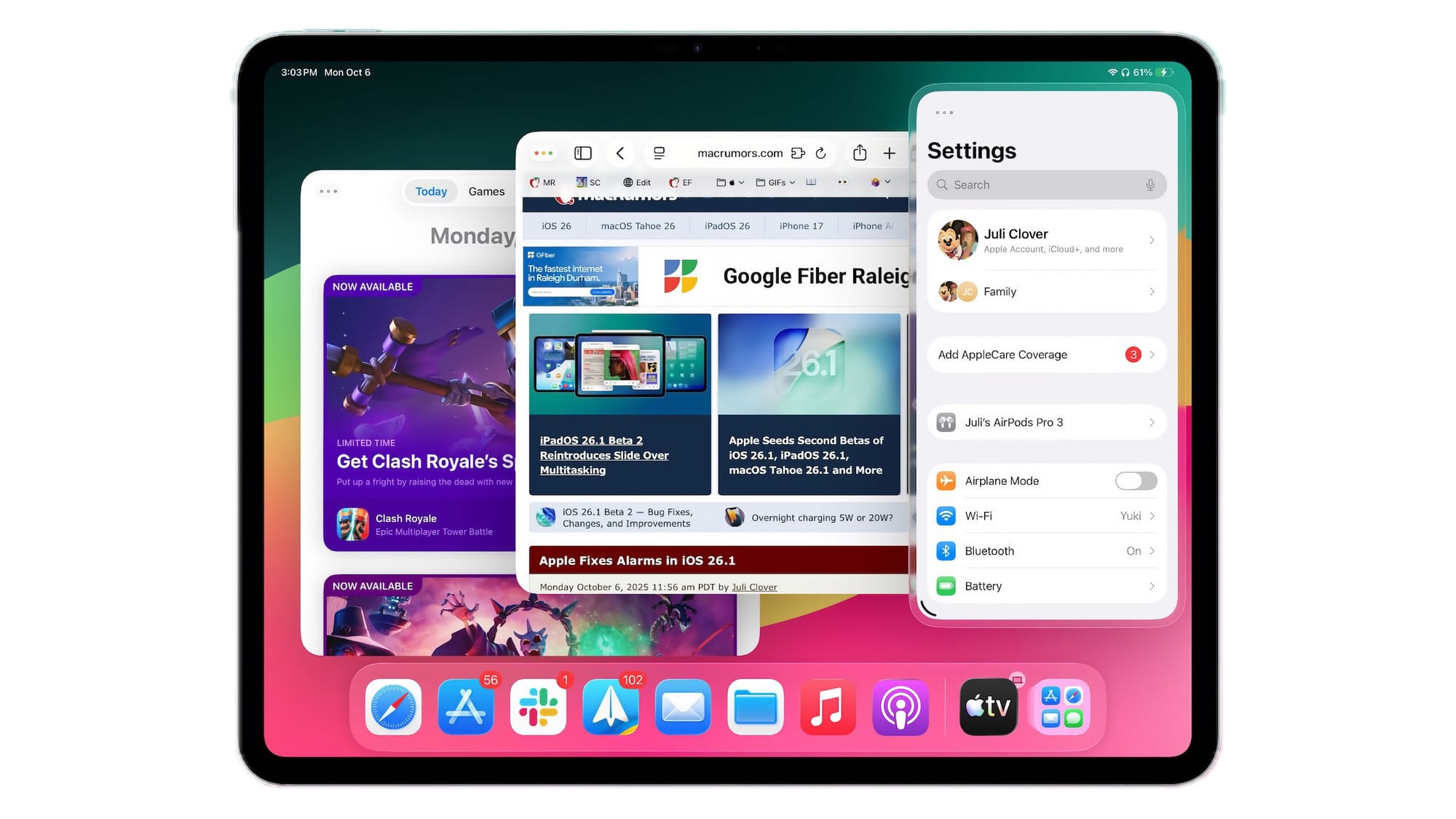

iPadOS 26 was a big reset for multitasking on the iPad. Apple shifted everything toward a window based system, and in the process classic Split View and Slide Over vanished from the usual Dock and drag gestures. A lot of iPad fans felt that change right away. With the latest iPadOS 26.2 developer beta, often referred to as the “beta e” build in some European coverage, Apple is walking some of that back and making multitasking feel familiar again while still keeping the new window model in place.
I’ll walk you through what iPadOS 26.2 beta e actually changes, how the new multitasking gestures work, and a few accessories that help you get the most out of it. I’ll also touch on who should install this beta and who is better off waiting for the public release, which Apple is currently targeting for December.
⸻
Drag and drop multitasking is back in a smarter form
When iPadOS 26 first arrived, Apple removed the classic Slide Over and Split View gestures that let you drag an app from the Dock to snap it to the left or right side of the display. The idea was to push everyone toward the new tiled and windowed interface. In practice, it made quick multitasking feel harder, especially if you were used to the iPadOS 18 era.
In iPadOS 26.2 beta 3, Apple has restored that drag and drop style, but tuned it for the modern window system. If you have at least one app open on your Home Screen, you can:
• Drag another app from the Dock, Spotlight search, or the App Library.
• Drop it toward the far left or far right edge to enter Slide Over.
• Drop it slightly inward on the left or right to create a tiled view that is similar to the old Split View.
• Drop it near the middle to open a separate floating window that you can resize.
As you drag, iPadOS shows a live outline so you can tell whether the new app is about to become a Slide Over, a tile, or a full window. That visual feedback matters more than it sounds. It turns what used to be a bit of guesswork into something you can do almost on reflex once you practice it a few times.
This beta also makes it easier to swap apps in and out of a multitasking setup. If you already have two apps in a tiled view or one in Slide Over, you can drag a new app on top of one of them to replace it. The previous app is not closed, so you can still return to it from the multitasking switcher or the Dock. That brings back one of the nicer traits from iPadOS 18 while staying inside the newer window framework.
If you spend time working from a desk, this change pairs nicely with a stand and hub that holds the iPad at eye level and lets you plug in storage, displays, and other gear. Something like the Satechi Aluminum Stand & Hub for iPad Pro folds out into a desktop style stand with a built in USB C hub, HDMI, and card readers, which suits the more laptop like workflows that iPadOS 26.2 encourages.
Where to buy the Satechi Aluminum Stand & Hub for iPad Pro (Amazon Affiliate Link): https://www.amazon.com/dp/B095F4FZZY?tag=nextlevelmac-20&gbOpenExternal=1
Smaller changes that still matter on iPad
Although most coverage focuses on iPhone, several of the iOS 26.2 changes carry over to iPadOS because the two systems share many of the same apps and frameworks. Apple has built a new Liquid Glass slider that lets you adjust the clarity of the Lock Screen clock, for example, and that option appears in the family of 26.2 updates rather than being limited to iPhone.
The Reminders app gains support for alarms tied directly to due times. Instead of just getting a notification when a task is due, you can set reminders that behave more like calendar alerts, which is handy if your iPad sits on a stand next to your Mac as a dedicated task board.
Apple News and Podcasts both see interface tweaks. News adds quick category buttons such as Food, Politics, Puzzles, and Sports, which makes more sense on the larger iPad display where you can keep those sections visible while browsing. Podcasts benefits from smaller visual refinements that make it easier to see what is currently playing and what is next in the queue.
If you connect AirPods to your iPad, the 26.2 line also unlocks Live Translation features in supported regions. The idea is simple: you can trigger translation on the stems, then hear live translations in your ears while you look at the transcription on screen. This is particularly interesting for travel, remote collaboration, and classrooms where an iPad often serves as the shared device in front of a group.
There are the usual under the hood changes as well. Reports from testers mention better responsiveness on recent iPad Pro and iPad Air models, plus fixes for some early 26.0 windowing quirks, though Apple still frames 26.2 as a modest refinement rather than a complete overhaul.
Why this matters for real iPad workflows
If you mostly use your iPad as a single app device, none of this will feel dramatic, but the moment you start doing any kind of side by side work, the 26.2 beta changes are noticeable. Being able to drag an app straight out of the Dock into Slide Over to check a message or drop Safari next to a document is the kind of muscle memory many iPad fans built up over years. Restoring that behavior inside the new window system makes iPadOS 26 feel less like a hard break from the past.
For work or study, it becomes much easier to set up repeat layouts. You can keep Notes and a browser in a tiled view, then bring Mail in as Slide Over when you need it, or drag a reference PDF into a floating window while keeping your main app full screen. Because the previous window stays open when you replace it in a tile, it is less painful to experiment with layouts.
This also plays nicely with Stage Manager if you use an external display. Window based multitasking remains the backbone there, but being able to build a layout quickly on the iPad itself and then move that space to an external monitor makes the whole setup feel less fussy.
If your iPad already doubles as a laptop replacement, a keyboard case becomes much more important with these changes. Apple’s own iPad Magic Keyboard Case for iPad Pro 13 inch, which is designed for the current M5 iPad Pro and still supports the M4 generation, combines a floating hinge, full size keys, a glass trackpad with haptic feedback, and pass through USB C charging, so you can keep power connected while the iPad’s built in port is free for storage or a camera.
Here’s where you can buy the Apple iPad Magic Keyboard Case for iPad Pro 13-inch (M5/M4) (Amazon Affiliate Link): https://www.amazon.com/dp/B0D3J63BWD?tag=nextlevelmac-20&gbOpenExternal=1
Apple Pencil Pro and the new multitasking flow
A lot of iPadOS 26.2’s appeal shows up when you pair these multitasking tweaks with an Apple Pencil. Apple Pencil Pro adds squeeze gestures, barrel roll for changing tools, subtle haptics, and hover on supported iPads, which all combine with the new window behavior so you can keep a drawing app open in one region, a reference window next to it, and a side panel for brushes or layers.
Because you can now drag windows into Slide Over or tiles again, it is easier to build a workspace where a Pencil focused app is front and center while text heavy apps sit off to the side. If you sketch in Procreate, take notes in a handwriting app, or mark up screenshots while browsing the web, this style of setup can make the iPad feel less like a big phone and more like a focused studio.
Apple Pencil Pro also benefits from Find My support, which reduces the chances of losing it in a backpack or on a desk, and it attaches and charges magnetically along the edge of compatible iPads. Those details matter more as the iPad becomes something you carry between rooms and meetings, using multiple apps in quick bursts instead of staying in one fullscreen app all day.
Use this link to get the Apple Pencil Pro (Amazon Affiliate Link): https://www.amazon.com/dp/B0D3J71RM7?tag=nextlevelmac-20&gbOpenExternal=1
Should you install iPadOS 26.2 beta e right now?
Even with these welcome changes, this is still beta software. Apple and sites like AppleInsider strongly recommend against installing developer betas on your primary or mission critical devices. Betas can have bugs that cause app crashes, battery drain, or compatibility issues with accessories and pro workflows.
If you want to explore the new multitasking style and the other 26.2 refinements, the safer approach is:
• Use a secondary iPad, not the one you rely on for school or client work.
• Make a full backup before joining any beta program.
• Prefer the public beta over the developer beta when it becomes available, since it usually lands after the worst early bugs are found.
If you decide to wait, you are not missing the window. Apple’s current guidance is that the 26.2 updates will ship to everyone in December, and the multitasking improvements in this beta are not positioned as experimental side features. They are part of the core experience Apple is preparing to ship.
How to get ready for the public release
While you wait for the final version, you can still prepare your iPad for the new behavior. A good stand and hub makes iPadOS 26.2’s multitasking feel more like a desktop and less like a balancing act on your lap, and a proper keyboard and Pencil round out the setup. The Satechi stand, Magic Keyboard, and Apple Pencil Pro together create a strong foundation for the kind of windowed multitasking Apple is clearly betting on.
If you prefer a lighter kit, you can pair the iPad with a smaller Bluetooth keyboard and keep the Pencil as your primary input, but the core idea is the same. iPadOS 26.2 beta e is all about reducing friction between apps so you can jump from reading to writing to drawing without having to think too much about the interface.
Once the final version lands, the combination of restored drag and drop multitasking, system wide refinements, and the right accessories should make your iPad feel like a more confident partner for serious work, not just a sidekick to your Mac.

Related Posts
Secure Your Apple Life: The Ultimate iCloud Security Audit (2026)
Dec 04, 2025
Apple Pencil Pro: 5 Features You're Probably Not Using
Nov 28, 2025
Apple's Google Gemini Deal: What It Means For Siri In 2026"
Nov 28, 2025