
In a past life of not so long ago, I was a first responder and emergency planner for a technical college in South Carolina. I spent a lot of time focused on the value of redundancy: having more than one way to reach first responders in an emergency.
In controlled conditions, that means things like landline phones, cell phones, texting, apps, emergency call towers, radios, or walking up to a responder for help.
But what about when you’re away from all of those options? What about when you don’t even have a cell phone signal?
That seems like something that only foreign travelers deal with, right? Well, in my case, I live in an unincorporated area of the county. I don’t have to go far to lose cell phone service, including right inside my own home.
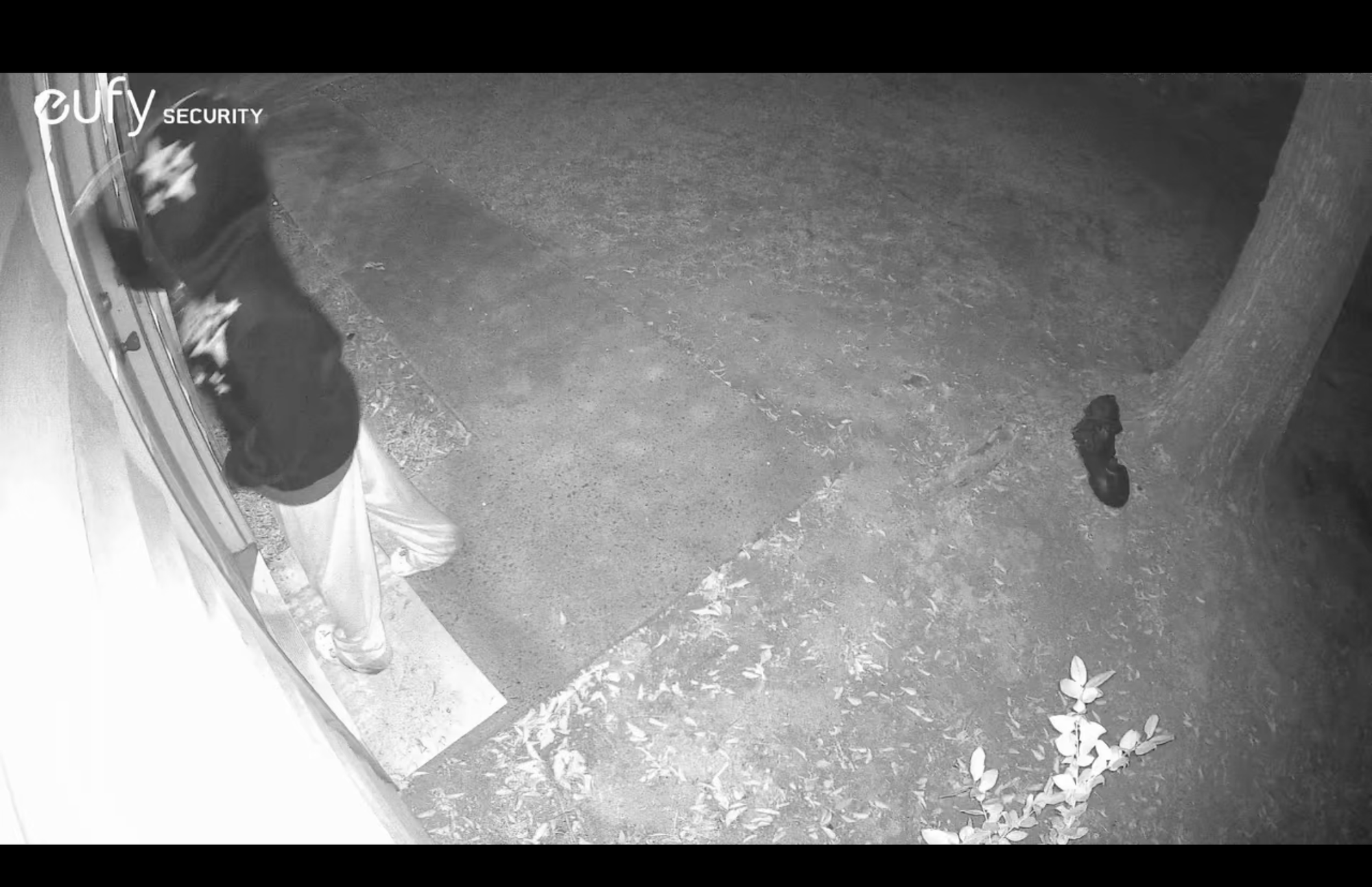
And just a couple of weeks before I wrote this article, someone tried to break into my home around 2:30 a.m. on a Sunday morning. Needless to say, being able to reach first responders became critical and time-sensitive. Oh, and no, they didn’t get in, and yes, my family and I are fine.
Let’s dust off that redundancy mindset and make a plan together, right now, to make sure that no matter where you are, you can use your iPhone to call for help.
SOS: The longstanding code for “help”
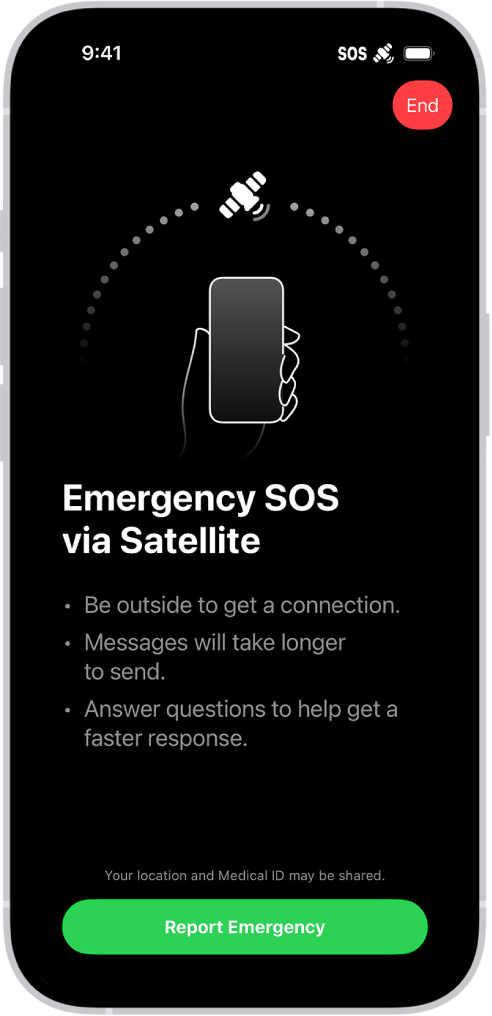
Your iPhone can contact emergency services when there’s no signal by pointing at satellites, following on-screen steps, and sending compressed messages that carry key details.
What this means in practice is simple. If something goes wrong where coverage is poor, your phone can still get a message out and share your location with responders.
Start with compatibility. iPhone 14 and later support Emergency SOS via satellite when the feature is available in your country or region.
Update your software. Go to Settings, General, Software Update, and install iOS 26.1 or later to get the newest coverage and reliability improvements.
Now check service availability. In Settings, tap Emergency SOS, then look for the satellite section to confirm your region and see the demo option.
Run the demo once before you need it. The demo shows the exact screen flow without contacting emergency services so you learn how the aiming and message steps work.
Know the aiming step. When you start a satellite session, your iPhone shows a circle and arrows to help you line up with a passing satellite.
Hold your phone naturally. Keep the sky in view, avoid trees and buildings if you can, and keep moving slowly if the phone asks you to shift.
Expect short, guided questions. The phone asks what happened, whether anyone is breathing, and if you can move to safety, then packages those answers into a compact message.
Your Medical ID can help. If you set up Medical ID in the Health app, those details can be included with your emergency message.
Location sharing matters. During the session, your iPhone sends coordinates so responders know where to send help.


The battery is the real bottleneck outdoors. A satellite session uses more power than a normal text, especially if you spend time aiming and sending updates.
Carrying a small USB-C power bank is a simple win. Pick one that can recharge your phone at least once and has a built-in cable so you are not digging for cords in bad weather.
Here’s where you can buy the Anker Nano Power Bank 10,000mAh 30W with built-in USB-C cable (Amazon Paid Link):
https://www.amazon.com/dp/B0C9CJKCH3?tag=nextlevelmac-20&gbOpenExternal=1
Practice with the demo to learn the rhythm. The goal is to keep the phone aimed, answer quickly, and send only what is needed.
Pack light but smart if you hike. A small pack list that earns its keep is a battery, a bright flashlight, a whistle, and a basic first aid kit.
Remember weather and terrain. Dense canopy, steep canyons, and heavy rain make satellite aiming slower, so give yourself extra time and patience.
Consider your visibility. A bright case or lanyard makes it easier to spot a dropped phone when you are stressed and the light is low.
Know when to start a session. If you have no bars and a true emergency, swipe to call emergency services, follow the prompts, then switch to satellite when the phone offers it.
Stay put after sending the first message if it is safe. Moving while the phone is trying to hold a line to the satellite can interrupt the session.
If you are traveling across borders, check service availability before you go. Availability is regional, and support expands over time.
Mexico is joining the coverage map, which is a strong addition for vacation travel and backcountry trips in the region. That reduces the guesswork for road trips and hiking routes that cross into rural areas.
Think about group safety. If more than one person in your party has an iPhone 14 or later, have both phones charged and ready.
Do not wait for a crisis to set up Medical ID. Add allergies, medications, and emergency contacts now so you do not need to type under pressure.
Share your plans before you leave. Tell a friend where you are going and when you plan to return, and keep that person’s details in your phone.
If you travel often in truly remote areas, you might want a dedicated satellite communicator for non-emergency two-way messaging. That gives you a separate device with a long-lasting battery and dedicated SOS.
This is where to buy the Garmin inReach Mini 2 satellite communicator for extended off-grid messaging and SOS, subscription required (Amazon Affiliate Link):
https://www.amazon.com/dp/B09PSKG7C3?tag=nextlevelmac-20&gbOpenExternal=1
Keep your phone warm in cold weather. Batteries drain faster in the cold, so put the phone in an inner pocket and limit screen-on time.
Dry conditions help electronics. If rain is coming, stash the phone in a simple waterproof pouch when you are not actively using it.
Use power wisely while you wait. Lower screen brightness, turn off background apps, and switch to Low Power Mode.
Clean up your home screen. Put the Phone app, Messages, and the Compass app on the first page so you are not swiping through folders when time matters.
Know the difference between Search and Rescue and regular 911. The phone routes your satellite message to trained relay centers, then on to local responders.
When the phone prompts for short text replies, keep them factual. Share number of people, injuries, landmarks, and whether you can stay put.
If you move to find a clear view of the sky, mark your old spot. A bright bandanna or small LED can help rescuers see you from a distance.
If you lose the connection, do not panic. Reopen the session, follow the arrows, and resend your last update.
Let your battery rest between updates. Once the first message is out, send follow-ups only when something changes or when the phone asks.
If you are in a vehicle, step outside if safe. Metal roofs block line of sight and make aiming slower.
If you see planes or rescue teams nearby, keep the phone handy. A new message with an exact coordinate can shorten the search.
Bring a short USB-C cable even if your battery has one built-in. Redundancy saves the day when a cable fails or gets wet.
Set up Find My sharing with a trusted contact before you go. That way someone can check your last known location if you go quiet.
If you lose the iPhone, focus on marking your location. Use stones, sticks, or a bright cloth to make your spot visible from a distance.
If you are with kids, rehearse a simple plan. Show them where the demo lives in Settings and how to keep the phone pointed at the sky.
Write down key medical info on a card. Phones help, but a physical backup works when batteries run flat.
Choose cases and accessories that support a firm grip. A wrist strap or lanyard reduces drops when you are aiming.
Airplane mode does not block satellite SOS. The system guides you through, even when the phone cannot find a tower.
If you must move for safety, move slowly and keep an eye on the aiming circle. The on-screen arrows show which way to turn.
After help arrives, follow local responder instructions. The phone has done its job, and people take it from there.
Save a simple packing checklist in Notes. Keep it short so you actually use it the night before a trip.
If you plan to drive long stretches without service, top up before you leave. It is the easiest prep you can do.
The feature is not a replacement for planning. It is a safety net when plans go sideways.
When in towns with sketchy coverage, try Wi-Fi Calling. It is faster than opening a satellite session if a network is available.
If you hike alone, tell someone. A five-minute text before you go is worth more than a bag full of gadgets.
If you use a rugged case, test the buttons and swipe edge. You want clean swipes to start the SOS flow.
Keep your lock screen simple. Fewer widgets mean faster access when hands are cold or wet.
If your group splits, give each team a battery and a whistle. Keep the phone in a top pocket, not at the bottom of a pack.
Traffic collisions are a common use case. After you are safe, start a session if the phone cannot reach 911 the normal way.
Carry a small marker or pencil. If you need to leave a note for rescuers, paper works when screens do not.
Download offline maps before you go. Apple Maps supports this and it helps you navigate back to clear sky if trees block you.
After any real session, recharge as soon as you can. Put the phone and battery on a wall charger to be ready for the next day.
If your area is getting coverage soon, learn the demo today. The muscle memory transfers when your region turns on.
Small habits make a big difference here. Charge, practice once, and keep the phone where it can see the sky.
Practice Makes Better
Here’s the unpleasant truth: we don’t rise to the occasion in a crisis; we sink to the level of our training. I know because I’ve been there. In emergencies, things like fine motor skills devolve into gross motor skills. The more practiced you are at using an important task like SOS, the more ready you will be when you need it.
All of this isn’t about fearmongering. I just want you to be prepared for the worst so your outcomes will be the best they can. Throw in your favorite idiom here:
“An ounce of prevention is worth a pound of cure.”
“Prior planning prevents poor performance.”
Just don’t wait until it’s too late. Your iPhone is already ready to help. Just take the time to learn the process, make sure you have power for it when you need it, and you’ll turn emergencies from catastrophes into interesting stories you can tell your grandkids about one day, in a good way.

Related Posts
iPhone 17 Screen Protectors: Why Anti-Reflective Coating Matters
Dec 06, 2025
Master iPhone Automation: The Ultimate NFC Tag Guide (2026)
Dec 05, 2025
Free Up Your iPhone Storage in IOS 26
Dec 05, 2025