
Your Mac is connected. Pages load. Videos stream. But what's actually happening under the hood when you test your network speed? The answer depends entirely on which test you run.
Key Takeaways
- Press Command-Space and type "Terminal" to access Apple's built-in networkQuality command for unbiased speed results
- The Ookla Speedtest app lives in your menu bar and tracks historical performance over time
- Google's speed test at speed.google.com provides instant results without installing anything
- Wired connections through USB-C ethernet adapters deliver more consistent test accuracy than Wi-Fi
- ISPs often prioritize traffic to popular speed test servers, which can inflate your results
- The networkQuality command measures "responsiveness" in addition to raw speed, showing real-world performance
At-A-Glance: Speed Test Comparison
| Method | Accuracy | Ease of Use | Unique Benefit |
|---|---|---|---|
| networkQuality (Terminal) | Highest | Moderate | Measures responsiveness (RPM) |
| Ookla Speedtest App | High | Easiest | Historical tracking in menu bar |
| Google Speed Test | Moderate | Easiest | No installation required |
| Fast.com | Moderate | Easiest | Netflix-focused testing |
Apple's Built-In Speed Test Tells a Different Story
macOS Monterey introduced a command-line tool that most Mac users have never touched. The networkQuality command runs directly in Terminal and measures your connection without relying on third-party infrastructure. This matters because ISPs can't optimize traffic to Apple's testing methodology the way they sometimes do with public speed test servers.
Open Terminal from Applications > Utilities, type networkQuality, and press Return. Within 15 seconds, you'll see upload capacity, download capacity, and something most speed tests ignore entirely: responsiveness measured in round-trips per minute.
That responsiveness number reveals how your network handles real work. A connection might show 500 Mbps download speeds but still feel sluggish if the responsiveness lands in the "Low" category. The test categorizes responsiveness as Low, Medium, or High based on how many sequential round-trips your network completes in one minute.
The command outputs JSON data if you add the -v flag, which developers can parse for automated monitoring. Run networkQuality -s to see a continuous stream of data points during the test, though most people will stick with the default summary view.
The Speedtest App Everyone Knows
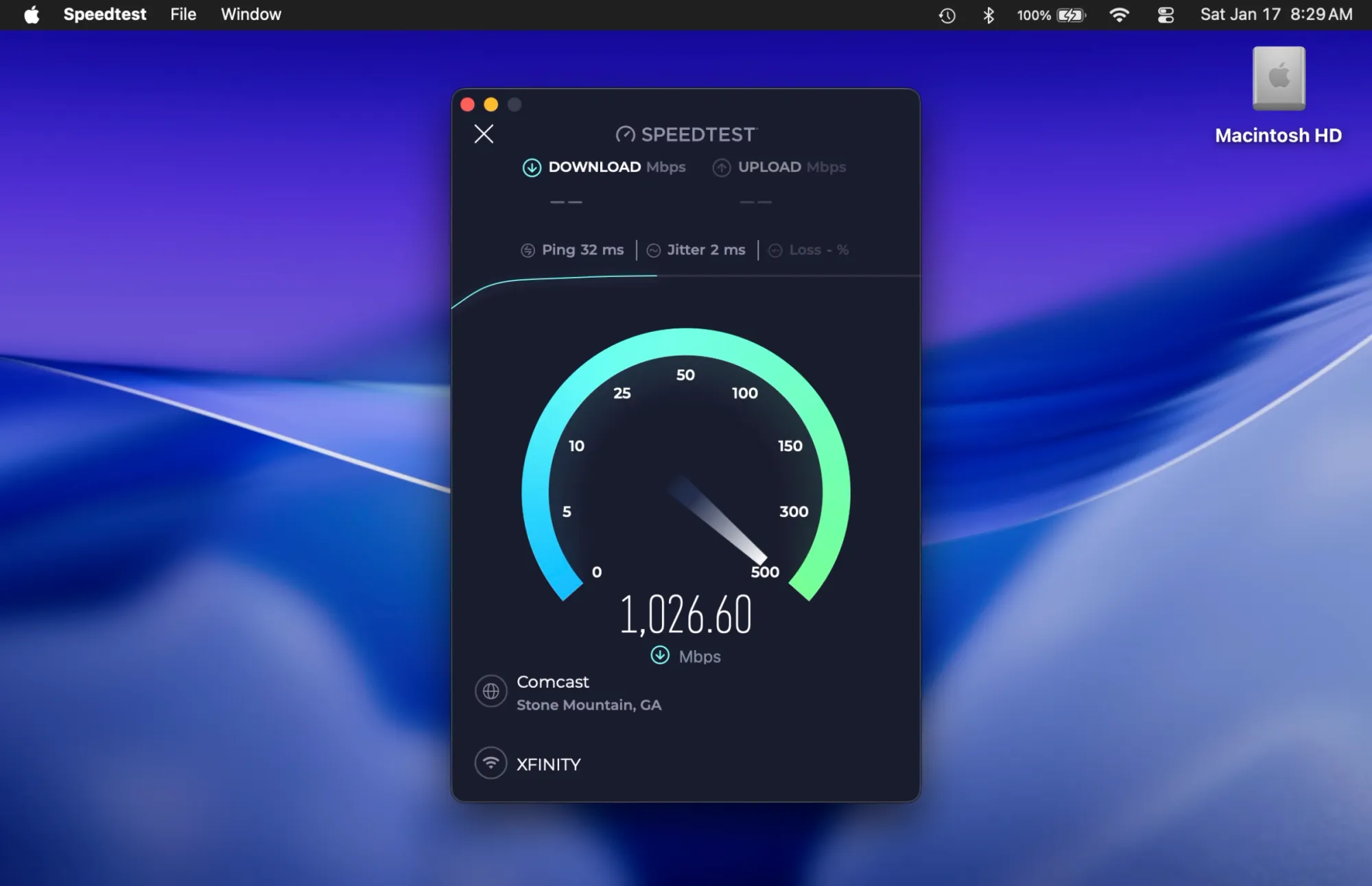
Ookla's Speedtest became synonymous with internet speed testing for good reason. The free app sits in your macOS menu bar and delivers one-click testing against a global network of servers. Download it from the Mac App Store and it starts working immediately.
Click the menu bar icon, select a server (or let it choose automatically), and watch real-time graphs show your ping, download, and upload performance. The app stores every test you run, building a historical record that helps identify patterns. Maybe your speeds tank every evening at 7 PM when everyone in your building starts streaming. The history view makes that obvious.
Speedtest picks servers geographically close to you by default, which typically provides the most accurate measurement of your ISP's performance. But you can manually select any server worldwide if you need to test international connectivity.
The app shows three numbers: ping (latency in milliseconds), download speed, and upload speed. Lower ping numbers are better—under 20ms is excellent for most uses, while anything over 100ms will feel noticeably sluggish during video calls or gaming.
One consideration: Ookla operates by partnering with ISPs and content delivery networks to host test servers. Some network providers recognize Speedtest traffic and prioritize it, potentially showing you speeds faster than what you'll see with real-world downloads. The results are still useful for tracking changes over time and comparing against advertised speeds from your ISP.
Google Built Speed Testing Into Search
Type "speed test" into Google and click the Run Speed Test button. No downloads, no accounts, no complexity. Google measures your connection speed through your browser and displays the results in seconds.
The test reports download and upload speeds along with latency. It's straightforward and gets you an answer quickly, but it lacks the depth of dedicated testing tools. You won't get historical tracking, server selection, or advanced metrics.
Google's test works well for quick spot-checks. Did you just upgrade your internet plan? Is something obviously broken? The Google test answers those questions without making you install anything. For deeper analysis, you'll want one of the other methods.
Browser-based tests like this one measure the speed between Google's servers and your Mac through your current browser session. Browser extensions, background processes, and even which browser you use can affect the numbers slightly. Run the test with different browsers and you might see minor variations.
Fast.com Answers One Specific Question
Netflix built Fast.com to answer a single question: can your connection handle streaming? The site loads instantly and starts testing the moment you arrive. Within seconds, you see your download speed—the primary factor affecting video quality.
Click "Show more info" to see upload speed, latency, and your connection type. The simplicity makes Fast.com perfect for troubleshooting streaming issues specifically. If Fast.com shows slow speeds, that's likely why your 4K content keeps buffering.
Netflix uses its own content delivery network for this test, so the results directly reflect how well your network will stream Netflix content. Other services might perform differently depending on their infrastructure and how your ISP routes traffic to them.
Terminal Commands for the Technically Inclined
Beyond networkQuality, Terminal offers other tools for measuring network performance. The ping command tests connectivity to any server, though it doesn't measure bandwidth. Type ping google.com and watch as your Mac sends packets and reports how long each round trip takes.
Press Control-C to stop the ping test. The summary shows packets sent, received, and lost along with minimum, maximum, and average round-trip times. Packet loss above 1% indicates network problems worth investigating.
The traceroute command maps the path your data takes across the internet. Run traceroute nextlevelmac.net to see every hop between your Mac and the destination. Each line shows one router along the path and how long it took to respond. High latency at a specific hop helps pinpoint where slowdowns occur.
These commands don't replace bandwidth tests, but they excel at diagnosing specific connection issues that speed tests miss.
Wired Connections Test More Accurately
Wi-Fi adds variables. Signal strength fluctuates. Other networks interfere. Walls block signals. A wired ethernet connection removes all that noise and gives you the most reliable test results.
Affiliate disclosure: some links in this article are Amazon Associate links. If you buy through them, Next Level Mac may earn a small commission at no extra cost to you, and we only recommend products that genuinely bring value to your Mac setup.
Most modern Macs lack built-in ethernet ports, but USB-C ethernet adapters solve that problem instantly. These adapters convert one of your Mac's USB-C ports into a gigabit ethernet connection, delivering the full speed your internet service provides without wireless interference.


Here's where to get the uni USB C to Ethernet Adapter https://www.amazon.com/dp/B077KXY71Q?tag=nextlevelmac-20
Plug the adapter into your Mac, connect an ethernet cable from your router, and macOS recognizes it immediately. Run your speed test again and compare the wired results against Wi-Fi. The difference often surprises people—wired connections typically show 20-40% higher speeds and dramatically lower latency.
The adapter works with any Mac that has USB-C or Thunderbolt 3/4 ports. No drivers needed. The aluminum casing helps with heat dissipation during sustained high-speed transfers, and the braided cable resists tangling better than basic plastic.
Testing over ethernet eliminates Wi-Fi as a variable. If your wired speeds match what your ISP promises but Wi-Fi speeds fall short, you know the problem lies in your wireless setup, not your internet connection. That narrows down troubleshooting significantly.
What the Numbers Actually Mean
Download speed determines how quickly your Mac receives data from the internet. Streaming, downloading files, and loading web pages all depend primarily on download speed. Most people need 25-50 Mbps for smooth HD streaming and comfortable browsing. 4K streaming wants 50-100 Mbps.
Upload speed matters when you send data outward—video calls, cloud backups, sharing files. Slower upload speeds mean longer waits when backing up photos to iCloud or attending Zoom meetings. Asymmetric connections (like cable internet) typically offer much faster downloads than uploads.
Latency measures the time delay before data starts transferring. Lower is better. Gaming and video calls are especially sensitive to latency. Anything under 50ms feels responsive. Above 100ms, you'll notice lag during real-time activities.
Jitter tracks latency consistency. Stable latency produces smooth experiences. High jitter means latency jumps around unpredictably, which creates stuttering during calls or gameplay even if average latency looks acceptable.
Why Different Tests Show Different Numbers
Each testing method connects to different servers through different infrastructure. Ookla might route your test through a server your ISP optimized for. Google's test might take a completely different path through the internet. The networkQuality command uses Apple's methodology designed to resist optimization tricks.
Time of day affects results dramatically. Test at 3 AM and you might see your connection's theoretical maximum. Test at 8 PM when everyone on your block is streaming, and speeds can drop by half or more. This isn't a flaw in any particular test—it's reality. Your connection shares bandwidth with neighbors.
The device running the test matters too. A Mac from 2015 will show slower speeds than a 2025 model simply because older network hardware can't process data as quickly. The same internet connection performs differently depending on what's receiving it.
Server distance plays a role. Testing against a server 3,000 miles away will always show higher latency than testing locally. Most speed tests default to nearby servers, but if you manually select a distant one, expect slower results.
Accessibility & Clarity
Speedtest by Ookla offers full VoiceOver support, reading test results aloud and making the interface navigable entirely through keyboard shortcuts. The menu bar location keeps the app accessible without cluttering your screen, though users who rely on screen magnification might prefer the larger web interface at speedtest.net.
The Terminal-based networkQuality command presents challenges for users with visual impairments since Terminal output isn't as screen-reader friendly as native Mac apps. The text output format works well with assistive technologies, but the real-time updating graphs don't translate easily to audio feedback.
Google's speed test and Fast.com both maintain high-contrast text and large, readable fonts that benefit users with low vision. These web-based tests scale properly with browser zoom settings, and screen readers announce results clearly once testing completes.
For users with motor limitations, the one-click interfaces of Speedtest and Fast.com require minimal interaction. Terminal commands demand precise typing, which can present difficulties for users with reduced dexterity or who rely on alternative input methods.
When Speed Tests Become Troubleshooting Tools
Inconsistent results across multiple tests point to problems worth investigating. If Ookla shows 500 Mbps but networkQuality reports 150 Mbps, your ISP might be prioritizing speed test traffic while throttling everything else. Run tests at different times of day to establish patterns.
Contact your ISP with historical data from the Speedtest app rather than single measurements. Screenshots showing consistent underperformance over days or weeks carry more weight than one bad result. ISPs can dismiss isolated slow tests as temporary congestion, but they can't ignore sustained problems documented over time.
Compare wired and wireless results to isolate Wi-Fi issues from internet problems. Wired speeds match your plan but Wi-Fi speeds lag behind? Your router might need repositioning, channel optimization, or replacement. Both wired and wireless running slow? The problem likely sits with your ISP or modem.
Test from multiple devices on your network. If only one Mac shows slow speeds, that Mac needs troubleshooting. If every device tests slow, the issue affects your entire network.
Quick-Action Speed Test Checklist
- Close bandwidth-heavy apps before testing (streaming services, cloud sync, downloads)
- Run networkQuality in Terminal for baseline results (
networkQuality+ Return) - Test with Ookla Speedtest to compare against their server network
- Check results on Fast.com for streaming-focused measurements
- Connect via ethernet adapter and retest to see wired performance
- Document results with screenshots if contacting your ISP about performance issues
- Test at different times (morning, afternoon, evening) to identify congestion patterns
- Compare upload and download speeds against your plan's advertised rates
Your internet connection is only as good as the weakest link in the chain. These tests help identify where that weak link sits—your router, your ISP, your Mac's network hardware, or something else entirely. Run multiple tests using different methods, and the truth emerges from the patterns in the data.

Related Posts
Turn Your MacBook Into a Touchscreen With the Intricuit Magic Screen
Jan 07, 2026
Acorn 8 Image Editor for Mac: Professional Editing Made Simple
Jan 04, 2026
Mac PDF Editing: Native Tools and Pro App Workflows
Dec 29, 2025