
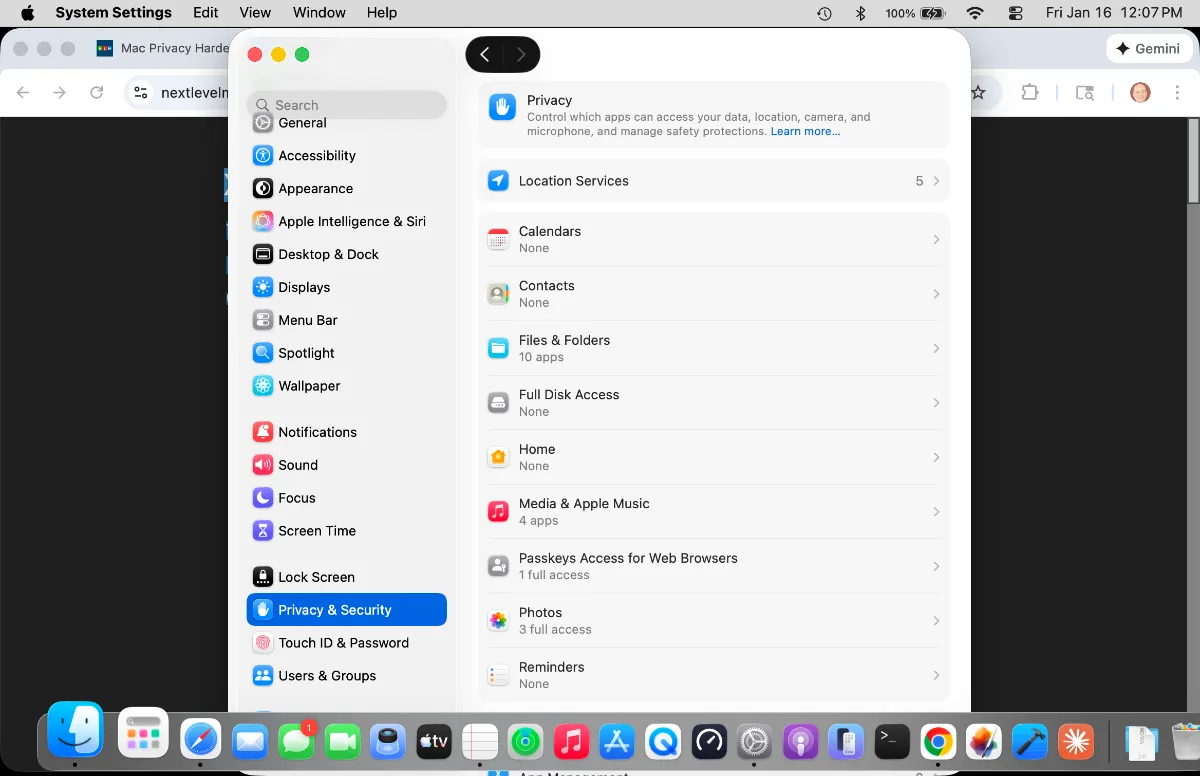
On December 31, 2025, security researcher Mickey Jin disclosed CVE-2025-43530—a macOS vulnerability that completely bypassed Transparency, Consent, and Control protections. Attackers could silently access your files, microphone, camera, and user data without triggering a single permission prompt. Apple patched the flaw in macOS Tahoe 26.2, released in early January 2026, but installing the patch is only half the job. Your Mac's privacy settings need a thorough audit and lockdown to ensure you're fully protected. This is the complete guide to verifying the patch, understanding what went wrong, and hardening your Mac's privacy controls.
Key Takeaways
- Verify you're running macOS Tahoe 26.2 or later by clicking the Apple menu, then About This Mac
- Audit and restrict VoiceOver permissions immediately under System Settings > Privacy & Security > Accessibility
- Review all app permissions in Privacy & Security, revoking access from unused or untrusted apps
- Enable Lockdown Mode if you handle sensitive information or face targeted threats
- Use a hardware security key like the YubiKey 5C NFC to add physical authentication to your Apple Account
- Monitor your Mac's security logs regularly using Console.app for suspicious AppleScript or AppleEvent activity
At-A-Glance: CVE-2025-43530 Impact & Protection
| Attribute | Detail |
|---|---|
| Vulnerability Type | TCC Bypass via Dynamic Library Injection + TOCTOU Flaw |
| Data at Risk | Files, Microphone Audio, Camera Input, User Activity |
| Primary Entry Point | VoiceOver Screen Reader Service |
| Patch Version | macOS Tahoe 26.2 (January 2026) |
| User Warning | None—attacks were completely silent |
| Recommended Actions | Verify patch, audit all app permissions, restrict VoiceOver access |
What CVE-2025-43530 Actually Did
The CVE-2025-43530 vulnerability exploited two separate weaknesses in macOS's security architecture. First, macOS trusted any Apple-signed binary without verifying modifications. Attackers injected malicious dynamic libraries into trusted system processes, executing code without administrative privileges. Second, a Time-of-Check-Time-of-Use flaw allowed attackers to modify processes after passing initial security checks but before execution. When combined, these flaws let attackers execute arbitrary AppleScript commands and send AppleEvents to applications like Finder, completely bypassing TCC enforcement.
The result was silent access to sensitive files, microphone input, and user data—with zero permission prompts, zero alerts, and zero user awareness. The VoiceOver screen reader service became the primary entry point because it requires extensive system access to function properly, making it the perfect vector for exploitation.
Affiliate disclosure: some links in this article are Amazon Associate links. If you buy through them, Next Level Mac may earn a small commission at no extra cost to you, and we only recommend products that genuinely bring value to your Mac setup.
Verify Your Mac Is Patched
Click the Apple menu in the top-left corner of your screen, then select About This Mac. Under the macOS Tahoe label, you'll see your version number. You need macOS Tahoe 26.2 or later. If you see 26.1 or earlier, click Software Update in the same window to install the security patch immediately.
The patch blocks the dynamic library injection technique and closes the TOCTOU timing gap that made the exploit possible. Don't skip this step—every Mac running an unpatched version remains vulnerable to silent data access.
Audit VoiceOver Permissions
Open System Settings, click Privacy & Security in the sidebar, then scroll down and click Accessibility. Look for VoiceOver in the list of apps with accessibility access. If you don't use VoiceOver for screen reading, toggle it off completely.
For users who rely on VoiceOver, understand that accessibility services have the deepest system access of any macOS feature—they need to read screen content, interact with UI elements, and execute commands across all applications. Attackers exploited this wide access to bypass TCC protections. Revoking VoiceOver access when it's not essential closes this attack vector. If you use screen reading, consider using a third-party alternative like Speechify that has more limited system permissions.
Review All App Permissions
Stay in Privacy & Security settings and systematically review each permission category. Click Microphone to see which apps have microphone access. Click Camera for camera permissions. Click Files and Folders to review which apps can access your documents, downloads, and desktop.
For any app you don't recognize, don't use regularly, or don't trust, revoke its permissions by toggling the switch off. The CVE-2025-43530 exploit demonstrated that attackers can leverage legitimate app permissions to access data silently. Reducing your attack surface by removing unnecessary permissions limits what attackers can access if they compromise a process. Pay special attention to apps installed outside the App Store, as they may have broader permissions than expected.
Restrict Automation Permissions
Scroll down in Privacy & Security to find Automation. This section controls which apps can send AppleEvents to other apps—the exact mechanism CVE-2025-43530 exploited. Review each entry. If an app you don't use has permission to control Finder, Safari, or other system apps, revoke it immediately.
Automation permissions let apps programmatically control other applications without user interaction. In the hands of an attacker, this becomes a direct path to accessing files, executing scripts, and manipulating user data. Only leave automation permissions enabled for apps you actively use and trust, such as productivity tools that need to integrate with multiple applications.
Enable Lockdown Mode for High-Risk Users
If you handle sensitive information, work in journalism, activism, or face targeted threats, enable Lockdown Mode. Open System Settings, click Privacy & Security, scroll to the bottom, and click Lockdown Mode. Click Turn On Lockdown Mode and confirm.
Lockdown Mode restricts web technologies that attackers commonly exploit, blocks most message attachments, limits certain system features, and adds additional security layers across macOS. It's designed for users who are likely targets of sophisticated attacks. The trade-off is reduced convenience—some websites won't work properly, certain features will be disabled, and you'll need to manually approve trusted sites.
For most users, the hardened settings described above are sufficient. For high-value targets, Lockdown Mode provides defense-in-depth protection that makes exploitation significantly more difficult.
Harden Firewall Settings
Click Network in System Settings, scroll down, and click Firewall. If the firewall is off, turn it on. Click Options, then enable Stealth Mode. Stealth Mode prevents your Mac from responding to network probes, making it invisible to attackers scanning for vulnerable systems.
Enable "Block all incoming connections" if you don't run servers or need to accept incoming network traffic. Review the list of apps allowed through the firewall and remove any you don't use. The firewall adds a network-level defense layer that complements TCC's application-level protections. While CVE-2025-43530 was a local exploit, a hardened firewall prevents remote attackers from establishing initial footholds that could then be escalated using local vulnerabilities.
Monitor Security Logs
Open Console.app from Applications > Utilities. In the sidebar, select your Mac under Devices. Use the search bar to filter for "AppleScript" or "AppleEvent." Look for unusual patterns—repeated AppleScript execution from unexpected processes, AppleEvents sent to Finder or other system apps by unfamiliar applications, or authorization attempts that failed.
Security monitoring isn't about understanding every log entry. It's about noticing anomalies. If you see AppleScript activity from an app you don't use, or AppleEvents targeting Finder when you haven't explicitly automated anything, investigate immediately. Check the app's permissions in Privacy & Security, research the app's reputation, and consider uninstalling it if you can't verify its legitimacy.
Install Background Security Improvements
Open System Settings, click Privacy & Security, scroll down, and find Background Security Improvements. If you see an available update, click Install. If the "Automatically Install" toggle is off, turn it on.
Background Security Improvements deliver targeted security patches between major macOS updates for Safari, WebKit, and system libraries. Apple introduced this feature in macOS Tahoe 26.1 to provide faster security updates without requiring full system updates. These improvements install automatically in the background when enabled, providing continuous protection against newly discovered vulnerabilities. After CVE-2025-43530, Apple is likely to use Background Security Improvements to deploy additional TCC hardening and exploit mitigation without waiting for macOS 26.3 or later releases.
Add Hardware Authentication to Your Apple Account
Software-based authentication—passwords, SMS codes, even authenticator apps—can be phished, intercepted, or bypassed through social engineering. CVE-2025-43530 proved that once an attacker gains a foothold on your system through compromised credentials or app permissions, they can exploit local vulnerabilities to access everything silently. Hardware security keys break this chain by requiring physical possession of the key for authentication to succeed.
The YubiKey 5C NFC works with your Mac's USB-C port and supports NFC for tap-to-authenticate on iPhones and iPads. It uses FIDO2/WebAuthn passkeys, which create unique cryptographic credentials for each service you use. When you authenticate, the YubiKey generates a signed response that proves you possess the physical key—without ever transmitting the private key itself. This means even if an attacker intercepts the authentication attempt, they can't replay it or use it to access your account from another device.
The YubiKey integrates directly with Apple Account two-factor authentication, 1Password, Bitwarden, Google accounts, Microsoft accounts, and hundreds of other services. Unlike passwords stored in software, the private keys on the YubiKey never leave the hardware. The device is IP68-rated for water and dust resistance, crush-resistant, and requires no batteries or charging. You plug it in or tap it, authenticate, and you're done.
For Mac users specifically, the YubiKey 5C NFC's USB-C connection means it works natively with MacBook Air, MacBook Pro, Mac mini, Mac Studio, and iMac models without adapters. The NFC capability lets you use the same key for authentication on your iPhone when you're away from your desk.


This is where to get the YubiKey 5C NFC https://www.amazon.com/dp/B08DHL1YDL?tag=nextlevelmac-20
Setup takes minutes. Log into your Apple Account at appleid.apple.com, navigate to Security, click Add Security Key under Two-Factor Authentication, and follow the prompts to register your YubiKey. You'll need to plug in the key and touch the gold contact when prompted. Repeat the process for your password manager, email accounts, and any other services that support security keys. Most platforms list security key support in their two-factor authentication or security settings.
Buy two keys—one for daily use and one as a backup. Register both with each service. Store the backup in a secure location separate from your primary key. If you lose your primary key, you'll still have access through the backup without needing to go through account recovery processes.
Accessibility & Clarity: Screen Reader Users Face Trade-Offs
The CVE-2025-43530 vulnerability created a significant accessibility dilemma. VoiceOver's extensive system access—essential for blind and low-vision users to navigate macOS—became the primary attack vector. Disabling VoiceOver eliminates this risk but makes macOS completely unusable for screen reader users.
Third-party alternatives like Speechify offer voice narration with more limited permissions, but they can't replicate VoiceOver's deep system integration for full macOS navigation. This highlights a fundamental tension in accessibility engineering: powerful assistive features require broad permissions that, when exploited, create severe security vulnerabilities.
Apple's patch addresses the exploit mechanism, but the underlying permission model remains unchanged. Screen reader users must accept that the accessibility services they depend on will continue to hold extensive system privileges. For these users, the most effective mitigation is vigilant permission auditing for all other apps, aggressive restriction of automation permissions, and consideration of Lockdown Mode if they face targeted threats.
The security-accessibility trade-off can't be eliminated, but it can be managed through careful system hardening. VoiceOver users should treat their Mac as a high-value target and apply every other recommendation in this guide with extra diligence.
Quick-Action Checklist
Immediate Actions (Complete Today):
- Click Apple menu > About This Mac > verify macOS Tahoe 26.2 or later
- Open System Settings > Privacy & Security > Accessibility > review VoiceOver permissions
- In Privacy & Security, audit Microphone, Camera, and Files and Folders permissions
- Review Automation permissions and revoke access from unused apps
- Click Network > Firewall > turn on firewall and enable Stealth Mode
Weekly Actions:
- Open Console.app > search for "AppleScript" and "AppleEvent" > look for anomalies
- Check Background Security Improvements in Privacy & Security > install if available
- Review recent app installations in Finder > Applications > uninstall untrusted apps
Monthly Actions:
- Complete permission audit across all Privacy & Security categories
- Review and update macOS to the latest version
- Check Console.app logs for patterns over time
The CVE-2025-43530 vulnerability proved that even Apple's carefully designed privacy controls can fail when attackers combine multiple exploit techniques. The patch in macOS Tahoe 26.2 closes the specific vulnerabilities that enabled silent TCC bypass, but system-level permissions for features like VoiceOver remain extensive by necessity. Your defense lies in verifying the patch is installed, systematically auditing and restricting app permissions, hardening network protections, and monitoring for suspicious activity. Hardware authentication with devices like the YubiKey adds a physical barrier that software exploits can't bypass. Start with the immediate actions in the Quick-Action Checklist, establish the weekly monitoring routine, and commit to the monthly comprehensive audit. Your Mac's privacy depends on active, ongoing attention—not just a one-time configuration.

Related Posts
Audit Your Mac Privacy Permissions in macOS Tahoe
Jan 16, 2026
Harden Your Mac Privacy in 2026: Advanced Data Protection & Security Settings
Jan 16, 2026
Privacy Screen Filters for MacBook: Protect Your Data
Oct 20, 2025