
PDFs pile up fast. Contracts need signatures, reports need annotations, scans need organizing, and forms need filling. Every Mac owner deals with PDF documents daily, but most people barely scratch the surface of what their Mac can do with these files.
macOS ships with surprisingly capable PDF tools built right in, and when combined with the right third-party apps and hardware, a Mac becomes a document processing powerhouse. The key is understanding which tool fits which task and building a workflow that makes PDF management feel effortless instead of frustrating.
What Preview Actually Does Well
Preview is macOS's built-in PDF viewer and editor, and it handles more than most people realize. Opening a PDF in Preview reveals a full toolbar of annotation and editing tools that cover the majority of common PDF tasks.
The Markup toolbar gives immediate access to text tools, shapes, signature insertion, and highlighting. Adding comments to a document takes one click. Filling out forms works without switching to another app. Combining multiple PDFs into one file requires nothing more than dragging and dropping pages in the sidebar.
Preview also handles basic page manipulation smoothly. Rotating pages, deleting unwanted sections, and reordering content all happen directly in the app. The signature feature captures handwritten signatures through the trackpad or iPhone camera and drops them into documents with proper scaling.
For quick PDF tasks like signing a single document, adding a few notes, or merging two files, Preview delivers without requiring additional software. It opens instantly, runs efficiently, and integrates seamlessly with macOS.
When Third-Party PDF Apps Make Sense
Preview covers basics well, but professional PDF work demands more sophisticated tools. Third-party apps like PDF Expert, Adobe Acrobat Pro, and PDFelement bring features that Preview simply doesn't offer.
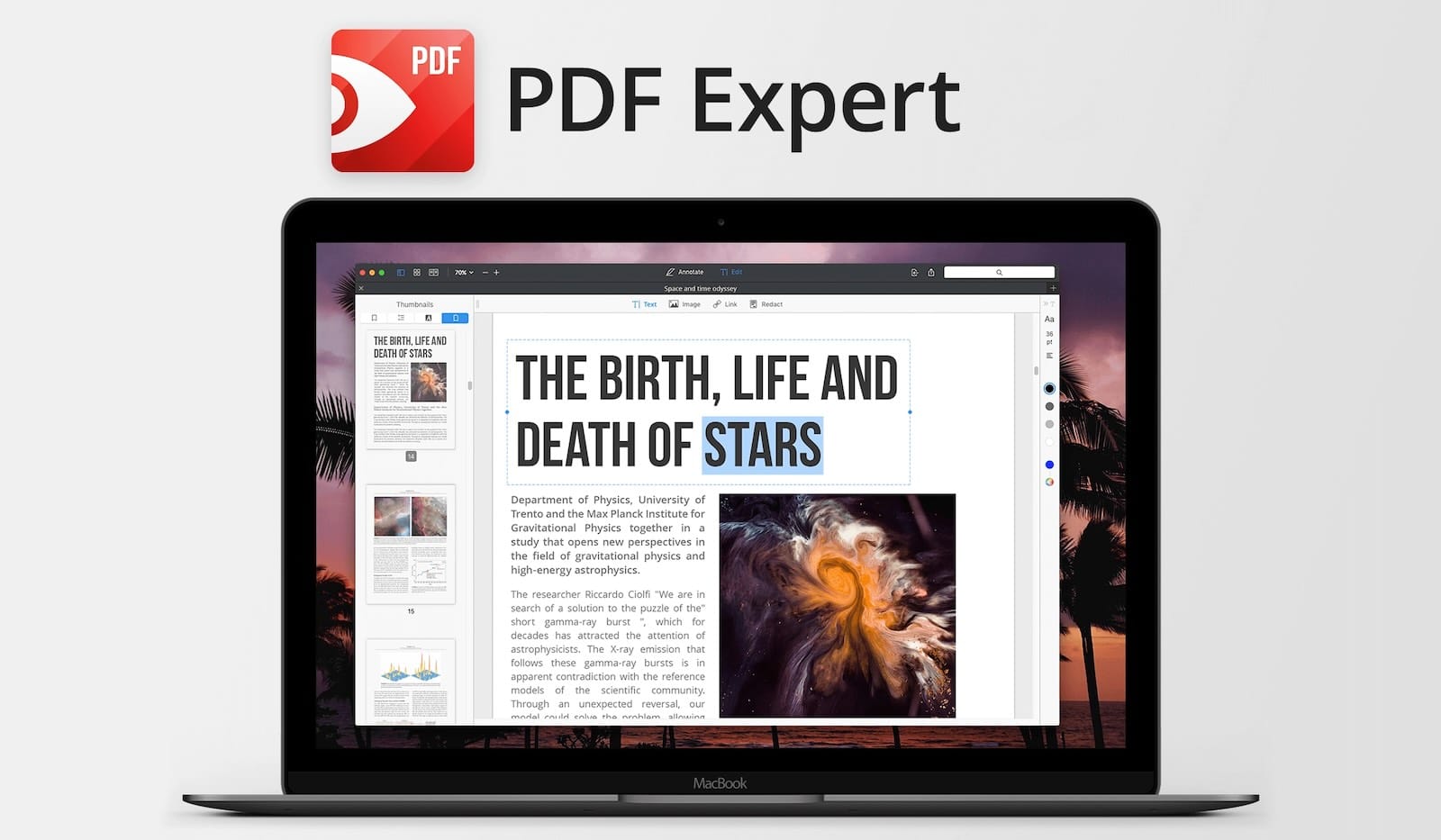
PDF Expert optimized specifically for Mac and integrates tightly with macOS Tahoe. The app handles OCR text recognition natively, turning scanned documents into searchable and editable text. Form creation tools let users build fillable PDFs from scratch. Redaction permanently removes sensitive information instead of just covering it with black boxes.
The editing experience in PDF Expert feels more refined than Preview. Text editing works directly within PDFs, allowing corrections without exporting to another format. Image manipulation tools adjust graphics embedded in documents. Password protection and encryption options secure confidential files at professional-grade standards.
Adobe Acrobat Pro remains the industry standard for complex PDF workflows. Legal teams, design studios, and enterprise environments often require Acrobat's advanced collaboration features, digital signatures with certificate validation, and precise standards compliance. The subscription model makes it expensive for casual use, but organizations handling hundreds of PDFs monthly find the investment worthwhile.
PDFelement offers a middle ground between Preview and Acrobat Pro. The one-time purchase price appeals to users who want professional features without ongoing subscription costs. OCR, batch processing, and form creation all work reliably, though the interface feels less polished than PDF Expert's Mac-native design.
Hardware That Improves PDF Workflows
Software tools matter, but the right hardware makes PDF work smoother and faster. A precision mouse designed for Mac productivity workflows transforms how quickly users navigate through multi-page documents and execute editing tasks.

Affiliate disclosure: some links in this article are Amazon Associate links. If you buy through them, Next Level Mac may earn a small commission at no extra cost to you, and we only recommend products that genuinely bring value to your Mac setup.
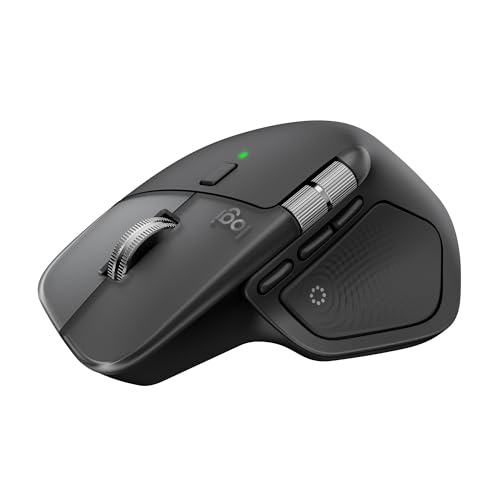
The Logitech MX Master 4 for Mac brings Mac-optimized precision to PDF workflows with its 8K DPI sensor and customizable haptic feedback. The Haptic Sense Panel delivers tactile confirmation for actions like switching tools or adjusting settings, making PDF navigation feel more intuitive. Customizable buttons through Logi Options+ software map directly to PDF tools, and the Actions Ring feature creates app-specific overlays that put frequently used filters and shortcuts right at the cursor. The MagSpeed electromagnetic scrolling wheel scrolls through 1,000 lines per second with pixel-perfect stopping precision, letting users fly through lengthy documents or land exactly on specific sections. The quiet clicks reduce noise by 90% compared to standard mice, perfect for focused work environments. Where to buy the Logitech MX Master 4 for Mac https://www.amazon.com/dp/B0FC5X4F8G?tag=nextlevelmac-20
External storage keeps PDF archives organized and accessible without cluttering internal drives. Large document collections benefit from fast, reliable external SSDs that maintain quick access speeds even with thousands of files.
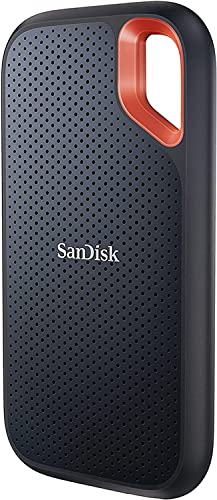
The SanDisk Extreme Portable SSD 1TB delivers 1050MB/s read and 1000MB/s write speeds through USB-C connectivity, making it perfect for storing extensive PDF libraries. The IP65 water and dust resistance protects documents during travel or mobile work environments. The compact size fits easily in a laptop bag without adding significant weight, and the aluminum chassis dissipates heat effectively during sustained file transfers. This is where you can buy the SanDisk Extreme Portable SSD 1TB https://www.amazon.com/dp/B08GTYFC37?tag=nextlevelmac-20
Annotation Workflows With Apple Pencil and iPad
Mac and iPad work together seamlessly for PDF annotation workflows that combine the best of both platforms. Universal Control lets users drag PDFs from Mac to iPad with a gesture, annotate with Apple Pencil precision, then drag the finished document back to Mac for final processing.
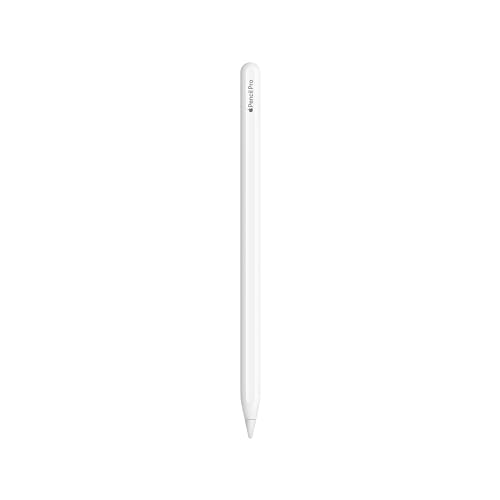
The Apple Pencil Pro transforms PDF annotation on iPad into a natural writing experience. Pixel-perfect precision makes detailed markup accurate down to individual characters. The squeeze gesture switches between tools instantly without hunting through menus. Barrel roll adjusts shaped tool angles exactly like rotating a physical pen. Haptic feedback provides tactile confirmation of actions, making digital annotation feel surprisingly physical. Here's where to get the Apple Pencil Pro https://www.amazon.com/dp/B0D3J71RM7?tag=nextlevelmac-20
The workflow combines Mac processing power with iPad portability. Opening a PDF on Mac, marking it up on iPad during a meeting, then returning to Mac for final export and distribution happens without file transfers or sync delays. Documents stay in sync through iCloud Drive automatically.
Sidecar extends this workflow further by turning iPad into a secondary display for Mac. Opening a PDF reference document on iPad while working on related content in Mac applications creates a dual-screen setup without additional monitors. The Apple Pencil works directly on Sidecar displays, enabling annotation of Mac-hosted PDFs with touch precision.
Compression and File Size Management
PDF file sizes balloon quickly, especially when documents include high-resolution images or scanned pages. Managing file size while maintaining quality requires the right tools and settings.
Preview includes basic compression through the export menu. Choosing the Quartz Filter option reveals several preset compression profiles. The Reduce File Size filter works well for documents heading to email or web upload, though it sometimes reduces image quality more aggressively than ideal.
PDF Expert offers more granular compression control. The optimize function adjusts image resolution, removes embedded fonts that aren't displayed, and strips metadata without destroying document structure. Users can preview compression results before committing to ensure text remains readable and images stay clear.
ColorSync Utility provides Mac's most powerful PDF compression without third-party software. Located in the Utilities folder, ColorSync lets users create custom Quartz filters that define exact compression parameters. Setting specific DPI targets for images and choosing compression algorithms gives precise control over output quality versus file size.
For bulk compression tasks involving dozens or hundreds of PDFs, Automator workflows automate the process. Building an Automator action that applies compression filters to entire folders saves hours of manual work when dealing with large document archives.
Form Filling and Digital Signatures
Form filling remains one of PDF's most common uses, and Mac tools handle this task with varying degrees of sophistication. Preview fills basic forms adequately, letting users type into form fields and save the completed document. More complex forms with calculations, dependencies, or validation rules require specialized software.
PDF Expert excels at form interaction. The app recognizes form fields automatically and enables tab navigation between fields just like web forms. Dropdown menus, checkboxes, and radio buttons all work smoothly. The app even handles JavaScript-enabled forms that perform calculations or show conditional fields based on previous answers.
Digital signatures add legal weight to PDF documents. macOS supports both simple graphical signatures and certificate-based digital signatures with cryptographic validation. Preview handles graphical signatures well through the Markup toolbar, capturing signatures from trackpad, iPhone, or saved images.
Adobe Acrobat Pro provides the most robust digital signature support, including integration with certificate authorities and timestamp servers. Organizations requiring legally binding electronic signatures with audit trails typically standardize on Acrobat for its compliance features and universal acceptance.
OCR and Text Recognition
Optical Character Recognition transforms scanned documents into searchable, editable text. This technology proves essential for digitizing paper archives or working with PDF documents created from images rather than native text.
macOS Tahoe includes built-in Live Text recognition that works across the system, including in Preview. Opening a scanned PDF and selecting text with the cursor triggers automatic text recognition. The feature works surprisingly well for clean scans with readable fonts, though complex layouts or poor scan quality can produce errors.
PDF Expert's OCR engine handles more challenging documents reliably. The app processes entire PDFs in batch mode, converting all pages to searchable text in the background. Language support covers dozens of options beyond English, and the accuracy proves high even with older or lower-quality scans.
Tesseract, the open-source OCR engine, runs directly on Mac through the command line or integrated into apps like OCRKit. For users comfortable with Terminal commands or building automation workflows, Tesseract provides free, scriptable OCR that matches commercial solutions for most documents.
Secure and Encrypted PDFs
Protecting sensitive documents requires more than just good password practices. PDF encryption standards provide multiple security layers from simple password protection to enterprise-grade encryption with permission controls.
Preview encrypts PDFs through the export dialog. Checking the encrypt box prompts for a password and saves the document with 128-bit AES encryption. Opening the encrypted PDF requires the password, and forgetting that password makes the document permanently inaccessible with no recovery option.
PDF Expert supports both opening and setting PDF encryption passwords. The app can also set permissions that restrict printing, copying, or editing even when someone opens the document. These restrictions rely on PDF viewer compliance rather than encryption and can be bypassed by determined users with specialized tools.
Adobe Acrobat Pro offers the most sophisticated PDF security with certificate-based encryption, digital rights management integration, and detailed permission sets. Legal and healthcare industries with strict compliance requirements often mandate Acrobat's security features for handling confidential documents.
For maximum security, storing encrypted PDFs on encrypted volumes adds another protection layer. FileVault encryption on Mac combined with password-protected PDFs creates two separate barriers that potential attackers must overcome.
Automation With Shortcuts and Automator
Repetitive PDF tasks benefit enormously from automation. Converting image batches to PDFs, applying watermarks to document sets, or organizing files by date all happen faster through automated workflows than manual processing.
Shortcuts in macOS Tahoe handles many common PDF automation tasks. The app includes PDF-specific actions like combine PDFs, extract text, rotate pages, and convert formats. Building a shortcut that accepts multiple PDFs and merges them into one file takes minutes and runs with one click or keyboard shortcut.
Automator provides more complex automation capabilities for advanced workflows. The app can watch folders for new PDFs, process them automatically according to predefined rules, then move completed files to designated locations. Recording Automator actions through the interface creates workflows without coding knowledge.
For users comfortable with scripting, Python libraries like PyPDF2 and ReportLab enable sophisticated PDF manipulation. Generating PDFs from data, extracting specific pages based on content analysis, or modifying document metadata programmatically all become possible through Python scripts that integrate with Mac workflows.
Integration With Cloud Services
Modern PDF workflows extend beyond local storage to cloud services that enable access from anywhere and collaboration with others. Mac's native PDF tools integrate with iCloud Drive, Dropbox, Google Drive, and other services for seamless cloud workflows.
Saving PDFs directly to iCloud Drive from Preview or PDF Expert ensures documents sync across all Apple devices automatically. Opening the same PDF on iPhone, iPad, or another Mac shows the most recent version with all edits preserved.
Shared folders in Dropbox or Google Drive enable collaborative PDF workflows where multiple team members mark up the same document. PDF Expert tracks changes and comments by user, making it clear who added which annotations during review cycles.
Version history in cloud services protects against accidental deletions or unwanted changes. Both iCloud and Dropbox maintain previous versions of PDFs, allowing users to roll back to earlier states if needed. This proves particularly valuable when experimenting with edits or dealing with multiple revision rounds.
Organization Strategies for Large PDF Collections
As PDF collections grow, organization becomes critical to maintaining productivity. Finding a specific document among thousands requires thoughtful folder structure and consistent naming conventions.
Hierarchical folder organization works well for most users. Creating top-level folders by year, then subfolders by project or category, keeps related documents together. Naming files with YYYY-MM-DD date prefixes ensures chronological sorting works correctly.
PDF Expert's tagging system adds another organization layer beyond folders. Applying color-coded tags to documents enables filtering and searching by category regardless of folder location. A document can exist in one folder but appear in multiple filtered views based on different tags.
Spotlight search in macOS indexes PDF content automatically, making full-text search work across entire document libraries. Searching for specific phrases or keywords finds relevant PDFs instantly without remembering exact file names or locations. Adding descriptive metadata like keywords and authors to PDFs through Get Info or PDF editing tools improves search accuracy.
Mobile PDF Workflows
PDFs don't stay chained to desks anymore. Mobile workflows on iPhone and iPad handle many PDF tasks effectively, especially when hardware keyboards and Apple Pencil accessories come into play.
Files app on iOS and iPadOS provides basic PDF viewing and markup tools suitable for quick annotation tasks. Continuity features like Handoff let users start working on a PDF on iPhone during a commute, then seamlessly continue on Mac upon arriving at a desk.
PDF Expert's iOS version matches most Mac features with a touch-optimized interface. Split view on iPad enables reference document viewing alongside PDF editing, useful for transcribing information or comparing documents side by side.
Scanning documents through iPhone camera creates PDFs directly in Files or third-party scanning apps. The neural engine on modern iPhones automatically detects document edges, corrects perspective distortion, and enhances legibility. These scanned PDFs sync through iCloud Drive and open immediately on Mac for further processing.
Building a Complete PDF Workflow
Effective PDF workflows combine multiple tools and techniques into cohesive systems tailored to specific needs. A freelance designer's workflow looks different from a legal professional's setup, but both benefit from intentional tool choices and practiced routines.
Start by identifying the PDF tasks that occur most frequently. Form filling, annotation, compression, and searching represent common activities that deserve optimized workflows. Less frequent tasks like OCR or encryption can use more manual approaches without significantly impacting productivity.
Choose primary tools based on frequency and complexity. Preview handles daily basics, a third-party app like PDF Expert tackles professional features, and specialized tools address specific needs when they arise. Spreading work across too many apps creates confusion; consolidating around one primary PDF editor with Preview as backup keeps things simple.
Practice keyboard shortcuts and gesture navigation in chosen PDF apps. Most PDF software includes extensive keyboard control that eliminates mouse hunting and speeds common operations. Learning just five frequently used shortcuts can cut task time noticeably.
Set up folder templates and automation for recurring PDF tasks. Creating predefined folder structures for new projects, automated backup workflows, and Shortcuts for repetitive operations turns chaotic document handling into smooth, predictable processes.

Related Posts
Master Mac Focus Modes for Distraction-Free Work
Dec 30, 2025
How to Use macOS Tahoe Writing Tools for Mac Productivity
Dec 27, 2025
Stop Drowning in Paper: The Mac User’s Guide to Digital Freedom
Dec 21, 2025