

Your Mac's FaceTime camera does the job when you need to jump on a quick call, but it was never designed to be your primary video tool. The sensor is small, the lens is basic, and your lighting options are whatever happens to be in the room. An external webcam changes everything. You get a larger sensor that captures more light, a better lens that stays sharp across the frame, and software that puts real camera controls in your hands.
External webcams make sense for anyone who spends serious time on video calls, records tutorials, streams content, or needs to look professional without the complexity of a DSLR setup. You plug one in, position it at eye level, and you are done. No adapters, no capture cards, no wrestling with camera settings that take five minutes to dial in. The webcam handles focus, exposure, and color balance while you focus on the conversation or the content you are creating.
The difference shows up immediately in video quality. Colors look natural instead of washed out. Shadows have detail instead of turning into black holes. Your face stays clear when you move your hands or lean back in your chair. These are not minor improvements. They are the difference between looking like you are on a webcam and looking like you invested in your setup.
Affiliate disclosure: some links in this article are Amazon Associate links. If you buy through them, Next Level Mac may earn a small commission at no extra cost to you, and we only recommend products that genuinely bring value to your Mac setup.
Three webcams stand out in 2025 for Mac users who want professional results without professional complications. Each one brings something different to your desk, and the right choice depends on how you work and what you need from your video setup.
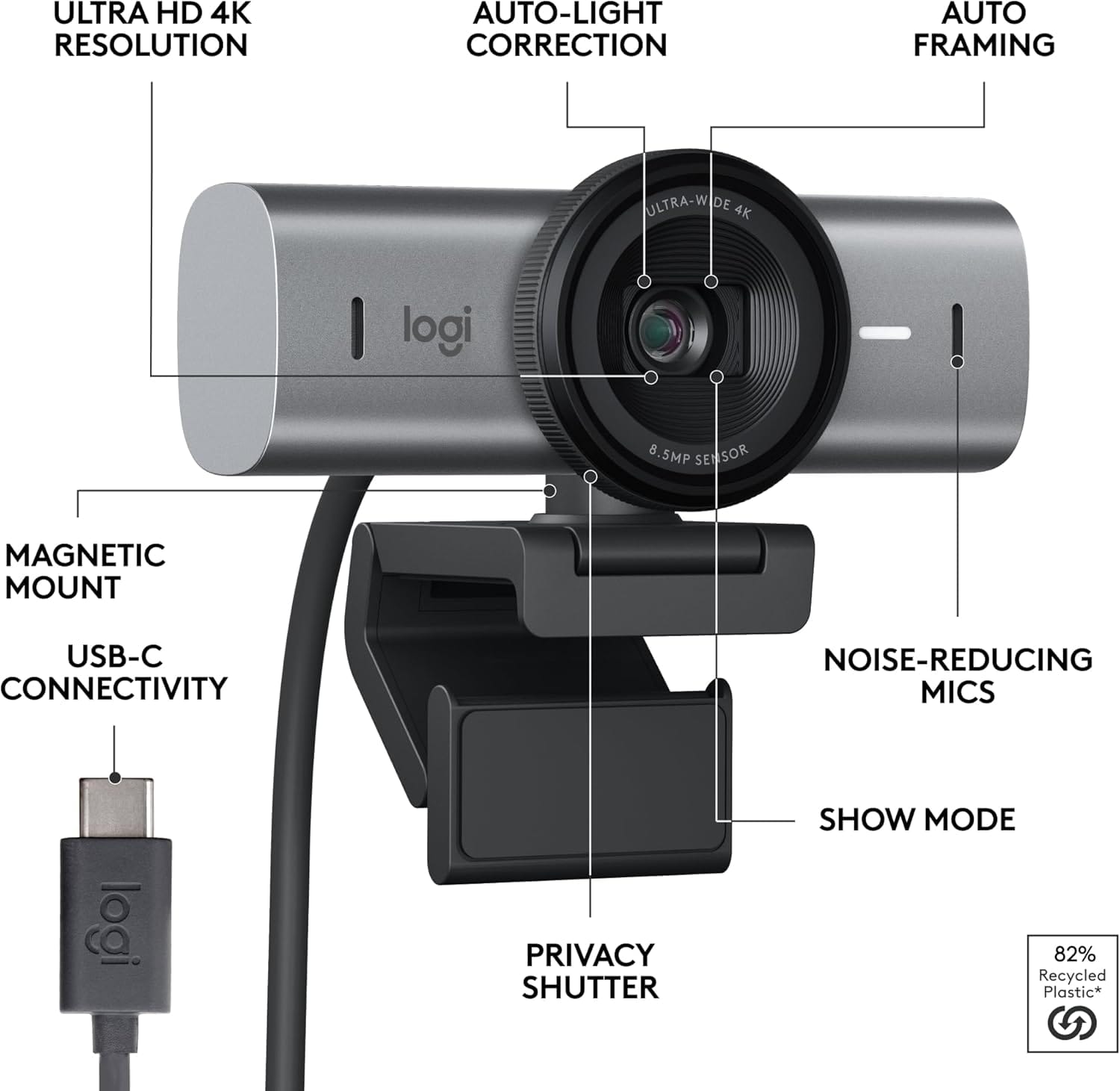
The Logitech MX Brio delivers 4K video at 30fps or 1080p at 60fps with a sensor that captures more detail than previous Logitech models. The lens includes Show Mode, which tilts down to show your desk for whiteboard-style presentations or product demos. RightLight 3 handles difficult lighting automatically, and the built-in privacy shutter blocks the lens completely when you slide it closed. The mounting clip fits monitors and laptops without tools, and a standard quarter-inch thread lets you attach it to any tripod or boom arm.
Where to buy the Logitech MX Brio https://www.amazon.com/dp/B0BFJ4CRKD?tag=nextlevelmac-20
The Elgato Facecam MK.2 focuses on 1080p60 with uncompressed HDR video that looks noticeably cleaner than compressed streams. The Sony STARVIS sensor performs well in low light, and the fixed focus range keeps everything sharp from 30 to 120 centimeters. Camera Hub software gives you manual controls for ISO, shutter speed, white balance, and exposure compensation. The digital PTZ lets you pan, tilt, and zoom without moving the camera, and the built-in flash memory saves your settings so they follow you between computers.
The place to get the Elgato Facecam MK.2 https://www.amazon.com/dp/B0CW1S7XP5?tag=nextlevelmac-20
The Razer Kiyo Pro Ultra uses the largest sensor ever put in a webcam, a 1/1.2-inch Sony STARVIS 2 sensor with 2.9 micrometer pixels that capture significantly more light than standard webcam sensors. The F/1.7 aperture lens creates natural background blur without software tricks, and AI-powered face tracking keeps you centered in frame. The webcam outputs uncompressed 4K at 24fps or 1080p at 60fps, and Razer Synapse software provides full manual control over every camera setting. The built-in shutter twists to cover the lens for privacy.
This is where to buy the Razer Kiyo Pro Ultra https://www.amazon.com/dp/B0CT6FFK4R?tag=nextlevelmac-20
Setting up an external webcam takes about two minutes. Plug the USB-C cable into your Mac, position the camera at eye level or slightly above, and open your video app to select the new camera as your input device. Eye level matters because it creates natural eye contact with people on the other end of the call. Mounting the camera on top of your display works well for this, and most webcams include a clip that secures to any monitor thickness.
Lighting makes or breaks video quality, even with a great webcam. Position yourself facing a window during daytime or add a desk lamp that bounces light off a wall or ceiling to avoid harsh shadows. Direct overhead lighting creates unflattering shadows under your eyes and nose, so aim for light that comes from in front of you at a 45-degree angle. The webcams covered here all handle challenging lighting better than built-in cameras, but good lighting still makes a visible difference in the final image.
Your Mac will recognize any of these webcams immediately without installing drivers. The built-in Camera app, FaceTime, Zoom, Teams, and every other video platform on macOS will see the webcam as an available camera option. Some webcams include companion software for advanced settings, but the cameras work perfectly well without it. Install the software only if you want manual control over ISO, shutter speed, or other technical parameters.
Resolution matters less than you might think once you pass 1080p for typical video calls. Most video conferencing platforms compress your video stream regardless of what resolution you send, and many people will be viewing your video in a small window on their screen. A webcam that delivers clean 1080p60 with good color accuracy and low noise will look better than a 4K webcam that struggles in your lighting conditions. Frame rate matters more for content creation where you might be moving your hands or turning to point at something on screen.
The software that comes with these webcams gives you control over how you look on camera. You can adjust field of view to show more or less of your background, tweak exposure to compensate for bright windows behind you, and set white balance to match your room lighting. These settings let you dial in a look that works for your space instead of relying on automatic adjustments that change constantly during a call.
Mounting options change where you can use your webcam. A monitor clip works for stationary desk setups, but a webcam with a standard tripod mount opens up other possibilities. You can put it on a small desktop tripod for lower angles, attach it to a microphone boom arm for precise positioning, or mount it on a full-size tripod for standing desk use. The flexibility matters when you want to experiment with different camera angles or move between sitting and standing throughout the day.
Microphone quality in webcams has improved significantly, but dedicated microphones still sound better for serious content creation. The built-in microphones in these webcams work fine for casual video calls where convenience matters more than audio perfection. For podcasts, tutorials, or anything where audio quality affects the viewer experience, use a separate microphone and turn off the webcam mic in your software settings.
Background blur separates you from your surroundings without requiring a green screen or software processing that makes edges look artificial. The Razer Kiyo Pro Ultra creates this effect optically with its large sensor and wide aperture lens, similar to how a DSLR creates shallow depth of field. The other webcams rely on software background blur, which works but can struggle with hair and glasses. Neither approach is wrong, but optical blur looks more natural when it works correctly.
Privacy shutters give you physical control over when the camera can see anything. The built-in shutters on these webcams block the lens completely, unlike software controls that could potentially be bypassed. This matters for anyone who keeps their webcam connected all the time and wants certainty that nothing can activate the camera without their knowledge. The shutters take one second to close and reopen, making them easy to use between calls.
Choosing between these three webcams comes down to your priorities. The Logitech MX Brio brings Show Mode for desk-down presentations and proven RightLight technology that works across different lighting setups. The Elgato Facecam MK.2 delivers uncompressed 1080p60 with manual camera controls and PTZ flexibility. The Razer Kiyo Pro Ultra provides the largest sensor available in a webcam with natural background blur and 4K output. All three work immediately with macOS and every video platform you use.
Your Mac deserves a webcam that matches its capabilities. The built-in FaceTime camera serves casual use well enough, but external webcams deliver the image quality and control that make video calls and content creation feel professional. Whether you are presenting to clients, teaching online courses, streaming creative work, or just want to look your best in every call, the right external webcam makes that happen without

Related Posts
Mac Audio Interfaces: Transform Your Recording Setup
Jan 06, 2026
Master Podcast Production with GarageBand on Mac
Jan 02, 2026
Mac Color Calibration for Photographers and Designers
Dec 27, 2025