
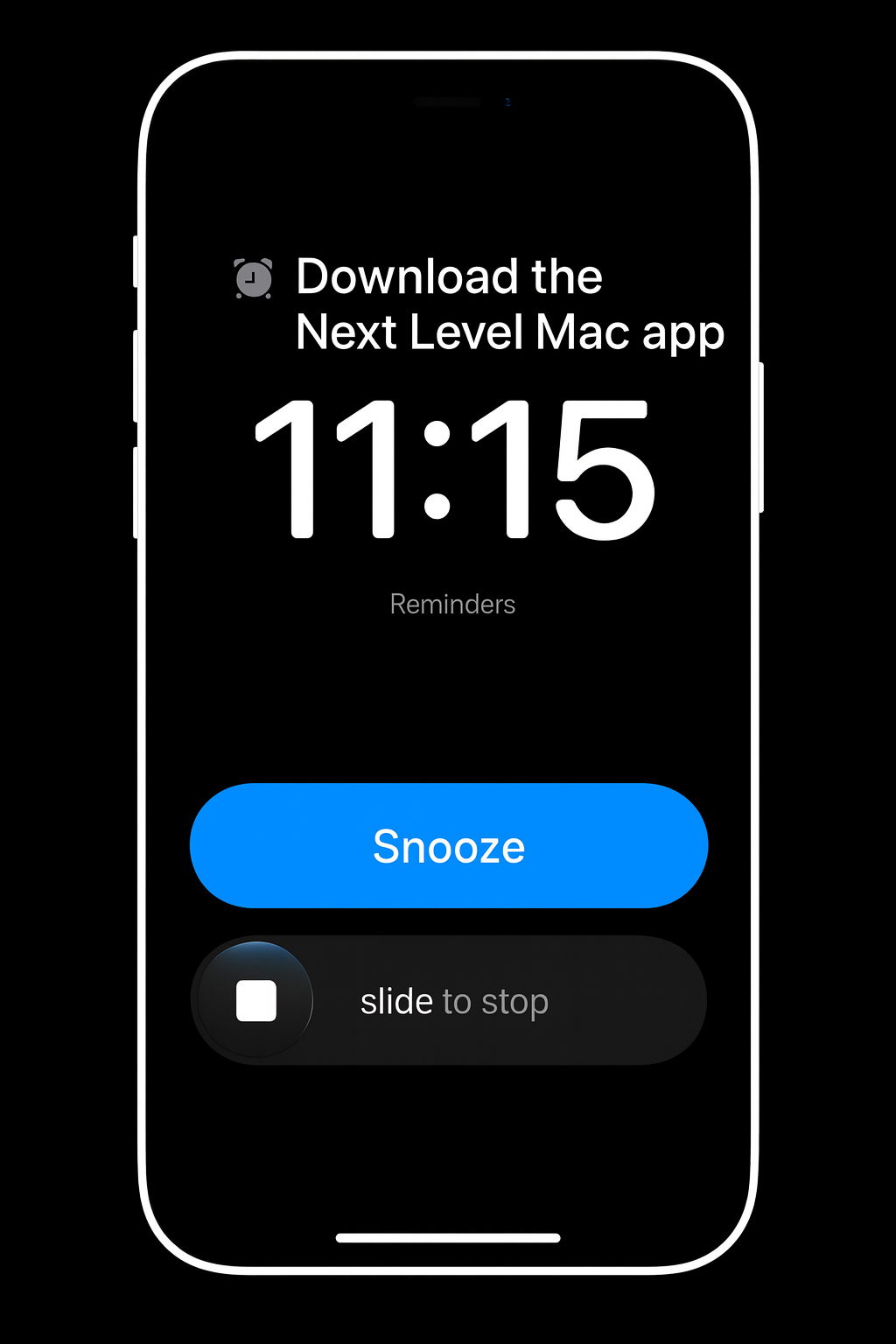

iOS 26.2 gives the Reminders app a new trick that feels a lot more like a proper alarm clock. Instead of a quiet notification that you might swipe away without thinking, you can now create reminders that ring like a full alarm, complete with a snooze option or a one tap complete button. If you ever miss important tasks because they arrive as gentle banners, this feature is worth setting up.
In this guide, I will walk you through how the new alarm style reminders work, how to turn them on, and how to actually build them into your day so they help rather than annoy you. Think of this as a small reset for how you handle time sensitive tasks on your iPhone.
What alarm style reminders actually are
Under the hood, alarm style reminders in iOS 26.2 are a bridge between the Clock app and the Reminders app. Instead of Reminders just scheduling a notification, it now has permission to create real alarms that show up on your Lock Screen the way a morning wake up alarm does.
When one of these alarms goes off, you see a full screen interface with a big button and a slider. Apple uses a different color treatment for these reminder alarms so you can tell them apart from standard Clock alarms at a glance. That helps you know whether you are dismissing a wake up time or an urgent task.
The key difference is this. A normal reminder is easy to miss when your phone is on mute, in a Focus mode, or sitting face down nearby. Alarm style reminders are designed to break through all of that. They can sound even when your iPhone is muted or when certain Focus modes are active, so genuinely important tasks do not quietly slip past you.
Where to turn the feature on
Before you can use alarm style reminders, you have to give the Reminders app permission to use alarms. If you skip this step, everything else in the interface looks the same as before.
Here is how to turn it on:
- Open the Settings app on your iPhone.
- Scroll down until you see the list of apps, then tap Reminders.
- In the section that controls what Reminders can access, look for an option related to Alarms.
- Turn that option on.
Once you flip that switch, Reminders is allowed to integrate with the alarm system. You do not have to redo this on every reminder; it is just a one time setup.
Creating your first alarm style reminder
Now that Reminders can use alarms, you can build a reminder that behaves more like a wake up call than a quiet suggestion.
You can do it like this:
- Open the Reminders app.
- Create a new reminder for something specific, or pick an existing one that you never want to miss.
- Tap the info button next to that reminder so you can edit its details.
- Turn on the Time option, then pick the exact date and time you want.
- Turn on the new option that marks the reminder as urgent or alarm based.
When that time rolls around, your iPhone will sound an alarm and bring up the full screen interface. You will see options to stop it, snooze it, or otherwise deal with the task. Compared to a standard banner, it is hard to ignore, which is the whole point.
A simple way to test this is to set a reminder alarm for a few minutes from now while your phone is muted and sitting on your desk. When it fires, you will see how much more “real” it feels compared to a normal reminder notification.
Choosing between snooze and complete
There is one extra bit of customization that is easy to miss but very helpful. You can decide whether your alarm style reminders show a snooze option or a complete button on the alarm screen.
If you want the alarm to give you the classic snooze pattern, you can keep the default behavior. The alarm goes off, you tap snooze, and your iPhone brings it back later until you fully deal with the reminder.
If you prefer to treat reminders as one and done tasks, you can change the behavior in Settings:
- Go back to Settings and open the Reminders section again.
- Look for a setting related to urgent reminders and the alarm button.
- Turn on the option that replaces snooze with a Complete button.
With that switch on, the alarm screen gives you a one tap way to mark the reminder as finished. This is ideal for things like taking medication, sending a quick message, or checking in on something that does not need more nudging.
How alarm style reminders work with Focus and mute
One of the biggest strengths of this feature is how it behaves when your phone is in a more restrictive state. A lot of people live with Focus modes enabled for big chunks of the day, and many keep their phones permanently on silent.
Alarm style reminders are designed to cut through more of those barriers. When you give Reminders permission to use alarms, those alarms follow the same rules as Clock alarms, which means they can ring even if:
- Your ringer switch is set to silent.
- You have a Focus mode active that would normally hide or silence notifications.
This makes alarm style reminders a good fit for tasks where “I did not hear it” is not an acceptable outcome. Think time sensitive work tasks, medical routines, or hard limits like getting out the door by a certain time.
You still control the bigger picture through Focus settings, but the core idea is that alarm style reminders are treated as higher priority than normal alerts.
Building a simple system instead of a noisy one
It can be tempting to turn every single reminder into an alarm once you see how powerful this is. The problem is that too many alarms quickly feel overwhelming. Instead, it helps to build a small, predictable system.
Here is a simple way to approach it:
- Reserve alarm style reminders for the three to five most critical tasks in a day.
- Keep everything else as standard reminders, lists, or scheduled notifications.
- Use alarm style reminders for things that would cause real trouble if you missed them.
For example, you might set alarm style reminders for medication, a crucial meeting, picking up a child from an activity on time, or starting a commute. Bills, errands, and routine to do items can stay as regular reminders that are easier to swipe away.
If you treat alarm style reminders as a scarce resource, you are less likely to start ignoring them, and more likely to respond when they fire.
Pairing alarm reminders with a bedside charging setup
A lot of people experience their most important reminders at the edges of the day, like taking medication at night or preparing for the next morning. That is where a reliable bedside charging setup can help you actually hear and respond to an alarm.
A 3 in 1 MagSafe stand that holds your iPhone, Apple Watch, and AirPods in one place can turn your nightstand into a reliable “command center” for these alarms. An option like the Anker Prime MagSafe Charger Compatible 3 in 1 Charging Station offers 25 watt Qi2 charging for iPhone along with spots for Apple Watch and AirPods, so everything stays topped up and easy to reach when an alarm reminder goes off. Where to buy the Anker Prime 3 in 1 MagSafe Charger Compatible, 3 in 1 Charging Station (Amazon Affiliate Link): https://www.amazon.com/dp/B0F9L1PPPJ?tag=nextlevelmac-20&gbOpenExternal=1
With your iPhone propped up and facing you, it is much harder to miss the full screen alarm interface. You can also glance at the time or upcoming reminders without picking up the phone, which fits nicely with a low friction bedtime routine.
Keeping your phone charged for daytime alarms
Alarm style reminders do not help much if your iPhone runs out of battery in the middle of a busy day. If you tend to run close to empty, especially during travel or long workdays, it can be worth throwing a compact charger into your bag so you can top up during short breaks.
Apple’s 20 watt USB C Power Adapter is small enough to live in a work bag or travel kit without adding weight, and it delivers fast charging when you plug into a compatible USB C cable and outlet. That makes it easy to grab a meaningful charge during a coffee break or quick meeting gap so your afternoon reminder alarms still fire on schedule. This is where to buy the Apple 20W USB C Power Adapter (Amazon Affiliate Link): https://www.amazon.com/dp/B0DJFW7PNM?tag=nextlevelmac-20&gbOpenExternal=1
If you combine a habit of plugging in when you sit down for a bit with a handful of alarm style reminders for the most important tasks, your iPhone starts to feel more like a trustworthy assistant and less like another thing to worry about.
Using lists and alarm reminders together
Alarm style reminders work best when they sit on top of a simple list structure inside the Reminders app. Instead of throwing everything into one giant list, you can break things up in a way that matches your life.
You might have separate lists for:
- Work tasks.
- Home or personal tasks.
- Health or wellness routines.
- Shopping or errands.
Most items in those lists can stay as standard reminders that you check and sort each day. When one of them is tied to a hard time, like a deadline or appointment, you can edit its details and flip on the alarm option.
This way, you are not constantly creating one off reminders. You are promoting certain items from your existing lists into alarms when they reach a point where timing matters.
Using alarm style reminders for habits, not just crises
It is easy to think of alarm style reminders for emergencies only, but they can also support positive habits that happen at specific times. For example, you might set:
- A reminder alarm to stand up and stretch in the afternoon if you work at a desk.
- An evening reminder alarm to review your schedule for the next day.
- A weekly reminder alarm for something like taking out trash before pickup.
The goal is not to fill your day with noise. It is to choose a few habits that benefit from a strong, unmistakable signal at the right moment. Over time, you may find that you rely on the alarms less as the habits stick, and you can switch some of them back to standard notifications.
How to avoid alarm fatigue
Alarm fatigue happens when every alert feels urgent and none of them really are. To keep alarm style reminders useful instead of annoying, it helps to regularly prune and adjust them.
Once a week, you can:
- Open Reminders and filter for items that use the alarm style option.
- Ask whether each one still needs that level of urgency.
- Turn off the alarm setting for anything that no longer deserves to interrupt you.
You can also adjust times to match your real life instead of your ideal schedule. If you always ignore a 7 pm reminder to do something, it might be better at 8:30 pm when the environment is calmer.
Small tweaks like this keep the feature feeling supportive instead of pushy.
When not to use alarm style reminders
There are also good reasons not to use alarm style reminders for certain things. For example:
- Tasks with flexible timing, such as “research new recipes.”
- Ideas you want to capture without a deadline.
- Long running projects without a single clear moment of action.
Those items are better suited to normal reminders, notes, or calendar blocks. Alarm style reminders are at their best when there is a clear, specific moment where you either did the thing or you did not.
Being honest about what actually deserves an alarm helps keep your attention available for the tasks that really matter.
Bringing it all together
iOS 26.2’s alarm style reminders are a small change on paper, but they can make a real difference in how you handle time sensitive tasks. By giving Reminders access to the alarm system, Apple has turned important reminders into something that behaves more like a wake up call and less like just another notification.
If you take a few minutes to enable the feature, choose a short list of truly important tasks, and pair it with a simple charging setup that keeps your iPhone ready, you end up with a system that is both reliable and manageable. Your most important commitments get a clear, unmistakable signal, and everything else stays in the background where it belongs.

Related Posts
iPhone 17 Screen Protectors: Why Anti-Reflective Coating Matters
Dec 06, 2025
Master iPhone Automation: The Ultimate NFC Tag Guide (2026)
Dec 05, 2025
Free Up Your iPhone Storage in IOS 26
Dec 05, 2025