
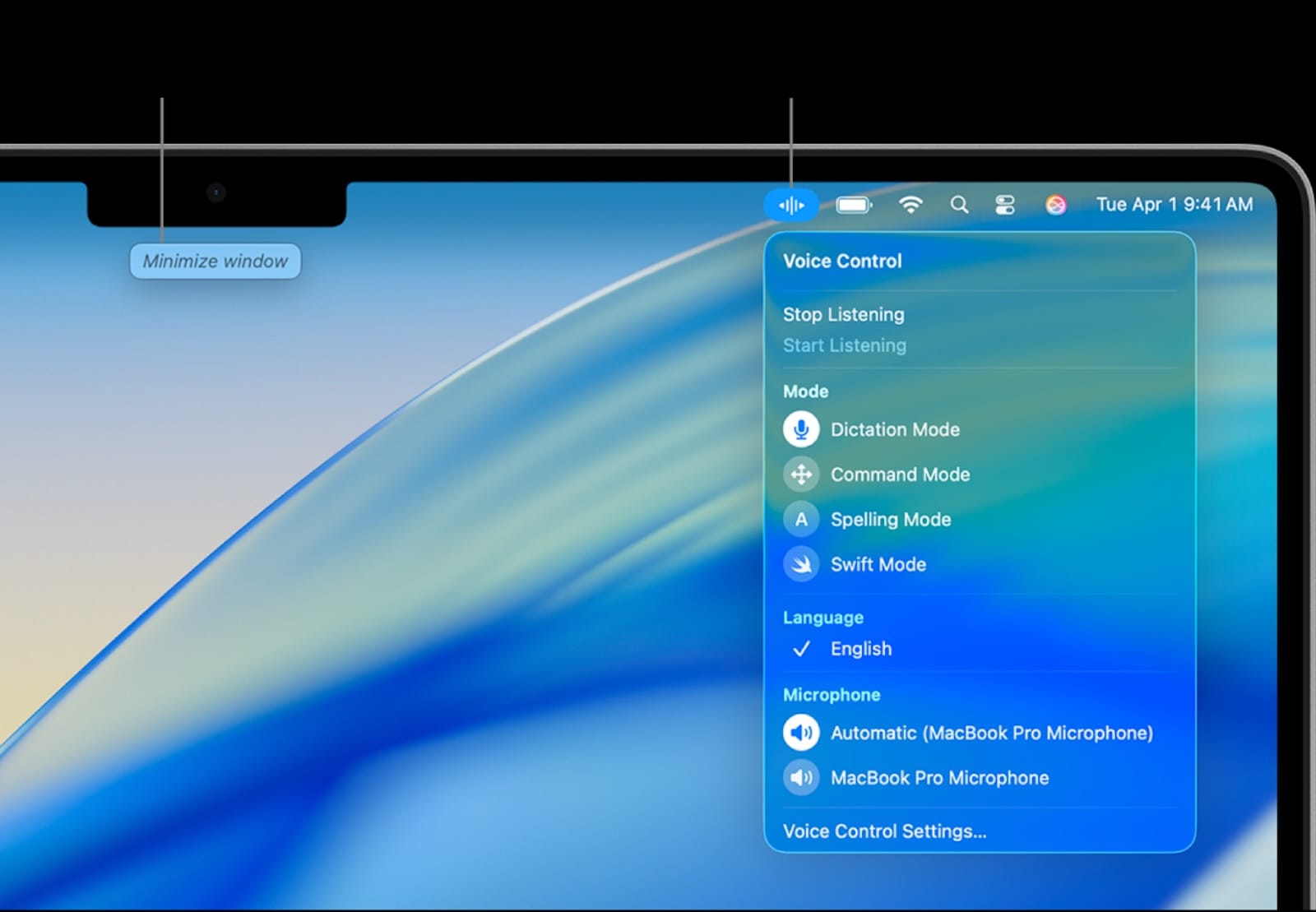
Your keyboard isn't always the fastest way to get words on screen. macOS Tahoe brings meaningful improvements to Mac dictation that make voice input practical for everyday work instead of just a novelty you try once and abandon.
The latest version of macOS refines how you can dictate text across your Mac. The changes include better accuracy for technical terms, support for spelling out names and specific words, and faster processing through Apple's new transcription framework. Voice Control also lets you navigate apps and control your Mac entirely by voice.
These improvements matter because dictation can genuinely speed up certain tasks. Writing emails, drafting documents, and even coding with voice commands becomes feasible when the technology actually works as intended.
How Mac Dictation Works in macOS Tahoe
Mac dictation converts your speech to text in real time. Unlike Siri, which interprets commands and questions, dictation focuses purely on transcribing what you say into any text field on your Mac.
macOS Tahoe processes your voice input differently depending on which mode you use. Enhanced Dictation sends audio to Apple's servers for processing, while the standard mode handles everything locally on your Mac through Apple silicon's Neural Engine. Both approaches deliver solid results, though enhanced dictation supports continuous input without timeouts.
The system automatically adds punctuation as you speak in supported languages. This feature saves you from saying "comma" and "period" constantly, making dictated text read more naturally. When auto-punctuation misses something, you can still dictate punctuation marks by name.
Setting Up Dictation on Your Mac
Open System Settings and click Keyboard in the sidebar. Toggle Dictation to on and select your preferred language. The default keyboard shortcut is pressing the Fn key twice, which you can customize if that doesn't work for your workflow.
If you want continuous dictation without automatic pauses, enable Enhanced Dictation in the same settings panel. This option downloads additional language models to your Mac and allows for longer dictation sessions without interruption.
Testing your setup takes seconds. Open TextEdit or any text field, press your dictation shortcut, and start speaking. The pulsing cursor indicates the system is listening. When you finish, press Escape or your dictation shortcut again to stop recording.
Voice Commands That Actually Matter
Dictation recognizes standard punctuation commands. Say "period" for a full stop, "comma" for a pause, "question mark" for questions, and "exclamation point" for emphasis. "New line" moves the cursor down once, while "new paragraph" creates a proper paragraph break.
Emoji support in macOS Tahoe lets you insert reactions by voice. Say "heart emoji" or "laughing emoji" and the corresponding symbol appears in your text. This works across Messages, Mail, and any app that supports emoji input.
For names or technical terms the system doesn't recognize, use the spelling feature. Say "spell" followed by the word letter by letter. The system processes each letter individually and reconstructs the word in your text. This proves essential when working with proper nouns, brand names, or specialized terminology.
When Dictation Makes Sense
Email drafts benefit from dictation when you know what you want to say but typing feels tedious. Speaking your thoughts often flows more naturally than writing them out, especially for routine messages that don't require precise wording.
Document creation works well for first drafts. Getting ideas out of your head and onto the page happens faster through speech than typing for many people. You can always edit and refine the text afterward using your keyboard.
Dictation falters with complex formatting, code with specific syntax, or documents that need precise structure from the start. The technology handles conversational text well but struggles with specialized formatting requirements.
Improving Dictation Accuracy with Better Audio
Your Mac's built-in microphone captures adequate audio for basic dictation. However, a dedicated USB microphone dramatically improves accuracy, especially in noisy environments or when you need to dictate for extended periods.
A quality microphone picks up your voice more clearly while filtering out background sounds. This leads to fewer transcription errors and less time spent correcting mistakes. The difference becomes obvious once you try dictation with proper audio equipment.


Affiliate disclosure: some links in this article are Amazon Associate links. If you buy through them, Next Level Mac may earn a small commission at no extra cost to you, and we only recommend products that genuinely bring value to your Mac setup.
The Blue Yeti USB Microphone offers four pickup patterns that adapt to different recording situations. Cardioid mode focuses on sound directly in front of the mic, ideal for solo dictation work. The onboard gain control lets you adjust sensitivity on the fly, and the mute button provides instant silence during breaks. The included stand positions the mic at an appropriate height, though you might prefer a boom arm for more flexible positioning.
Here's where to get the Blue Yeti USB Microphone https://www.amazon.com/dp/B00N1YPXW2?tag=nextlevelmac-20
The Samson Q2U USB/XLR Microphone takes a different approach with its dynamic capsule design. Dynamic mics reject more background noise than condenser mics like the Yeti, making them suitable for less controlled environments. The Q2U includes both USB and XLR outputs, so you can connect directly to your Mac or upgrade to an audio interface later. Everything needed for immediate use comes in the box—mic clip, desktop stand, windscreen, and cables.
This is where to buy the Samson Q2U USB/XLR Microphone https://www.amazon.com/dp/B001R747SG?tag=nextlevelmac-20
Voice Control for Hands-Free Navigation
Voice Control extends beyond dictation to complete Mac operation through voice commands. This accessibility feature lets you navigate apps, click buttons, and control your Mac without touching the keyboard or trackpad.
Enable Voice Control in System Settings under Accessibility. Once active, you can say "Open Safari" to launch apps, "Click Save" to interact with buttons, or "Show numbers" to overlay clickable targets across your screen. The numbered overlay system provides precise control when voice commands alone aren't specific enough.
Creating custom commands expands Voice Control's capabilities. You can define shortcuts for repeated tasks, like opening specific files or triggering keyboard shortcuts through voice. The system learns your preferences and improves recognition over time.
Troubleshooting Common Dictation Issues
Inaccurate transcription usually stems from poor audio quality or unclear speech. Speak at a normal pace with clear enunciation. Rushing through words or trailing off at the end of sentences gives the system less information to work with.
Connection problems affect Enhanced Dictation since it relies on internet access. If dictation stops responding or takes too long to process, check your network status. Switch to standard dictation for offline work or when connectivity proves unreliable.
Microphone selection matters when you have multiple audio inputs. System Settings lets you choose which microphone dictation uses. If the wrong input is active, dictation picks up nothing or captures poor quality audio that reduces accuracy.
Making Dictation Part of Your Workflow
Start with tasks that benefit most from voice input. Emails, meeting notes, and quick messages work well because they prioritize getting thoughts recorded quickly over perfect formatting.
Keep your keyboard nearby during dictation sessions. Switching between voice and manual input as needed produces better results than forcing yourself to use only one method. Edit with your keyboard, dictate when words flow, and combine both approaches as situations demand.
Set realistic expectations for what dictation can accomplish. The technology handles conversational text effectively but isn't suitable for every writing task. Learn where it helps your productivity and where traditional typing remains faster.



Related Posts
10 macOS Tahoe Settings To Change On Your New Mac
Dec 25, 2025
Unlock Mac Gaming Performance with Game Mode in macOS Tahoe
Dec 23, 2025
Master Apple Freeform on macOS Tahoe
Dec 17, 2025