
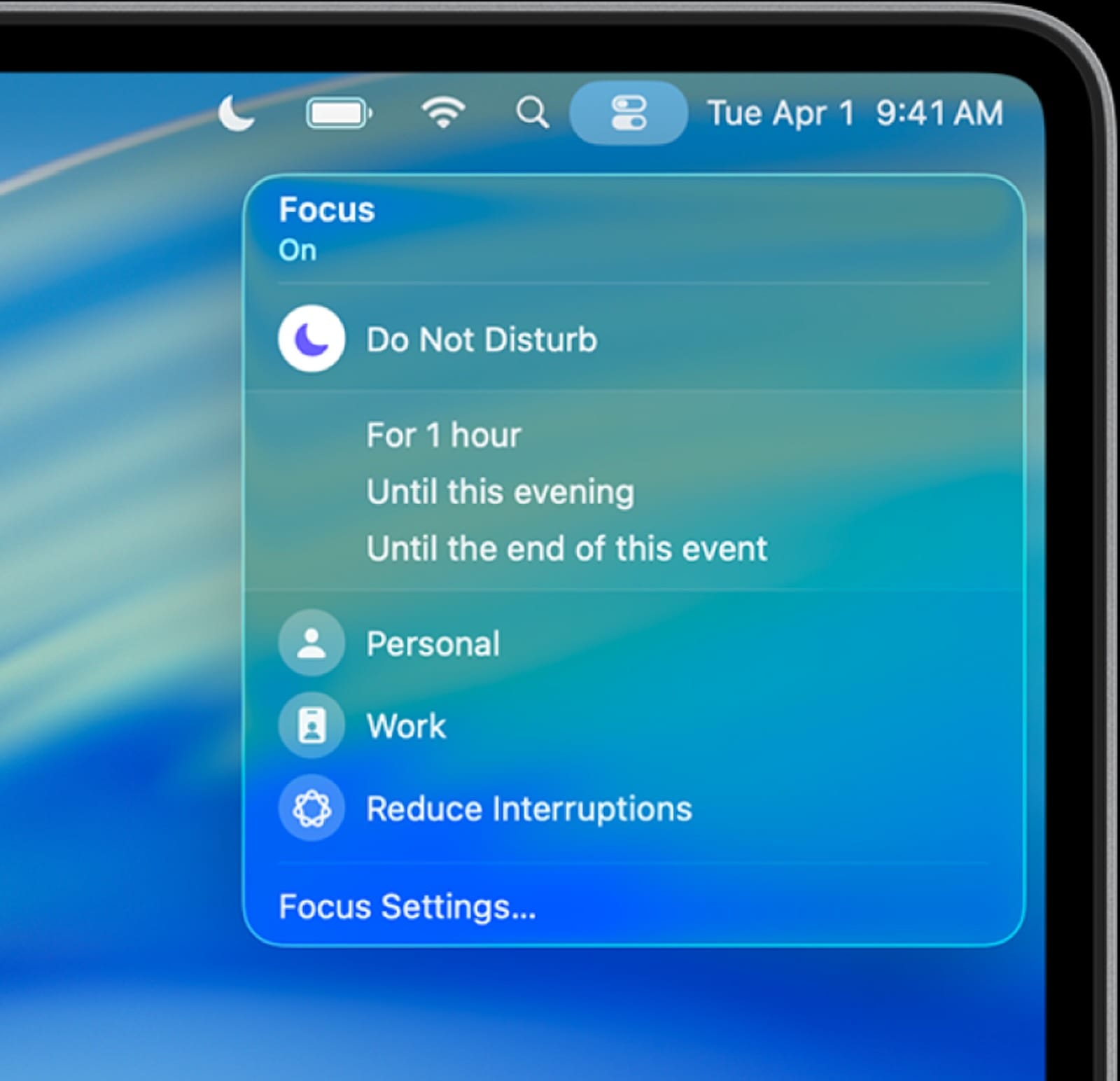
You sit down at your Mac ready to tackle that project. Five minutes in, a notification pings. Then another. Before you know it, an hour has vanished and you're still staring at a blank document. This cycle destroys productivity, but macOS Tahoe's Focus Modes can break it completely.
Focus Modes don't just silence notifications. They transform your Mac into an environment designed around what you're actually trying to accomplish. When activated properly, they automate the transition between work contexts so completely that distractions simply can't reach you.
How Focus Modes Actually Work
Think of Focus Modes as profiles for your Mac that control which apps, people, and notifications can interrupt you. When you activate a Focus Mode, your Mac filters everything through that profile's rules. Messages from your team might come through during Work focus, but social media notifications get blocked entirely.
The power comes from automation. Focus Modes can activate based on time, location, or even which app you're using. Open Final Cut Pro and your Mac can automatically enter a "Deep Work" mode that blocks everything except critical alerts. Leave your home Wi-Fi network and your "Commute" focus could kick in, allowing navigation and podcast apps while muting work email.
macOS Tahoe takes this further by syncing Focus Modes across your Apple devices. Activate Work focus on your Mac and your iPhone switches to the same mode automatically. This cross-device coordination means interruptions can't sneak in through a different screen.
Setting Up Your First Focus Mode
The built-in Focus Modes cover common scenarios, but creating a custom mode tailored to your workflow delivers better results. Start by opening System Settings and selecting Focus from the sidebar. Click the plus button to create a new mode.
Give your Focus Mode a clear name that describes its purpose. "Writing," "Meetings," or "Deep Coding" work better than vague labels. Choose an icon and color that make the mode instantly recognizable when you glance at your menu bar.
Next, configure which people can reach you. For most focused work modes, limit this to a small group. Your manager or family might make the cut, but coworkers who could wait an hour probably shouldn't. The goal is protecting your attention, not creating an impenetrable fortress.
App notifications require similar filtering. Email and messaging apps usually need restrictions, but you might want calendar alerts for upcoming meetings. Project management tools can go either way depending on your role. Consider what genuinely requires immediate attention versus what can wait until you check in deliberately.
The Home Screen and Lock Screen customization options let you hide distracting app pages entirely while a Focus Mode is active. If social media apps tempt you during work hours, remove them from view. Out of sight actually helps keep them out of mind.


Affiliate disclosure: some links in this article are Amazon Associate links. If you buy through them, Next Level Mac may earn a small commission at no extra cost to you, and we only recommend products that genuinely bring value to your Mac setup.
Automating Focus Mode Activation
Manual activation works, but automation makes Focus Modes truly powerful. macOS Tahoe can trigger modes based on time, location, or app usage without you lifting a finger.
Time-based automation suits predictable schedules. If you always work from 9 AM to 5 PM, set your Work focus to activate automatically during those hours. The system handles the transition so you don't have to remember. Weekends can automatically shift to a more relaxed Personal mode.
Location triggers use your Mac's network connection to determine where you are. When you connect to your office Wi-Fi, Work focus engages automatically. Arrive at a coffee shop and your Mac could switch to a "Café Work" mode that allows more communication since you're not in deep focus.
App-based triggers represent the most sophisticated automation. Open Xcode or Logic Pro and your Mac can automatically enter a specialized focus mode that blocks everything except documentation and communication with specific team members. Close those apps and the mode deactivates, returning you to normal notification settings.
Smart Activation learns your patterns over time. macOS Tahoe notices when you manually enable certain Focus Modes and begins suggesting automatic triggers. If you always activate Writing mode when opening Pages on Saturday mornings, your Mac will eventually offer to automate that pattern.
Making Focus Modes Work for You
The default configurations rarely match real workflows perfectly. Customization transforms Focus Modes from a nice idea into a practical tool. Start by using a mode for a few days and paying attention to what interrupts you. Those interruptions reveal where the configuration needs adjustment.
Allowed notifications should pass a simple test: does this require action right now? A calendar reminder five minutes before a meeting qualifies. A promotional email doesn't, even if it's from a service you use daily. Be ruthless about what makes the cut.
Focus Filters extend the concept beyond notifications. When Work focus activates, your Mail app can automatically show only your work inbox, hiding personal accounts entirely. Safari can display only work-related bookmarks. Calendar filters to work events. These contextual changes reinforce the mode's purpose.
The keyboard shortcut for cycling through Focus Modes (Control + Option + Command + comma by default) makes quick switches effortless. Jumping from a work project to a personal call? Toggle Focus Modes instead of manually adjusting every notification setting.
Focus Status lets others know when you're unavailable. When someone sends you a message during an active Focus Mode, they see a subtle indicator that you've silenced notifications. This transparency helps manage expectations without requiring you to explain your focus time.
Tools That Enhance Focused Work
The right hardware reinforces what Focus Modes accomplish in software. A dedicated keyboard designed for extended typing sessions helps you stay in flow once distractions are eliminated.
Where to buy the Logitech MX Keys for Mac https://www.amazon.com/dp/B082TSD2W5?tag=nextlevelmac-20 brings Mac-specific keys and smart backlighting that adjusts to your environment. The low-profile design encourages proper wrist position during long work sessions, while multi-device pairing lets you switch between Mac, iPad, and iPhone without breaking concentration. The keyboard remembers your paired devices and switches instantly when you need to move between them.
Audio isolation complements visual focus. Noise-canceling headphones create a bubble around your work, especially in shared spaces where controlling your environment isn't possible. The place to get the Sony WH-1000XM5 https://www.amazon.com/dp/B09XS7JWHH?tag=nextlevelmac-20 uses eight microphones to eliminate background noise. Thirty-hour battery life means the headphones last through multiple focused work sessions without needing a charge. Touch controls let you adjust volume or pause playback without reaching for your Mac.
Common Focus Mode Mistakes
The biggest mistake is creating too many modes. Three to five well-configured modes work better than a dozen poorly defined ones. Each mode should represent a genuinely different context, not minor variations on the same theme.
Overly restrictive settings backfire. If critical notifications get blocked, you'll check your phone constantly anyway, defeating the entire purpose. Focus Modes should reduce anxiety about missing important messages, not create it.
Ignoring the breaks between focused work leads to burnout. Schedule time when notifications flow normally and you can catch up on less urgent messages. Focus Modes aren't about becoming unreachable forever. They're about controlling when and how interruptions happen.
Failing to communicate your focus time to others creates friction. If colleagues expect immediate responses during your deep work blocks, they'll find ways around your Focus Modes. Setting clear expectations about when you're available prevents this.
Not reviewing and adjusting Focus Modes means they drift out of alignment with your actual workflow. Spend a few minutes monthly checking which notifications still make sense and which modes need refinement. Your work patterns change, and your Focus Modes should evolve with them.
Advanced Focus Mode Techniques
Stacked Focus Modes let you layer protections. Activate Work focus as your baseline, then trigger a more restrictive Deep Work mode when you need complete isolation. The stricter mode overrides the base settings temporarily without requiring you to reconfigure everything.
Shared Focus Modes keep teams aligned. If your whole department uses the same Work focus configuration, everyone knows when teammates are available or focused. This collective approach to attention management reduces interruptions across the group.
Shortcuts integration brings programmability to Focus Modes. You can create automations that activate specific modes based on complex conditions. Start a pomodoro timer and your Mac could automatically enable focus for 25 minutes, then switch to a break mode. Connect to a specific Bluetooth device and a mode could trigger.
Focus Mode reports show how often you activate each mode and whether you override its settings frequently. Overrides signal that a mode isn't configured correctly. The data helps you refine your approach instead of guessing.
Making It Stick
Activating Focus Modes needs to become automatic, like locking your screen when you step away. The first week requires conscious effort, but the habit forms quickly once you feel the benefits of uninterrupted work time.
Start with one mode and get comfortable with it before adding others. Master your primary work focus before creating specialized modes for specific projects or contexts. Building gradually prevents overwhelm.
Notice when you're most productive and protect that time with Focus Modes. If you do your best work in the morning, make that period sacrosanct. Let afternoon hours remain more flexible for collaboration and less intense tasks.
Your Mac can support focused work or destroy it. Focus Modes in macOS Tahoe give you the control to decide which reality you experience. The setup takes an hour. The productivity

Related Posts
Finder Quick Actions in macOS Tahoe Automate File Tasks Instantly
Jan 12, 2026
Finder Smart Folders in macOS Tahoe Create Automatic File Organization
Jan 11, 2026
Apple Calendar in macOS Tahoe: Workflow Tips That Save Hours
Jan 11, 2026