
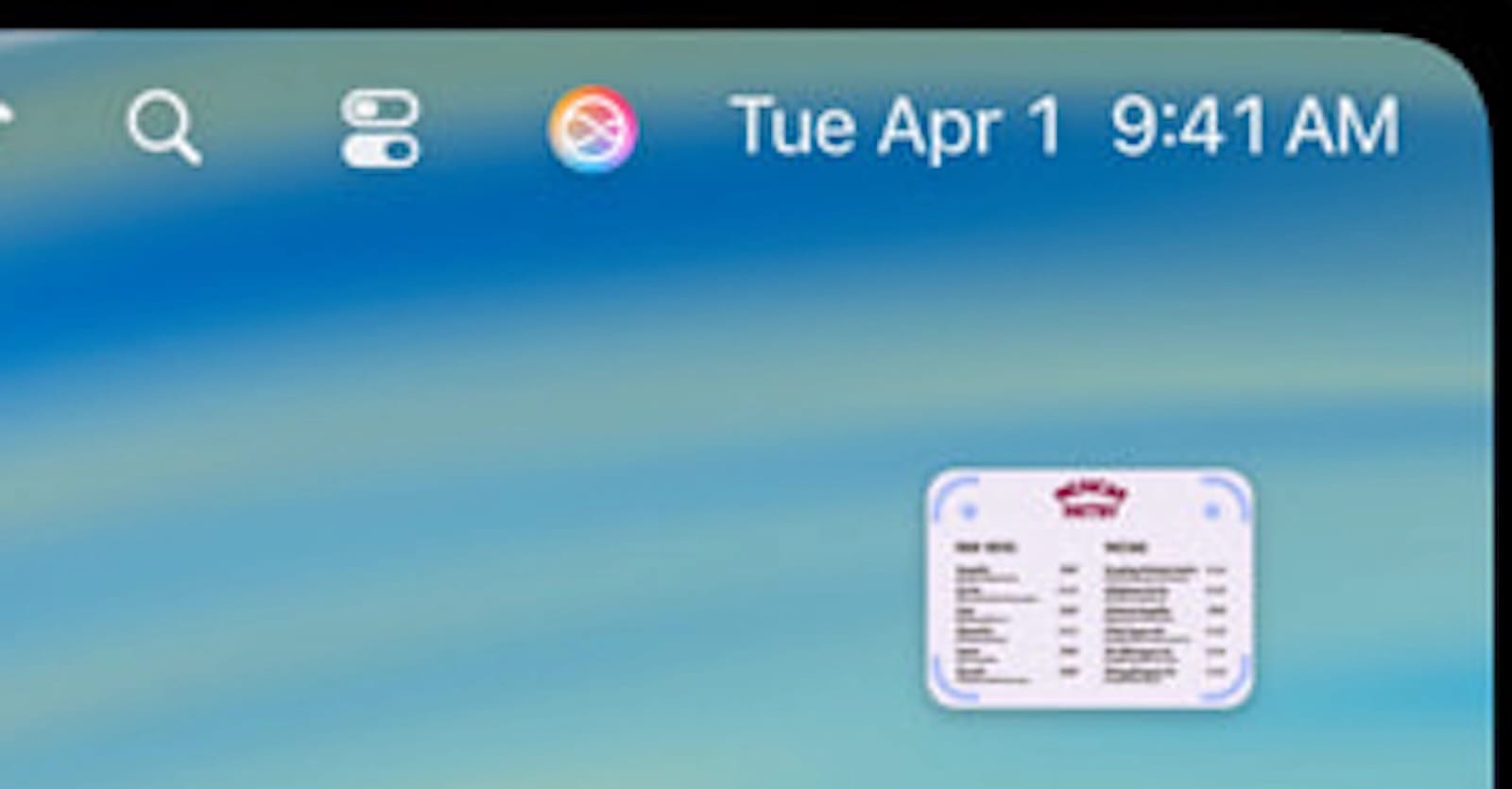
The menu bar shouldn't feel like a game of Where's Waldo every time I need to adjust brightness or check my calendar. After years of watching that thin strip at the top of my screen fill with icons, shortcuts, and system monitors until it resembled a Tokyo subway at rush hour, I've learned that reclaiming that space transforms how I work on my Mac.
This goes beyond just hiding a few icons. A streamlined menu bar pairs with a physically organized desk to create a workspace where everything has its place and your brain can actually focus on work instead of visual noise. Let me walk you through exactly how to make this happen.
The Menu Bar Problem Nobody Talks About
Every app wants prime real estate in your menu bar. Email clients put notification counters there. System monitors display CPU graphs. Cloud storage services add sync indicators. Calendar apps show upcoming meetings. Before long, that clean strip of space Apple designed becomes a chaotic jumble where finding the icon you actually need takes genuine effort.
The weird part? Most of those icons sit there doing absolutely nothing most of the day. I don't need to see my Dropbox sync status 24/7. The date display? I know what day it is. That app I installed six months ago that I've opened exactly twice? Still sitting there, taking up space, waiting for me to remember it exists.
MacOS Tahoe gives you some built-in menu bar customization through System Settings, but it's limited. You can rearrange icons by command-dragging them, and you can hide some system icons through their respective preference panes. But for real control over that space, you need dedicated utilities that treat menu bar management as their primary job.
The Two Menu Bar Managers That Actually Work
Bartender has been the gold standard for menu bar management since 2012. It lets you hide icons completely, show them only when their app is running, or tuck them into a secondary menu bar that appears when you need it. You set keyboard shortcuts to reveal hidden sections, configure which icons show based on what app you're using, and organize everything into logical groups.
The latest version integrates with macOS Tahoe's menu bar features while adding layers of control Apple never built. I can hide my music player controls when I'm not listening to anything, show my calendar only during work hours, and keep my VPN status visible at all times. Each icon gets individual rules, and Bartender remembers them across restarts and updates.
Ice offers a free, open-source alternative that covers the essentials. It can't match Bartender's depth, but it handles the core task of hiding unused icons and organizing what remains. If you're just starting to take control of your menu bar and want to experiment without spending money, Ice demonstrates what's possible before you decide whether Bartender's additional features justify the cost.
Both approaches beat the alternative of letting every app stake its claim and hoping you can navigate the resulting mess.
System Monitors That Earn Their Keep
Some menu bar apps actually deserve to be there because they surface information I need to see at a glance. iStat Menus remains the benchmark for comprehensive system monitoring in a compact format. CPU usage, memory pressure, network activity, disk space, battery levels on connected devices—it displays everything without overwhelming the menu bar or your attention.
The key is customization. I don't need to see every metric all the time. During video rendering, CPU and GPU stats matter. During regular work, a quick glance at available disk space and memory pressure tells me if I need to close some browser tabs or wrap up a project. iStat Menus lets you choose exactly what displays, how it displays, and when it updates.
Affiliate disclosure: some links in this article are Amazon Associate links. If you buy through them, Next Level Mac may earn a small commission at no extra cost to you, and we only recommend products that genuinely bring value to your Mac setup.
MenuMeters offers similar functionality for free, though with less polish and fewer customization options. Stats is another free alternative that focuses on the essentials without charging for features most people will never use.
The real benefit of dedicated system monitors isn't just seeing stats—it's spotting problems before they become disasters. When I notice memory pressure creeping into the red zone, I can address it before my Mac starts swapping to disk and everything grinds to a halt. When network activity shows unexpected traffic, I can investigate instead of wondering why everything feels sluggish.
Building a Physical Workspace That Matches Your Digital One
Cleaning up your menu bar matters less if your desk looks like a cable management disaster area. The physical and digital workspace work together. A clean menu bar pairs naturally with a desk where you can actually see the surface and everything has a designated spot.
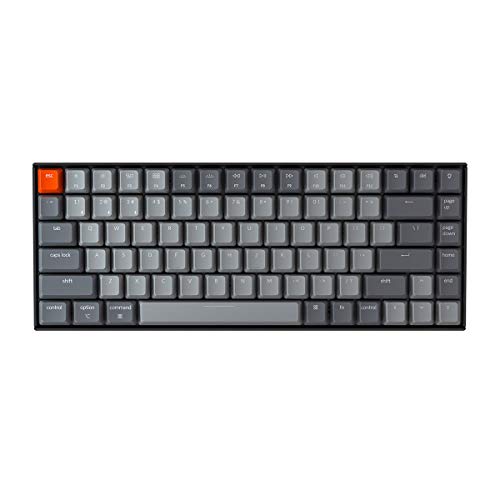
That Keychron K2 I mentioned before? It's not just about typing feel—though the mechanical switches do provide tactile feedback that membrane keyboards can't match. The wireless connectivity means one less cable snaking across your desk. The Mac-specific layout means media keys that actually work with your system instead of generic function keys that do nothing useful.
Where you can purchase the Keychron K2 Wireless Mechanical Keyboard https://www.amazon.com/dp/B07QCP491R?tag=nextlevelmac-20
A proper external keyboard creates physical separation between input and display. You're not hunched over a laptop keyboard anymore. Your posture improves. Your wrists thank you. And when you need to reference something on paper while typing, there's actually room for both without playing a balancing act.
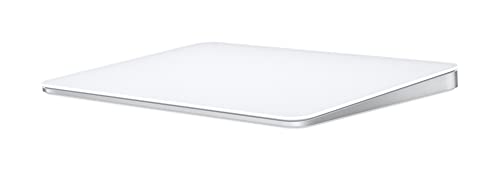
The Magic Trackpad complements this setup by keeping gesture controls available while giving you the space to use them effectively. Three-finger swipes for Mission Control, pinch-to-zoom for precision work, Force Touch for contextual actions—all the macOS gestures work better on a full-size trackpad than on a laptop's cramped version.
Use this link to get the Apple Magic Trackpad https://www.amazon.com/dp/B09BRG3MZ2?tag=nextlevelmac-20
Some people prefer a mouse. That's fine. The point isn't which input device you choose—it's setting up your workspace so that device works optimally instead of fighting against cable clutter and cramped space. A wireless trackpad or mouse means freedom to position it exactly where your hand naturally rests, not where the cable dictates.
The Cable Management Solution Nobody Thinks About
Behind every clean desk lives an organized mess of power cables, USB connections, and charging cords. The difference between a workspace that looks professional and one that looks chaotic often comes down to whether those cables stay hidden and managed.
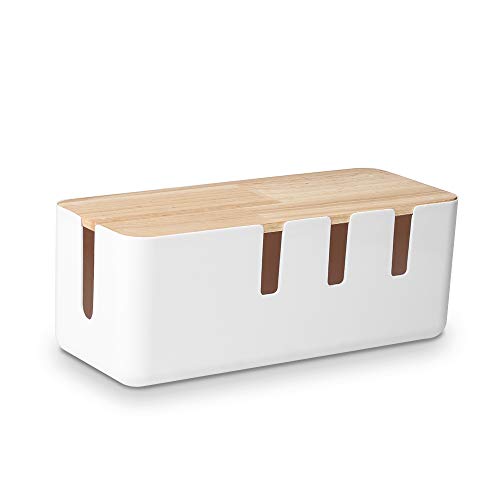
Cable management boxes solve this problem by doing one thing exceptionally well: they hide the ugly parts. Power strips, wall adapters, excess cable length—it all goes inside, out of sight, while cables emerge through dedicated openings that keep everything organized.
The place to buy the Baskiss Cable Management Box https://www.amazon.com/dp/B07Q2SK4JQ?tag=nextlevelmac-20
Size the box to your actual needs. Measure your power strip before buying. Make sure it fits with room for the adapters that need to plug into it. The wood lid version I linked blends with most desk aesthetics better than plastic options, and the ventilation slots prevent heat buildup from adapters running all day.
Position it somewhere accessible but not prominent—under your desk edge, behind your monitor stand, or tucked into a corner where cables naturally route. Leave enough slack in each cable to reach its destination comfortably without excess length creating new tangles.
This isn't revolutionary advice. It's just the stuff that actually works when you stop treating cable management as an afterthought and give it the same attention you'd give to choosing a monitor or keyboard.
Making It All Work Together
Digital organization without physical organization feels incomplete. A pristine menu bar loses impact when your desk remains a disaster. A beautifully organized desk feels less effective when your Mac's menu bar stays cluttered. They're two sides of the same challenge: creating a workspace that supports focus instead of fighting against it.
Start with the menu bar. Install Bartender or Ice. Spend thirty minutes really looking at every icon up there and asking whether it needs to be visible. Hide what doesn't. Group what does. Set keyboard shortcuts for sections you want to reveal occasionally. Watch how much cleaner everything feels when you're not parsing fifteen icons just to find system preferences.
Then address the physical space. Route cables through management solutions instead of letting them sprawl. Position your keyboard and trackpad where they actually feel comfortable instead of where cables dictate. Create visual separation between work zones—monitor in back, input devices in middle, reference materials to the side.
The goal isn't perfection. It's creating a workspace that feels intentional instead of accidental. Where you can sit down and start working without first clearing space or hunting for things. Where the visual noise stays low enough that your brain can focus on actual work instead of processing clutter.
When your menu bar displays exactly what you need and nothing you don't, and your desk reflects that same intentionality in its physical organization, something shifts. You stop fighting your environment and start working with it. That's what makes the difference.



Related Posts
Unlock Faster Mac Wi-Fi Speeds with macOS Tahoe 26.2's Hidden 160MHz Upgrade
Jan 06, 2026
Master Mac Markup Tools in macOS Tahoe
Jan 03, 2026
Master Mac Screenshot and Screen Recording in macOS Tahoe
Jan 01, 2026