
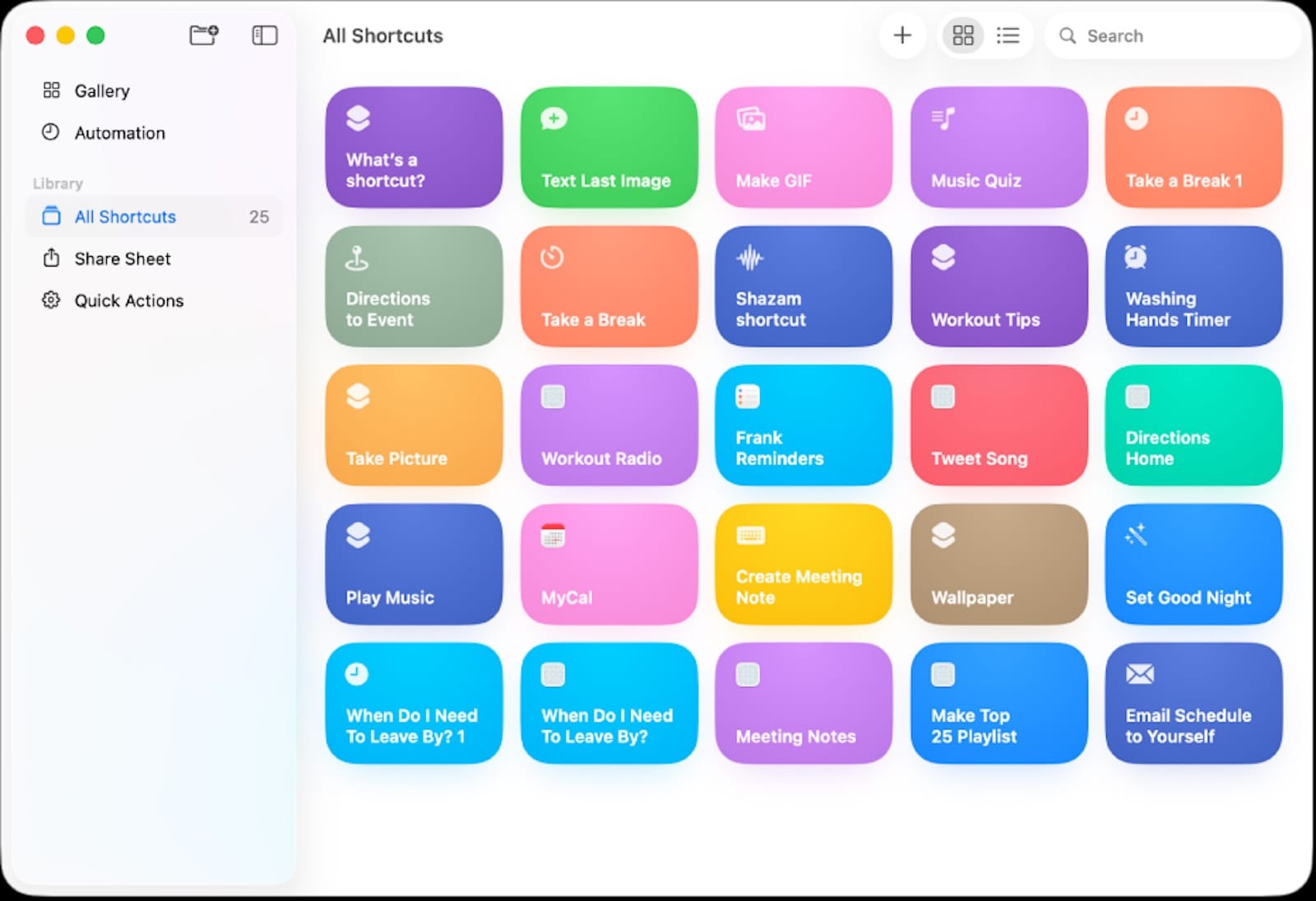
Most Mac users spend hours each week on repetitive tasks. File renaming, image resizing, email drafting, clipboard formatting. Tasks that take thirty seconds individually add up to hours when done hundreds of times. Mac's Shortcuts app sits ready in the Applications folder, capable of automating nearly everything, yet most Mac users have never opened it.
I've spent the last six months building custom automation workflows that have genuinely changed how I work. What started as curiosity about Shortcuts turned into a complete rethinking of my Mac workflow. Tasks that used to interrupt my focus now happen automatically. Files organize themselves. Reports generate with a single click. My Mac works harder so I don't have to.
Why Most People Never Learn Shortcuts
The Shortcuts app looks intimidating. Open it for the first time and you're greeted with a gallery of pre-made workflows that do things you've never thought about. The interface is unlike anything else on your Mac. Actions, variables, conditionals, loops. It feels like programming without the syntax.
But here's what changed my perspective: you don't need to understand everything to get started. My first shortcut took five minutes to build and saved me ten minutes that same day. It renamed a batch of files using a pattern I repeat constantly. Simple. Practical. Immediately valuable.
Start small. Pick one repetitive task you do daily. Build a shortcut for it. Use it for a week. Then build another. The compound effect of multiple time-saving automations is staggering.
Building Your First Automation That Actually Matters
Choose something you do at least once per day. For me, it was preparing images for web upload. I'd open Photos, select images, export them, resize them in Preview, rename them with specific conventions, and move them to a project folder. Eight steps. Five minutes each time.
Open Shortcuts and click the plus icon to create a new shortcut. Think through your workflow step by step. Shortcuts works by chaining actions together, where each action performs one task and passes its result to the next action.
For my image workflow, the first action accepts images as input. The second resizes them to 1600 pixels wide. The third converts them to JPEG format. The fourth renames them using my naming convention. The fifth saves them to my designated folder. Five actions that replace eight manual steps.
The power comes from the chaining. Each action automatically receives what the previous action produced. You're not copying and pasting between applications. You're building a pipeline where data flows automatically from start to finish.
File Management That Runs While You Sleep
File organization is where Shortcuts truly shines. Your Mac generates files constantly. Downloads pile up. Screenshots scatter across your desktop. Documents save to random folders. Organizing them manually is tedious work that never ends.
Folder Actions in Shortcuts change everything. Set a shortcut to watch a specific folder. When files appear there, the shortcut runs automatically. No clicking. No remembering. Just automatic organization.
My Downloads folder is now self-cleaning. PDFs move to my Documents folder sorted by month. Images go to Photos. ZIP files extract their contents and delete themselves. Screenshots rename with timestamps and organize by project. This happens without any action from me.
Create a shortcut that watches your Downloads folder. Add actions that check each file's type. Use conditional statements to route different file types to appropriate destinations. Set the shortcut to run whenever files are added to Downloads. Your file chaos becomes automatic order.
Text Processing That Eliminates Repetitive Typing
Text manipulation is another automation goldmine. If you write similar emails, format text the same way repeatedly, or process text data, Shortcuts can handle it.
I write product descriptions that follow a specific format. Previously, I'd type the structure, fill in details, and manually format everything. Now I run a shortcut, enter the raw information, and get perfectly formatted text ready to paste.
Shortcuts can find and replace text, change case, extract specific patterns, split text into components, and combine text in predetermined formats. You can build email templates that pull information from your clipboard, format it consistently, and copy the result ready to send.
The real magic happens when you combine text actions with other automation. Extract data from a file, process it into a specific format, and send it as an email. All from a single shortcut you trigger with a keyboard combination.


Affiliate disclosure: some links in this article are Amazon Associate links. If you buy through them, Next Level Mac may earn a small commission at no extra cost to you, and we only recommend products that genuinely bring value to your Mac setup.
Hardware That Enhances Your Automation Workflow
Building complex automations becomes significantly easier with the right hardware setup. A programmable keyboard lets you trigger shortcuts without reaching for your mouse. Where to get the Keychron K8 Pro QMK/VIA Wireless Mechanical Keyboard: https://www.amazon.com/dp/B0B97JZV99?tag=nextlevelmac-20
This keyboard's QMK/VIA firmware allows you to program any key to trigger any Mac shortcut. Assign your most-used automations to dedicated keys. The hot-swappable design means you can customize the feel of each key, and the Mac layout includes all necessary function keys. The 4000mAh battery provides weeks of wireless use, and Bluetooth 5.1 supports connecting to three devices simultaneously.
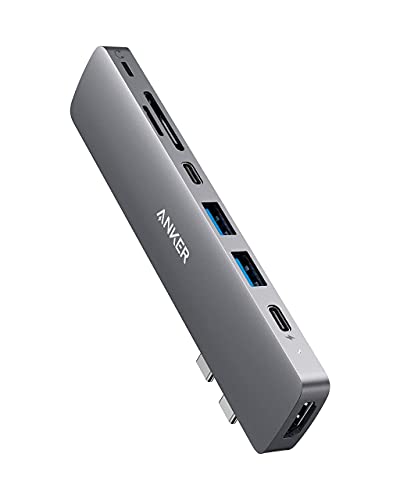
Multiple device workflows require reliable connectivity. This is where to get the Anker USB-C Hub for MacBook 8-in-2 Adapter: https://www.amazon.com/dp/B0823H9K3R?tag=nextlevelmac-20
This hub expands your MacBook's ports to connect keyboards, external drives, and displays simultaneously. The multi-function USB-C port supports 100W pass-through charging, 40 Gbps data transfer, and 5K display output. The HDMI port adds 4K@30Hz support for dual monitor setups. Connect all your automation peripherals without constant cable swapping.
Long automation sessions demand proper ergonomics. Here's where you can buy the Twelve South Curve Stand for MacBook: https://www.amazon.com/dp/B07377XVNY?tag=nextlevelmac-20
The Curve stand elevates your MacBook screen six inches, bringing it to eye level and reducing neck strain during extended workflow sessions. The aluminum construction provides stable support for typing on the MacBook while raised. The open design maintains excellent airflow to keep your Mac cool during processor-intensive automation tasks. Use it with an external keyboard and mouse for a complete desktop setup, or pair it with an external display for dual-screen automation workflows.
App Control Through Shortcuts Integration
Controlling applications directly from Shortcuts unlocks powerful automation potential. Apps that support Shortcuts actions let you trigger specific functions without opening the app interface.
Photos actions let you create albums, add images, search for specific content, and export in various formats. Calendar actions create events, check availability, and parse natural language into scheduled items. Mail actions compose messages, search inboxes, and manage mailboxes. Safari actions open URLs, get webpage content, and interact with browser data.
The key is understanding which apps in your workflow support Shortcuts. Open an app's menu and look for Shortcuts in the preferences or settings. Many apps now include dedicated Shortcuts sections listing available actions.
Combine app actions into multi-step workflows. Pull data from one app, process it, and send it to another app. All without clicking through interfaces or copying data manually between applications.
Triggers That Make Automations Truly Automatic
Manual shortcuts save time, but automatic triggers save attention. Shortcuts can run based on specific conditions without you remembering to trigger them.
Time-based triggers run shortcuts at specific times or intervals. Run a morning routine shortcut at 8 AM that opens your work apps, sets Do Not Disturb until noon, and creates your daily task list. Run an evening shutdown shortcut at 6 PM that closes work apps, backs up important files, and switches to evening focus mode.
Location triggers activate shortcuts when you arrive at or leave specific places. Arriving at work connects to the office Wi-Fi, opens work documents, and sets your work focus mode. Leaving work disconnects from Wi-Fi, closes work apps, and switches to personal mode.
App triggers run shortcuts when you open or close specific applications. Opening Mail automatically checks for high-priority messages and surfaces them. Closing your code editor triggers a backup of project files. The automation happens in the background while you focus on actual work.
Advanced Techniques for Complex Workflows
Once you understand basic shortcuts, advanced techniques open up sophisticated automation possibilities. Variables store information you can reference later in the shortcut. Loops repeat actions for multiple items. Conditionals create branching logic that handles different scenarios.
Dictionary variables let you store multiple pieces of related information together. Create a client information dictionary with name, email, project details, and deadline. Reference these values throughout your shortcut to generate customized reports, emails, or file structures for each client.
Repeat actions process entire lists of items automatically. Select fifty images and run a processing shortcut once. The repeat action handles each image individually, applying the same transformations to all of them. You're not running the shortcut fifty times manually.
If statements add intelligence to your shortcuts. Check file sizes before processing them. Route emails to different folders based on sender. Apply different transformations based on file types. Your shortcuts adapt to what they're processing rather than following a rigid path.
Shortcuts That Work Across Your Apple Devices
Mac shortcuts sync across your Apple devices through iCloud. Build a shortcut on your Mac and it appears on your iPhone and iPad. Trigger it from any device and it runs on the most appropriate hardware for the task.
Some shortcuts work better on specific devices. Mac shortcuts can access the file system more thoroughly, run command line tools, and control multiple applications simultaneously. iPhone shortcuts excel at location-based triggers, photo processing, and quick information capture. iPad shortcuts combine portability with enough screen space for complex interactions.
Design shortcuts with device-specific considerations. A file processing shortcut primarily runs on Mac where files live. A receipt scanner shortcut works best on iPhone where the camera is readily accessible. A presentation control shortcut shines on iPad where the larger screen aids navigation.
The sync means you're building an automation system across your entire Apple ecosystem rather than separate workflows on each device.
Troubleshooting When Shortcuts Don't Work as Expected
Shortcuts occasionally fail or produce unexpected results. Understanding common issues speeds up troubleshooting.
Permission problems are frequent. Shortcuts need explicit permission to access folders, control applications, and perform certain actions. When a shortcut fails, check System Settings under Privacy & Security. Enable the permissions Shortcuts requests.
Action order matters critically. Shortcuts process actions sequentially, passing results from one action to the next. If an action depends on specific input but receives something else, it fails. Review your action chain to confirm each action receives the correct input type.
Variable scope can confuse. Variables created inside loops or conditional blocks may not be accessible outside those blocks. Declare important variables at the shortcut level if you need them throughout the workflow.
Test shortcuts with simple inputs first. Build complexity gradually. When a complex shortcut fails, isolate the problem by testing individual sections separately. Find the action that's failing and fix it before reassembling the complete workflow.
Maintenance and Iteration of Your Automation System
Shortcuts require occasional maintenance. Your workflow changes. Apps update with new capabilities. macOS releases add new actions and improve existing ones.
Review your shortcuts quarterly. Which ones haven't you used in months? Delete them. Which ones feel clunky or slow? Rebuild them with current best practices. Which tasks have changed enough that the automation no longer fits? Update the shortcuts to match your current workflow.
Document complex shortcuts. Add comments explaining what each section does. Your future self will thank you when you need to modify a shortcut you built months ago. Comments also help if you're sharing shortcuts with others.
Version your shortcuts before major changes. Duplicate the shortcut, rename it with a version number or date, and modify the copy. If your changes break something, you have the working version to fall back on while you troubleshoot.
Real-World Automation Examples That Save Hours
Let me share specific shortcuts that have dramatically impacted my daily work.
Project setup shortcut: I run this when starting any new project. It creates a standard folder structure with subfolders for documents, resources, exports, and archive. It generates a README file with project metadata. It creates a task list template. It opens the project folder in Finder and my code editor. What took fifteen minutes of manual setup now happens in three seconds.
Weekly report shortcut: Every Friday afternoon, this shortcut collects data from multiple sources. It pulls task completion from Reminders, meeting notes from Notes, and time tracking from CSV exports. It generates a formatted report following my standard template. It saves the report with the correct filename and date. What was an hour of manual compilation is now a five-second shortcut run.
Image batch processor: I receive product images in various formats and sizes. This shortcut resizes them to specific dimensions, converts to web-optimized JPEG, renames them following a naming convention, and organizes them by product category. Processing a product catalog used to take an entire afternoon. Now it's fifteen minutes of automated processing.
These aren't theoretical examples. These are workflows I use every single week that have given me back hours of time for actual creative work.
What Automation Means for Your Daily Work
Understanding Shortcuts fundamentally changes how you approach your Mac. Instead of accepting repetitive work as inevitable, you start seeing automation opportunities everywhere.
That report you generate monthly? Automate it. The file renaming pattern you use constantly? Shortcut it. The email you send with slight variations? Template it. The weekly task you dread because it's so tedious? Eliminate it with automation.
The cumulative effect of dozens of small automations is extraordinary. Minutes saved per task multiply across hundreds of tasks per month. You're not just working faster. You're freeing mental energy from tedious work and redirecting it toward creative problem-solving and strategic thinking.
Your Mac becomes a genuine productivity multiplier rather than just a tool you operate manually. Shortcuts transforms macOS from an operating system you use into an automation platform that amplifies your capabilities.
Start with one shortcut today. Pick a task you've done twice this week that you'll do again tomorrow. Build an automation for it. Use it. Refine it. Then build another. Within a month, you'll have a collection of shortcuts that fundamentally changes how you work on your Mac.



Related Posts
Master Mac Focus Modes for Distraction-Free Work
Dec 30, 2025
10 macOS Tahoe Settings To Change On Your New Mac
Dec 25, 2025
Unlock Mac Gaming Performance with Game Mode in macOS Tahoe
Dec 23, 2025