
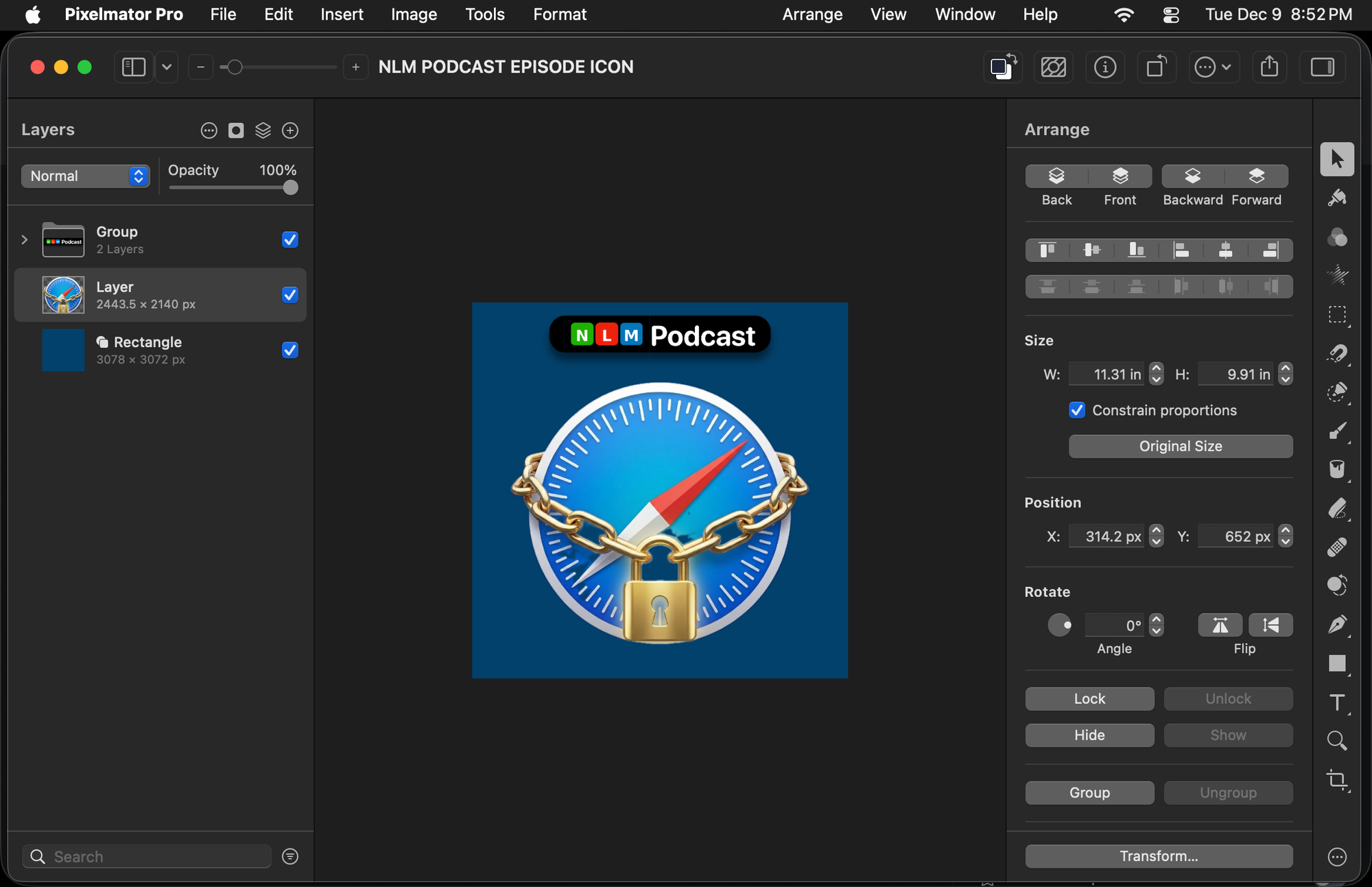

You bought a Mac because you appreciate software that feels like it belongs. Most professional creative tools fight against the macOS ethos, cluttering your screen with non-standard windows, aggressive subscription logins, and interfaces that feel ported from Windows 98. Pixelmator Pro goes the other way. It embraces the Mac aesthetic so completely that it feels like a tool Apple built itself but forgot to install at the factory.
This guide helps you master Pixelmator Pro, not just as a photo editor, but as the center of a creative workflow that respects your time and your wallet. We are going to look at the software, the hardware you need to control it effectively, and the ecosystem adjustments that turn your desk into a proper digital studio.
The Single-Window Philosophy
Open Pixelmator Pro and notice what isn't there. You do not see floating palettes covering your desktop wallpaper. You do not see a launcher app running in the menu bar. You see a single, unified window.
Start by customizing this workspace. Control-click the toolbar at the top of the window and select "Customize Toolbar." Drag the "Super Resolution" and "Remove Background" tools to the main bar. These are the two machine-learning features you will reach for most often, and having them one click away saves seconds on every edit.
Next, press Command + 1 to ensure you are in the standard view. The tools live on the right. This arrangement differs from the left-side standard of Adobe, but it aligns better with the macOS Finder and Photos app logic. It keeps your eyes moving from the canvas to the inspector naturally.
Affiliate disclosure: some links in this article are Amazon Associate links. If you buy through them, Next Level Mac may earn a small commission at no extra cost to you, and we only recommend products that genuinely bring value to your Apple setup.
Precision Control: Beyond the Trackpad
The MacBook trackpad is the best in the industry, but photo editing and graphic design require a different kind of mechanical precision. When you are masking hair or drawing vector shapes in Pixelmator, dragging a finger across glass lacks the tactile feedback necessary for fine detail. A dedicated pen tablet maps your screen to a physical surface, allowing you to use muscle memory for brush strokes and selections. The pressure sensitivity also unlocks the full potential of Pixelmator's brush engine, letting you control opacity and size simply by how hard you press.
Here's where to get the Wacom Intuos Small Graphics Drawing Tablet (Amazon Affiliate Link): https://www.amazon.com/dp/B079HL9YSF?tag=nextlevelmac-20&gbOpenExternal=1
Once you have a tablet connected, open Pixelmator Pro settings and navigate to the generic "Painters" brushes. Test the pressure sensitivity. You will find that retouching skin or dodging and burning becomes organic, closer to painting on canvas than manipulating data on a screen.
Leveraging Machine Learning (ML)
Pixelmator Pro differentiates itself through "ML" (Machine Learning) features that utilize the Neural Engine in your Mac’s Apple Silicon chip. You need to know which ones are gimmicks and which ones are workflow anchors.
ML Super Resolution is the anchor. You often have images that are too small for print or a high-res display. Open the Image menu and select "ML Super Resolution." The software rebuilds the image, adding logical detail rather than just blurring pixels. Use this when you crop heavily into a photo and need to regain sharpness.
ML Enhance is your starting point, not your finish line. Press the "ML Enhance" wand icon in the color adjustments pane. It balances exposure and white balance instantly. It usually pushes saturation slightly too high for a natural look, so dial the saturation slider back about 10% after running it. This gives you a color-corrected baseline in one second.
Remove Background lives up to the hype. You can drag an image file from Finder directly onto an open Pixelmator canvas. As you drop it, hold the Command key. The app detects you want to insert the image and remove its background simultaneously. It masks the subject and drops it as a new layer.
Managing Asset Storage
High-resolution project files, especially those with multiple layers and non-destructive edits, consume drive space rapidly. A standard Pixelmator Pro file (PXD) for a complex poster or a high-res photo edit can easily exceed several hundred megabytes. Your Mac’s internal SSD is incredibly fast, but it is expensive real estate. You need a dedicated external drive for your "Creative Assets" library—a place to store stock photos, textures, completed project archives, and Time Machine backups of your work.
This is where you can get the SanDisk 1TB Extreme Portable SSD (Amazon Affiliate Link): https://www.amazon.com/dp/B08GTYFC37?tag=nextlevelmac-20&gbOpenExternal=1
Format this external drive as APFS (Apple File System) using Disk Utility before you use it. Pixelmator Pro is optimized for APFS. Opening and saving large files to an APFS-formatted external SSD is nearly instantaneous, whereas using older file systems like ExFAT can introduce lag during auto-saves.
The Photos App Workflow
You do not always need to open the main Pixelmator app. The Photos extension is a powerhouse for photographers who manage their library in Apple Photos.
Open Apple Photos, select an image, and press Return to enter Edit mode. Click the circle with three dots in the top right and select Pixelmator Pro. This opens the full editing engine inside the Photos window.
This workflow is destructive to the file versioning in a smart way. When you save, it updates the image in your library, but you can always "Revert to Original" later. Use this for color grading and light retouching. Save the standalone app for design work involving text, shapes, and multiple layers.
Vector Tools and Flex Layouts
Pixelmator Pro is also a capable vector design tool. You can switch between pixel and vector layers seamlessly. Press "V" to activate the vector selection tool. You can draw shapes, import SVGs, and create logos that scale infinitely.
Use "Smart Shapes" for quick annotations. When you drag a speech bubble or an arrow onto the canvas, green handles appear. These allow you to change the tail position of a speech bubble or the head size of an arrow without distorting the stroke width. It makes creating YouTube thumbnails or tutorial screenshots incredibly fast.
Visual Clarity and Display Hygiene
Color grading requires trust in your display. The Liquid Retina XDR displays on modern MacBook Pros are factory-calibrated to an incredibly high standard. However, that calibration is useless if your screen is covered in fingerprints and dust. Oil from your keyboard transfers to the screen when the lid is closed, creating a haze that distorts contrast and lowers perceived sharpness. You cannot make accurate color decisions if you are looking through a layer of smudge.
The place to buy the WHOOSH! Screen Cleaner Kit (Amazon Affiliate Link): https://www.amazon.com/dp/B00DOPW59C?tag=nextlevelmac-20&gbOpenExternal=1
Clean your screen before every major editing session. Use a microfiber cloth and a gentle cleaner designed for coated displays. Never use household glass cleaner, which can strip the anti-reflective coating on Apple screens. A clean screen ensures that the "noise" you see is in the photo, not on the glass.
Automating with Shortcuts
Pixelmator Pro exposes almost all its functionality to the macOS Shortcuts app. You can build workflows that batch-process images without ever opening the editor manually.
Open the Shortcuts app and create a new shortcut. Search for Pixelmator Pro in the sidebar. You can drag in actions like "Apply Color Adjustments Preset" or "Convert Image."
Create a "Web Ready" shortcut:
- Select Images (Input)
- Resize Image (to width 2000px)
- Convert Image (to WebP format)
- Save File (to your Desktop)
Pin this shortcut to your Menu Bar or Finder Quick Actions. Now, you can right-click a dozen raw photos from a shoot and have web-optimized versions ready for your website in seconds.
Exporting for the Ecosystem
When you finish an edit, the default export command (Command + E) offers the usual suspects: JPEG, PNG, HEIC.
Choose HEIC if you are sending the image to an iPhone or keeping it in the Apple ecosystem. It offers better compression than JPEG with support for 16-bit color depth, meaning your gradients will not show banding.
Choose WebP for the web. Pixelmator Pro’s WebP export is highly efficient, often producing files 30% smaller than comparable JPEGs with no visible loss in quality.
For layers you want to animate later in Motion or Final Cut Pro, export as a PSD. Pixelmator’s PSD export is robust and preserves layer structures, text, and shapes so that other pro apps can read them correctly.
Keyboard Shortcuts to Memorize
Speed comes from staying on the keyboard. Commit these three to muscle memory:
- Slash (/): Quickly compares the current edit to the original image. Hold it down to see "Before," release for "After."
- R: Activates the Repair tool. Scribble over a power line or a blemish to remove it instantly.
- Q: Enters "Quick Selection" mode. Paint over an object to select it.
Pixelmator Pro proves that professional software does not need to be hostile. By leveraging the Neural Engine, integrating with iCloud and Photos, and respecting Mac design guidelines, it offers a path to creativity that feels like a natural extension of your computer. Treat it seriously, give it the input devices and storage it needs, and you will find it capable of handling everything from family albums to commercial design work.

Related Posts
Mac Audio Interfaces: Transform Your Recording Setup
Jan 06, 2026
Master Podcast Production with GarageBand on Mac
Jan 02, 2026
Mac Color Calibration for Photographers and Designers
Dec 27, 2025