
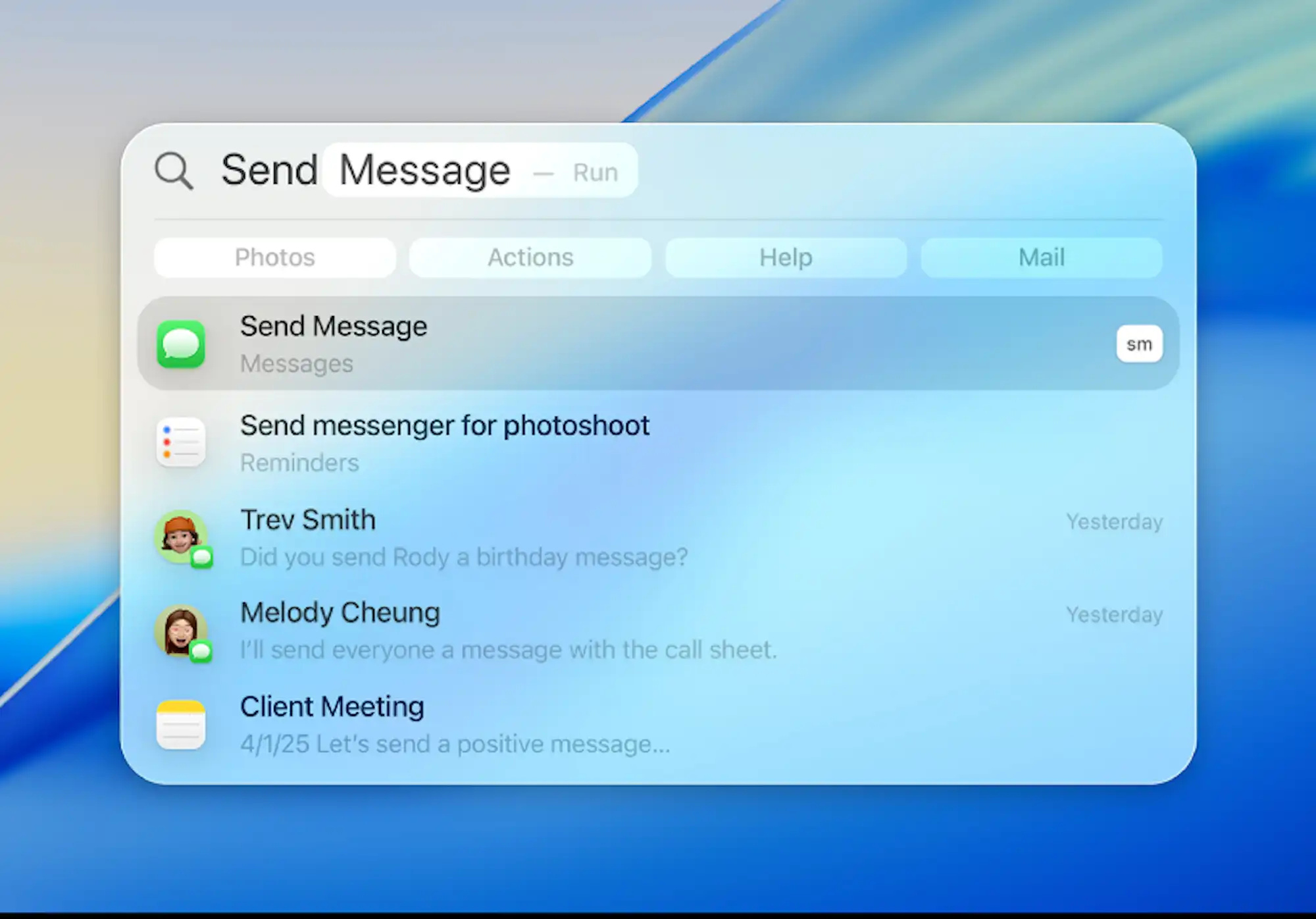
Apple Reminders in macOS Tahoe is a full-scale task manager that uses Tags, Smart Lists, and Sections to organize complex workflows. To get started, press Command-L to create lists, type #tags directly in reminders for cross-referencing, and build Smart Lists that auto-populate based on your criteria. The app syncs instantly across all Apple devices and costs nothing beyond your Mac.
Key Takeaways
- Press Command-L to create new lists instantly
- Type #tagname in any reminder to add searchable tags
- Smart Lists auto-populate based on dates, tags, and priorities
- Command-N creates reminders; Command-Return marks them complete
- Natural language input understands "tomorrow at 2pm" and "every Monday"
| Feature | What It Does | Best For |
|---|---|---|
| Lists | Group related reminders together | Project organization |
| Tags | Cross-reference tasks across lists | Filtering by context |
| Smart Lists | Auto-populate based on criteria | Surfacing priority items |
| Sections | Subdivide lists into groups | Breaking down large projects |
The table above shows the core organizational tools. Each serves a distinct purpose, and combining them creates a system that adapts to how you actually work.
Why Reminders Deserves Another Look
Apple rebuilt Reminders from the ground up several years ago, but many Mac users still treat it as a basic checklist app. That is leaving power on the table. The current version supports subtasks, attachments, URLs, collaboration, and natural language input. It syncs instantly across every Apple device signed into your account. For anyone already in the Apple ecosystem, Reminders requires no additional subscriptions, no account creation, and no learning curve for basic use.
The deeper features, including Smart Lists and tag filtering, take a few minutes to understand. Once configured, they reduce the mental overhead of deciding what to work on next.


Affiliate disclosure: some links in this article are Amazon Associate links. If you buy through them, Next Level Mac may earn a small commission at no extra cost to you, and we only recommend products that genuinely bring value to your Mac setup.
Setting Up Lists That Actually Help
Open Reminders from the Applications folder, Spotlight, or Launchpad. The sidebar on the left displays default Smart Lists at the top, including Today, Scheduled, All, Flagged, and Completed. Below those sit your custom lists and any shared lists from other people.
To create a new list, click the Add List button at the bottom of the sidebar or press Command-L. Name it something specific. Avoid vague titles like "Stuff" or "Things." A list called "Website Redesign" or "Q1 Marketing" tells you exactly what belongs there.
Each list can have its own color and icon, which helps with visual scanning when you have dozens of lists. Click the list name in the sidebar, then click the icon next to the title to access customization options. Tahoe offers a wide selection of icons covering common categories like work, home, health, and travel.
Sections within lists add another layer of organization. Right-click inside any list and choose Add Section, or press Command-Shift-N. Use sections to separate phases of a project, priority levels, or any other grouping that makes sense for the content.
Tags Change Everything
Tags let you connect reminders across different lists. A reminder in your "Website Redesign" list might carry a #waiting tag because you need input from someone else. That same tag could appear on reminders in five other lists. Filter by #waiting, and every blocked task surfaces regardless of which project it belongs to.
Add a tag by typing a hashtag directly in the reminder title or notes field. The tag appears as a clickable element. You can also click the info button on any reminder to see a dedicated tags field. Existing tags appear as suggestions when you start typing.
The sidebar includes a Tags section that shows all tags currently in use. Click any tag to see every reminder carrying it. You can also browse tags in a grid view that displays tag names alongside reminder counts.
Here is where Reminders becomes genuinely useful for complex work: combine tags with Smart Lists to create dynamic views that update themselves.
Smart Lists Surface What Matters
Smart Lists populate automatically based on rules you define. They do not contain reminders directly. Instead, they pull in reminders from other lists that match specified criteria.
Create a Smart List by clicking the Add List button, then toggling on "Make into Smart List" before confirming. The filter builder appears, offering conditions based on date, time, location, flag status, priority, tags, and list membership.
A Smart List configured to show all reminders tagged #urgent with a due date within the next three days becomes a focused action view. Another Smart List showing all reminders assigned to you in shared lists becomes a collaboration dashboard. The combinations adapt to whatever system works for your situation.
Smart Lists update in real time. Mark a reminder complete, change its due date, or remove a tag, and it disappears from any Smart List whose criteria it no longer matches.
Keyboard Shortcuts Worth Memorizing
Working faster on your Mac often comes down to reducing mouse travel. Reminders supports enough keyboard shortcuts to let you manage tasks without lifting your hands from the keys.
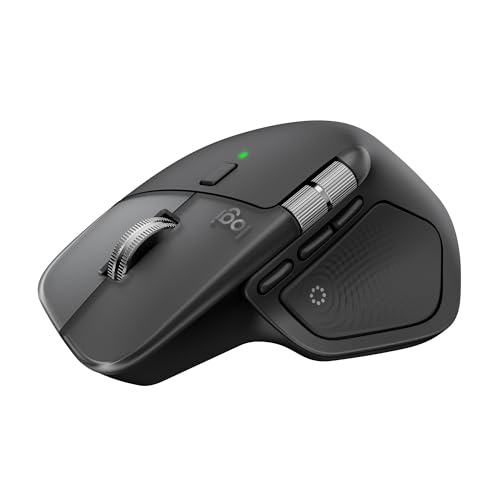
Where you can get the Logitech MX Master 4 for Mac, which pairs beautifully with keyboard-heavy workflows thanks to its thumb wheel for quick scrolling through long lists (Amazon Affiliate Link): https://www.amazon.com/dp/B0FC5X4F8G?tag=nextlevelmac-20
Command-N creates a new reminder in the currently selected list. Command-Return marks a selected reminder complete. Command-I opens the inspector panel for detailed editing. Command-E toggles the edit mode for the selected reminder. Command-D duplicates a reminder, which saves time when creating similar tasks.
For navigation, Command-1 through Command-5 jump to the default Smart Lists: Today, Scheduled, All, Flagged, and Completed. Use the arrow keys to move between reminders, and press Space to quick-look any attachments.
Natural Language Input Saves Time
Reminders understands plain English for dates and times. Type "Call Sarah tomorrow at 2pm" and the app parses the due date automatically. It recognizes patterns like "every Monday," "next Friday," "in three days," and "end of month."
Location-based reminders work the same way. Type "remind me to check inventory when I arrive at the office" if you have that location saved in your contacts or have allowed Reminders to access your location. The reminder triggers when you reach the specified place.
Combine natural language with tags in a single entry: "Submit proposal #work #urgent by Friday 5pm" creates a tagged, scheduled reminder with one line of input.
Accessibility and Clarity
Reminders in macOS Tahoe works well with VoiceOver. List names, reminder titles, and due dates all read aloud correctly. The inspector panel announces each field as you navigate with Tab. High contrast mode improves visibility of checkboxes and icons for users with low vision.
For users with motor limitations, full keyboard navigation means every function remains accessible without precise mouse targeting. The large click targets on reminder checkboxes reduce accidental misses.
One consideration: the colored list icons rely somewhat on hue differentiation. Pairing distinctive icons with colors helps users who have difficulty distinguishing certain shades. Choose icons that convey meaning even without color context.
This is where to buy the Logitech MX Keys S for Mac, which offers key travel and spacing that reduces typing strain during extended planning sessions (Amazon Affiliate Link): https://www.amazon.com/dp/B0BXX499PC?tag=nextlevelmac-20
Collaboration Without Friction
Share any list by right-clicking it and choosing Share List. Add participants by name, email, or phone number. Each person can add, edit, and complete reminders. Changes sync across all participants in real time.
Assign specific reminders to individuals in a shared list by opening the reminder details and selecting a participant from the Assign menu. The assigned person receives a notification. This works well for household chores, team task distribution, or group project management.
Shared lists appear with a small person icon in the sidebar. You can adjust permissions at any time, converting a list from editable to view-only or removing participants entirely.
For deeper integration with your Mac productivity setup, explore how Shortcuts can automate reminder creation based on triggers. The Shortcuts app includes Reminders actions for creating, finding, and modifying tasks programmatically. A shortcut that creates a reminder with specific tags and due dates from a template can standardize how you capture recurring tasks.
Related reading: learn how to extend your Mac workflow with automation in our guide to mastering Mac Shortcuts for automated daily workflows at https://www.nextlevelmac.net/master-mac-shortcuts-for-automated-daily-workflows/.
Widgets Keep Tasks Visible
Add Reminders widgets to your desktop or Notification Center for ambient awareness of upcoming tasks. macOS Tahoe offers widget sizes ranging from compact single-list views to larger layouts showing multiple lists or the Today summary.
Right-click the desktop and choose Edit Widgets, or access widgets from Notification Center. Drag the Reminders widget to your preferred location. Click the widget to configure which list it displays.
Widgets update automatically. Complete a task in the main app, and it disappears from the widget immediately. For quick capture, use Siri or the menu bar to add reminders without opening the full app.
Moving from Other Task Apps
Switching to Reminders from apps like Things, Todoist, or OmniFocus requires some adjustment. Reminders lacks features like start dates distinct from due dates, complex review cycles, and some advanced filtering options. It excels at simplicity, sync reliability, and zero ongoing cost.
Export your existing tasks if your current app supports it. Many task managers export to CSV or plain text, which you can then manually recreate in Reminders. Consider this an opportunity to prune outdated tasks rather than migrating everything blindly.
For additional context on integrating your Mac setup for focused work, see our article on mastering Mac Focus modes for distraction-free work at https://www.nextlevelmac.net/master-mac-focus-modes-for-distraction-free-work/.
Reminders handles most personal and small-team task management without additional software. The combination of lists, tags, and Smart Lists creates enough flexibility for serious productivity work while maintaining the simplicity that keeps systems sustainable over time.

Related Posts
Finder Quick Actions in macOS Tahoe Automate File Tasks Instantly
Jan 12, 2026
Finder Smart Folders in macOS Tahoe Create Automatic File Organization
Jan 11, 2026
Apple Calendar in macOS Tahoe: Workflow Tips That Save Hours
Jan 11, 2026