
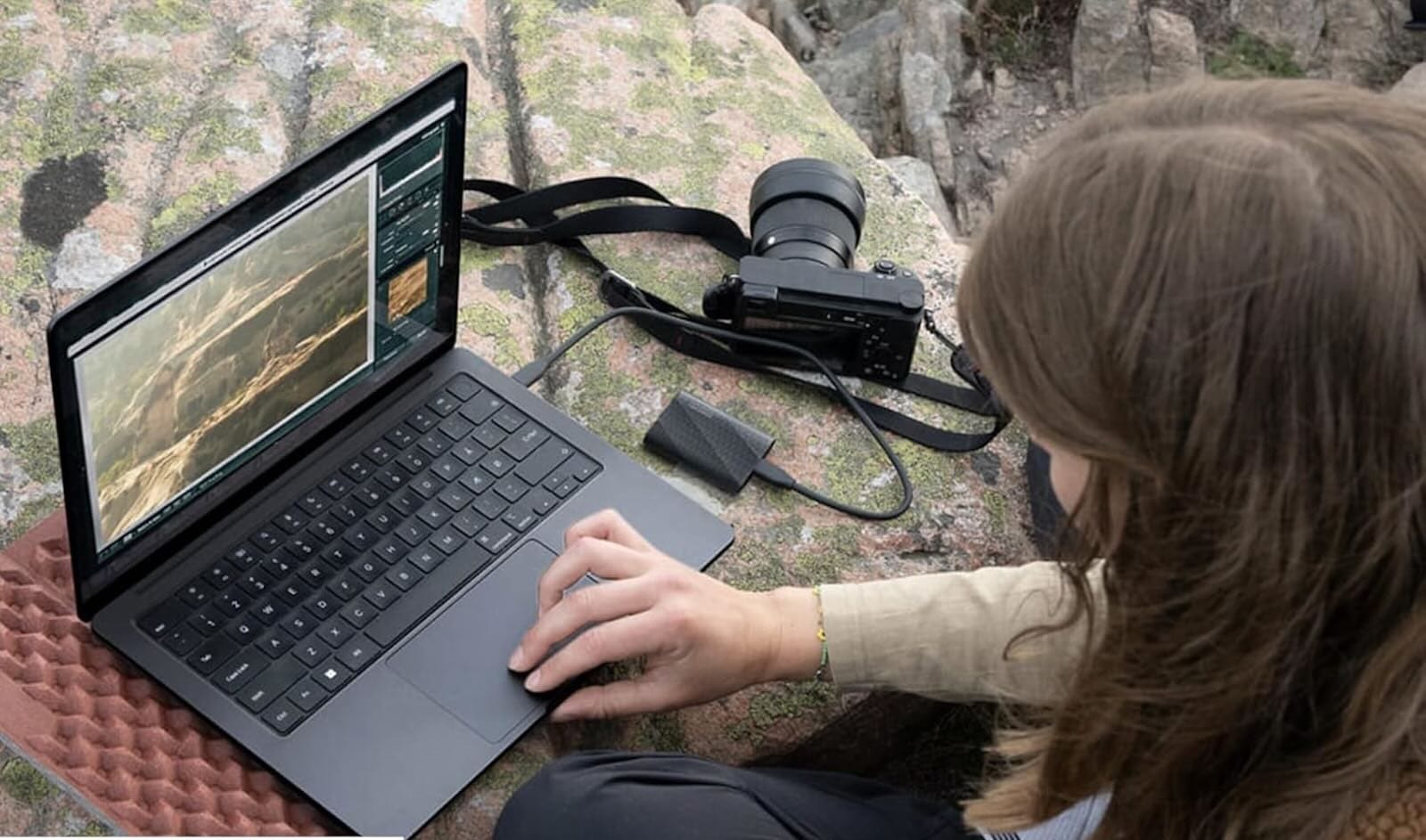

Your Mac's internal SSD is fast, but it's doing too many jobs at once. When you're editing 4K video in Final Cut Pro or color grading in DaVinci Resolve, that same drive is running macOS, handling app data, managing temporary files, and trying to stream massive video files. The result is stuttering playback, slow renders, and wasted time watching progress bars.
External SSDs solve this by giving your video editing software dedicated, high-speed storage that doesn't compete with your system drive. This isn't about adding more space. It's about splitting the workload so your Mac can work faster.
Why Video Editing Needs External Storage
Video editing pushes storage harder than almost any other task on your Mac. A single minute of 4K ProRes 422 footage takes up roughly 2GB of space. When you're scrubbing through that timeline, your Mac is reading and writing hundreds of megabytes per second while simultaneously handling preview renders, cache files, and project autosaves.
When all of that happens on your internal drive, macOS has to juggle system operations, application processes, and massive video files at the same time. External SSDs let you dedicate one drive entirely to video work while your internal SSD handles everything else.
The performance difference is immediate. Playback becomes smoother. Exports finish faster. Your Mac stops begging for mercy.
What Makes a Good Video Editing SSD
Speed matters, but it's not the only thing that counts. You need sustained performance that doesn't drop off after a few minutes of heavy use. You need enough capacity to hold project files, media, and renders without constantly shuffling files around. You need reliability so you don't lose work.
The Samsung T9 Portable SSD checks all three boxes. It delivers 2,000 MB/s read and write speeds through USB 3.2 Gen 2x2, which is fast enough to handle 4K ProRes workflows without dropping frames. The Dynamic Thermal Guard system prevents thermal throttling during long exports, so speeds stay consistent even when you're rendering a 20-minute timeline.
The 2TB model provides enough room for several projects plus media libraries. For reference, that's about 17 hours of 4K ProRes 422 footage, which is more than enough headroom for most projects.
Affiliate disclosure: some links in this article are Amazon Associate links. If you buy through them, Next Level Mac may earn a small commission at no extra cost to you, and we only recommend products that genuinely bring value to your Mac setup.
Here's where to get the Samsung T9 Portable SSD 2TB https://www.amazon.com/dp/B0CHFS9K14?tag=nextlevelmac-20
Setting Up Your External SSD for Final Cut Pro
Final Cut Pro can use external drives as both media storage and cache locations. The setup takes about two minutes and makes playback noticeably smoother, especially with multicam timelines or heavy effects.
Connect your external SSD to your Mac. Open Disk Utility and format the drive as APFS with GUID Partition Map. APFS gives you better performance with large files and supports snapshots if you need to recover earlier versions of your work.
Open Final Cut Pro and go to Settings, then Destinations. Set your external SSD as the default location for both media and cache files. Now when you import footage or generate renders, everything lands on the external drive instead of competing for space on your internal SSD.
For active projects, create a folder on the external SSD called "Active Projects" and point Final Cut Pro's library location there. This keeps all project files, media, and renders in one place and makes backups straightforward.
Optimizing for DaVinci Resolve and Adobe Premiere
DaVinci Resolve and Adobe Premiere Pro both benefit from external SSDs, but they handle scratch disks differently than Final Cut Pro.
In DaVinci Resolve, go to Preferences, then Media Storage. Add your external SSD as a media storage location and set it as the default. Resolve will store cache files, optimized media, and render files there automatically. For the best performance, also set your Cache Files location to the same external drive under Preferences, System, Media Storage.
Adobe Premiere Pro works similarly. Go to Edit, Preferences, Media Cache. Set both the Media Cache Files and Media Cache Database locations to your external SSD. This moves all preview files, peak files, and conformed audio off your internal drive.
Both applications let you use multiple scratch disks if you're working with massive projects. If you need that level of performance, consider adding a second external SSD and splitting media storage from cache storage.
When to Add a Dock to Your Setup
If you're working with multiple external drives or need to connect displays, card readers, and other peripherals, a Thunderbolt dock streamlines your setup. The CalDigit TS4 Thunderbolt 4 Dock provides 18 ports including three Thunderbolt 4 ports running at 40 Gbps, which is enough bandwidth to connect two external SSDs and a 6K display without bottlenecks.
The dock also delivers 98W of power to your MacBook, so you can charge while working without losing a port. The front-facing SD and microSD card slots make it easy to ingest footage from cameras without hunting for dongles.
For video editors managing multiple projects or working with RAW footage from high-end cameras, a dock turns cable chaos into a clean, organized workspace. Connect once and you have access to all your drives, displays, and peripherals.
Where you can get the CalDigit TS4 Thunderbolt 4 Dock https://www.amazon.com/dp/B09GK8LBWS?tag=nextlevelmac-20
Keeping Your Workflow Smooth
External SSDs work best when you keep them organized and properly maintained. Create a consistent folder structure for projects, media, and exports so you can find files quickly. Label drives clearly if you're using multiple SSDs.
macOS handles drive management well, but it's worth ejecting drives properly before unplugging them. Command-E or right-click and select Eject prevents data corruption and ensures all writes finish before the drive disconnects.
Check your available space regularly. Video files pile up fast, and running a drive close to full capacity can slow performance. Archive completed projects to a separate backup drive or cloud storage to keep your working drive from getting cluttered.
The Bottom Line
Adding an external SSD to your Mac video editing setup isn't complicated, but it makes a measurable difference in how smoothly your projects run. Faster playback, quicker exports, and fewer performance hiccups mean you spend less time waiting and more time creating.
The Samsung T9 provides the speed and capacity most editors need without requiring special cables or complicated configuration. If your workflow involves multiple drives and peripherals, the CalDigit TS4 dock keeps everything connected and organized.
Set up your external storage once, configure your editing software to use it, and your Mac will thank you with better performance every time you open a project.

Related Posts
Mac Audio Interfaces: Transform Your Recording Setup
Jan 06, 2026
Master Podcast Production with GarageBand on Mac
Jan 02, 2026
Mac Color Calibration for Photographers and Designers
Dec 27, 2025