

Look at your desk right now. There is probably a stack of mail, a few receipts you are afraid to throw away, and a contract or two that you need to file. We live in a world of high-speed M5 chips and instant cloud syncing, yet paper remains the single biggest bottleneck in our creative setups. It occupies physical space, it is impossible to Command-F search, and it creates a low-level visual stress that kills focus.
You do not have to live like this. The "paperless office" has been a buzzword for decades, but with the tools available in macOS Tahoe and some dedicated hardware, it is finally a practical reality. I decided to purge my filing cabinet last year, and the difference in my mental clarity was immediate. Getting there requires a system, though. You cannot just pile things up and hope for the best. You need a workflow that is faster than tossing paper in a drawer.
Here is how to build a digital filing system that is secure, searchable, and incredibly fast, using your Mac as the central brain.
The Problem with "Good Enough" Scanning
Most people try to go paperless using their iPhone camera. You hold the phone over a receipt, try to keep your hand steady, wait for the yellow box to lock on, and snap a photo. That works for one receipt. It fails miserably when you have a 30-page contract or a year's worth of tax documents. The friction is too high. If scanning takes effort, you will not do it. You will let the paper pile up until "later," and "later" never comes.
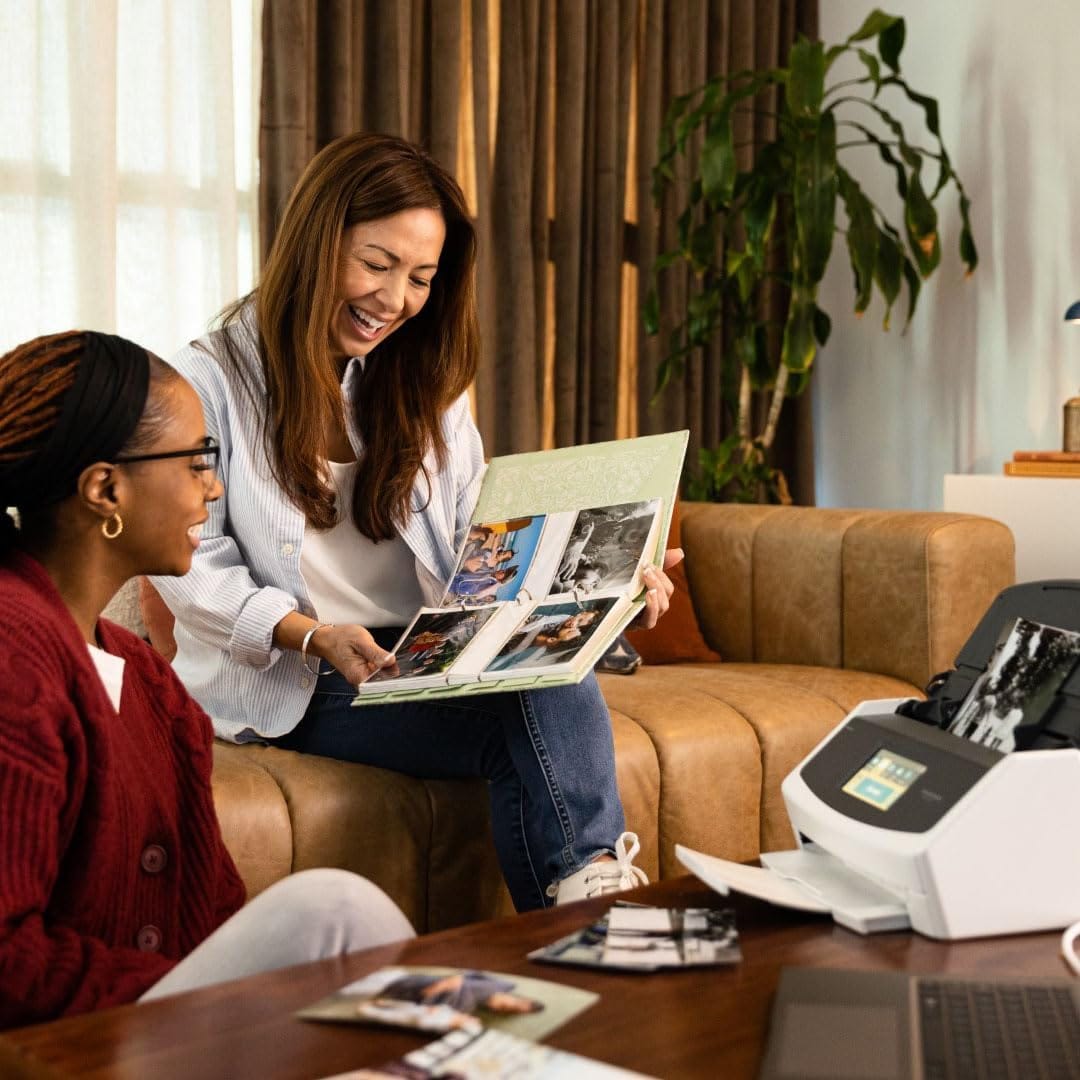
To actually solve this, you need a dedicated feed scanner. This is the one piece of non-fun hardware that will bring you the most joy. A proper scanner eats through stacks of paper in seconds, scans both sides at once, and wirelessly sends the PDFs to your Mac without you touching a mouse.
For Mac users, there is really only one king of the hill. The software integration is flawless, and it handles everything from crinkled receipts to thick business cards without jamming.
Here's where to get the Ricoh ScanSnap iX1600 (Amazon Affiliate Link): https://www.amazon.com/dp/B08PMQQZ8H?tag=nextlevelmac-20
Affiliate disclosure: some links in this article are Amazon Associate links. If you buy through them, Next Level Mac may earn a small commission at no extra cost to you, and we only recommend products that genuinely bring value to your Mac setup.
Setting Up the Software Workflow
Once you have a scanner, the destination matters. Dumping everything into a generic "Scans" folder on your Desktop is a recipe for disaster. You need a structure that mimics a physical filing cabinet but adds the power of Spotlight search.
I recommend creating a top-level folder in your iCloud Drive (or local documents if you prefer privacy) simply called "Cabinet." Inside, creating broad categories usually works better than getting too granular. Folders like "Financial," "Medical," "House," "Taxes," and "Personal" are usually enough.
One of the best features in macOS Tahoe is the robust OCR (Optical Character Recognition) built directly into the system's core. When you save a PDF to your Mac now, Spotlight indexes the text inside it almost instantly. This means you do not need to come up with complex file names like "2025-12-16-Verizon-Bill-Paid.pdf." You can just name it "Verizon Dec" and throw it in the folder. When you need it later, typing "Verizon" and "December" into Spotlight or Finder will pull up the file because the OS is reading the document contents, not just the title.
The Destroy Phase
Scanning is only half the battle. Once a document is safely digital and backed up (please ensure your Time Machine is running), keeping the physical copy defeats the purpose. You need to destroy it.
This is the part that actually feels good. There is a finality to shredding a bank statement that simply throwing it in the trash does not provide. Plus, with identity theft becoming more sophisticated, tossing sensitive documents with your name, address, and account numbers into a curbside bin is a security risk you should not take.
You need a shredder that can handle staples and credit cards. You do not want to spend time prepping your junk mail before destroying it; you just want to shove it in the slot and be done. Cross-cut shredders are the standard here because they turn paper into confetti rather than strips, which are surprisingly easy to reassemble.
This is where to buy the Fellowes Powershred 12C (Amazon Affiliate Link): https://www.amazon.com/dp/B08NTZ4VWN?tag=nextlevelmac-20
Automating the Process
To make this stick, you have to reduce the friction to zero. I set up a "Scan" profile on my scanner that automatically routes documents to an "Inbox" folder on my Mac. I do not file things immediately.
Once a week, usually on Friday afternoon, I open that Inbox folder. I use the Quick Look feature (Spacebar) to glance at the files. I drag them into their respective folders in my "Cabinet" directory. The whole process takes about three minutes.
For frequent documents, you can use macOS Finder Tags. I have a tag for "Tax Deductible." Any receipt that relates to business expenses gets that tag. Come tax season, I just click the tag in the Finder sidebar, and every relevant PDF from the entire year appears instantly. It saves hours of digging through shoe boxes.
Smart Folders are Your Friend
If you want to get even more advanced without buying extra software, use Smart Folders in Finder. You can create a Smart Folder with criteria like:
Kind is PDF
Created Date is within Last 30 Days
Name contains "Invoice"
This gives you a live view of all recent bills without you having to move files around. It allows you to see your data in different ways without duplicating files.
Dealing with Legacy Paper
The hardest part is the backlog. You likely have a box or a drawer full of old papers. Do not try to do it all at once. That is the fastest way to burn out and give up.
Set a timer for 15 minutes a day. Grab a small stack, scan it, shred it. Put on a podcast or some music. You will be surprised at how fast you can get through a seemingly insurmountable mountain of paper when you have a high-speed scanner feeding the machine.
Most of what you are keeping is likely trash anyway. Expired warranties, manuals for devices you no longer own, and utility bills from 2018 do not need to be archived. Be ruthless. If you cannot imagine a legal or financial scenario where you need the piece of paper, shred it immediately.
The Backup Rule
Since you are destroying the physical originals, your digital backups become your only lifeline. You cannot rely on a single hard drive.
Follow the 3-2-1 rule: Three copies of your data, on two different media, with one offsite.
On your Mac: The working copy.
Time Machine: The local backup on an external SSD.
Cloud: iCloud Drive or a service like Backblaze.
If you have these three layers, a fire or flood at your home won't destroy your critical records, which is actually an improvement over physical filing cabinets.
Visual Peace of Mind
The real benefit here isn't just about finding files faster. It is about the visual calm of your workspace. When your desk is clear of random envelopes and stacks of paper, your mind is clearer. You sit down to work on your Mac, and the only thing in front of you is the task at hand.
Your Mac is the most powerful organizational tool ever built. Stop treating it like a typewriter and start using it as the digital vault it was designed to be. Feed the scanner, feed the shredder, and enjoy the empty desk.

Related Posts
Master Mac Focus Modes for Distraction-Free Work
Dec 30, 2025
Mac PDF Editing: Native Tools and Pro App Workflows
Dec 29, 2025
How to Use macOS Tahoe Writing Tools for Mac Productivity
Dec 27, 2025