

This article contains affiliate links. As an Amazon Associate, Next Level Mac earns from qualifying purchases.
The iPad has matured into a capable laptop stand-in when it’s set up thoughtfully. The hardware is fast, Stage Manager handles multitasking, and today’s apps cover almost every workflow.
This guide lays out practical setups for work, school, and creative projects. It also maps each iPad model to a keyboard and Pencil so the device transforms from tablet to portable workstation.
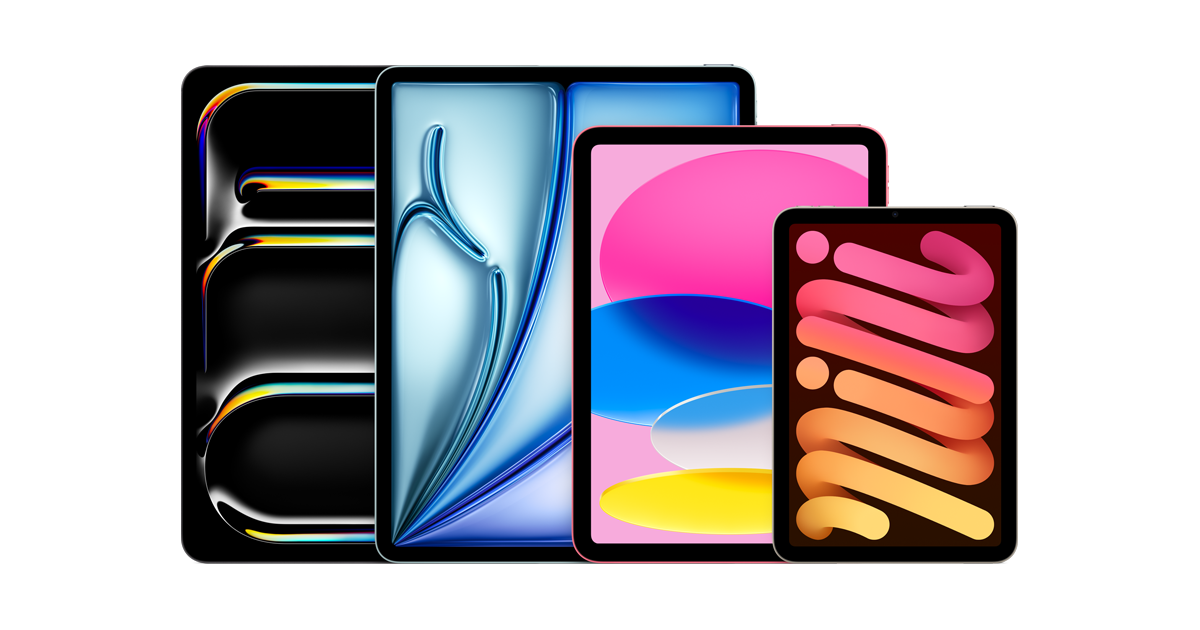
Pick the right iPad for a laptop-style setup
The right choice depends on screen size, performance needs, and whether external displays will be common. Each current iPad line can serve as a laptop replacement with the correct accessories.
iPad Pro 11-inch (M4): Ultra-portable power
The 11-inch Pro delivers top-tier performance in the most portable “pro” size. It’s ideal for work that mixes writing, spreadsheets, light media editing, and constant travel.
Get the iPad Pro 11-inch (M4) here (Amazon Affiliate Link:
https://www.amazon.com/dp/B0D3J6L2ZC?tag=nextlevelmac-20
iPad Pro 13-inch (M4): Max canvas for multitasking
The 13-inch Pro offers the most screen space with the same M4 performance. It’s well-suited to multi-window work, split-view research, timeline-based editing, and external display use.
Get the iPad Pro 13-inch (M4) here (Amazon Affiliate Link:
https://www.amazon.com/dp/B0D3J98W75?tag=nextlevelmac-20
iPad Air 11-inch (M3): Balanced and budget-friendly
The 11-inch Air hits a strong balance of price, performance, and portability. It’s a great daily driver for writing, email, light photo edits, and office apps.
Get the iPad Air 11-inch (M3) here (Amazon Affiliate Link:
https://www.amazon.com/dp/B0DZ74YQ1V?tag=nextlevelmac-20
iPad Air 13-inch (M3): Spacious workload without Pro pricing
The 13-inch Air adds screen real estate that makes Stage Manager more comfortable. It’s excellent for two-app side-by-side work and larger documents.
Get the iPad Air 13-inch (M3) here (Amazon Affiliate Link:
https://www.amazon.com/dp/B0DZ749BQ2?tag=nextlevelmac-20
iPad mini (A17 Pro): The pocket notebook that can still replace a laptop
The mini shines when portability is everything. Paired with a slim keyboard and Apple Pencil Pro, it becomes a remarkable travel-light workstation for notes, drafting, and messaging.
Get the iPad mini (A17 Pro) here (Amazon Affiliate Link:
https://www.amazon.com/dp/B0DK3YF38G?tag=nextlevelmac-20
iPad 11-inch (A16): Everyday laptop replacement
The standard iPad covers email, documents, video calls, and browser-based tools efficiently. With keyboard and trackpad support, it becomes a straightforward laptop alternative.
Get the iPad 11-inch (A16) here (Amazon Affiliate Link:
https://www.amazon.com/dp/B0DZ75TN5F?tag=nextlevelmac-20
Set up iPadOS like a laptop
A few system tweaks make the tablet feel instantly more “computer-like.” The steps below create a stable foundation for work.
Home Screen and Dock. Place the most-used work apps in the Dock for quick app switching. Keep the first Home Screen minimal to reduce friction.
Stage Manager basics. Turn on Stage Manager in Control Center. Create a “Work” stage with the browser and editor, and a “Comms” stage with Mail and Messages. Each stage remembers window layouts.
External display behavior. When plugged into a monitor, Stage Manager treats the second screen as a separate workspace. Store research and reference windows on the monitor and keep focused writing on the iPad display.
Keyboard shortcuts. Hold the Command key in any app to reveal shortcut cheat sheets. Learn Command-Tab for app switching, Command-Space for search, and Command-H to hide windows quickly.
Trackpad gestures. Two-finger scroll, three-finger swipe to switch apps, and three-finger pinch to go Home streamline navigation. These gestures help the iPad feel like a traditional laptop.
Notifications and Focus. Use a Work Focus that silences social alerts while allowing calendar, calls, and task reminders. This eliminates the biggest source of context switches.
File organization. The Files app connects to iCloud Drive, Google Drive, OneDrive, and SMB shares. Create a consistent “/Work/Year/Project” structure and stick to it.
Text replacement and dictation. Systemwide text snippets and improved dictation accelerate busywork. Shortcuts for addresses, signatures, and canned replies save time daily.
Stage Manager layouts that actually work
Stage Manager shines when each “stage” is tied to a goal. The examples below reduce window shuffling and keep attention focused.
Writing stage. Left: research in Safari with two tabs. Right: a clean writing app. Keep sidebars hidden to maximize space. This layout discourages multitasking drift.
Spreadsheet stage. Full-width spreadsheet with a small floating window for calculator or notes. Keep email out of this stage to maintain concentration.
Comms stage. Mail and Messages side-by-side with a compact calendar window. This stage batches communication and prevents interruptions from bleeding into deep work.
Design stage. Canvas app centered, reference images on the side. A floating Files window holds assets. Pin tool palettes to consistent positions to build muscle memory.
External display stage. Browser and video call on the monitor, notes and reference on the iPad. This setup avoids tab flipping during meetings.
Core app toolkit (kept simple)
A laptop replacement works best with a small, dependable set of apps. The goal is to keep the toolbox focused so attention stays on work.
Documents and writing. Pages, Google Docs, or Microsoft Word cover drafting and formatting. Markdown editors add distraction-free writing for blogs and documentation.
Spreadsheets and data. Numbers and Excel both handle budgets, reports, and lightweight analysis. For complex modeling, offload heavy lifting to a desktop and review on iPad.
Presentations. Keynote offers polished templates and tight iCloud sync. Export to PowerPoint when needed for cross-platform teams.
Email and calendars. Mail, Calendar, and Outlook all work well. Shared calendars keep scheduling simple and reduce back-and-forth.
Notes and whiteboarding. Notes is fast, searchable, and perfect with Apple Pencil. Freeform helps with infinite-canvas brainstorming and mood boards.
PDFs and signatures. Files, Preview-style Markup, and Quick Look cover most annotation tasks. Store signed PDFs in a dedicated “/Legal” folder.
Task and project management. Reminders is reliable for personal to-dos. Teams can use Asana, Todoist, or Trello for shared boards and assignments.
Creative suite. LumaFusion handles multi-track video editing on the go. Affinity Photo and Affinity Designer cover advanced image work without subscriptions.
Coding and automation. Shortcuts automates repetitive steps like renaming files or combining PDFs. Swift Playgrounds supports learning and prototyping.
Accessory picks: keyboards that complete the laptop feel
A keyboard with a trackpad is the single most important accessory for a laptop-like experience. Each recommendation below is a direct, model-specific fit.
iPad Pro 11-inch (M4) keyboard. Apple’s latest Magic Keyboard adds a function row, glass trackpad with haptics, and a sturdy two-cantilever hinge.
Get the Magic Keyboard for iPad Pro 11-inch (M4) here (Amazon Affiliate Link:
https://www.amazon.com/dp/B0DBRXPHCH?tag=nextlevelmac-20
iPad Pro 13-inch (M4) keyboard. The larger Magic Keyboard mirrors the 11-inch features with a more generous palm rest and trackpad surface.
Get the Magic Keyboard for iPad Pro 13-inch (M4) here (Amazon Affiliate Link:
https://www.amazon.com/dp/B0DBS6F2VH?tag=nextlevelmac-20
iPad Air 11-inch (M3) keyboard. The Magic Keyboard for iPad Air adds the same function row and trackpad precision in a lighter package.
Get the Magic Keyboard for iPad Air 11-inch (M3/M2) here (Amazon Affiliate Link:
https://www.amazon.com/dp/B0DZ78Q48C?tag=nextlevelmac-20
iPad Air 13-inch (M3) keyboard. The 13-inch Air version gives more room for hands and smoother cursor control across the wider display.
Get the Magic Keyboard for iPad Air 13-inch (M3/M2) here (Amazon Affiliate Link:
https://www.amazon.com/dp/B0DZ7FJWBF?tag=nextlevelmac-20
iPad 11-inch (A16) keyboard. Magic Keyboard Folio provides a detachable keyboard with a trackpad and a protective back panel that clicks on magnetically.
Get the Magic Keyboard Folio for iPad (A16/10th gen) here (Amazon Affiliate Link:
https://www.amazon.com/dp/B0BJLFH8RC?tag=nextlevelmac-20
iPad mini (A17 Pro) keyboard. The mini doesn’t have an Apple-made keyboard, so a slim, universal Bluetooth option keeps the setup light and flexible.
Get the Logitech Keys-to-Go 2 portable keyboard here (Amazon Affiliate Link:
https://www.amazon.com/dp/B0D2FD5994?tag=nextlevelmac-20
Apple Pencil picks and who benefits
Apple Pencil brings precision for markup, signatures, and creative work. Choose based on device support and workflow.
Apple Pencil Pro. Pencil Pro adds squeeze, barrel roll, haptic feedback, and magnetic charging. It’s the best match for iPad Pro (M4), iPad Air (M2/M3), and iPad mini (A17 Pro).
Get the Apple Pencil Pro here (Amazon Affiliate Link:
https://www.amazon.com/dp/B0D3J71RM7?tag=nextlevelmac-20
Apple Pencil (USB-C). This model is an affordable, reliable pick for the iPad (A16) and remains compatible with many other current iPads.
Get the Apple Pencil (USB-C) here (Amazon Affiliate Link:
https://www.amazon.com/dp/B0CL7J12YK?tag=nextlevelmac-20
Build a friction-free daily routine
Consistency is what makes a tablet feel like a laptop. The routines below stitch together work, meetings, and creative time.
Morning triage (15–20 minutes). Open a Comms stage with Mail and Calendar. Scan for deadlines, star important threads, and slot tasks into time blocks.
Focus block (60–90 minutes). Switch to the Writing or Spreadsheet stage. Silence notifications with a Work Focus and keep only essential windows open.
Meeting mode. Join the call on the external display while notes live on the iPad. Use a Pencil double-tap to switch tools quickly while annotating shared docs.
Admin sweep (20 minutes). Clear inboxes, drag files to final folders, and update the task list. This reset keeps tomorrow’s start clean.
Creative sprint. Open the Design or Edit stage. Keep reference on one side and the canvas centered. Export drafts into a “/WIP” folder for review later.
External display strategies that feel natural
An external display turns iPad into a two-screen workstation. The trick is to split tasks logically across the displays.
Reference on the big screen. Place a browser, task board, and chat on the monitor. Keep the editor front and center on the iPad screen to reduce eye travel.
Presentations and calls. Share the external display while keeping speaker notes on the iPad. A Pencil highlight on the iPad won’t show to the audience, which helps guide talking points.
File staging. Keep a Files window parked on the external display with Downloads and a “To File” folder. Drag between windows like a desktop.
Window discipline. Resist floating too many tiny windows. Two or three focused panes per stage keep the brain calmer and work faster.
File and document hygiene
A tidy system keeps the iPad speedy and predictable. The habits here pay off every week.
Project folders. Use “/Work/YYYY/Client/Project” with “/Assets,” “/Drafts,” and “/Final.” This pattern makes search and sharing painless.
File naming. Prefix with dates like “2025-09-22_project-name_v1.” Alphabetical sorting then doubles as a timeline.
Cloud mix. Store active projects in iCloud Drive for best integration. Keep shared team documents in Microsoft 365 or Google Drive and link them into Files.
Backups. iCloud backup covers the device, while cloud-native apps cover documents. For extra redundancy, export final deliverables to another provider monthly.
Keyboard shortcuts worth learning
Shortcuts unlock laptop-level efficiency. A small set goes a long way.
System. Command-Space (search), Command-Tab (switch apps), Command-H (Home).
Files. Command-N (new folder), Command-C/V (copy/paste), Space (Quick Look).
Safari. Command-L (address bar), Command-T/W (new/close tab), Control-Tab (next tab).
Mail. Command-R (reply), Command-Shift-D (send), Command-Option-F (search).
Notes/Editors. Command-B/I/U (bold/italic/underline), Command-K (link), Command-F (find).
Role-based setups
Different roles benefit from slightly different defaults. The configurations below keep it simple and repeatable.
Student setup. Notes for class notebooks, Files for PDFs, and a calendar for due dates. Pencil Pro turns slides into annotated study guides.
Office setup. Mail, Calendar, and a browser-based productivity suite. The 11-inch Air with Magic Keyboard stays light but comfortable.
Creative pro setup. 13-inch Pro or Air plus Pencil Pro, with Stage Manager layouts for canvas, assets, and export previews. External display recommended for reference boards.
Travel-light setup. iPad mini with Keys-to-Go 2 for emails and Docs, Pencil Pro for quick markups, and a small stand. This pairs well with hotspot-driven days.
Multitasking without the mess
Good multitasking on iPad is about boundaries, not juggling everything at once. Stage Manager’s stages create those boundaries.
Limit each stage to one goal. Writing, Comms, Research, and Admin are clean categories. Switching stages is faster than digging through a mess of windows.
Pin window sizes. Keep favorite sizes and positions. Familiarity speeds up work and reduces frustration.
Batch communications. Handle email and chat during set windows. The rest of the time, live in the work stage.
Keep a capture inbox. Notes or Reminders with a single list catches ideas quickly. Process and file those items later.
Video calls that don’t derail the day
Calls can be smooth on iPad with a few habits. The aim is to keep work flowing when the meeting ends.
Pre-load materials. Open agendas and reference docs in a background stage. When the meeting starts, switch with Command-Tab.
Camera placement. For the 13-inch models, the landscape camera works well on a stand. Keep the iPad just below eye level for natural framing.
Inline notes. Take notes in Notes beside the call. If the external display is shared, keep personal notes on the iPad screen.
After-call sweep. Drag action items into Reminders and drop links into the project folder. This prevents post-meeting drift.
Writing and research flow that stays focused
A simple pattern helps chapters, reports, and articles move forward.
Outline first. Build a bullet outline in Notes or the writing app.
Collect sources. Clip links and snippets into a single “Research” note.
Draft fast. Write in a minimal editor with formatting off.
Revise later. Turn on styles and headings once the draft is complete.
Export clean. Save final PDFs and DOCXs to the project’s “/Final” folder.
Photo and video on the go
Modern iPads are capable media tools. A few constraints help keep projects tidy.
Import discipline. Import to a “/WIP_media” folder per project.
Proxy mindset. For heavier edits, generate proxies and finish on a desktop if needed.
Publication kits. Export a web-ready folder and a high-res folder. Store presets next to the project.
Battery, storage, and offline tips
Little tweaks extend uptime and reduce stress on the road.
Battery. Lower brightness a notch, close GPU-heavy apps when not in use, and disable radios you’re not using.
Storage. Keep large reference folders in cloud providers and fetch on demand.
Offline. Mark critical docs for offline access in Files or the provider’s app before flights.
Security and privacy basics
Professional setups require predictable protection. The steps here add minimal overhead.
Strong device passcode. Six digits or alphanumeric.
Face ID/Touch ID everywhere possible. Faster unlocks reduce lockout friction.
Encrypted cloud providers. Stick to reputable services and enable MFA.
Automatic updates. Set iPadOS and app updates to install overnight.
Model-by-model quick picks (with direct links)
These quick picks connect the right iPad to the right keyboard and Pencil. Each line is a direct product link with the affiliate code embedded.
iPad Pro 11-inch (M4). Best for mobile pros who want a compact powerhouse.
Get the iPad Pro 11-inch (M4) here (Amazon Affiliate Link:
https://www.amazon.com/dp/B0D3J6L2ZC?tag=nextlevelmac-20
Pair it with the Magic Keyboard for 11-inch (M4) for a polished laptop experience.
Get the Magic Keyboard for iPad Pro 11-inch (M4) here (Amazon Affiliate Link:
https://www.amazon.com/dp/B0DBRXPHCH?tag=nextlevelmac-20
Add Apple Pencil Pro for precision notes and markups.
Get the Apple Pencil Pro here (Amazon Affiliate Link:
https://www.amazon.com/dp/B0D3J71RM7?tag=nextlevelmac-20
iPad Pro 13-inch (M4). Best for creators and heavy multitaskers who value screen space.
Get the iPad Pro 13-inch (M4) here (Amazon Affiliate Link:
https://www.amazon.com/dp/B0D3J98W75?tag=nextlevelmac-20
Choose the Magic Keyboard for 13-inch (M4) for desktop-level comfort.
Get the Magic Keyboard for iPad Pro 13-inch (M4) here (Amazon Affiliate Link:
https://www.amazon.com/dp/B0DBS6F2VH?tag=nextlevelmac-20
Add Apple Pencil Pro for pro-grade annotation and drawing.
Get the Apple Pencil Pro here (Amazon Affiliate Link:
https://www.amazon.com/dp/B0D3J71RM7?tag=nextlevelmac-20
iPad Air 11-inch (M3). Best as a light, affordable “everyday laptop.”
Get the iPad Air 11-inch (M3) here (Amazon Affiliate Link:
https://www.amazon.com/dp/B0DZ74YQ1V?tag=nextlevelmac-20
The Magic Keyboard for 11-inch Air adds an excellent trackpad and function row.
Get the Magic Keyboard for iPad Air 11-inch (M3/M2) here (Amazon Affiliate Link:
https://www.amazon.com/dp/B0DZ78Q48C?tag=nextlevelmac-20
Apple Pencil Pro brings pressure and squeeze gestures for notes and sketches.
Get the Apple Pencil Pro here (Amazon Affiliate Link:
https://www.amazon.com/dp/B0D3J71RM7?tag=nextlevelmac-20
iPad Air 13-inch (M3). Best for spreadsheets, side-by-side apps, and presentations.
Get the iPad Air 13-inch (M3) here (Amazon Affiliate Link:
https://www.amazon.com/dp/B0DZ749BQ2?tag=nextlevelmac-20
The Magic Keyboard for 13-inch Air improves comfort during long typing sessions.
Get the Magic Keyboard for iPad Air 13-inch (M3/M2) here (Amazon Affiliate Link:
https://www.amazon.com/dp/B0DZ7FJWBF?tag=nextlevelmac-20
Apple Pencil Pro completes the setup for whiteboarding and PDF markups.
Get the Apple Pencil Pro here (Amazon Affiliate Link:
https://www.amazon.com/dp/B0D3J71RM7?tag=nextlevelmac-20
iPad mini (A17 Pro). Best for ultra-mobile workflows and note-first days.
Get the iPad mini (A17 Pro) here (Amazon Affiliate Link:
https://www.amazon.com/dp/B0DK3YF38G?tag=nextlevelmac-20
Use a slim Bluetooth keyboard like Keys-to-Go 2 for typing anywhere.
Get the Logitech Keys-to-Go 2 portable keyboard here (Amazon Affiliate Link:
https://www.amazon.com/dp/B0D2FD5994?tag=nextlevelmac-20
Apple Pencil Pro turns the mini into a pocket sketchbook and markup tool.
Get the Apple Pencil Pro here (Amazon Affiliate Link:
https://www.amazon.com/dp/B0D3J71RM7?tag=nextlevelmac-20
iPad 11-inch (A16). Best for straightforward work and school on a budget.
Get the iPad 11-inch (A16) here (Amazon Affiliate Link:
https://www.amazon.com/dp/B0DZ75TN5F?tag=nextlevelmac-20
Magic Keyboard Folio adds a detachable keyboard and trackpad for classic laptop posture.
Get the Magic Keyboard Folio for iPad (A16/10th gen) here (Amazon Affiliate Link:
https://www.amazon.com/dp/B0BJLFH8RC?tag=nextlevelmac-20
Apple Pencil (USB-C) covers notes, signatures, and simple sketches.
Get the Apple Pencil (USB-C) here (Amazon Affiliate Link:
https://www.amazon.com/dp/B0CL7J12YK?tag=nextlevelmac-20
Pain points solved with simple habits
These common friction points have straightforward fixes. The goal is to keep the tablet feeling as responsive as a laptop.
Copy-paste between apps. Use the floating dock to drag text and images directly. For longer passages, stash content in Notes and paste from there.
Downloads sprawl. Route browser downloads to a dedicated “/To File” folder. Clean it daily during the Admin sweep.
Multi-window clutter. Limit each stage to two or three windows. Archive old stages weekly to keep layouts fresh.
Printer anxiety. Add the printer in Settings once, and save a “Print Ready” PDF preset in your editor. Print from the Files app for reliable results.
USB drives. Most USB-C drives mount in Files. Keep a “/Transfer” folder on the drive to avoid scanning the whole volume.
Travel and remote work tips
Working away from a desk is where iPad excels. Small adjustments keep the experience smooth.
Stands and posture. A compact stand plus Magic Keyboard yields better angles than flat typing. The two-cantilever hinge on newer keyboards adds stability.
Hotspot etiquette. Turn off background app refresh for heavy sync apps while on cellular. Sync back up on Wi-Fi to save data.
Offline packs. Before flights, mark essential notes and docs for offline viewing. Check that fonts and media are embedded in exported files.
Battery extensions. Dim the screen slightly, turn off radios not in use, and close camera-heavy apps after calls. A light power bank remains a smart backup.
A simple checklist to “go laptop” on iPad
A checklist reduces uncertainty and gets to work faster. This set covers the basics.
1. Pick the iPad model that fits the workload and screen preference.
2. Add the matching Magic Keyboard or a slim Bluetooth keyboard for the mini.
3. Choose the right Apple Pencil for notes, markups, and creative tasks.
4. Create repeatable Stage Manager stages tied to goals.
5. Set up a Work Focus and keep notifications scoped.
6. Keep files in a consistent, searchable structure.
7. Learn 10 core shortcuts and gestures and use them daily.
8. Revisit layouts monthly as projects change.
Final thoughts
The iPad becomes a true laptop replacement when the hardware, layouts, and habits line up. A good keyboard and Pencil unlock comfort and precision, and Stage Manager gives windows enough structure to get things done.
Pick the model that fits the day-to-day work, add the right accessories, and keep the routine simple. The result is a lightweight, flexible setup that’s easy to carry and ready for real-world productivity.

Related Posts
Secure Your Apple Life: The Ultimate iCloud Security Audit (2026)
Dec 04, 2025
Apple Pencil Pro: 5 Features You're Probably Not Using
Nov 28, 2025
Apple's Google Gemini Deal: What It Means For Siri In 2026"
Nov 28, 2025