
Your Mac's Thunderbolt ports are twice as fast now. The M4 MacBook Pro and Mac mini ship with Thunderbolt 5, delivering 80Gbps of bandwidth through the same USB-C connector. That speed makes Thunderbolt 5 docks worth considering even if your current setup works.
The performance gap between Thunderbolt 4 and Thunderbolt 5 isn't subtle. Your external SSD transfers hit 6,000MB/s instead of maxing out at 3,000MB/s. Dual 6K displays run at full resolution without compression. Your 16-inch MacBook Pro charges at the full 140W while powering everything else on your desk.
Thunderbolt 5 docks cost more than their Thunderbolt 4 predecessors. You pay $330 to $500 for the current generation. The question is whether doubling your bandwidth matters enough to justify the premium over a $200 Thunderbolt 4 dock.
What Thunderbolt 5 Actually Delivers
The 80Gbps bandwidth runs bidirectionally. You can sustain 80Gbps transfers in both directions simultaneously, which matters when you're backing up to an external RAID while pulling footage from a card reader. Thunderbolt 4 forced you to share 40Gbps between all devices.
Display Bandwidth Boost pushes video streams to 120Gbps when needed. Connect bandwidth-intensive monitors and the dock automatically allocates extra bandwidth to display signals while keeping 40Gbps available for storage and peripherals. This enables dual 8K displays at 60Hz or dual 4K displays at 240Hz on Windows systems.
Mac display support follows different rules. Your MacBook limits how many displays connect through any single Thunderbolt port regardless of bandwidth. Base M4 Macs support two external displays total. M4 Pro and M4 Max models support up to four displays but only two through the dock itself. Windows Thunderbolt 5 systems can drive three displays from one dock connection.
Power delivery reaches 140W on new docks. The 16-inch MacBook Pro needs every watt when running intensive tasks. Older docks topped out at 96-100W, forcing your Mac to draw from its battery during peak loads.
Backward compatibility works seamlessly. Plug a Thunderbolt 5 dock into any Thunderbolt 4, Thunderbolt 3, or USB4 Mac and it operates at that port's maximum speed. Your older MacBook Pro won't hit 80Gbps but still benefits from the dock's port selection and power delivery.
Affiliate disclosure: some links in this article are Amazon Associate links. If you buy through them, Next Level Mac may earn a small commission at no extra cost to you, and we only recommend products that genuinely bring value to your Mac setup.
OWC Thunderbolt 5 Dock: Clean Design and Full Compatibility
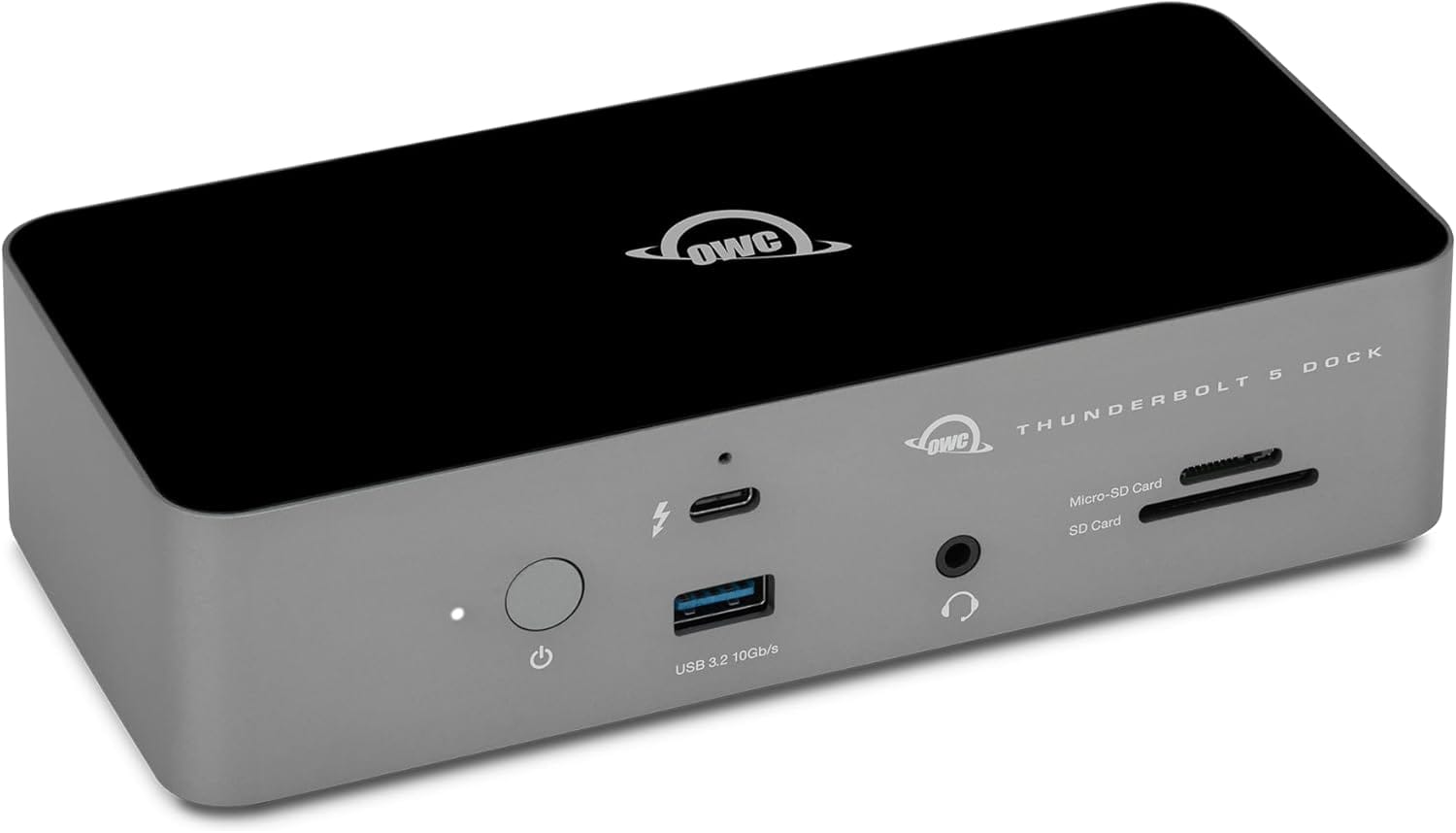
The OWC Thunderbolt 5 Dock packs 11 ports into a compact aluminum enclosure sized to sit behind your monitor. Three Thunderbolt 5 ports deliver the full 80Gbps, with one reserved for your Mac connection and two available downstream for displays or high-speed storage.
Two USB-A ports run at 10Gbps for legacy devices. One additional USB-A port operates at 5Gbps for keyboards and mice where speed doesn't matter. The 2.5 Gigabit Ethernet port provides 2.5 times faster network speeds than standard connections without requiring a 10GbE network.
Card readers support SD 4.0 and microSD UHS-II speeds. Photographers and videographers offload directly to connected storage without dealing with separate readers. The 3.5mm audio jack handles both input and output through a single connector.
The dock charges your MacBook at up to 140W through the host Thunderbolt port. Each downstream Thunderbolt 5 port provides 15W to connected devices. Front USB-A ports deliver 7.5W each for phone charging or powering bus-powered drives.
Display support reaches dual 6K at 60Hz on Macs with M4 Pro or M4 Max chips. Windows Thunderbolt 5 systems can drive three 8K displays at 60Hz using the dock's Bandwidth Boost feature. The dock works with Thunderbolt 5, Thunderbolt 4, Thunderbolt 3, USB4, and USB-C devices across Mac, PC, and iPad platforms.
Find the OWC Thunderbolt 5 Dock here https://www.amazon.com/dp/B0FC7L89C2?tag=nextlevelmac-20
CalDigit TS5 Plus: Maximum Ports and 10 Gigabit Ethernet
The CalDigit TS5 Plus expands to 20 ports through dual USB controllers. Most docks share one USB controller across all USB ports, creating bottlenecks when multiple devices transfer data simultaneously. The TS5 Plus dedicates one 10Gbps controller to front ports and another to rear ports.
Three Thunderbolt 5 ports operate at 80Gbps bidirectionally. The DisplayPort 2.1 output adds a fourth display connection without sacrificing a Thunderbolt port. Five USB-C ports and five USB-A ports all run at 10Gbps, giving you flexibility for current and legacy devices.
The 10 Gigabit Ethernet port separates this dock from competitors. Most Thunderbolt 5 docks include 2.5GbE at best. The TS5 Plus delivers 10Gbps network speeds for fast NAS transfers, 4K video streaming, or cloud storage workflows. The port works backward with 5GbE, 2.5GbE, and standard 1GbE networks.
Power delivery provides 140W to your MacBook through a dedicated charging controller. The power supply never drops below 140W regardless of how many devices connect. Each downstream Thunderbolt 5 port delivers 36W instead of the typical 15W. The front USB-C port provides 36W for iPad Pro charging or powering USB-C accessories.
Dual display configurations support up to two 8K monitors at 60Hz or two 4K displays at 240Hz on Macs running the latest M-series chips. The vertical or horizontal mounting orientation adapts to desk layouts. SD 4.0 and microSD 4.0 card readers offer UHS-II speeds for fast media offloads.
The TS5 Plus requires macOS 15 or later for full functionality. Thunderbolt 3 Windows systems aren't supported. The 330W power supply ensures sustained performance across all 20 ports simultaneously.
Check out the CalDigit TS5 Plus here https://www.amazon.com/dp/B0F2GQZXVL?tag=nextlevelmac-20
Anker Prime TB5: Active Cooling and Smart Features
The Anker Prime TB5 Docking Station builds active cooling into a 14-port design. Most docks rely on passive aluminum cooling and thermal throttle under sustained loads. The Prime TB5 uses an internal fan to maintain full performance when all ports run at capacity.
Two Thunderbolt 5 downstream ports deliver 80Gbps speeds. Three USB-A ports and two USB-C ports run at 10Gbps. The dock includes both HDMI 2.1 and DisplayPort 2.1 outputs but you can't use them simultaneously. Pick the connection type that matches your monitors.
Display configurations reach dual 6K at 60Hz on compatible M4 MacBooks. Windows Thunderbolt 5 systems can connect dual 8K displays at 60Hz. The dock supports Bandwidth Boost mode automatically when connecting high-resolution displays.
The 2.5 Gigabit Ethernet port provides faster network speeds than standard 1GbE. SD and microSD card readers both support current standards for quick transfers. The audio jack handles headphones or microphone input.
Power delivery tops out at 140W for your MacBook Pro. Front USB-C ports share 45W between them for accessory charging. The included Thunderbolt 5 cable measures 3.3 feet.
The ambient LED lighting around the base reacts to audio or pulses in different colors. You can disable the lighting entirely through controls on the dock. The fan runs quietly under normal loads but becomes audible during heavy use.
This dock requires macOS 15 or later. It doesn't work with Thunderbolt 3 systems including Intel-based MacBooks. ChromeOS and Linux systems aren't supported.
Get the Anker Prime TB5 Dock here https://www.amazon.com/dp/B0DSVVJXK5?tag=nextlevelmac-20
Setting Up Your Thunderbolt 5 Dock
Connect the dock to your Mac using the included Thunderbolt 5 cable. macOS will prompt you to approve the new Thunderbolt accessory. This security step prevents unauthorized devices from accessing your Mac through Thunderbolt ports.
Position your displays next. Macs with M4 Pro or M4 Max chips support two external displays through the dock. Connect both monitors to Thunderbolt 5 ports or use the DisplayPort output if available. Check System Settings to verify both displays show at native resolution.
Add your fastest storage to Thunderbolt 5 ports. External SSDs and RAID arrays benefit most from the 80Gbps bandwidth. Connect slower devices like keyboards and mice to USB-A ports where speed doesn't matter.
Route cables based on your desk layout. Vertical dock orientation saves horizontal space but makes cable management trickier. Horizontal placement spreads connections across more surface area but keeps cables more organized. Use the dock's included feet or stand depending on which position you choose.
Enable any dock-specific software features. Some manufacturers include utilities for ejecting multiple drives simultaneously or updating dock firmware. Install these tools from the manufacturer's website rather than relying on macOS to find them automatically.
Understanding Mac Display Limitations with Thunderbolt 5
Your Mac enforces display limits per physical Thunderbolt port regardless of dock bandwidth. Base M4 MacBook Air and MacBook Pro models support two total external displays. One display can connect through the dock while using MagSafe charging, or both displays connect through the dock.
M4 Pro and M4 Max MacBooks support up to four external displays total but only two through any single Thunderbolt port. Connect two displays to your dock, then connect additional displays directly to your Mac's other Thunderbolt ports.
Windows Thunderbolt 5 systems leverage the full dock bandwidth for triple display configurations. This isn't a dock limitation but a difference in how macOS and Windows handle DisplayPort MST and Thunderbolt video streams.
Refresh rates matter more on Thunderbolt 5. Your dock can drive dual 4K displays at 240Hz on compatible Macs, doubling the 120Hz refresh rate limits of Thunderbolt 4. This requires displays that support 240Hz over DisplayPort or Thunderbolt connections.
Choosing Between Thunderbolt 5 Docks
Port density determines which dock fits your workflow. The CalDigit TS5 Plus offers 20 ports with 10 Gigabit Ethernet for $500. The OWC Thunderbolt 5 Dock provides 11 ports with strong backward compatibility for $330. The Anker Prime TB5 includes active cooling and smart features at $400.
Network speed requirements split the decision. The TS5 Plus justifies its premium if you move large files over 10GbE networks or connect to high-speed NAS storage. The 2.5GbE on other docks handles most home and office networks without the extra cost.
Power delivery reaches 140W across all three docks. This ensures your 16-inch MacBook Pro charges at full speed while running intensive tasks. Smaller MacBooks draw only the power they need regardless of dock capacity.
Future compatibility favors Thunderbolt 5 even if your current Mac runs Thunderbolt 4. These docks work backward with older systems and forward with future Thunderbolt specifications. The investment protects your setup through multiple Mac upgrades.
Mac-specific considerations matter. Verify your Mac model supports the number of displays you plan to connect. Check the minimum macOS version required by each dock. Some models need macOS 15 or later for full functionality including Thunderbolt 5 speeds.
Thunderbolt 5 transforms your Mac into a desktop workstation that actually matches the performance claims. One cable provides 80Gbps of bandwidth, 140W of charging power, and enough ports for your entire workflow. The right dock turns your portable Mac into a permanent setup without the compromises of previous generations.

Tori Branch
Tori is an experienced Apple user, having used Mac since the OSX days and iPhones all the way back to the iPhone 4. She focuses on expert guides for Mac, iPhone, and iPad, along with some extras as she finds that they fit into the Apple ecosystem.


Related Posts
Build a Mac AI Cluster with Thunderbolt 5 RDMA in macOS Tahoe 26.2
Dec 28, 2025
Best Mac Laptop Stands for Better Ergonomics
Dec 22, 2025
Build a 10GbE Mac Network for Instant File Transfers
Dec 15, 2025