
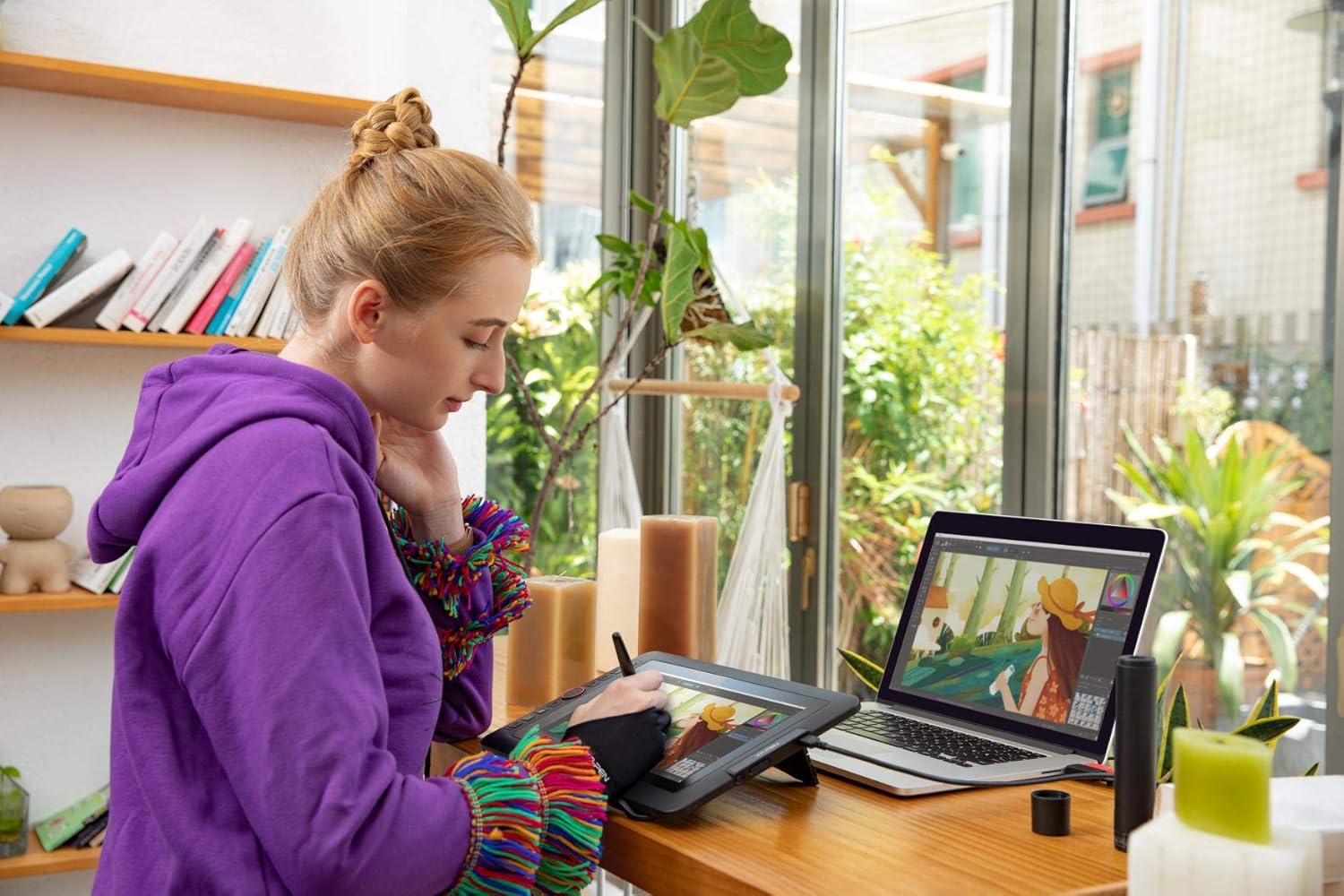
Your Mac handles creative work beautifully, but a trackpad or mouse limits what you can create. A pen display gives you the natural, responsive drawing experience you need for digital art, photo editing, and design work.
Pen displays connect directly to your Mac and work as a secondary screen where you draw with a battery-free stylus. The pen registers pressure sensitivity and tilt, letting you create thick lines, thin strokes, and shaded areas just like traditional media. Mac compatibility is straightforward with these displays, and they work with apps you already use like Photoshop, Procreate, and Affinity Designer.
The difference between drawing with a pen display and using a mouse is substantial. Your hand moves naturally across the screen surface, the pen tip follows exactly where you expect it to, and pressure-sensitive strokes respond to how hard you press. You maintain the same hand-eye coordination you use when drawing on paper.


Affiliate disclosure: some links in this article are Amazon Associate links. If you buy through them, Next Level Mac may earn a small commission at no extra cost to you, and we only recommend products that genuinely bring value to your Mac setup.
What Makes a Good Mac Pen Display
Screen size matters for workspace. An 11-13 inch display fits most desks and travels easily. Larger displays give you more room to work but require more desk space and aren't portable.
Pressure sensitivity determines how naturally the pen responds to your touch. Modern displays offer 4,096 to 16,384 pressure levels. Higher numbers give you finer control over line weight and opacity, though 4,096 levels work well for most artists.
Full lamination eliminates the gap between the glass surface and the display panel beneath it. This reduces parallax, which is the visual offset between where the pen tip touches and where the cursor appears on screen. Fully laminated displays feel more natural because the cursor appears directly under the pen tip.
Color accuracy affects how your work looks. Displays with 90-100% sRGB coverage show colors accurately, which matters when you're editing photos or creating illustrations that need to match specific colors. Lower coverage percentages shift colors and make it harder to judge your work.
Programmable shortcut keys and dials speed up your workflow. Rather than reaching for your keyboard to undo changes or switch tools, you can assign these functions to buttons on the display itself.
Wacom One 12: Trusted Quality for Mac Artists
The Wacom One 12 brings proven pen technology to a compact 11.6-inch display that works seamlessly with macOS. Wacom's been making pen displays for over four decades, and that experience shows in how naturally this display responds to your hand movements.
The fully laminated screen eliminates parallax, so the cursor sits directly under the pen tip when you draw. The anti-glare surface reduces reflections and gives the pen a slight grip as it moves across the screen, mimicking the feel of drawing on paper. At 1920x1080 resolution with 99% sRGB coverage, colors stay accurate whether you're sketching concepts or editing final artwork.
The included Wacom One Pen never needs charging. It recognizes 4,096 pressure levels and responds to tilt up to 60 degrees, letting you shade naturally by angling the pen. Two programmable buttons on the pen give you quick access to undo or other frequently used commands.
Connection is simple with a single USB-C cable if your Mac has Thunderbolt 3 or later, or DisplayPort Alt Mode. Older Macs need the included 3-in-1 cable that splits into separate power, video, and USB connections. The display works with standard Mac creative apps immediately without driver installation headaches.
Wacom includes free trials of Clip Studio Paint Pro, Concepts, and other creative software to get you started. The display weighs just over two pounds and measures 11mm thin, making it easy to slip into a backpack for mobile work.
Here's where to get the Wacom One 12: https://www.amazon.com/dp/B0B4VRB719?tag=nextlevelmac-20
XP-Pen Artist 12 Pro: More Features for Less
The XP-Pen Artist 12 Pro delivers fully laminated screen technology and 8,192 pressure levels at a lower price than competing displays. This 11.6-inch display packs extra features that speed up creative work on your Mac.
Full lamination brings the display panel right up against the glass surface, eliminating the visual gap between pen tip and cursor. The screen covers 72% NTSC color gamut (equivalent to 100% sRGB), showing vibrant, accurate colors for photo editing and illustration work. At 1920x1080 resolution with a 178-degree viewing angle, the display stays clear even when viewed from the side.
The included battery-free stylus recognizes 8,192 pressure levels and supports 60-degree tilt for natural shading. Three programmable buttons let you assign shortcuts for common tasks. The pen holder stores eight replacement nibs and includes a digital eraser on the pen's opposite end.
What sets the Artist 12 Pro apart is the red dial controller on the left edge. You can program it to zoom, rotate the canvas, adjust brush size, or control other functions. Eight customizable shortcut keys surrounding the dial give you instant access to frequently used tools without reaching for your keyboard.
The 3-in-1 cable connects to your Mac through HDMI and USB, with a separate power adapter. Setup takes minutes, and the display works with macOS 10.10 or later. The slim 11mm profile and included adjustable stand let you find a comfortable drawing angle.
The display includes a protective film, cleaning cloth, and drawing glove. XP-Pen's driver software for Mac lets you customize pressure curves, pen buttons, and shortcut keys for different applications.
Where to buy the XP-Pen Artist 12 Pro: https://www.amazon.com/dp/B07VZF7ZC9?tag=nextlevelmac-20
Huion Kamvas 13 Gen 3: Professional Grade at Mid-Range Price
The Huion Kamvas 13 Gen 3 brings professional-level color accuracy and pen technology to a 13.3-inch display that costs less than premium options. This third-generation model includes significant upgrades that benefit Mac users working on color-critical projects.
The display covers 99% sRGB and Rec.709 color standards, with factory calibration that achieves Delta E less than 1.5. That means colors display accurately right out of the box, which matters when you're editing photos or creating illustrations that need to match specific color values. Each display includes a calibration report showing its exact color accuracy measurements.
Huion's new Canvas Glass 2.0 surface uses nano-etching to reduce glare and sparkle while maintaining a paper-like texture. The fully laminated 1920x1080 screen eliminates parallax, and the anti-sparkle coating keeps the display clear even under bright desk lamps.
The PW600L pen features PenTech 4.0 technology with 16,384 pressure levels and just 2 grams of initial activation force. This means the pen registers even the lightest touch, giving you precise control over thin lines and light shading. Three customizable buttons on the pen and dust-proof grip improve comfort during long drawing sessions. The pen supports 60-degree tilt recognition for natural shading techniques.
Two dial controllers and five silent shortcut keys sit on the left edge of the display. You can assign different functions to each dial, switching between zoom, brush size, canvas rotation, or other tools without interrupting your workflow. The tactile bump on each key makes it easy to find the right button without looking.
Connection options include a 3-in-1 cable for Macs with HDMI ports, or a single full-featured USB-C cable if your Mac supports DisplayPort Alt Mode. The display works with macOS 10.12 or later, and Huion's Mac driver allows detailed customization of pressure curves and button assignments.
The included ST300 adjustable stand lets you work at various angles. At 1.16 pounds and 11.8mm thin, the display travels easily between home and studio.
This is where you can buy the Huion Kamvas 13 Gen 3: https://www.amazon.com/dp/B0D813G71Q?tag=nextlevelmac-20
Choosing the Right Display for Your Mac Workflow
Budget determines your starting point. The XP-Pen Artist 12 Pro typically costs around $200-250, the Wacom One 12 runs $250-300, and the Huion Kamvas 13 Gen 3 sits at $300-350. All three deliver solid performance for their price range.
Color accuracy needs vary by work type. If you're sketching concepts or creating comics, standard color coverage works fine. Photo editing and commercial illustration benefit from the Huion's 99% sRGB coverage and factory calibration. The Wacom and XP-Pen displays show colors well enough for most creative work but don't match the Huion's precision.
Pen feel is subjective. Wacom's decades of pen technology experience shows in how naturally the One 12 responds to hand movements. The XP-Pen and Huion pens offer higher pressure levels (8,192 and 16,384 respectively) than Wacom's 4,096 levels, though most artists can't distinguish pressure differences above 4,096 levels in regular use.
Screen size affects workflow. The 11.6-inch displays (Wacom and XP-Pen) fit smaller desks and travel easily. The Huion's 13.3-inch screen gives you more working area without becoming unwieldy. The size difference becomes noticeable when working with detailed illustrations or editing photos with lots of layers.
Shortcut options matter for efficiency. The XP-Pen's red dial and eight keys provide more customization than the Wacom's pen buttons alone. The Huion's dual dials let you assign different functions to each wheel, giving you even more control at your fingertips.
Setting Up Your Mac for Drawing
Your Mac needs to recognize the pen display as a secondary monitor. Connect the display through USB-C (if your Mac supports it) or use the included 3-in-1 cable for older Macs. The display appears in System Settings under Displays.
Arrange your displays so the pen display sits where you want it in relation to your main screen. This affects how you move your cursor between screens. Most artists position the pen display as their primary workspace and keep reference images or tool palettes on their main monitor.
Download the manufacturer's Mac driver for advanced pen customization. The driver lets you adjust pressure curves so the pen responds exactly how you want it to. You can make it more sensitive for light touches or require more pressure for thick lines.
Calibrate pressure in your creative apps too. Apps like Photoshop and Procreate include their own pressure settings that work alongside the driver settings. Test different brush strokes and adjust until the pen feels natural.
Assign shortcut keys and dial functions for apps you use most often. Set up one button for undo, another for switching between brush and eraser, and program the dial to control zoom or brush size. You'll work faster when common tools sit under your non-dominant hand.
The Creative Difference
Working with a pen display changes how you approach creative projects on your Mac. The direct connection between hand movement and screen output makes sketching feel immediate. You can rough out ideas quickly, knowing the pen will follow your hand accurately.
Photo editing becomes more precise with a pen. Masking out backgrounds, dodging and burning specific areas, and making local adjustments all work better with pressure-sensitive pen control than with a mouse. The ability to vary stroke width and opacity by changing pen pressure gives you finer control over edits.
Digital painting feels natural when you can see your strokes appear directly under the pen tip. You develop the same muscle memory you'd use with traditional brushes and pencils. The pen's tilt recognition lets you shade by angling the stylus, just like you would with a charcoal stick or pencil.
Vector illustration work speeds up with a pen display. Drawing bezier curves, adjusting anchor points, and creating custom shapes all feel more intuitive when you're drawing directly on screen rather than translating mouse movements into on-screen actions.
These three displays all deliver that core benefit at different price points with varying feature sets. The choice comes down to which combination of size, features, and color accuracy fits your specific creative work on Mac.
Related Posts
Mac Audio Interfaces: Transform Your Recording Setup
Jan 06, 2026
Master Podcast Production with GarageBand on Mac
Jan 02, 2026
Mac Color Calibration for Photographers and Designers
Dec 27, 2025