
Apple has resisted touchscreen MacBooks for years, arguing they're ergonomically awkward and unnecessary. But startup Intricuit just unveiled a solution at CES 2026 that sidesteps the wait entirely.
The Magic Screen is a snap-on digitizer that transforms your MacBook display into a fully functional touchscreen with stylus support, and it works with every Apple Silicon MacBook Air and Pro currently on the market. The device uses your MacBook's built-in magnets to attach securely to the display, connects via a single USB-C cable, and enables multitouch gestures right out of the box.
What makes this particularly interesting is the timing. Apple is rumored to be developing its first touchscreen MacBook Pro with an OLED display for late 2026 or early 2027, but Magic Screen lets you add touch functionality to your existing Mac today, starting at $139 when it launches on Kickstarter.


Affiliate disclosure: some links in this article are Amazon Associate links. If you buy through them, Next Level Mac may earn a small commission at no extra cost to you, and we only recommend products that genuinely bring value to your Mac setup.
How Magic Screen Actually Works
The attachment process is remarkably simple. Magic Screen aligns with the magnets around your MacBook's display that normally detect when you close the lid to trigger sleep mode. Once it snaps into place, you connect a small USB-C cable from the bottom bar to one of your MacBook's ports.
Basic touch functionality works immediately without any software installation. Tap, swipe, pinch to zoom—all the gestures you use on an iPhone or iPad work on your MacBook screen. For advanced features like custom gesture mapping or stylus settings, you'll need to install Intricuit's companion app.
The Magic Screen includes its own battery rated for 100 hours on a single charge, and the tempered glass layer maintains more than 99 percent transparency so your display stays sharp and vibrant. Intricuit also built in a protective film that acts as a screen protector while the digitizer is attached.
One important limitation: you must remove Magic Screen before closing your MacBook's lid. The device includes a safety feature that prevents the lid from closing completely to avoid screen damage, but you'll need to get in the habit of detaching it when you're done working.
Full Stylus Support Changes the Game
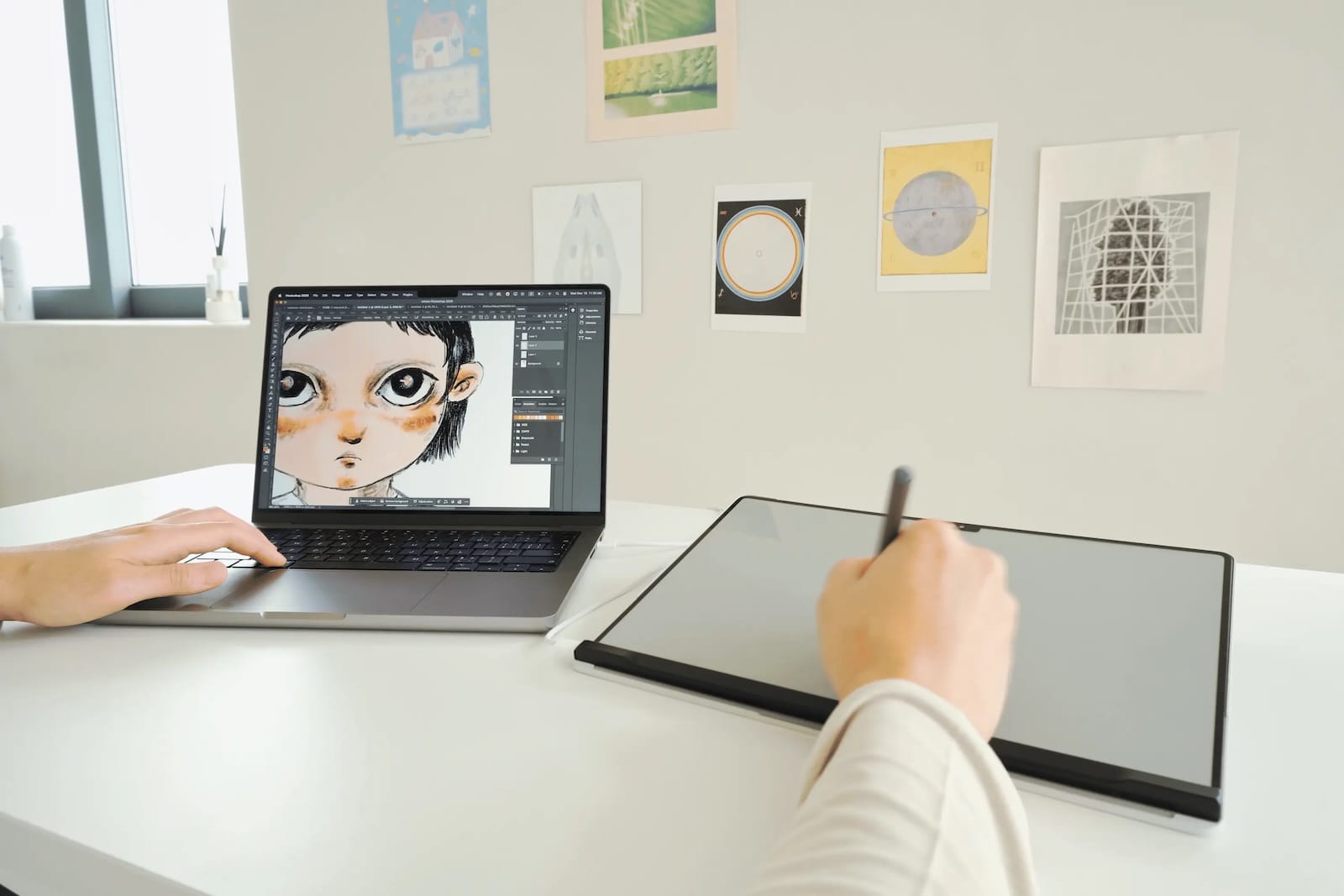
Touch capability alone would make Magic Screen useful, but the included stylus elevates it into a genuine creative tool. The pen features 4,096 levels of pressure sensitivity, natural tilt recognition, and even hover detection similar to the Apple Pencil's hover feature.
The stylus is battery-powered with a 100-hour runtime on a single charge, and it works with any USI-certified stylus if you prefer a different pen. For digital artists, designers, or anyone who takes handwritten notes, this transforms a MacBook into something closer to an iPad Pro with a keyboard.
Intricuit has demonstrated Magic Screen working in professional creative applications including SketchUp, Miro, and Resolume Arena. It also supports iPhone Mirroring, letting you interact with iOS apps on your MacBook's larger display using touch instead of awkwardly clicking with a trackpad.
When you're done using your MacBook, snap the Magic Screen off and it becomes a standalone drawing tablet. Place it on your desk and you have a 13-inch or larger (depending on your MacBook model) pen-enabled surface for digital art with better ergonomics than hunching over your laptop screen.
The Wobble Problem Gets a Smart Solution
Anyone who's tried using a touchscreen laptop knows the biggest issue: the screen wobbles every time you touch it. Intricuit addressed this with a clever accessory called the Folio Case.
The case protects Magic Screen during transport and magnetically attaches to your closed MacBook for easy carrying. When you're ready to work, the case folds into a stand that braces against your MacBook's lid to significantly reduce wobble when you're touching or writing on the screen.
The entire setup—MacBook, Magic Screen, and Folio Case—fits together in a compact package with zero added bulk when everything is folded up. For hybrid workers moving between home and office or anyone working from coffee shops, this makes touch functionality genuinely portable.
Since Magic Screen uses one of your MacBook's USB-C ports, you might want to expand your connectivity. This is where to get the Anker 547 USB-C Hub https://www.amazon.com/dp/B0BNZ5V1TF?tag=nextlevelmac-20
The Anker hub gives you back seven ports from a single USB-C connection: a multi-function USB-C port supporting 100W Power Delivery and 5K@60Hz display output, another USB-C data port, two USB-A 3.0 ports, 4K@60Hz HDMI, and SD plus microSD card slots. It's specifically designed for MacBook with a compact form factor that won't block your MagSafe port.
When a Dedicated Tablet Makes More Sense
Magic Screen fills a specific need—adding touch to your existing MacBook—but it's worth considering whether a standalone drawing tablet might better suit your workflow, especially if you're primarily interested in digital art.
Where to buy the Wacom One 13 Touch Drawing Tablet https://www.amazon.com/dp/B0B4VRV99F?tag=nextlevelmac-20
The Wacom One 13 Touch is a 13.3-inch pen display with both touch and stylus input. It connects to your Mac via USB-C and functions as a dedicated drawing surface with Wacom's proven pen technology. The display is fully laminated with an anti-glare coating that mimics paper texture, and the included Wacom One Pen offers pressure sensitivity without requiring a battery.
The key difference is workflow. Magic Screen integrates touch into your existing MacBook display, making it convenient for quick annotations, presentations, or occasional creative work. The Wacom tablet provides a dedicated creative surface that doesn't compete with your main screen real estate and offers professional-grade pen performance that digital artists have relied on for decades.
For many Mac users, Magic Screen's ability to do double duty—touchscreen overlay when attached, drawing tablet when removed—makes it the more versatile choice, especially at its $139 starting price compared to the Wacom's higher cost. But if you're serious about digital illustration or photo retouching, the Wacom's purpose-built hardware might justify the investment.
Ergonomics Matter for Extended Touch Sessions
Using touch or stylus input on a laptop screen requires different ergonomics than typing. Elevating your MacBook to a more comfortable viewing height becomes even more important when you're frequently reaching up to tap or write on the display.
The place to get the Twelve South Curve for MacBook https://www.amazon.com/dp/B07377XVNY?tag=nextlevelmac-20
The Twelve South Curve is a fixed-height aluminum stand that raises your MacBook 6.5 inches off your desk. This positions your screen at a more ergonomic height and brings your webcam up to eye level for better video calls. The stand's slender arms allow maximum airflow to keep your Mac cool, and the design lets you freely open and close your MacBook without the hinge catching.
When paired with Magic Screen and the Folio Case that braces against the display, Curve creates a stable platform that minimizes screen wobble during touch interactions. The combination also works well if you add an external keyboard and mouse for a complete desktop setup, giving you both touch capability and traditional input methods.
Curve's one-piece bent aluminum construction matches MacBook's premium aesthetic, and the matte black finish complements every MacBook color. At 1.43 pounds, it's substantial enough to stay put on your desk while remaining portable enough to move between rooms or workspaces.
What This Means for the Mac Workflow
Magic Screen represents something larger than just adding touch to MacBook. It's about expanding how you can interact with macOS without waiting for Apple to make hardware changes.
The most compelling use cases involve scenarios where touch input feels more natural than a trackpad. Quickly zooming into a specific area of a design mockup during a client presentation. Annotating a PDF with handwritten notes during a video call. Playing point-and-click adventure games like Disco Elysium with direct touch instead of cursor movement. Using finger gestures to navigate 3D models in SketchUp.
These aren't workflows that require touch all day long, but in specific moments, direct manipulation of on-screen elements through touch or pen creates a more intuitive interaction than indirect control through a trackpad.
The fact that macOS wasn't designed for touch could be seen as a limitation, but it also means the interface isn't cluttered with oversized touch targets or dumbed-down controls. You get the full desktop macOS experience with the option to reach out and directly interact when it makes sense to do so.
Compatibility and Availability
Magic Screen works with all MacBook Air and MacBook Pro models powered by Apple Silicon. This includes:
MacBook Air 13-inch (M2 or later, 2022 onwards) MacBook Air 15-inch (M2 or later, 2023 onwards) MacBook Pro 14-inch (M1 or later, 2021 onwards)
MacBook Pro 16-inch (M1 or later, 2021 onwards)
Intricuit plans to launch Magic Screen on Kickstarter soon, with pricing starting at $139 for early backers. The company expects to begin shipping in Q1 2026, which means February or March if the production schedule holds. You can sign up for launch notifications and learn more about the complete specifications at https://intricuit.com
The included Folio Case adds protection and the wobble-reducing stand functionality. Intricuit hasn't published separate pricing for the case if purchased later, so early backers may want to opt for the complete package during the crowdfunding campaign.
For anyone who's been waiting for Apple to add touch to MacBook, or creative professionals who want stylus input without buying a separate device, Magic Screen offers an immediate solution. The magnetic attachment makes it easy to add when you need touch and remove when you don't, avoiding the compromises of having touch functionality baked into the hardware all the time.

Related Posts
Is your Wi-Fi Speed Test LYING To You? Here's How to Find Out
Jan 17, 2026
Acorn 8 Image Editor for Mac: Professional Editing Made Simple
Jan 04, 2026
Mac PDF Editing: Native Tools and Pro App Workflows
Dec 29, 2025