
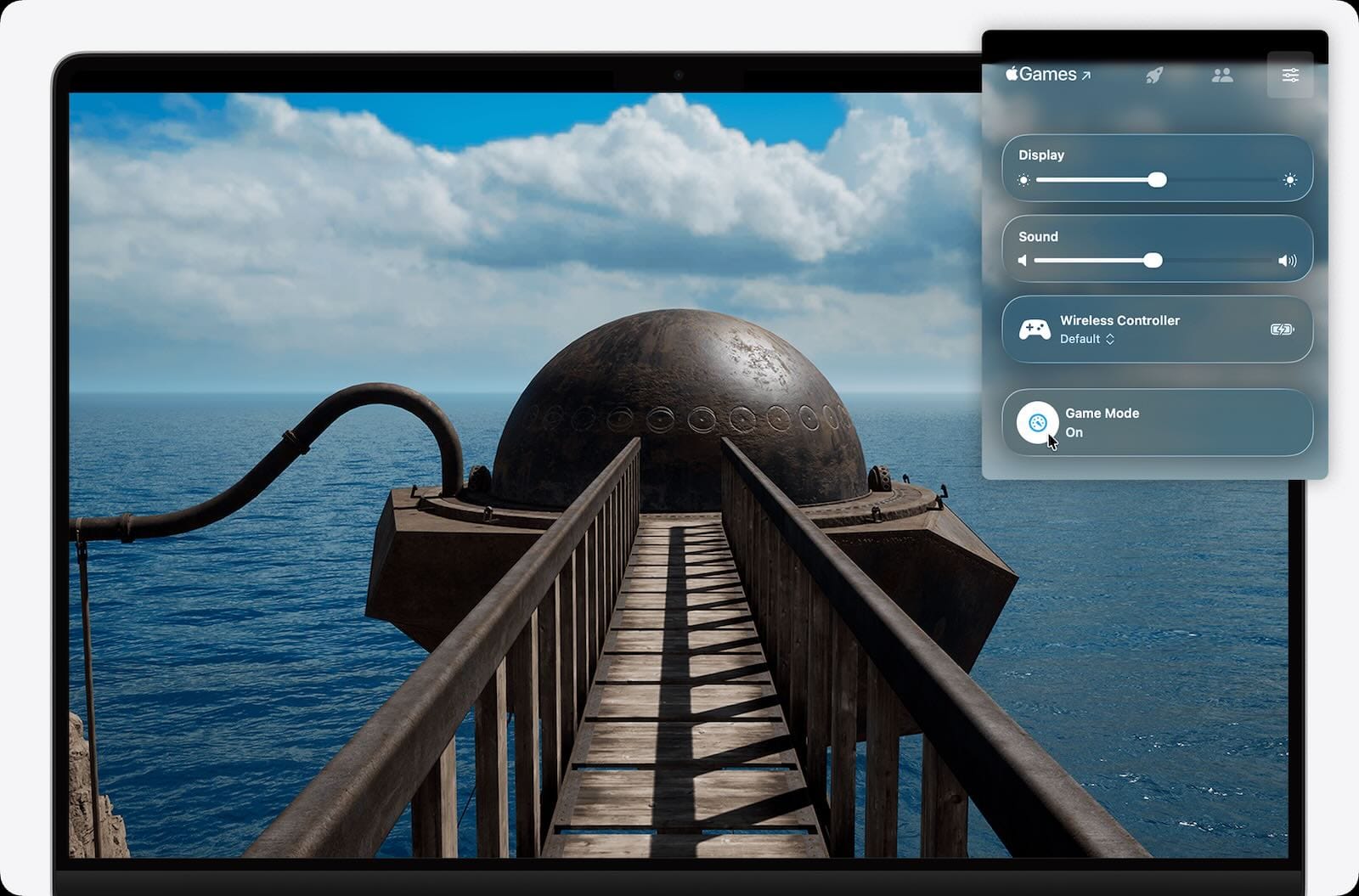
Your Mac has been hiding a performance boost this whole time. Game Mode in macOS Tahoe can dramatically improve frame rates, cut input lag in half, and make your gaming sessions feel noticeably smoother. Most Mac owners don't even know it exists.
The feature works by giving your game priority access to your CPU and GPU while reducing background tasks. When activated, Game Mode doubles the Bluetooth sampling rate for wireless controllers and AirPods, cutting latency and making controls feel more responsive. This translates to faster reactions in competitive games and a more immersive experience overall.
Here's how to use it.
How Game Mode Actually Activates
Game Mode isn't sitting in System Settings waiting for you to flip a switch. It works automatically when you launch a game in full-screen mode.
Look for the green full-screen button in the top corner of your game window. Click it to enter full screen. Game Mode activates immediately.
You'll notice your Mac prioritizes the game over everything else. Background apps get fewer resources, notifications pause, and your system focuses entirely on delivering smooth gameplay.
The automation makes sense once you understand Apple's thinking. You're not gaming when you're browsing Reddit in another window. Full-screen signals intent—you're here to play, so your Mac commits fully to the experience.
Accessing the Game Overlay
Press Command + Escape while your game runs in full screen. The Game Overlay slides in from the right side of your screen.
This overlay gives you quick control over settings without exiting your game. You can adjust brightness and volume, check achievements, connect with friends, and toggle Game Mode on or off.
The overlay includes multiple tabs. The first tab shows game-specific information like achievements and leaderboards. The second tab displays your friends list and online status. The third tab contains system controls—brightness, volume, and connected controllers.
The fourth tab is where Game Mode settings live. You can manually turn Game Mode off here if you prefer, and the setting persists for that specific game even after you quit and relaunch it.
Why a Wireless Controller Makes Game Mode Better
Game Mode doubles the Bluetooth sampling rate for wireless accessories. This means your controller sends input data to your Mac twice as often, cutting response time in half.
The 8BitDo Ultimate 2 Wireless Controller takes full advantage of this doubled sampling rate. TMR (Tunnel Magneto Resistance) joysticks eliminate stick drift—a problem that ruins controllers over time—while the ergonomic design works for extended gaming sessions.


Affiliate disclosure: some links in this article are Amazon Associate links. If you buy through them, Next Level Mac may earn a small commission at no extra cost to you, and we only recommend products that genuinely bring value to your Mac setup.
The controller connects via Bluetooth or the included 2.4GHz dongle. When using Bluetooth with Game Mode active, you get near-wired response times without cables cluttering your desk. It works seamlessly with Mac, Windows, Steam, and Android devices.
Programmable back buttons let you map additional functions without reaching for keyboard keys. This works especially well in games that weren't designed for controllers, giving you extra inputs exactly where your fingers naturally rest.
Here's where to get the 8BitDo Ultimate 2 Wireless Controller: https://www.amazon.com/dp/B0DR8Y5W6Z?tag=nextlevelmac-20
Configure Game Mode Through the Menu Bar
You can also control Game Mode without opening the overlay. When a game runs in full screen, move your pointer to the top of the screen to reveal the menu bar.
Click the Game menu. You'll see options to turn Game Mode on or off. This gives you another way to toggle the feature without interrupting gameplay with the overlay interface.
Turning Game Mode off through either method keeps it disabled for that game permanently. Your Mac remembers your preference even after closing and reopening the game later.
Storage Speed Matters When Game Mode Is Active
Game Mode gives your game priority CPU and GPU access, but slow storage can still create bottlenecks. Loading times suffer when your Mac waits for data to transfer from an internal drive that's nearly full or an external drive that's too slow.
Modern AAA games easily exceed 100GB. Installing several titles fills up internal storage quickly, especially on Macs with 256GB or 512GB drives. When storage gets close to capacity, performance drops across the board.
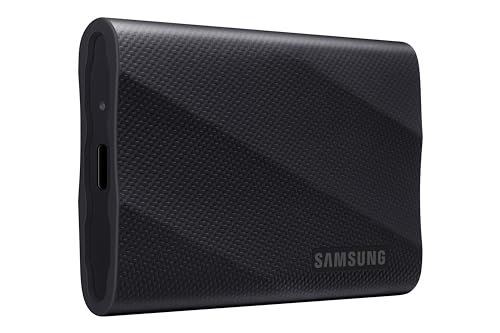
The Samsung T9 Portable SSD delivers 2000MB/s read and write speeds over USB-C. This matches or exceeds many internal drives, keeping loading times short even when running games from external storage.
Two terabytes gives you room for multiple large games without juggling installations. The compact aluminum case stays cool during sustained use and travels easily if you game on different Macs.
Connect the T9 to your Mac's Thunderbolt or USB-C port. Format it as APFS through Disk Utility. Install games directly to the external drive through Steam, Epic, or the Apple Games app. Game Mode will prioritize read/write operations to the T9 just like it does for your internal storage.
This is where you can buy the Samsung T9 Portable SSD: https://www.amazon.com/dp/B0CHFS9K14?tag=nextlevelmac-20
Fine-Tune Background App Behavior
Game Mode reduces resource usage for background tasks automatically, but you can help it work better by controlling which apps launch at startup.
Open System Settings and navigate to General, then Login Items & Extensions. Look through the list of apps that start when you log in.
Disable anything you don't need running constantly. Cloud sync services, menu bar utilities, and system monitors all consume resources even when minimized. Game Mode will still throttle these apps, but preventing them from launching in the first place leaves more resources available.
Keep essential services like security software active. Everything else can wait until you're done gaming.
Use Activity Monitor to Find Resource Hogs
Even with Game Mode active, some apps refuse to behave. Launch Activity Monitor from Applications > Utilities to see which processes consume the most CPU and memory.
Sort by CPU usage. Look for apps using significant percentages even though you're not actively using them. Browser tabs, communication apps, and creative software often sit idle but continue processing in the background.
Quit unnecessary apps before launching your game. Game Mode works better when it has fewer background processes to manage.
MetalFX Upscaling Pairs With Game Mode
macOS Tahoe includes MetalFX upscaling, which renders games at lower resolutions and upscales them in real time. This technology works alongside Game Mode to deliver higher frame rates without sacrificing visual quality noticeably.
Games that support MetalFX automatically benefit when Game Mode is active. You don't need to enable anything manually—developers implement the feature in their games, and macOS handles the rest.
The combination of Game Mode and MetalFX means Macs can run demanding games at playable frame rates even on hardware that wouldn't hit 60fps at native resolution. Older Apple Silicon Macs benefit especially from this pairing.
Set Up a Gaming Focus Mode
Game Mode handles system resources, but notifications still interrupt gameplay. Create a Focus mode specifically for gaming to eliminate distractions.
Open System Settings and select Focus. Click the plus button to create a new Focus. Name it "Gaming" and customize which apps and contacts can send notifications during gaming sessions.
Link the Gaming Focus to a game controller connection. When you turn on your wireless controller, your Mac automatically enters Gaming Focus, silencing notifications and keeping you immersed.
The Focus automatically ends when you disconnect your controller or exit full-screen gaming, returning your notification settings to normal.
Understanding What Game Mode Can't Fix
Game Mode improves performance by reallocating resources, but it can't overcome hardware limitations. An M1 MacBook Air won't suddenly match an M4 Max MacBook Pro just because Game Mode is active.
Thermal throttling still affects performance on thin-and-light Macs. Game Mode doesn't change cooling capacity or sustained performance limits. If your Mac gets too hot, performance drops regardless of Game Mode's resource prioritization.
Network latency in online games won't improve through Game Mode. Internet connection quality and server distance affect ping times, which Game Mode can't control.
Older games without Metal API support won't benefit as much from Game Mode. The feature works best with games built for modern Mac gaming APIs.
Games Where Game Mode Makes the Biggest Difference
Fast-paced competitive games see the most improvement from Game Mode's doubled controller sampling rate. First-person shooters, fighting games, and racing games all benefit from reduced input lag.
Games with demanding graphics benefit from the CPU and GPU prioritization. Open-world titles with large environments, graphically intensive indie games, and AAA releases all run smoother when Game Mode directs maximum resources to the game.
Any game that drops below your monitor's refresh rate during intense moments will feel more consistent with Game Mode active. The feature helps maintain frame rates during particle-heavy effects, large battles, or complex scenes.
Verify Game Mode Is Working
Open the Game Overlay (Command + Escape) while playing. Navigate to the system controls tab. The Game Mode toggle should show as active if the feature is working.
You can also check the Game menu in the menu bar. If "Turn Game Mode Off" appears, the feature is currently active. If you see "Turn Game Mode On," something prevented automatic activation.
Frame rate counters in games should show higher or more stable numbers with Game Mode active compared to playing in windowed mode. The difference varies by game and Mac model, but you should notice improvement.
When to Manually Disable Game Mode
Some games perform worse with Game Mode active, though these cases are rare. Games with their own resource management systems might conflict with Game Mode's automatic prioritization.
If you notice stuttering or frame rate drops after Game Mode activates, manually disable it through the Game Overlay or Game menu. The game might work better managing resources itself.
Streaming gameplay to services like Twitch or YouTube benefits from disabling Game Mode. The feature prioritizes the game over streaming software, which can cause dropped frames or encoding issues. Turn off Game Mode when streaming to give both applications adequate resources.
Game Mode Across Multiple Displays
Game Mode works when gaming on external displays connected to your Mac. The feature activates when your game enters full screen on any display, internal or external.
Performance improvements apply regardless of which screen displays your game. Controller latency reductions and GPU prioritization work the same way whether you game on your MacBook's built-in display or a 4K external monitor.
If you run multiple displays with different content on each, Game Mode still prioritizes the game over content on other screens. Background video or web browsing on a second display gets fewer resources while Game Mode is active.
Your Mac delivers smooth gaming experiences without requiring constant tweaking or optimization. Game Mode handles the heavy lifting automatically, letting you focus on actually playing games instead of adjusting settings.
The combination of Game Mode, the right accessories, and smart system management transforms Mac gaming from acceptable to genuinely competitive. Apple Silicon Macs have the hardware performance to run games well—Game Mode just makes sure that performance reaches your games instead of getting divided across dozens of background tasks.

Related Posts
Finder Quick Actions in macOS Tahoe Automate File Tasks Instantly
Jan 12, 2026
Finder Smart Folders in macOS Tahoe Create Automatic File Organization
Jan 11, 2026
Apple Calendar in macOS Tahoe: Workflow Tips That Save Hours
Jan 11, 2026