


The World Health Organization estimates 1.5 billion people live with some degree of hearing loss. Many never seek help because traditional hearing aids cost thousands of dollars and require multiple visits to audiologists. AirPods Pro 3 change that equation on Mac. Running macOS Tahoe, your Mac can now control clinical-grade hearing aid features directly from System Settings—transforming earbuds you may already own into personalized hearing assistance.
Key Takeaways
- Open System Settings, click your AirPods Pro 3 in the sidebar, then click Hearing Health to access all hearing controls.
- Take Apple's five-minute Hearing Test on iPhone or iPad first—the results sync automatically to your Mac.
- Enable Conversation Boost in Hearing Assistance settings to focus amplification on voices directly in front of you.
- Adjust amplification level, tone, and left-right balance from Control Center without opening System Settings.
- Live Listen uses your iPhone as a remote microphone, streaming amplified audio to your AirPods within Bluetooth range.
- The Hearing Aid feature stores your profile on AirPods Pro 3, so settings persist even when your Mac is not nearby.
At-A-Glance: Mac Hearing Features in macOS Tahoe
| Feature | Where to Find It | What It Does |
|---|---|---|
| Hearing Aid | System Settings → AirPods → Hearing Health | Amplifies environmental sounds in real time |
| Conversation Boost | Hearing Health → Adjustments | Focuses microphones on the speaker in front of you |
| Media Assist | Hearing Health → Media Assist | Applies your hearing profile to music and calls |
| Live Listen | Control Center → Hearing | Uses iPhone as remote microphone |
There are millions of people that suffer from some degree of hearing loss or tinnitus. I know because I am one of them.
In 2016, I had a gunshot go off nest to my right ear during a government training session I was involved in. It permanently damaged the hearing in my right ear forever in less than one second.
I had been looking for help with hearing better ever since then. Back in 2016, the AirPods Pro 3 and their hearing aid technology weren't a thing. Now they are, and they have changed how I use my Mac, and hear the world, for the better.
This is how it works and how it can help you if you suffer from hearing loss.
Taking the Hearing Test
Before enabling hearing aid functionality on Mac, you need a personalized hearing profile. Apple's Hearing Test runs on iPhone or iPad—not directly on Mac—but the results transfer seamlessly across devices signed into the same Apple Account.
Find a quiet room. Background noise interferes with the pure-tone audiometry Apple uses to measure your hearing thresholds at different frequencies. Put your AirPods Pro 3 in your ears and ensure they fit snugly. Open Settings on your iPhone, tap your AirPods near the top, then tap Hearing Health and select Take Hearing Test.
The test takes about five minutes. You tap a button whenever you hear a tone, even faint ones. Active Noise Cancellation and the silicone tips create a seal that approximates clinical testing conditions. Once complete, your audiogram saves to the Health app and your AirPods Pro 3 firmware. Your Mac picks up these results automatically.
If you already have audiogram data from a hearing healthcare professional, you can import that instead. In Hearing Health settings, choose Use Existing Audiogram and follow the prompts to enter your data manually.
Enabling Hearing Aid Mode on Mac
With a hearing profile established, your Mac becomes a control hub for AirPods Pro 3 hearing assistance. Open System Settings, look for your AirPods Pro 3 in the left sidebar (you may need to scroll), and click them. Select Hearing Health from the options that appear.
Toggle Hearing Aid on if it is not already active. This setting enables real-time amplification of sounds around you whenever you use Transparency mode on your AirPods. The H2 chip inside AirPods Pro 3 processes audio 48,000 times per second, adjusting frequencies based on your personal audiogram.
Click Adjustments to fine-tune the experience. The Amplification slider controls overall volume of environmental sounds. Start low and increase gradually over several days—sudden jumps can cause listening fatigue. Balance adjusts left-right volume independently, useful if hearing loss differs between ears. Tone shifts the overall sound warmer or brighter depending on preference.
One setting worth enabling immediately: Conversation Boost. When active, the beamforming microphones in AirPods Pro 3 focus on voices directly in front of you while reducing background noise. During a video call or in-person meeting, this makes dialogue clearer without cranking overall amplification to uncomfortable levels.
| NLM Spotlight | Product | Why We Love It | Price |
|---|---|---|---|
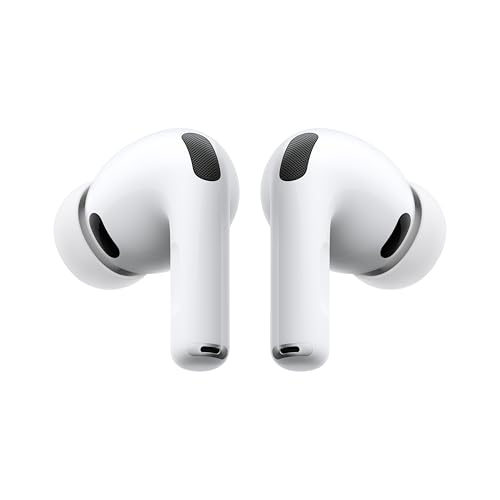 | Spatial Audio meets FDA-approved hearing aid technology. | Check Price |
Affiliate disclosure: some links in this article are Amazon Associate links. If you buy through them, Next Level Mac may earn a small commission at no extra cost to you, and we only recommend products that genuinely bring value to your Mac setup.
Here's where to get the AirPods Pro 3 with all hearing health features built in (Amazon Affiliate Link): https://www.amazon.com/dp/B0FQFB8FMG?tag=nextlevelmac-20
Quick Adjustments from Control Center
Opening System Settings every time you want to tweak amplification gets tedious. macOS Tahoe adds Hearing Assistance controls directly to Control Center for faster access.
Click the Control Center icon in the menu bar (the two-toggle icon in the upper-right corner). Look for the Hearing control—if you do not see it, open System Settings → Control Center and add Hearing from the available modules. Click Hearing, then tap Hearing Assistance. From this panel, you can drag the amplification slider, toggle Conversation Boost, and switch between listening modes without leaving your current app.
One friction point worth noting: the Control Center panel requires your AirPods Pro 3 to be connected and in your ears. If you take one out to hear someone speak, the controls temporarily disappear until you reinsert the earbud. This behavior makes sense for hearing aids designed for continuous wear, but it catches some users off guard the first time.
Using Live Listen as a Remote Microphone
Live Listen predates the Hearing Aid feature and works on older AirPods models too, though it shines with AirPods Pro 3. The concept is simple: your iPhone becomes a wireless microphone, streaming amplified audio to your ears from across a room.
Place your iPhone near the person or sound source you want to hear. Open Control Center on your iPhone, tap the Hearing control (the ear icon), select your AirPods Pro 3, and tap Live Listen. Audio from the iPhone microphone now streams directly to your AirPods. Bluetooth range limits this to about 15 meters, but within that distance, Live Listen works remarkably well for situations like lectures, presentations, or hearing a speaker at a crowded dinner table.
Live Listen works independently of the Hearing Aid feature. You can use one, both, or neither depending on the situation. For related guidance on maximizing AirPods Pro features on Mac, see our guide to AirPods Pro 3: A Better Fit for Mac Life.
Media Assist for Music and Calls
Hearing profiles do more than amplify environmental sounds. Media Assist applies your audiogram to audio playback—music, movies, podcasts, FaceTime calls—making media clearer based on your specific hearing characteristics.
Enable Media Assist in System Settings → your AirPods → Hearing Health. You can toggle Adjust Music and Video and Adjust Calls and FaceTime independently. Some users prefer hearing profile adjustments only for calls (where speech clarity matters most) while keeping music untouched.
The effect is subtle but noticeable over extended listening. Frequencies you struggle to hear get a gentle boost; frequencies you hear normally remain unchanged. Unlike crude bass or treble adjustments, this personalization follows clinical audiometry principles.
Accessibility & Clarity
Apple's hearing features address several accessibility needs simultaneously. For users with mild to moderate hearing loss, the Hearing Aid feature eliminates the cost barrier that keeps 75% of diagnosed individuals from getting assistance, according to Apple's own Hearing Study data. AirPods Pro 3 retail for $249—a fraction of traditional hearing aids that often exceed $3,000 per pair.
For Mac users specifically, having hearing controls in System Settings means you do not need to juggle multiple apps or devices. Adjustments happen where you already manage other preferences. Control Center integration keeps common tweaks one click away.
Users with light sensitivity will appreciate that Hearing Assistance settings include no flashing indicators or bright interface elements. VoiceOver works throughout the Hearing Health menus for users who navigate macOS with a screen reader.
One limitation: the Hearing Test itself requires an iPhone or iPad. Mac does not have the necessary microphone calibration for pure-tone audiometry, so users without an iOS device cannot generate a hearing profile through Apple's system. They can, however, import audiogram data from a healthcare provider.
Hearing Protection
AirPods Pro 3 include active Hearing Protection across all listening modes. Even when you are not using Hearing Aid features, the earbuds monitor environmental sound levels and attenuate loud sounds before they reach harmful levels.
According to Apple's research, one in three people experience regular exposure to noise levels that can damage hearing—commuting on loud transit, attending concerts, mowing lawns, or working near machinery. Hearing Protection translates loud environments down to safer levels in real time, preserving the dynamic range of what you hear without simply muting everything.
This protection activates automatically. You do not need to enable anything in System Settings. For users gradually adjusting to Hearing Aid mode, the protection ensures that amplified sounds never exceed safe thresholds, even if you set amplification higher than ideal while learning your preferences.
Practical Setup Workflow
Getting the most from Mac hearing accessibility requires a few deliberate steps rather than simply toggling features on.
Start by taking the Hearing Test in a genuinely quiet environment. Results from a noisy room will skew your audiogram, leading to overcorrection in some frequencies. Morning works well for most people—before household activity ramps up.
After the test, enable Hearing Aid mode but set amplification to the lowest useful level. Live with that setting for two or three days. Your brain adapts to amplified sound, and jumping straight to maximum amplification often feels overwhelming. Increase incrementally until speech sounds natural.
Enable Conversation Boost for video calls and meetings. Disable it for immersive media like movies, where you want spatial audio rather than voice-focused processing.
Review Media Assist settings. If music sounds unnatural with your hearing profile applied, toggle Adjust Music and Video off while keeping call adjustments active.
Finally, add Hearing to Control Center if you have not already. Quick access matters when you need to adjust amplification mid-call.
The Bigger Picture
Mac users with hearing challenges historically faced limited options. Third-party apps offered volume boosting but lacked personalization. Traditional hearing aids worked independently of Mac, requiring separate adjustments and lacking integration with macOS audio.
AirPods Pro 3 and macOS Tahoe collapse those barriers. Hearing tests, hearing aid amplification, call clarity, and hearing protection all live within a single ecosystem. Your hearing profile travels with your AirPods, applying automatically whether you connect to Mac, iPhone, or iPad.
For users who work extensively on Mac—writers, developers, designers, analysts—having hearing assistance integrated into System Settings means one less device to manage. For those who video call regularly, Conversation Boost addresses the most common complaint: difficulty understanding dialogue over background noise.
The FDA authorized Apple's Hearing Aid feature as a clinical-grade over-the-counter hearing aid. That regulatory approval distinguishes AirPods Pro 3 from generic personal sound amplifiers. Apple's implementation meets medical device standards for people with perceived mild to moderate hearing loss.

Related Posts
Mac Accessibility for Dyslexia: Fonts, Tools, and Settings That Make Reading Easier
Jan 15, 2026
VoiceOver Keyboard Shortcuts Transform Mac Accessibility
Jan 15, 2026
Magnifier for Mac in macOS Tahoe: Your Built-In Visual Aid
Jan 14, 2026