
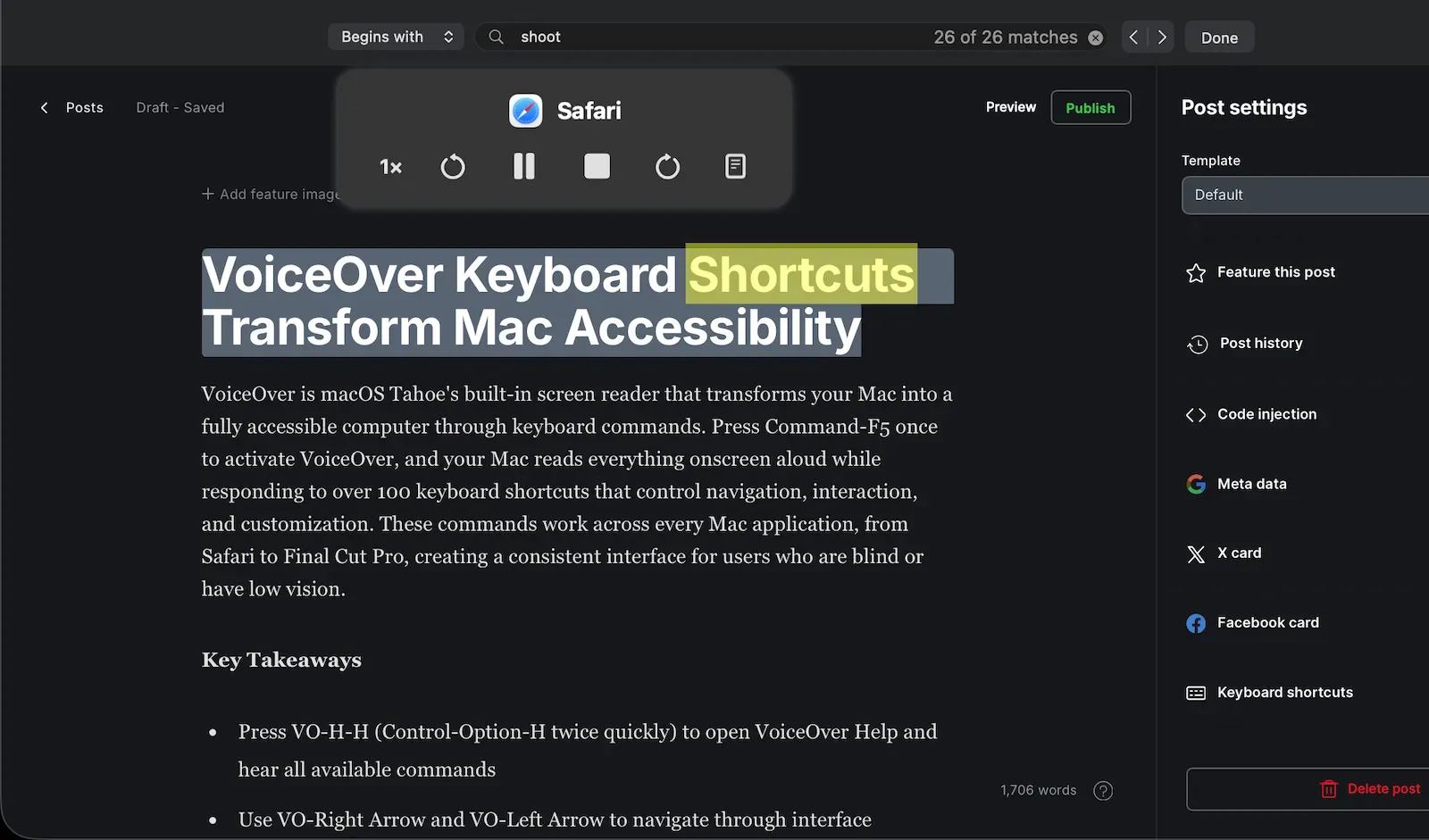
VoiceOver is macOS Tahoe's built-in screen reader that transforms your Mac into a fully accessible computer through keyboard commands. Press Command-F5 once to activate VoiceOver, and your Mac reads everything onscreen aloud while responding to over 100 keyboard shortcuts that control navigation, interaction, and customization. These commands work across every Mac application, from Safari to Final Cut Pro, creating a consistent interface for users who are blind or have low vision.
Key Takeaways
- Press VO-H-H (Control-Option-H twice quickly) to open VoiceOver Help and hear all available commands
- Use VO-Right Arrow and VO-Left Arrow to navigate through interface elements sequentially
- Press VO-Space to activate buttons, links, and controls without using a mouse
- Master the rotor with VO-U to jump directly to headings, links, or form controls
- Create custom Commander shortcuts in VoiceOver Utility for your most-used actions
- Enable VoiceOver navigation modes to switch between different reading styles instantly
Quick Command Reference
| Command | Function | Use Case |
|---|---|---|
| VO-Right/Left Arrow | Navigate elements | Moving through interface items |
| VO-Space | Activate items | Clicking buttons and links |
| VO-A | Read from top | Hearing full page or document |
| VO-U | Open rotor | Quick navigation by element type |
Getting Started with VoiceOver Commands
The VO key is your foundation. Hold Control and Option together—this becomes "VO" in every command. With macOS Tahoe running, press Command-F5 to start VoiceOver. Your Mac announces "VoiceOver on" and begins speaking interface elements as you navigate.
Start with VO-Right Arrow. Each press moves VoiceOver focus to the next item—menu bars, dock icons, window controls, text fields, buttons. VO-Left Arrow moves backward. This sequential navigation works everywhere, from system preferences to web browsers.
Press VO-A to hear everything from your current position to the end of a page or document. Stop reading with the Control key. Resume with VO-A again. VoiceOver remembers where it stopped.


Affiliate disclosure: some links in this article are Amazon Associate links. If you buy through them, Next Level Mac may earn a small commission at no extra cost to you, and we only recommend products that genuinely bring value to your Mac setup.
Essential Navigation Commands
Navigation speed increases when you know these core commands. VO-Home jumps to the first item in a window or webpage. VO-End reaches the last item. VO-Command-Right Arrow moves to the next window. VO-Command-Left Arrow returns to the previous window.
The dock requires specific commands. Press VO-D to enter the dock from anywhere. Arrow keys navigate dock icons. Press VO-Space on any icon to launch that application. Exit the dock with Escape.
Menu bars follow a different pattern. VO-M opens the menu bar. Right and Left Arrow keys move between menus. Down Arrow reveals menu items. VO-Space selects the highlighted item. This works in every Mac application's menu bar.
Window navigation uses VO-F2 to open the Application menu, VO-F3 for Window menu commands, and VO-F8 to access toolbar items. These shortcuts eliminate mouse dependency for complete window control.
Rotor Navigation for Speed
The rotor is VoiceOver's most powerful navigation tool. Press VO-U to open it. Left and Right Arrow keys switch between categories—headings, links, form controls, tables, images, landmarks. Up and Down Arrow keys move through items within each category.
Web navigation becomes efficient with rotor commands. Press VO-U, select Headings with Left or Right Arrow, then Down Arrow through every heading on a page. Press VO-Space on any heading to jump directly there. This works identically for links, buttons, and form fields.
VoiceOver provides specialized rotors for specific content types. VO-Command-U opens the Link rotor. VO-Command-I reveals the Images rotor. VO-Command-T displays the Table rotor. Each rotor filters content by type, making large webpages and documents navigable.
Create custom rotor categories in VoiceOver Utility. Open System Settings, click Accessibility, select VoiceOver, then click Open VoiceOver Utility. Navigate to Web Rotor settings to add or remove categories based on your browsing patterns.
Reading and Interacting with Text
Text navigation requires character-level precision. VO-Right Arrow with Shift held moves by word instead of item. VO-Down Arrow reads the next line. VO-Up Arrow reads the previous line. Add Command to these combinations to jump by paragraph.
Character-by-character reading uses VO-Right Arrow when VoiceOver is focused on text. Mac announces each letter, number, or punctuation mark. Hold Shift with these commands to spell words phonetically—useful for technical terms or proper names.
Text editing commands extend VoiceOver's capabilities. VO-Shift-Down Arrow selects text. VO-C copies selected text. VO-X cuts. VO-V pastes. These work in any text field or document, maintaining VoiceOver focus throughout the editing process.
VoiceOver speaks formatting attributes. Press VO-T while focused on text to hear font name, size, color, and styling. VO-Shift-T toggles detailed text attribute announcements on and off, useful when formatting matters for document structure.
Interacting with Controls
Buttons, checkboxes, and sliders require specific interaction commands. Navigate to any control with VO-Arrow keys. Press VO-Space to activate buttons or toggle checkboxes. For sliders, use VO-Down Arrow and VO-Up Arrow to decrease and increase values.
Pop-up menus and combo boxes need VO-Space to open them. Arrow keys navigate options. VO-Space again selects the highlighted option. Escape closes the menu without selecting.
Radio buttons work as groups. Navigate to a radio button group with VO-Arrow keys. Use Arrow keys alone (without VO) to move between radio options within the group. VoiceOver announces when you enter and exit radio button groups.
Tab groups in applications use VO-Right Arrow and VO-Left Arrow to navigate tabs. VO-Space activates the selected tab, revealing its contents. This pattern works in System Settings, applications with multiple panels, and web browsers.
Advanced VoiceOver Techniques
VoiceOver Commanders let you create custom keyboard shortcuts. Open VoiceOver Utility, select Commanders, then Keyboard Commander. Assign any VoiceOver command to number pad keys or function keys. Users who navigate spreadsheets frequently can map table navigation commands to convenient keys.
QuickNav mode enables arrow key navigation without holding VO. Enable QuickNav by pressing Left Arrow and Right Arrow together. Arrow keys alone now navigate. Up and Down Arrow move through items, Left and Right Arrow move by category. Toggle QuickNav off the same way.
The Item Chooser finds specific interface elements instantly. Press VO-I to open it. Type part of a button name, label, or heading. VoiceOver filters the list as you type. Press Return on any item to jump directly there. This surpasses sequential navigation for complex interfaces.
VoiceOver Utility offers extensive customization. Navigate to the Verbosity section to control how much information VoiceOver speaks. Adjust pronunciation dictionaries for technical terms or proper names VoiceOver mispronounces. Set web browsing preferences for how VoiceOver announces page elements.
Keyboard Selection for VoiceOver
Physical keyboards matter for VoiceOver efficiency. Full-size keyboards provide dedicated arrow keys and a numeric keypad, both essential for fast navigation. The inverted-T arrow key cluster enables one-handed VoiceOver control when combined with Control-Option.
Keyboards with mechanical switches give tactile feedback that helps locate keys without looking. This benefits partially sighted users and anyone learning VoiceOver commands. Key travel distance and activation force affect typing speed during text-heavy VoiceOver sessions.
The Logitech MX Keys S for Mac deserves attention from VoiceOver users who spend hours navigating by keyboard. Its spherically-dished keys create finger wells that help you maintain orientation on the keyboard without looking—critical when your hands never leave the home row during extended VoiceOver sessions. The smart backlit keys activate when your hands approach, providing just enough illumination for users with partial vision to locate specific keys during complex command sequences, then dimming automatically to preserve battery. Where you can get the Logitech MX Keys S for Mac https://www.amazon.com/dp/B0BXX499PC?tag=nextlevelmac-20
Apple's Magic Keyboard with Touch ID solves a specific VoiceOver workflow problem: authentication interruptions. When macOS requests your password or approval for system changes, VoiceOver users typically must stop their workflow, navigate to a password field, type carefully, then resume navigation. Touch ID eliminates this friction—place your finger on the sensor and authentication completes instantly while VoiceOver continues announcing your current location. This keeps you in flow during long work sessions where multiple authentication prompts would otherwise break concentration. The low-profile scissor mechanism provides consistent key response across the entire keyboard, so VO-Arrow commands feel identical whether you're navigating near the spacebar or along the function row. This is where to buy the Apple Magic Keyboard with Touch ID https://www.amazon.com/dp/B09BRG3GRR?tag=nextlevelmac-20
Wireless keyboards eliminate cable clutter but require battery management. Keyboards that provide battery level announcements through VoiceOver prevent unexpected shutdowns mid-task. USB-C rechargeable models avoid the hassle of battery replacements entirely.
Accessibility and Clarity
VoiceOver keyboard shortcuts eliminate every barrier between blind users and their Macs. Command sequences replace visual interfaces entirely, creating equivalent access to system features, applications, and web content. This keyboard-driven interaction model works regardless of vision ability.
Physical keyboard design affects VoiceOver usability in measurable ways. Standard key spacing of 19mm matches finger width for most users, reducing accidental key presses during rapid command sequences. Key travel between 1.5mm and 4mm provides sufficient tactile feedback without requiring excessive force.
Keyboard layouts with visual and tactile F-key markers help users locate function keys by touch alone. Raised dots or different textures on F5 (VoiceOver toggle) and F keys used in frequent commands reduce cognitive load when executing shortcuts from memory.
VoiceOver's consistent command structure across all macOS applications reduces learning time. The same VO-Arrow navigation works in Safari, Mail, TextEdit, and Final Cut Pro. This predictability lets users transfer skills between applications rather than learning application-specific shortcuts.
Screen reader compatibility with third-party applications depends on developers following Apple's accessibility guidelines. Applications built with standard macOS interface elements work immediately with VoiceOver. Custom interfaces require additional accessibility coding—inconsistent implementation creates navigation barriers that keyboard shortcuts cannot overcome.
Command Cheat Sheet
Copy these essential commands for quick reference:
Basic Navigation
- VO-Right Arrow: Next item
- VO-Left Arrow: Previous item
- VO-A: Read all
- VO-Space: Activate item
Window and Menu Control
- VO-M: Menu bar
- VO-D: Dock
- VO-F2: Application menu
- VO-Command-Right/Left Arrow: Switch windows
Rotor and Quick Navigation
- VO-U: Open rotor
- VO-Command-U: Link rotor
- Left/Right Arrow (in QuickNav): Change navigation type
- Up/Down Arrow (in QuickNav): Move through items
Text Reading
- VO-A: Read from cursor
- VO-Down Arrow: Next line
- VO-Up Arrow: Previous line
- VO-T: Speak text attributes
System Commands
- Command-F5: Toggle VoiceOver on/off
- VO-H-H: VoiceOver Help
- VO-F8: VoiceOver Utility
- VO-I: Item Chooser
Master these shortcuts through daily practice. VoiceOver Help (VO-H-H) includes interactive training that speaks commands as you press them. Open VoiceOver Utility to customize commands and create personal workflows that match your navigation style.

Related Posts
Mac Accessibility for Dyslexia: Fonts, Tools, and Settings That Make Reading Easier
Jan 15, 2026
Use AirPods Pro 3 as Hearing Aids on Your Mac in macOS Tahoe
Jan 14, 2026
Magnifier for Mac in macOS Tahoe: Your Built-In Visual Aid
Jan 14, 2026