
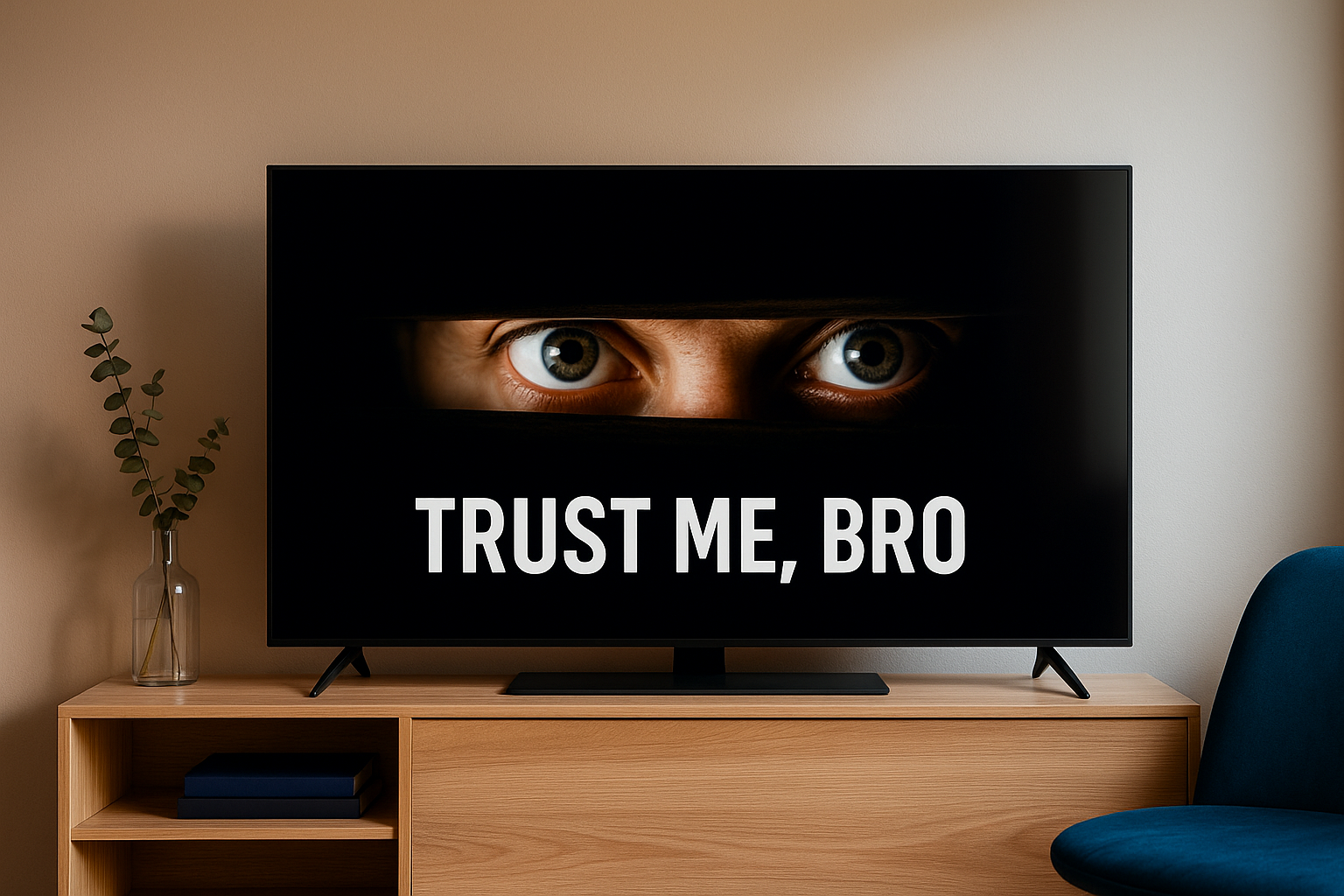

I wish I could tell you that this is just fear mongering and a means of getting you to click and read the article. But it isn't; this problem is real.
I know because it was happening to me an my family.
Our smart TV, specifically the Samsung 65" S90C, was spying on us. How often, you ask? Twice every second, to put a finer point on it. That is so not ok with me.
Not only do I value my privacy and my family's privacy, I had no idea it was even happening. It's all done in kind of an underlying way that isn't super obvious. An innocuous-looking "I agree" along the setup process clicked, and you just agreed to be spied on.
I don't want this to happen to you also.
To that end, I've put together some strategies to help you get rid of the spying abilities of your smart TV. Then you can take the next steps that empower you to use your smart TV without worry both now and down the road.
The problem defined
Smart TVs look like simple screens, but many of them quietly watch what is on the panel. They do this with automatic content recognition that scans frames, matches them against a database, and logs what is being watched.
That scanning keeps working even when a MacBook or Apple TV 4K is plugged in over HDMI. From the TV’s point of view, it just sees pixels, and it can analyze those pixels whether they come from built in apps or an external device.
The data this creates can include which services are used, which shows are played, and how long the TV stays on. Manufacturers and ad partners can bundle that into viewing profiles that follow habits across apps and services.
Once you know the TV can automatically capture what is on screen, the fix becomes clearer. The panel needs to be treated like a monitor for Apple devices and not as a smart hub that phones home.
Step one: keep the TV completely offline
The strongest way to block that automatic capture from leaving the house is to keep the TV off the network. If it never connects to Wi-Fi and never sees an Ethernet cable, it has no path to upload viewing logs.
On a new TV, skip the Wi-Fi step during setup and look for options like “Use without network” or “Set up later.” If the set keeps pushing for a network, keep choosing the offline path until it finally shows the HDMI inputs.
Do not plug Ethernet into the TV at all if privacy is a priority. That single cable is enough to turn the panel into a constant reporter of what is on screen.
If the TV refuses to show HDMI without a network account, that is a sign to be wary of that model. A panel that can act as a simple display with no account and no internet is a better fit for an Apple-centric setup.
In all fairness, panels like this are getting harder to find. If you cannot proceed past the initial setup without going online, set up the TV online, then immediately disconnect it from the internet. Or better yet, consider exchanging it for a TV that doesn't put you in that position in the first place. Vote with your wallet.
Step two: remove tracking features from the TV itself
Keeping the TV offline stops data from leaving, but tracking options should still be turned off at the source. That way, if someone connects it later, the most aggressive features are already disabled.
Look in the settings for privacy or user agreements sections. Common names to watch for include “Viewing Information,” “Automatic Content Recognition,” “Personalized Ads,” and “Viewing Data.”
Turn off anything that mentions analyzing what is on screen or using viewing history for recommendations or advertising. If there is a separate toggle for ACR, switch it off even if the TV is already offline.
Some updates quietly add new toggles or change labels. Every few months, it is worth opening the privacy menus again to make sure nothing new has slipped in and turned itself on.
The aim is to leave the TV in a state where it simply displays the signal on its HDMI port. All of the “smart” analysis stays disabled so the panel is not trying to understand and log every frame.
⸻
Step three: let Apple TV 4K do the smart work
With the TV stripped down to being a screen, something has to handle streaming, apps, and recommendations. That job belongs with a device you can trust and reset easily, such as Apple TV 4K.
The current Apple TV 4K (3rd generation, 128 GB, Wi-Fi + Ethernet) is built to sit at the center of this kind of setup. It runs tvOS, handles Apple services, supports popular streaming apps, and turns the TV into an external display for a privacy-controlled box.
The place to buy the Apple TV 4K (3rd generation, 128 GB, Wi-Fi + Ethernet) used in this setup (Amazon Affiliate Link):
https://www.amazon.com/dp/B0DS6FK1S2?tag=nextlevelmac-20&gbOpenExternal=1
Connect Apple TV 4K to the same network as iPhone, iPad, and Mac to keep watchlists and subscriptions in sync. Use the Apple TV remote instead of the TV’s own smart buttons so the panel never needs to open its home screen.
Set the TV to power on directly into the HDMI input used by Apple TV if that option exists. That keeps the interface consistent and avoids the TV’s own app rows, sponsored rails, and recommendation feeds.
Step four: stop the TV from slipping back online
A smart TV that was once connected often tries to reconnect on its own. A privacy-focused setup needs a couple of guardrails to keep that from happening.
In the Wi-Fi menu, remove any saved networks so the TV does not silently rejoin when the router name or password is recognized. If there is a “forget network” option for your main Wi-Fi, use it to clear it out completely.
Leave Wi-Fi turned off in the menu after that. Do the same for wired networking by keeping the Ethernet port empty and avoiding loose cables near the back of the cabinet.
Some sets include a master toggle to disable network interfaces entirely. If that exists, turn off both Wi-Fi and wired networking as another layer of protection on top of staying offline.
If a guest wants to stream something, point them to Apple TV profiles instead of logging into apps on the TV itself. That keeps all sign-ins and viewing history on the Apple side, where you can easily sign out later.
Step five: use a smart plug for a hard “off”
Even with tracking options off and the TV offline, many sets keep a low-power state when they look off. A smart plug lets you cut power completely when the room is done for the night.
For an Apple-centric home, a Matter-compatible outlet that works with Apple Home fits best. It lets you shut down the TV stack with a tap or an automation, without ever giving the panel its own network connection.
The Eve Energy Outlet (Matter) smart plug is one example that matches that role. It supports Apple Home, Matter, and Thread, and it focuses on local control so it can be part of a privacy-minded setup.
Where you can get the Eve Energy Outlet (Matter) smart plug suggested here (Amazon Affiliate Link):
https://www.amazon.com/dp/B0CT62FC6W?tag=nextlevelmac-20&gbOpenExternal=1
Plug the TV and Apple TV 4K into a small strip, then plug that strip into the smart outlet. A “Goodnight” scene in the Home app can shut everything off, and a “Movie Time” scene can bring it all back up at once.
Avoid turning power off while the TV or Apple TV is updating software. If an update banner appears, wait until it completes before using the outlet to cut power.
Habits that keep the TV in its lane
Once the TV behaves like a dumb panel, a few small habits help keep it that way.
They are simple, but they prevent drift back into old patterns.
Treat the TV’s home screen as something you never need. If a button on the remote jumps there, use the Apple TV remote to go right back to the HDMI input.
Skip manufacturer accounts and “free TV” promotions that want logins and tracking consent. Those are built around data collection, not around making life easier for Apple TV users.
Check the privacy menus again after any big firmware update, even if the panel stays offline. New toggles sometimes appear, and it only takes a minute to switch them off.
If the TV ever starts showing strange, hyper specific ads or recommendations that mirror Apple TV viewing, take that as a warning sign. It usually means a cable got plugged in, a Wi-Fi password was entered, or a tracking switch flipped back to on.
One more thing
Before you buy your next smart TV, do your research. Check online sources for information about the manufacturers that respect your privacy—ant the ones that don't.
A simple Google search will start to steer you in the right direction before your plunk down your money on a new TV. Read online reviews from the retailer you're considering purchasing your TV from, as it might be a model exclusive to that retailer. Read wikis from advocacy groups dedicated to documenting brands and products that track your activities.
Getting educated before you buy your next TV, or even use your current one again, is the key. Take control of your smart TV and you won't have to wear that tinfoil hat. They do tend to fit quite nicely, though, once moulded to the shape of your head. Ask me how I know.

Related Posts
Repurpose Your Old iPad: Ultimate Smart Home Dashboard Guide
Dec 07, 2025
Fix Apple Home Wi-Fi Lag: Router Settings That Work (2026)
Dec 01, 2025
Unlock Your Door With Your Watch: The Best Apple Home Key Smart Locks
Nov 29, 2025